Form Data Sets
Experlogix Documents Form Data Sets provide a flexible Low-code / No-code / Pro-code environment that enables technical and non-technical users to design and manage custom forms. The solution supports rapid form creation through an intuitive drag-and-drop interface, eliminating the need for complex development efforts. With secure support for both authenticated and anonymous submissions, Form Data Sets streamline data collection across diverse business scenarios.
Key Form Features
| Feature | Description |
|---|---|
| Drag-and-Drop Functionality | Visually design forms without coding using an intuitive interface. |
| Conditional Logic | Configure dynamic field behavior based on user input or predefined rules. |
| Field Types Support | Includes text, number, date, file upload, custom fields, and nested structures. |
| Secure Access Control | Supports authenticated and anonymous submissions via configurable settings. |
| API Integration | Connect forms to systems and databases using built-in APIs. |
| Payload Limits | Form definition: 1 MB; Submission payload: 2 MB. |
| AI Assistant | Provides intelligent suggestions during form creation. |
|
Themes |
Apply a different theme to a specific form without affecting other forms in the project. |
Form Types
Experlogix Documents offers two main types of forms: Basic Forms and Advanced Forms.
Basic Forms
Basic forms include all essential features for form creation and is available with any license that supports forms data sets. It’s ideal for organizations that need standard document automation capabilities.
Advanced Forms
Advanced forms unlock more sophisticated form capabilities, suitable for complex workflows and integrations.
Advanced Form Features:
-
File fields
-
Custom fields
-
Data fields
-
Conditional logic and layout settings
-
Nested forms
-
Public forms
-
AI assistant
-
Form Themes
These two form types help organizations choose the right functionality based on their operational needs and budget.
Form definition and submission limits are set at 1 MB and 2 MB, respectively. For a detailed understanding of these limits, please refer to Understanding Form Payload Limits.
Form Data Set Settings
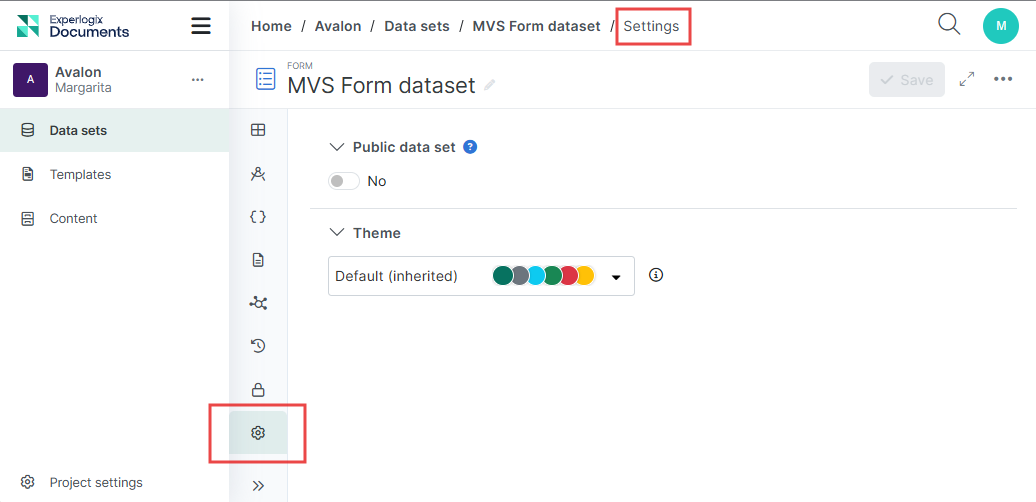
The Settings tab provides a place for managing Form access (private or public) and form themes.
Public Data Sets
By default, Data Sets you create are private and not accessible to non-authenticated users. To support your clients completing an anonymous form, you must ensure the Public Data Set setting for your data set is toggled to Yes.
Example
Shelly in Benefits Management needs to get the updated benefits selections for everyone in the company before the end of Q3. She can create a custom form with field selections and then share that form with all employees. If everyone in the company is authenticated to use Experlogix Documents, she can keep her Form Data Set private. However, if not everyone who needs to complete the form is authenticated, she'll need to make Form Data Set public to allow non-authenticated users to complete the form.
Nested Form Privacy Compatibility
To prevent inconsistent behavior and access issues, it is highly recommended that both the parent form and its hosting context use identical privacy settings (Public/Public or Private/Private).
Validation Rules for Nested Forms
To ensure data security, the system applies specific validation rules:
-
Private Parent Forms: Can include both public and private nested forms.
-
Public Parent Forms: If a private form is added inside a public parent form, the nested form will not render for end users.
To prevent this, the form builder applies validation and guidance logic when adding a Nested Form component:
- Only compatible public forms are available for selection.
- Private forms are automatically filtered out.
- UI guidance and notifications explain why some forms are unavailable.
This helps prevent invalid configurations and ensures nested forms render correctly in public forms.
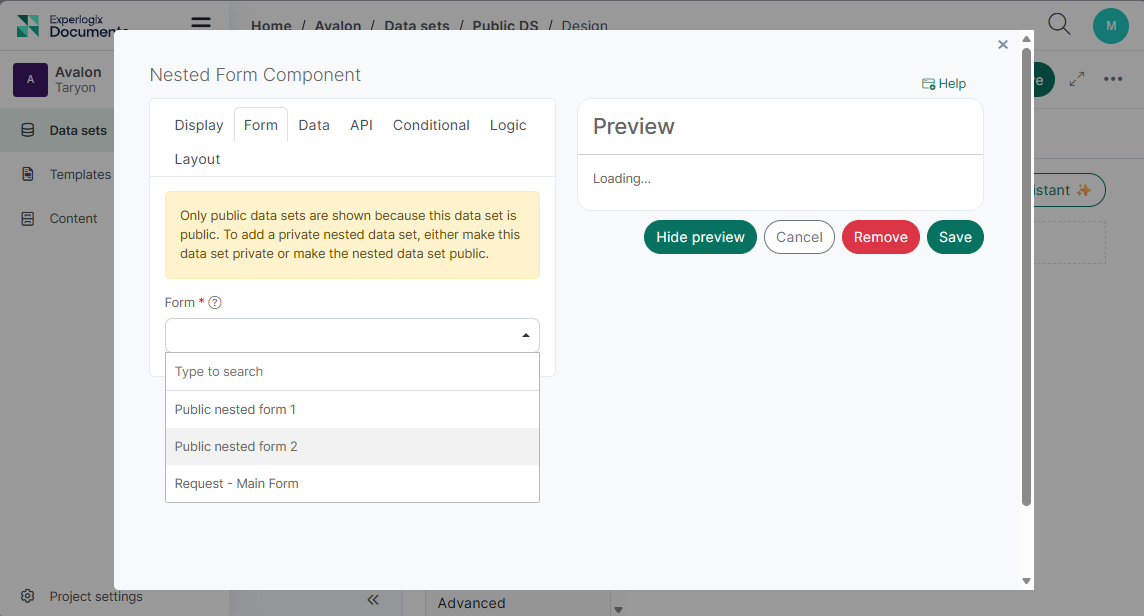
If the Parent form was created before Documents Automation version 1.0.0-preview.28 (Experlogix Documents Release Notes 1.0.0-preview.28), private forms will still appear in the list of available forms. Please review and adjust privacy settings to ensure consistency.
Privacy Changes:
If you change an existing private parent form to Public while it contains private nested forms, the system will display a warning message to help prevent configuration conflicts and rendering issues.
"Privacy mismatch detected. One or more nested data sets are private. This will prevent them from displaying to end users when rendered publicly. Please review and adjust the privacy settings as needed."
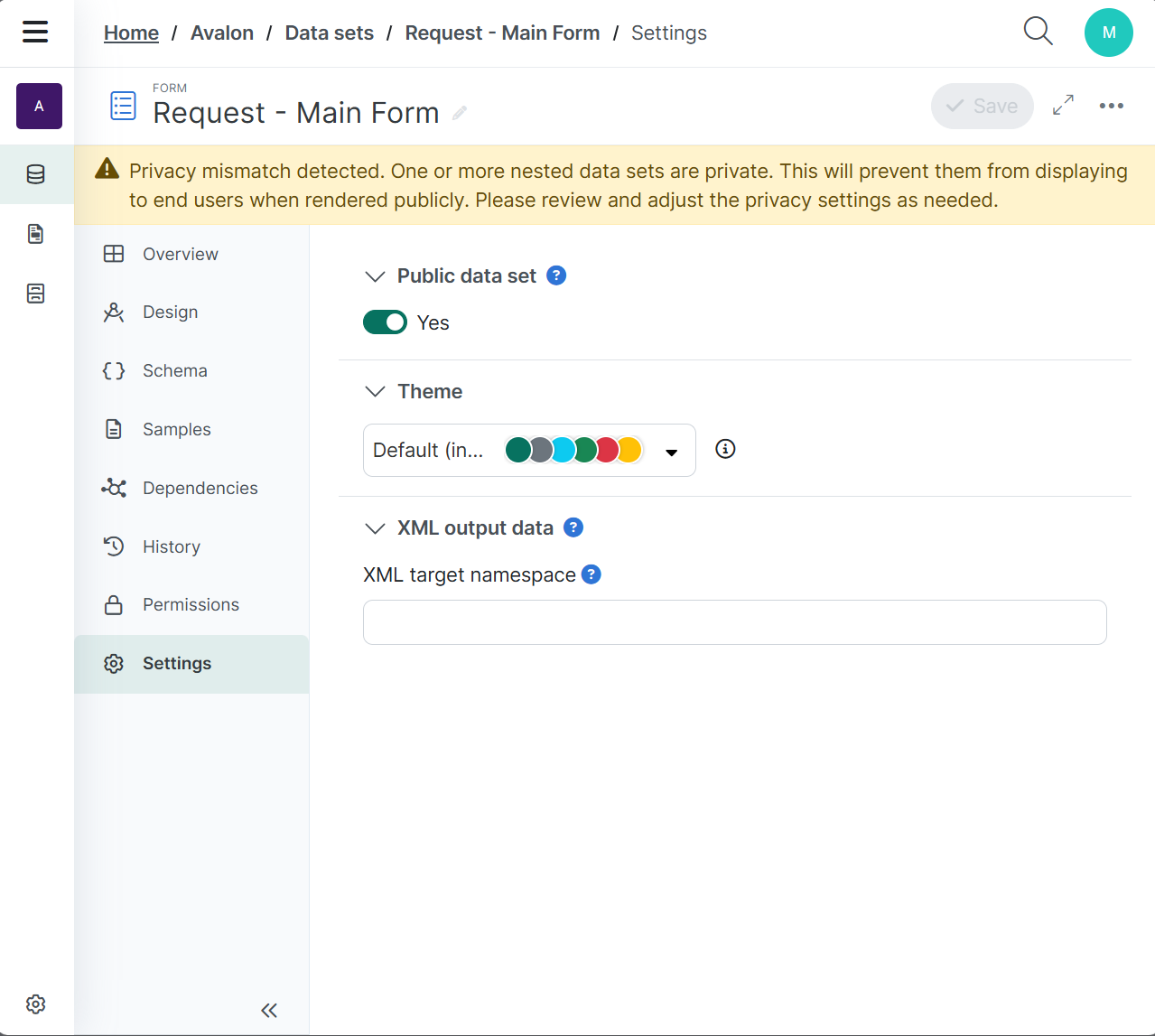
Recommended Action: Adjust the privacy settings of the parent or nested form(s) to align with Validation Rules for Nested Forms.
Themes
Themes for form data sets allow users to assign a specific theme to an individual form, overriding the theme defined in the Project Settings. This provides the flexibility to control the desired look and feel for each form independently.
This is especially efficient for organizations operating multiple brands or product lines. Form designers can simply select the theme that aligns with the required branding from a list of available themes, applying it quickly and consistently without restyling every form individually.
Themes management
Themes must be added to your project within the project settings before they are available in the Form Data Set settings. See Project Settings Themes Tab for detailed instructions.
Licensing
To update and manage form themes, make sure your license includes Themes and Form Themes for Advanced Forms. For more details, see Licensing.
Permissions
Both "Read project themes" and "Write data sets" permissions are required to update a form theme. To understand how permissions work across all types of items and how to manage them effectively, see Permissions and Groups.
View and Change Form themes
You can manage a form theme in the Form Data Set > Settings tab.
In this view, you will see the theme currently applied to the form. If no theme has been explicitly selected, the form automatically uses the current theme, which is inherited from the project settings.
To change a Form theme:
| 1. | Go to Form Settings. |
| 2. | Select a desired theme from the drop-down list. |
| 3. | Select Save to apply the change. |
Changing a theme creates an Update entry in the form’s history.
If the theme applied to the form is deleted, the form reverts to the project’s current theme, or to the system theme if the current theme is deleted.
Theme Inheritance and Transfer Rules
| Case | Description |
|---|---|
| Nested Form themes |
Forms inherit the parent form’s theme when added as nested forms. However, when used as standalone forms, they retain their own theme. |
| Cloning a Form | When cloning a form, the original form’s theme is retained. |