Fillable PDF Templates
Experlogix Documents supports 'Fillable PDF Templates' where users can map information to the PDF. This capability simplifies completing regulated forms and standardized PDFs by automatically prefilling them with data from systems of record or user input. For more information, see Create a PDF Template.
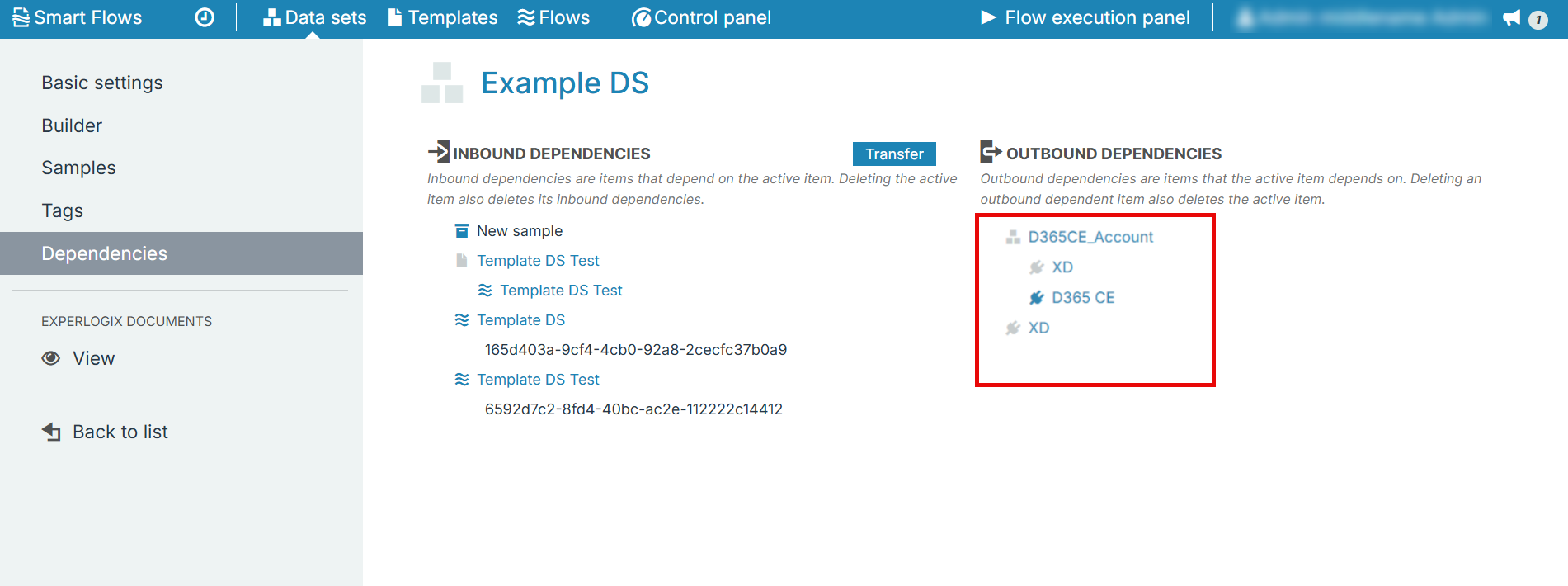
In Experlogix Smart Flows, designers can create a fillable PDF template using a standard data set, which automatically generates a corresponding Experlogix Documents XML data set. During template design, designers map fields from this XML data set. At runtime, Smart Flows retrieves data from connected systems and handles the conversion to the XML data set format, ensuring the PDF is correctly populated.
Data Set Synchronization
Experlogix Documents support only JSON, XML, and Form data set types. However, Smart Flows allows users to create additional data set types, including Standard, Custom, Schema, DocuSign, and Xpertdoc Portal Smart Form. To ensure these unsupported types can still be used in Experlogix Documents, Smart Flows automatically generates a corresponding XML data set for each one. This XML data set mirrors the schema of the original Smart Flows data set, making it compatible and Experlogix Documents–friendly. Follow the steps below to synchronize the data set from Smart Flows:
| 1. | In the Project Console, create a custom data set. See Creating a custom data set. |
| 2. | In the data set page, select +Create. |
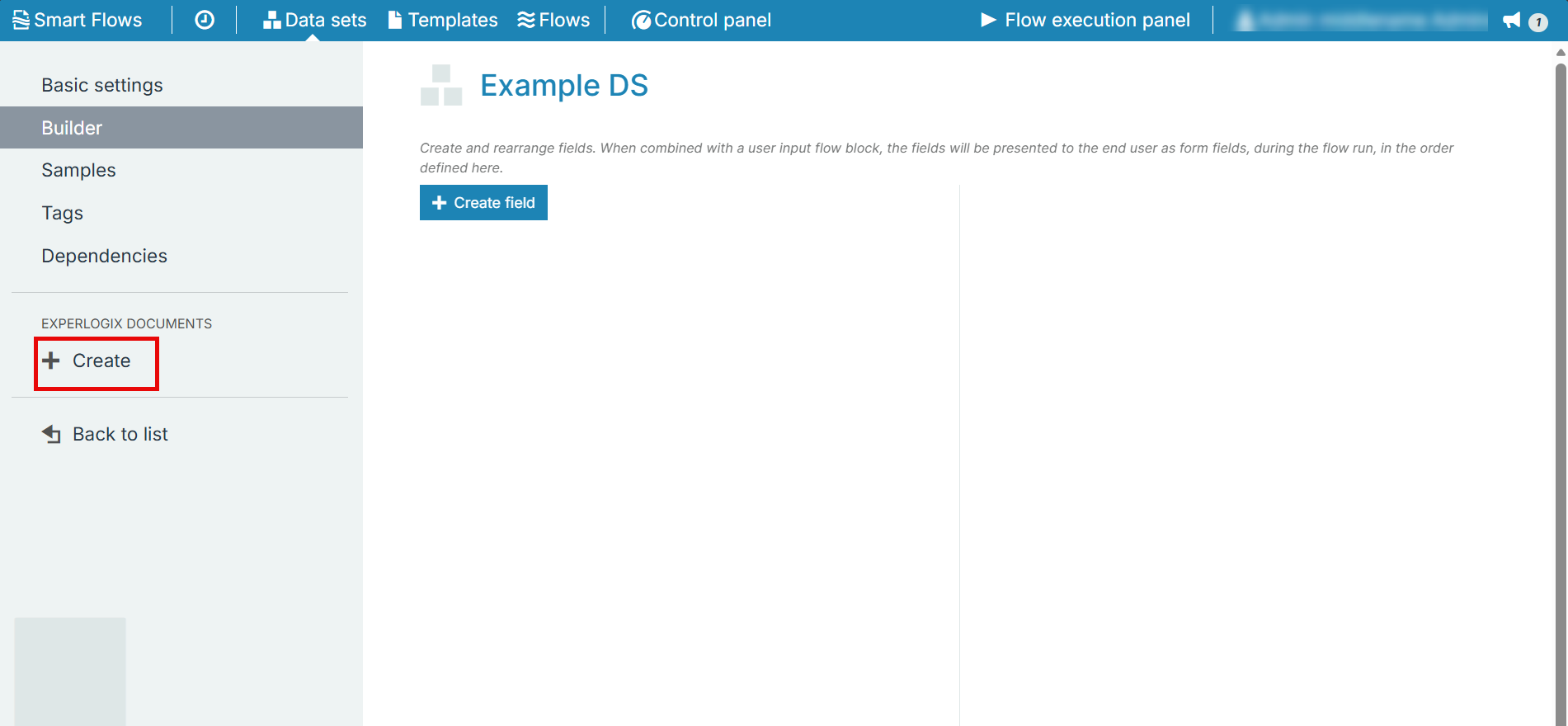
The data set is created in Experlogix Documents.
| 3. | Select View. |
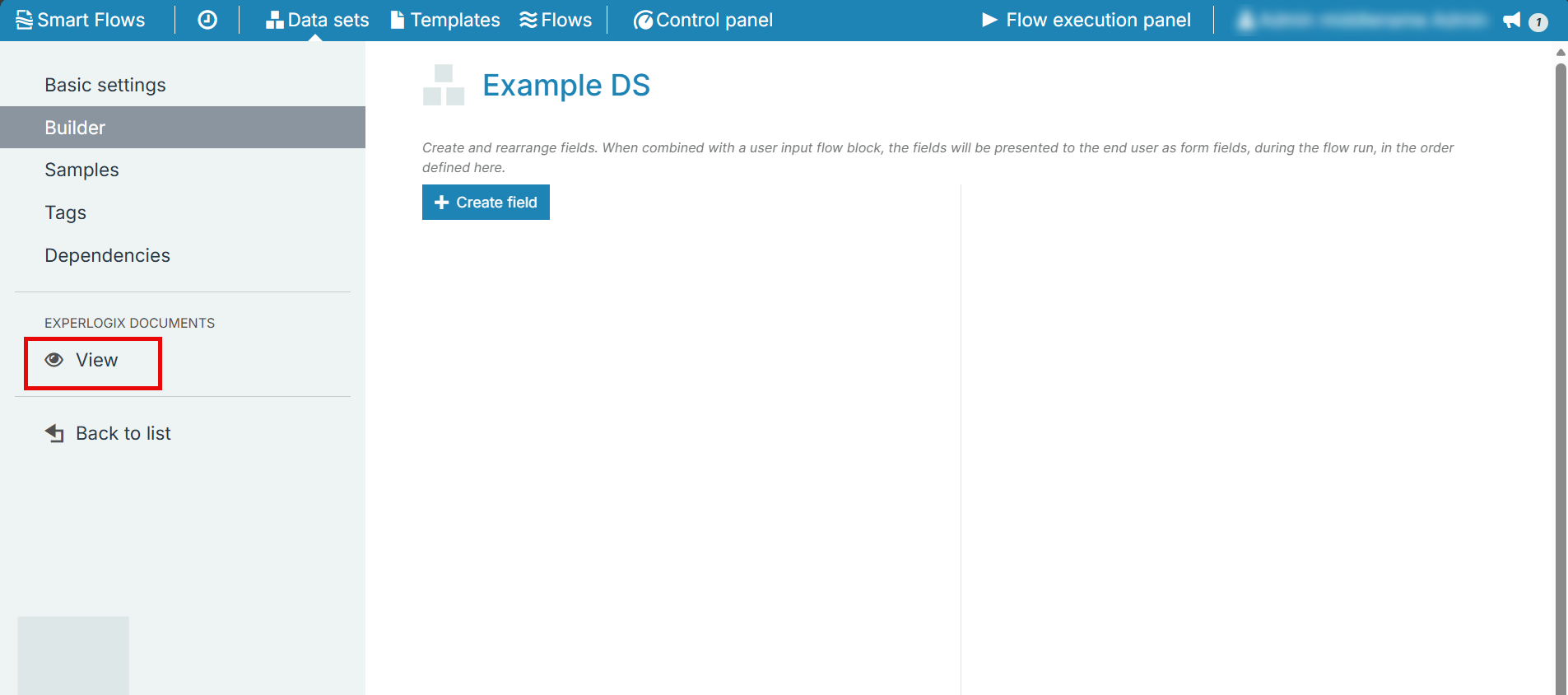
You can now see the data set in Experlogix Documents.
Samples Synchronization
Samples created in Smart Flows can be imported into Experlogix Documents. Follow the steps below:
| 1. | Select Samples of the data set created earlier. |
| 2. | Create a sample. For more information, see Samples in Project Console. |
| 3. | Select Import in Experlogix Documents. |
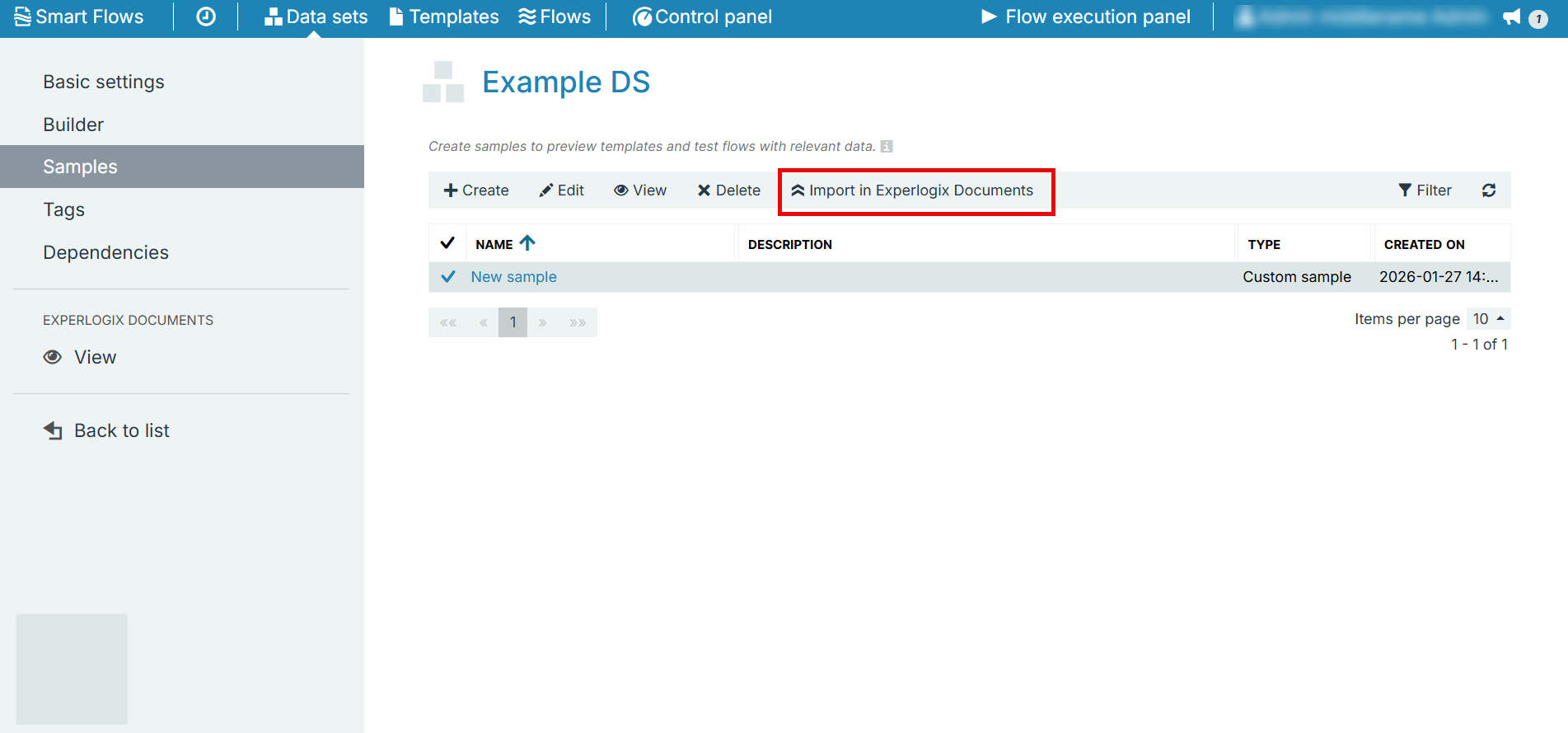
The Samples are now visible in Experlogix Documents.
Create a Fillable PDF Template
The Smart Flows project must have an Experlogix Documents connector configured, to view the 'Fillable PDF' option in the Create Template window. Follow the steps below:
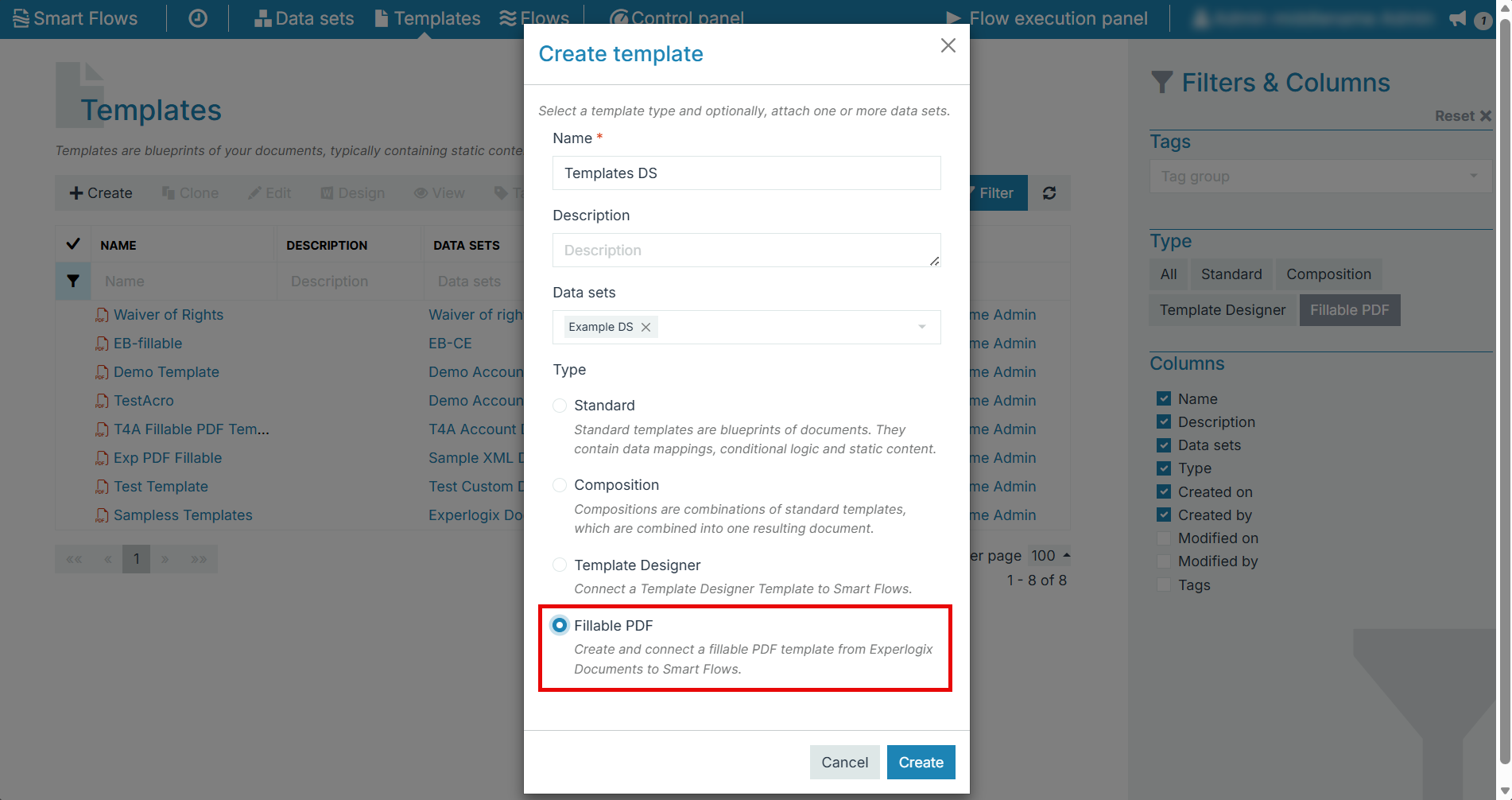
| 1. | Select Create in the Template's page. |
| 2. | Enter all the values in the Create Template window. |
| 3. | Select Fillable PDF option. |
| 4. | In the Template page, select Open. |
The Template editor section of Experlogix Documents is displayed.
| 5. | Select Design. |
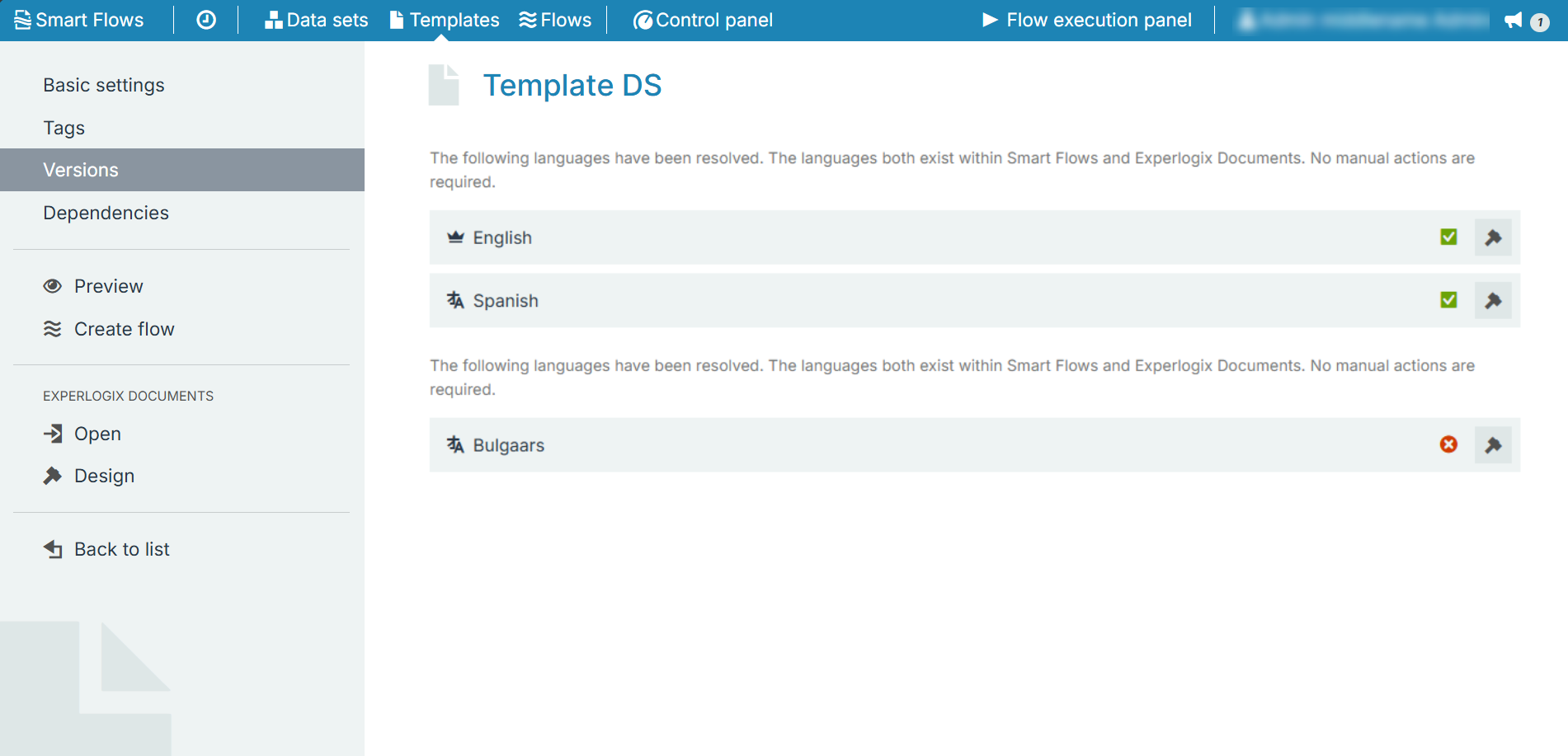
The design view of Experlogix Documents is displayed. If your project contains multiple languages, the applications prompts you to select one. If you choose a language that is not supported in Experlogix Documents, a warning message is displayed in the designer view.
In Smart Flows, you can view each language version in the Versions section.
If you edit a field’s name, description, or data set, the changes automatically appear in Experlogix Documents.
During execution, data sets mapped to the templates are merged to generate a fillable PDF using the mapped data. This ensures the PDF renders accurately and consistently every time.
Template Synchronization
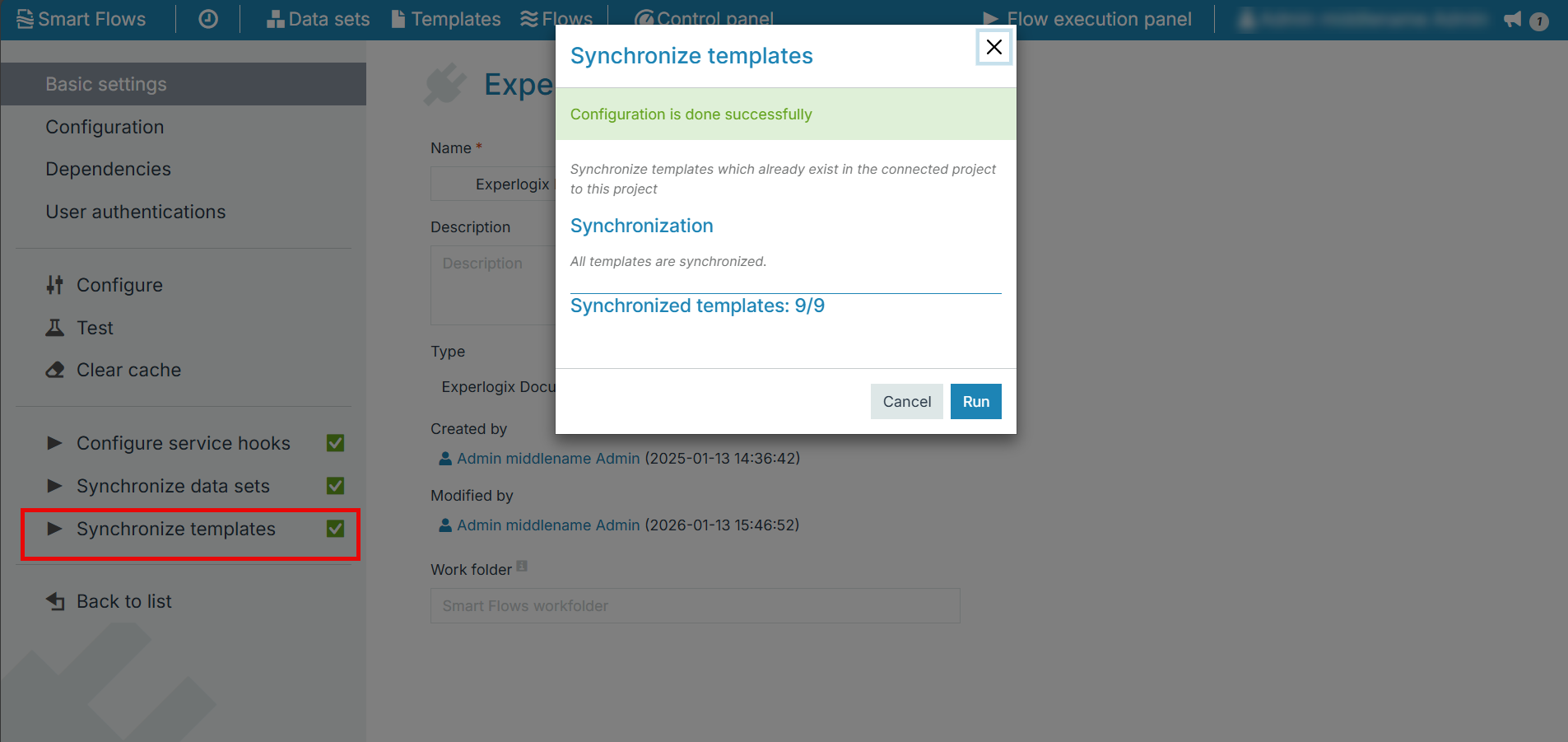
All the PDFs are automatically synchronized from Smart Flows to Experlogix Documents. In the Experlogix Documents connector page, you can view the Synchronize Templates option. Select the option to view the synchronization status of all the PDF templates.
Upon deleting the Experlogix Documents connector, the templates are retained in the Smart Flows. This dependency is grayed out in the template page