Templates
Templates are blueprints for your documents that you can fill with variables, logic, and values from your data sets. There are two types of templates available in Experlogix Documents: Word and PDF.
To access, create, and manage your templates, continue on to Templates view.
Templates View
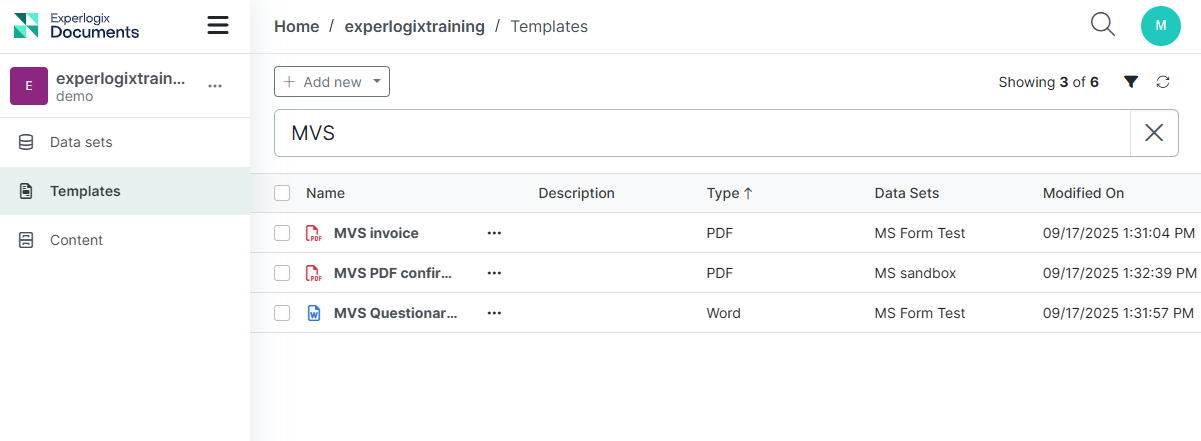
Templates view allows you to:
-
Create new templates
-
View and edit templates
-
Delete templates
| Column Name | Description |
|---|---|
|
Name |
Displays the name of the template. |
|
Description |
Displays the optional template description. |
|
Type |
Defines the type of template. |
|
Modified On |
Displays the date and time when the template was last modified. |
|
Data Sets |
Displays the data set(s) used for the template. |
To view more actions, select a template and click the ellipsis (⋯) to open the Actions menu :
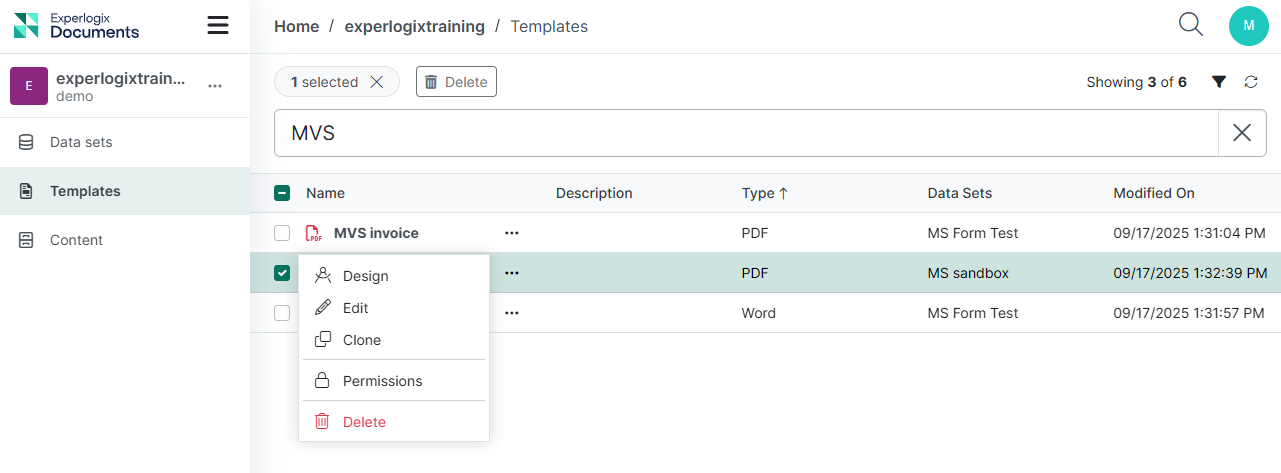
| Action | Description |
|---|---|
| Design |
Opens the Design view for PDF templates, or downloads a Word template for the Template Designer. |
| Edit | Opens the Edit view, allowing you to update the name and description, manage associated data sets, review template languages, dependencies, and history, and manage template permissions. |
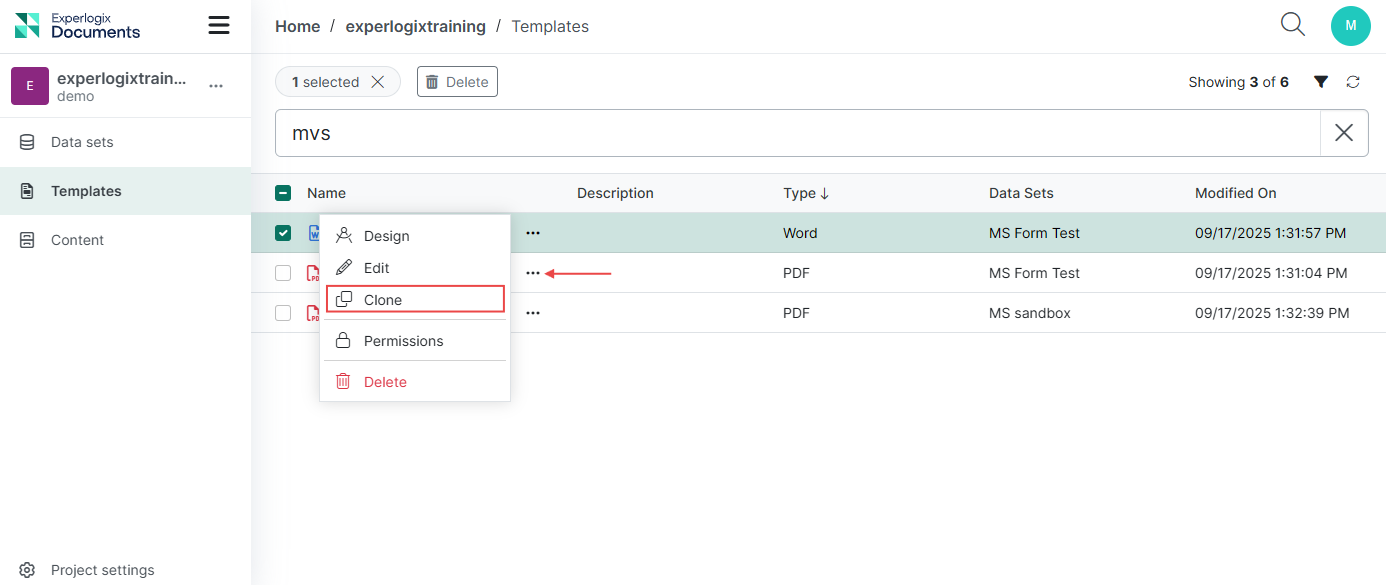
| Clone | Clones an existing template so you can quickly create a new one using its data. |
| Permissions | Allows users to add and remove groups and assign explicit permissions. |
| Delete | Deletes the template and its relationships permanently. This action does not delete the data sets used for the template. |
PDF Templates
The PDF Template Designer streamlines document automation by allowing users to upload and reuse existing PDF documents to create templates, significantly reducing the time and effort needed to build documents from scratch.
| 1. | Create a PDF Template: Upload a PDF document and open it as a template within the PDF designer interface. |
| 2. | Design a PDF Template: Map PDF fields to corresponding data set fields, and add logic to your PDF template. |
Create a PDF Template
In Experlogix Documents, PDF templates are created from AcroForms or static XFA PDF files uploaded into the system.
Field Mapping Compatibility
Supported field types:
-
Check boxes
-
Combo boxes
-
Dates
-
List boxes
-
Numbers
-
Radio buttons
-
Rich texts
-
Texts
The following field types are not yet supported for mapping:
-
Bar codes
-
Buttons
-
Untyped fields
-
Files
-
Passwords
-
Signatures
-
Images
Creating The PDF Template
Use the following steps to create your PDF template:
| 1. | In the Templates section, select Add New, then Fillable PDF Template from the dropdown menu. |
| 2. | Upload a PDF document. |
The uploaded file must meet the following requirements:
-
PDF AcroForm or static XFA format
-
Maximum file size: 200 MB
-
Not password-protected
| 3. | Select Template Language (for more information, see Template Languages). If only one language is available, the system will not prompt the user to select a language. |
| 4. | Choose one or more Data Sets |
| 5. | Add a Description. |
| 6. | Select Create. |
-
At the Create PDF Template step, only the Template Name is mandatory; the PDF document, data set(s), and language(s) can be added later.
-
When you click Create, if a PDF document has been uploaded, you'll be directed to the Design screen; otherwise, the Template Edit view will open.
Design a PDF Template
You can mMap fields and add logic to your PDF template in the Design screen. Mapping is the process of binding individual fields in a PDF template to specific data fields in a data source, such as a Form field or an XML node. This allows the generated document to be dynamically populated with data-driven values.
Mapping is the process of binding individual fields in a PDF template to specific data fields in a data source, such as a Form field or an XML node.
This allows the generated document to be dynamically populated with data-driven values.
Users can access the Design screen in two ways:
| 1. | For a new template: |
-
Upload your PDF document in the Templates view and get directed to the Design screen.
| 2. | For an existing template: |
-
In the Templates View, select the template you want to design.
-
Select the Actions menu (⋯) on the right and select Design from the dropdown.
-
Choose the Template language (for more information, see Template Languages).
-
Select Design.
or
-
Access the Design screen within the Template Edit view by selecting the Design button.
Design Screen
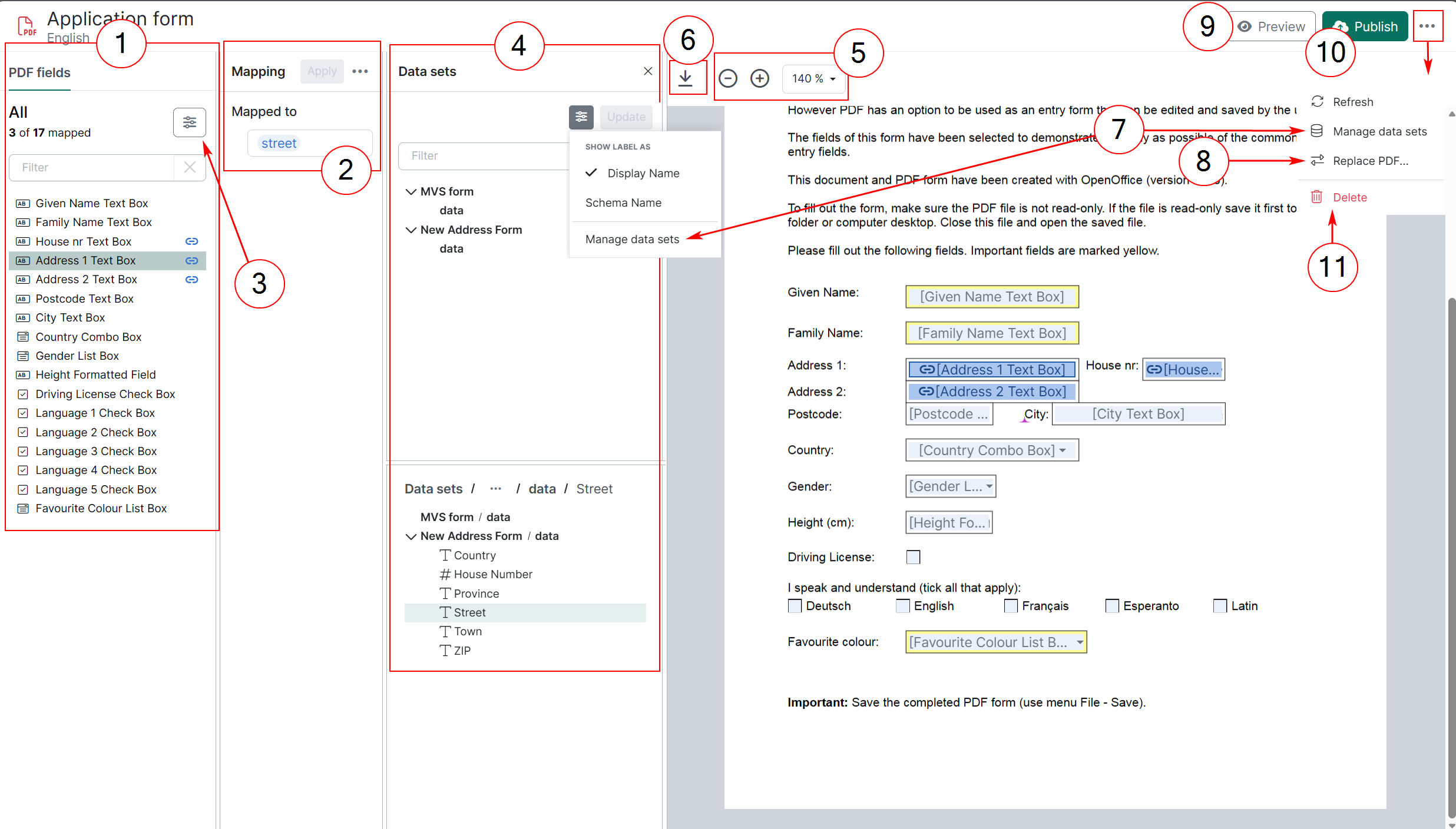
The Design screen allows you to:
| 1. | Map your data into template fields: Link fields from your data set(s) to the relevant template fields. |
| 2. | Edit mappings: Update PDF fields mappings by linking them to different data set fields. |
| 3. | View template fields: Use the filter to display all fields (default), mapped fields, or unmapped fields, and choose whether to sort the PDF fields alphabetically or by their document order. Refer to Field Mapping Compatibility for supported and unsupported field types. |
| 4. | View data sets: Filter data set fields by names, and choose to show either display or schema names. |
| 5. | Zoom In or Out: Use the zoom controls in the toolbar at the top of the PDF viewer (–, +, or percentage dropdown) to adjust the template scale. |
| 6. | Download template: Access the PDF document offline. |
| 7. | Manage data sets: Add, or remove data sets used in your template. |
| 8. | Replace PDF document: Replace the current document in the Design screen by selecting Replace PDF from the ellipsis menu and uploading a new PDF document. |
| 9. | Preview template: Preview Mapping calculates mappings and displays the final output using sample data. |
| 10. | Publish template: Publish the changes made to your template. |
| 11. | Delete: This action will delete the PDF template language variant. Select the ellipsis menu (⋯) in the top right corner, and select Delete language variant from the list. |
Deleting a language variant removes only the template for that variant, not the language itself.
Removing a template language variant is permanent and cannot be undone.
Mapping the PDF template
Users map PDF fields to corresponding data set fields, enabling the template to retrieve the necessary data during document generation.
Create a mapping
Open your PDF template in the Design Screen.
If one or more data sets are associated with the template, the data sets view opens automatically when the user selects a PDF field.
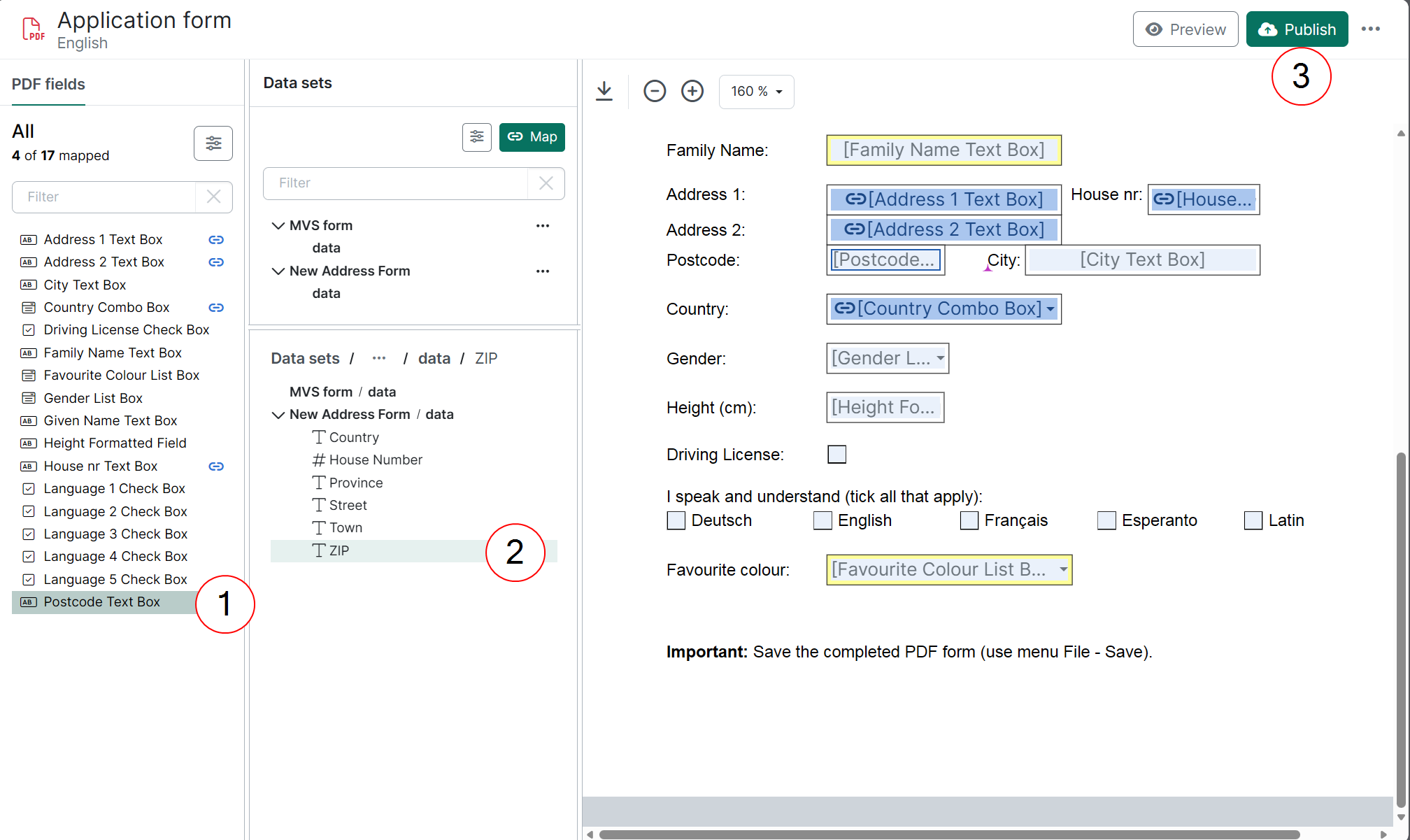
| 1. | Select the target PDF field for data mapping — either from the list of available PDF fields or directly within the PDF document. |
| 2. | Select a data set field from the available data set(s): browse or filter the data set(s) to find the desired field. |
| 3. | Create the mapping by double-clicking the data set field or by using the Map button. |
If a PDF field appears multiple times in the document, the same mapping is automatically applied to all of its occurrences.
Read-only fields cannot be mapped.
Expression mappings
An expression is a combination of functions, fields, operators, and values used to calculate and produce a result. By supporting Power Fx alongside standard field-to-field mapping, Experlogix Documents empowers you to create more dynamic and customized data outputs. For instance, you can seamlessly concatenate text fields like merging a first and last name, apply conditional logic to display dynamic order statuses, or perform real-time mathematical calculations directly within your data fields.
Expressions are essential for scenarios that require more than just data transfer:
-
Calculated Values: Define values that aren't present in your data set.
-
Data Manipulation: Transform existing values, such as changing text formatting or performing calculations..
-
Complex Logic: Create advanced conditions that go beyond standard mapping capabilities.
Experlogix documents uses the standard Power Fx expression engine. For a complete list of supported functions and syntax examples, you can refer to the official Microsoft Power Fx formula reference.
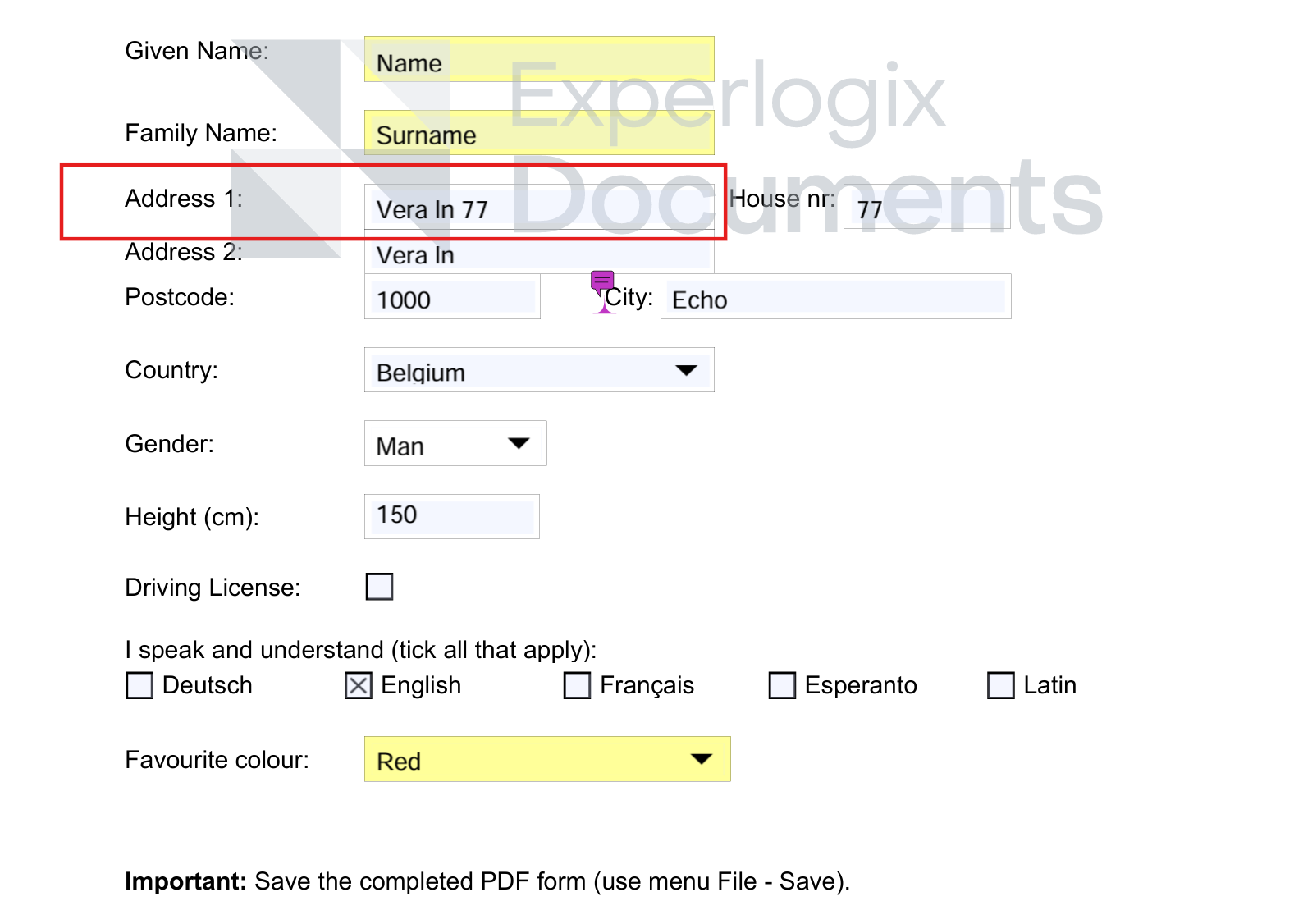
Use Case: Merging Fields
A user needs to combine the Street and House Number field values into a single Address 1 field. To do this, they create an expression mapping and use the following concatenation formula:
Concatenate(New_Contact_Form.street, " ", New_Contact_Form.houseNumber)
The result: The PDF automatically merges both values into one seamless line, ensuring the address is formatted perfectly without any manual data changes.
Create a New Expression Mapping
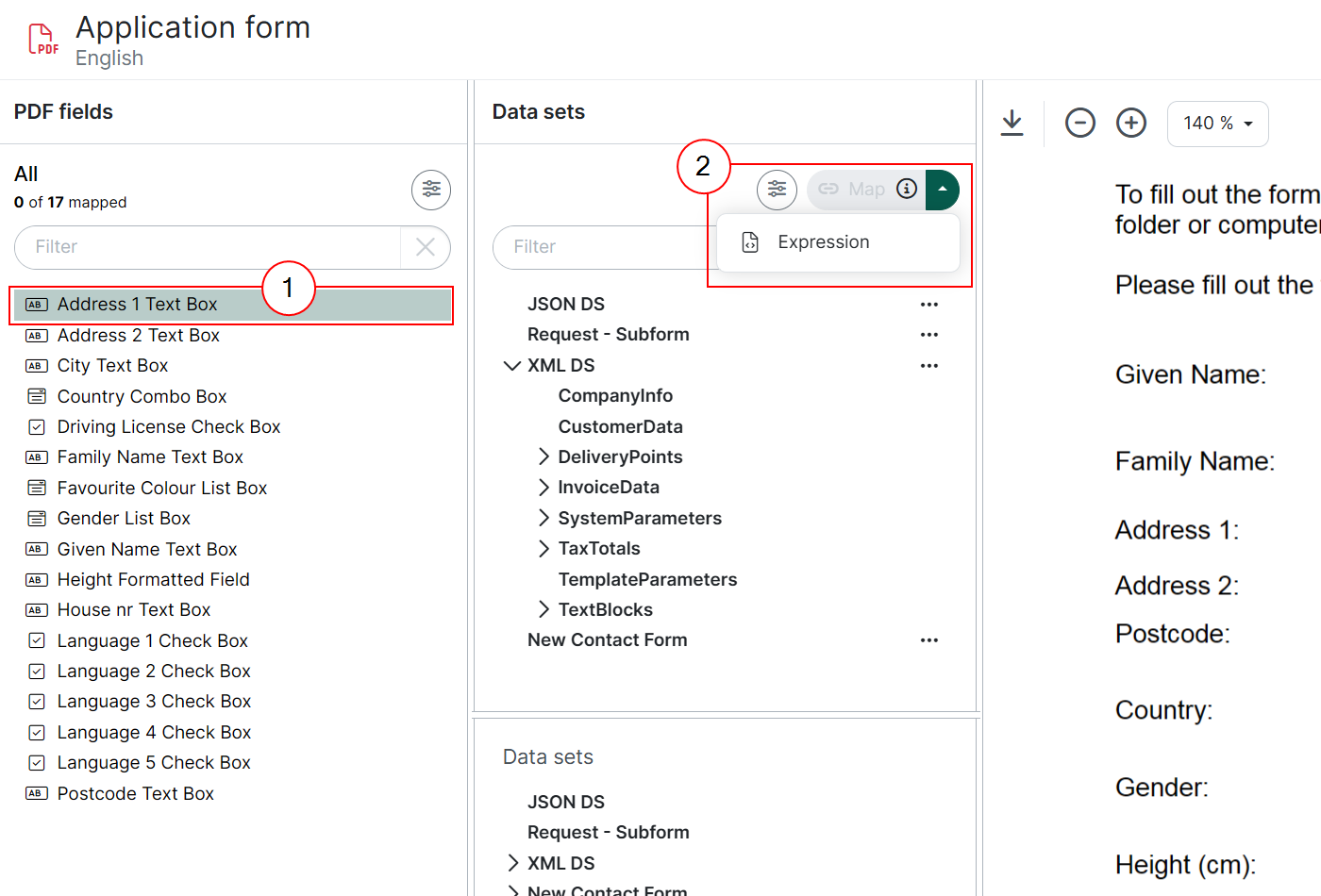
To create a new expression mapping:
| 1. | Locate the PDF field you wish to map. |
| 2. | In the Data Set panel, select the arrow next to the Map button to open the dropdown menu and select Expression. |
The edit Mapping panel opens, showing the expression Build editor.
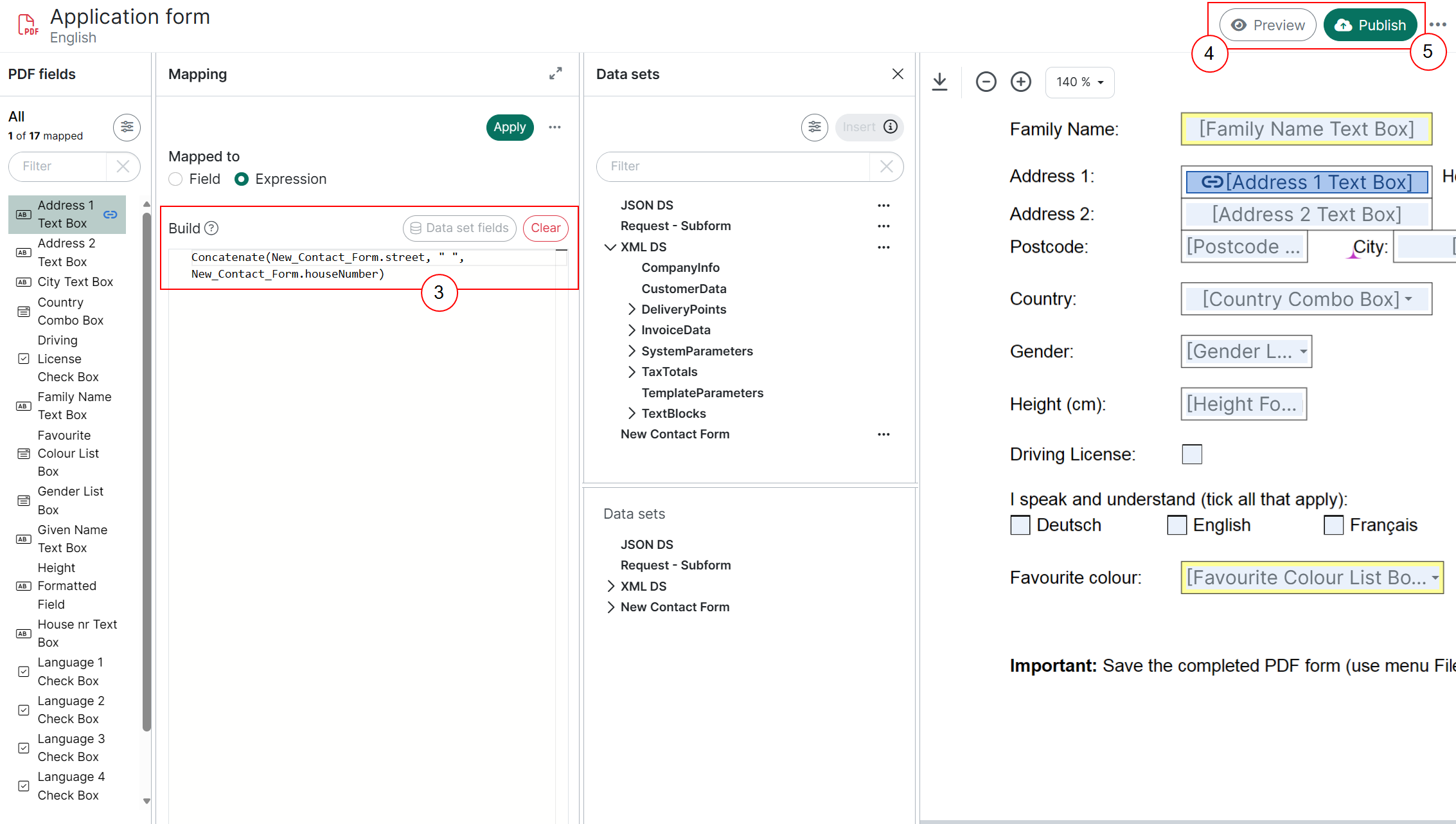
| 3. | Enter a Power Fx expression in the editor and select Apply. |
You can enter field names manually or simply double-click a field in the Data Set view to insert it into your expression.
| 4. | Preview your template using an available Sample to ensure the changes are applied correctly. |
| 5. | Publish to save the changes. |
The system allows you to create, read, update, and delete (CRUD) expression mappings just as a field mappings.
Convert a Field Mapping to an Expression
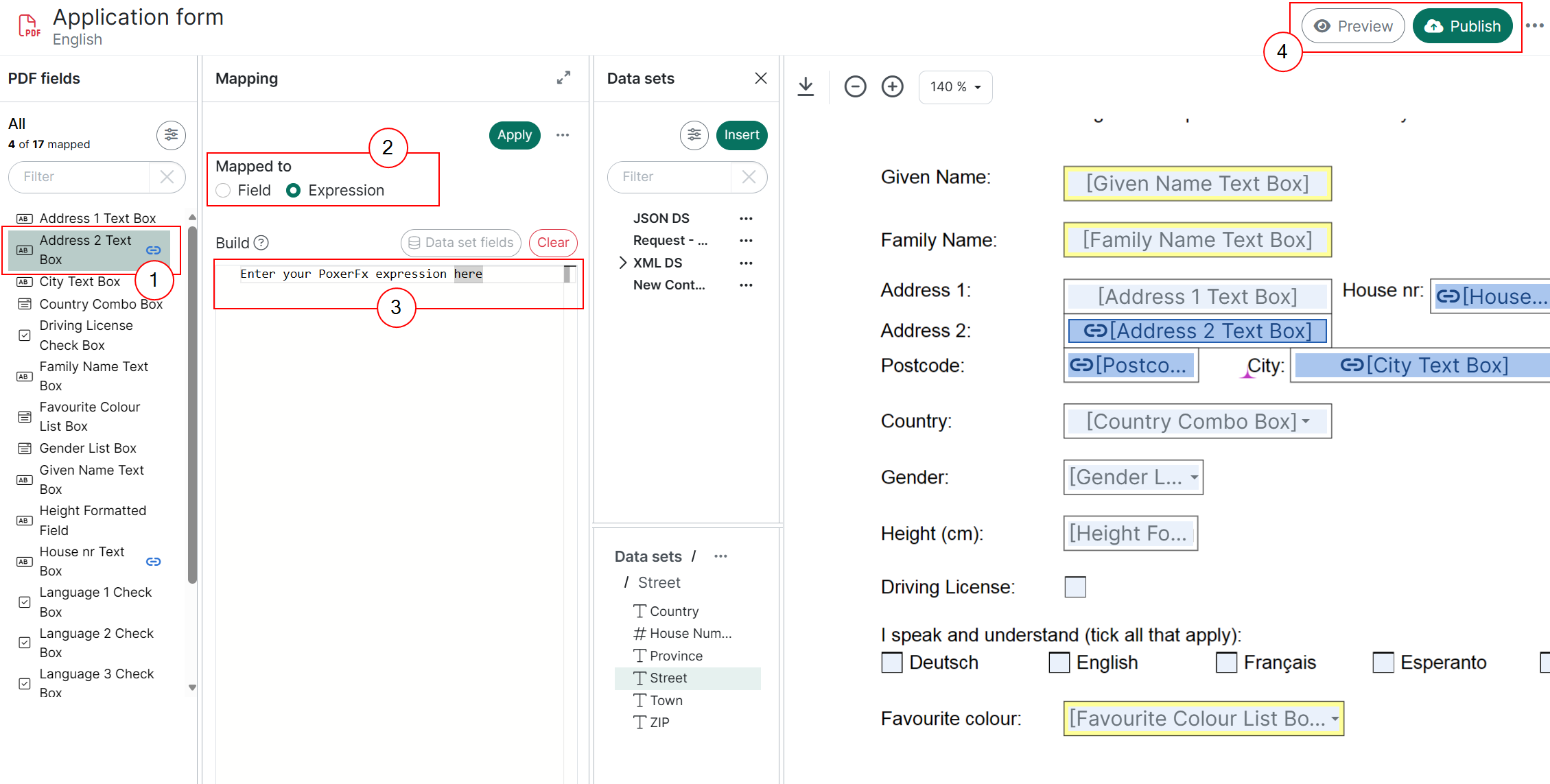
You can update the mapping type at any time by switching between Field and Expression types:
| 1. | Select the mapping. |
| 2. | In the Mapping edit view > Mapped to, use the radio buttons to switch from Field (default) to Expression. |
| 3. | Enter your Power Fx expression in the editor and select Apply. |
| 4. | Preview and Publish. |
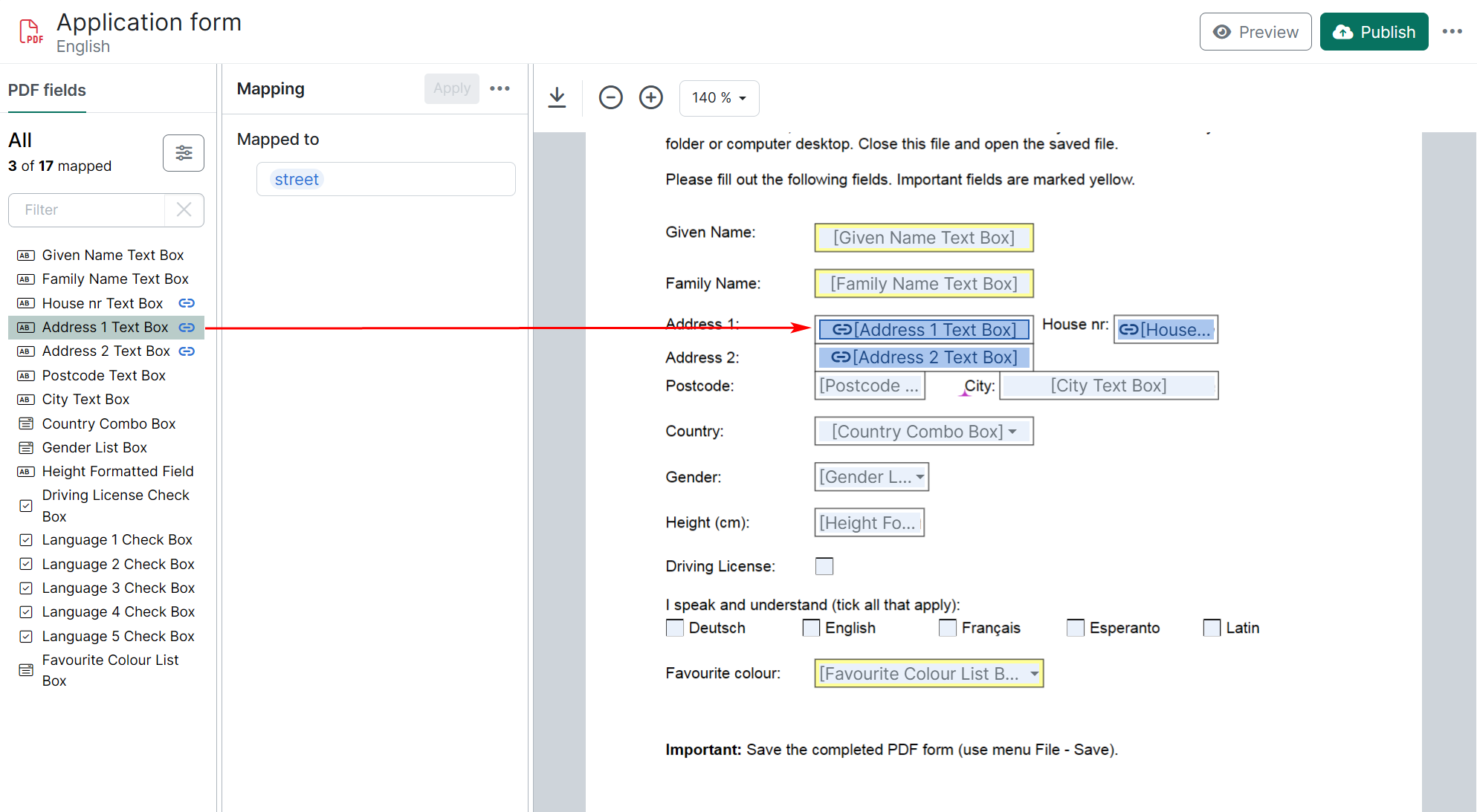
View Mappings
Once the mapping is successful, the mapping icon appears next to the mapped PDF field, indicating that the field has been successfully linked.
Edit Mappings
Modify existing PDF field mappings by linking them to different data set fields.
To edit a mapping:
| 1. | Select the PDF field you want to remap. |
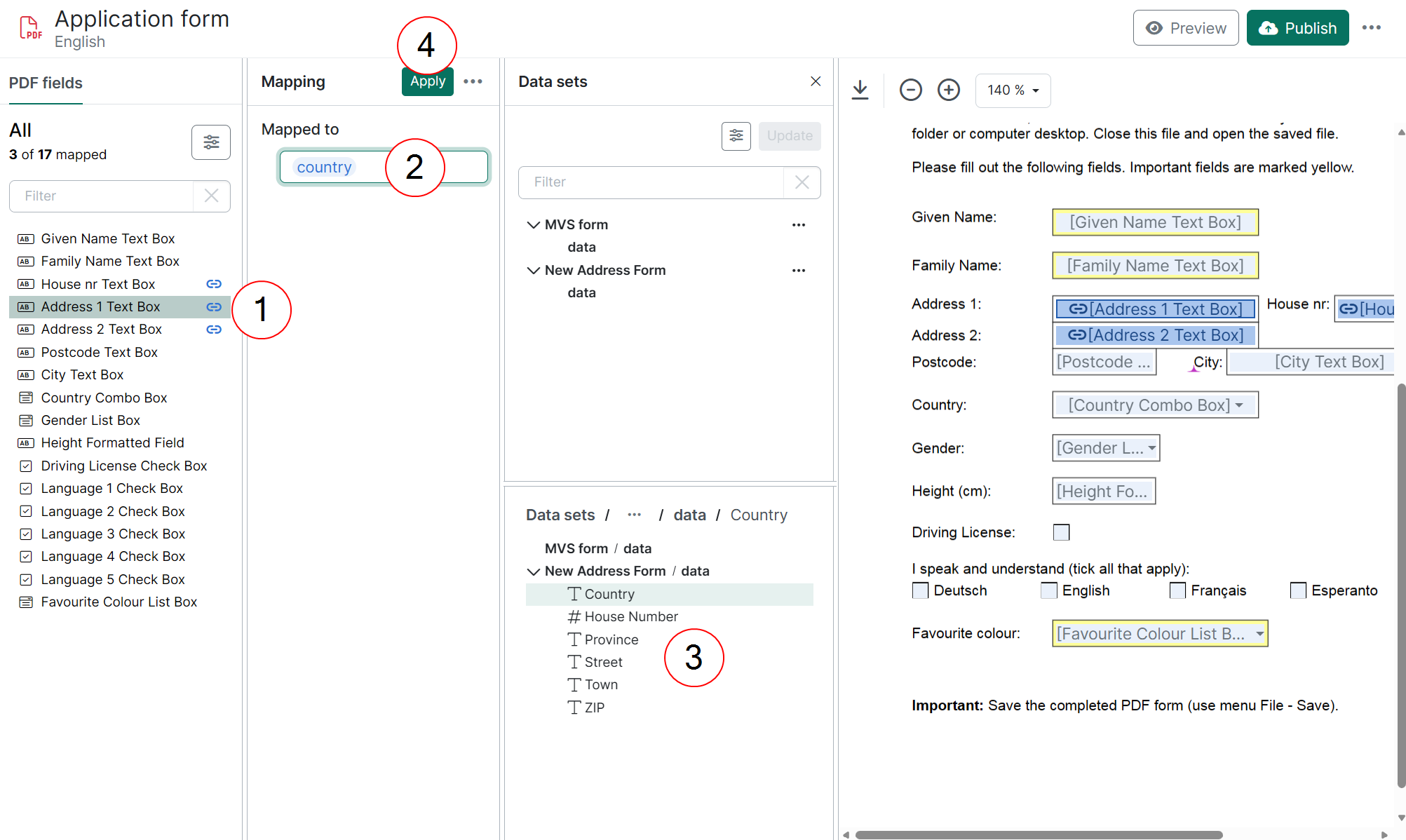
| 2. | Select the Mapped to field. The Data sets pane opens. |
| 3. | Choose a replacement field from the data set by double-clicking it or using the Update button (which becomes active upon selection). |
This updates the mapping, closes the data set pane, and enables the Apply button.
| 4. | Select Apply |
Removing a mapping from the PDF template
| 1. | Select the PDF field from which you want to remove the mapping. |
| 2. | Select Unmap in the ellipsis (⋯) menu of the Mapping pane. |
Users can expand the Mapping pane (hiding the PDF viewer) to provide more space for editing, or minimize it to restore the original view.
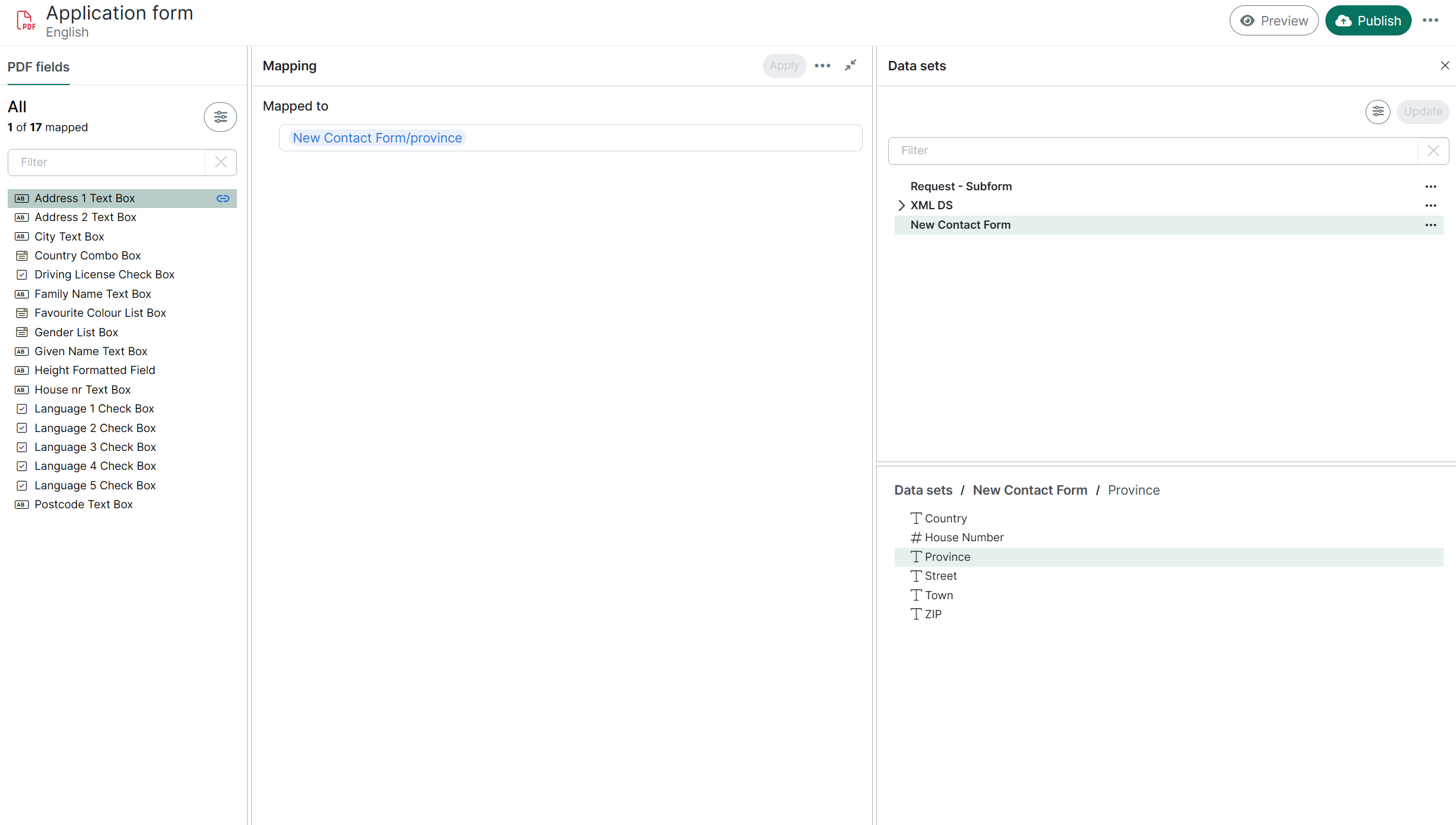
| 3. | The PDF field is successfully unmapped from the data set field. The mapping icon is no longer displayed next to the PDF field. |
Invalid mappings
Invalid mappings are mappings that no longer reference valid fields in the data set or the PDF document. Mappings may become invalid if the associated data set is modified or if a new PDF document with a different structure is uploaded. To ensure documents are generated correctly, review and update your mappings whenever you change the data set or update the PDF.
Mappings may become invalid if the associated data set is modified or if a new PDF document with a different structure is uploaded.
To ensure documents are generated correctly, review and update your mappings whenever you change the data set or update the PDF.
Example 1:
Replacing the PDF document leads to Invalid Mappings
As a template designer, you are working on a template that already contains several mappings.
After receiving an updated version of the PDF document from your team, you replace the PDF currently used in your template with the new one in the Design screen.
The new PDF document is successfully uploaded, but some mappings became invalid since the new document has a different structure: certain PDF fields have been modified or removed.
Solution:
Review the list of invalid mappings, then remap the affected fields or remove the mappings that are no longer needed for this document.
Example 2:
Data set modification leads to Invalid Mappings
Maria is working on a PDF template, mapping the necessary fields and publishing the template when it’s ready. Later, she updates the data set used in the template by adding some fields and removing others, and finishes her work for the day.
The next morning, when she opens her template, she notices that several mappings are marked as invalid. These mappings no longer reference valid fields in the data set.
Solution:
Maria opens the mapping panel to identify which fields are affected. If a field is no longer needed in the template, the mapping can be removed. If the data is still needed, she navigates to the data sets section and adds the missing fields back to the template.
Preview the PDF Template
Preview serves as a proof of your document before it goes into production, giving you a quick, real-time view of how your mapped data will appear in the PDF document. It validates that each field is mapped correctly and that the output matches your expectations, helping catch errors early and ensuring the final document is accurate.
To create a preview, at least one sample must be added for a data set linked to the template. See Data Sets Samples Tab for instructions on adding samples to data dets.
When there are no data sets associated with the template, the Preview button is unavailable. See Design Screen and Data Sets for guidance on adding data sets to templates.
To trigger the preview from the Design Screen:
| 1. | Select the Preview button. |
| 2. | In the pop-up window, select a Sample for each Data Set. Samples are listed alphabetically; by default, the first sample is preselected. |
| 3. | Confirm your choice by selecting Preview (or cancel if required). |
The PDF document preview is opened in a new tab.
Cloning a Template
When cloning a template, the system reuses the data from an existing template, allowing you to make changes to craft a new template quickly.
Explicit permissions are not copied when a template is cloned.
All language variants are copied over to the new clone.
| 1. | To begin cloning a template, do one of the following: |
-
In the Templates view open the Actions menu (⋯) for the template you want to clone and select Clone.
-
In Template Edit view of the template, select Clone from the ellipsis menu (⋯) in the top-right corner.
| 2. | Select the Clone button. |
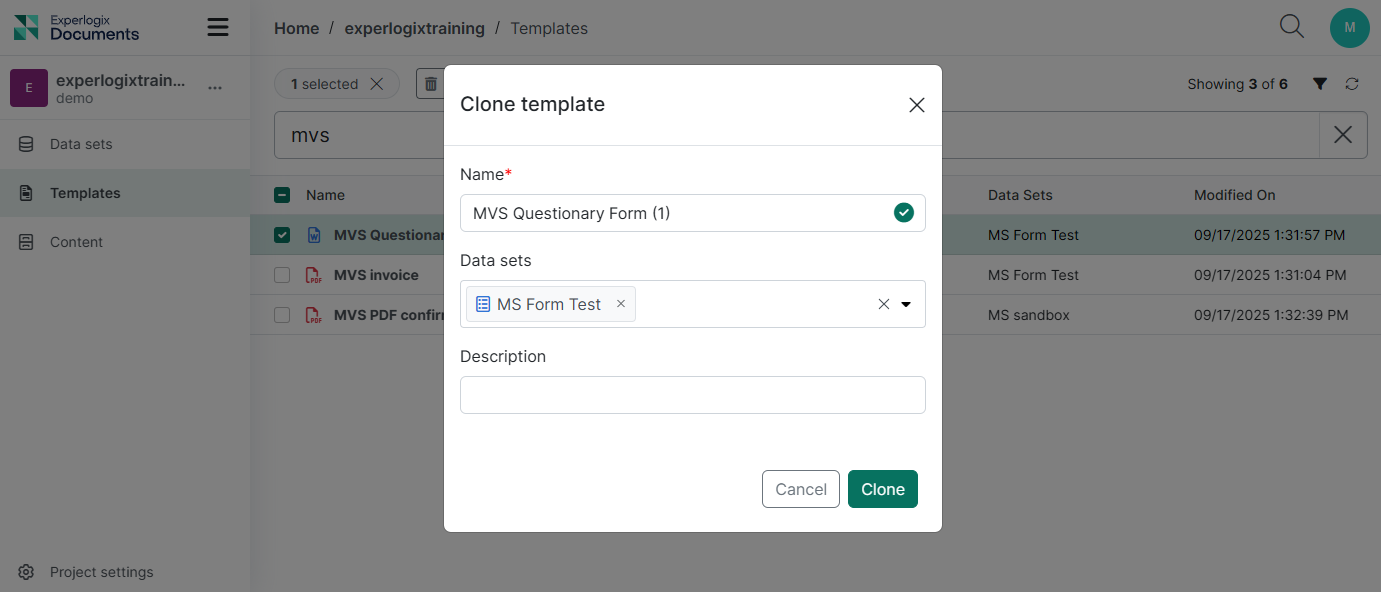
The Clone Template wizard displays.
By default, the system automatically reuses the name from the original template with a parenthetical increment (1).
| 3. | In the Name field, enter a new name for your template. |
| 4. | In the Data Sets drop-down menu, select the data sets you wish to use. |
| 5. | (Optional)In the Description field, enter a description for your template. |
| 6. | Select the Clone button. |
A success message displays "Template created", confirming the template's successful cloning.
The Overview page for the cloned template displays.
You've successfully cloned your template.
Deleting a Template
Deleting a template is permanent and can not be undone.
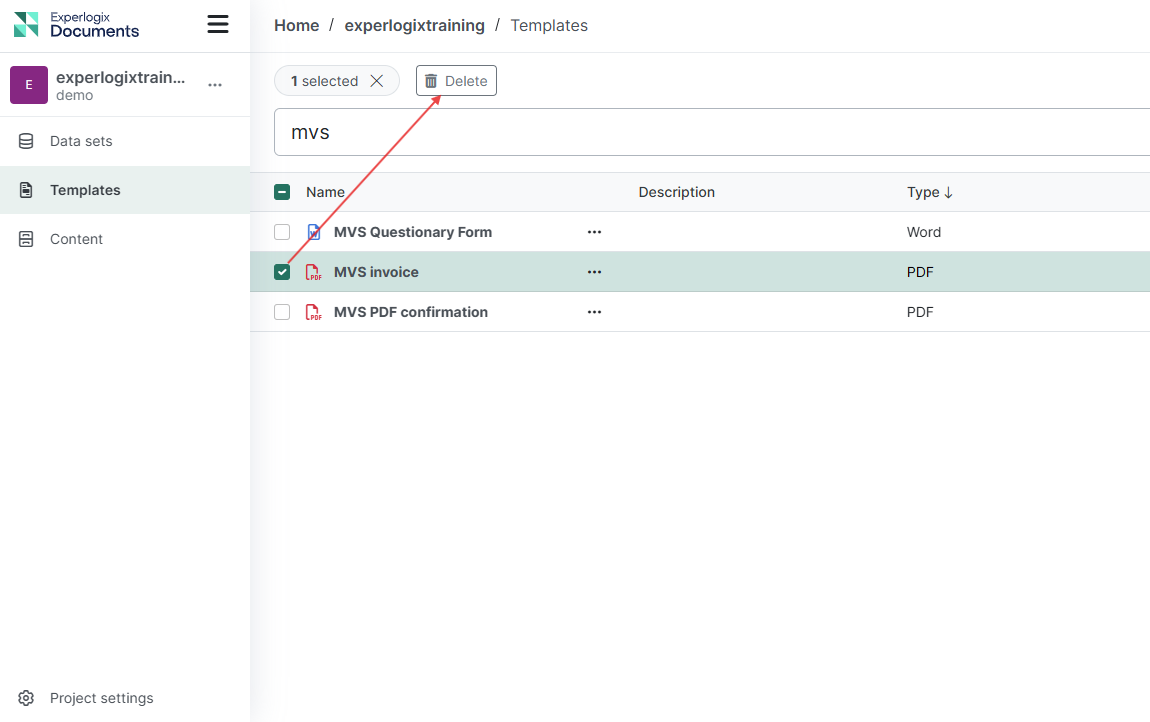
Users can delete templates in the Templates List view, via two different ways:
| 1. | Select a Template you want to delete. This will activate the Delete button. |
| 2. | Select Delete from the Actions menu (⋯) on the right to the Template name. |
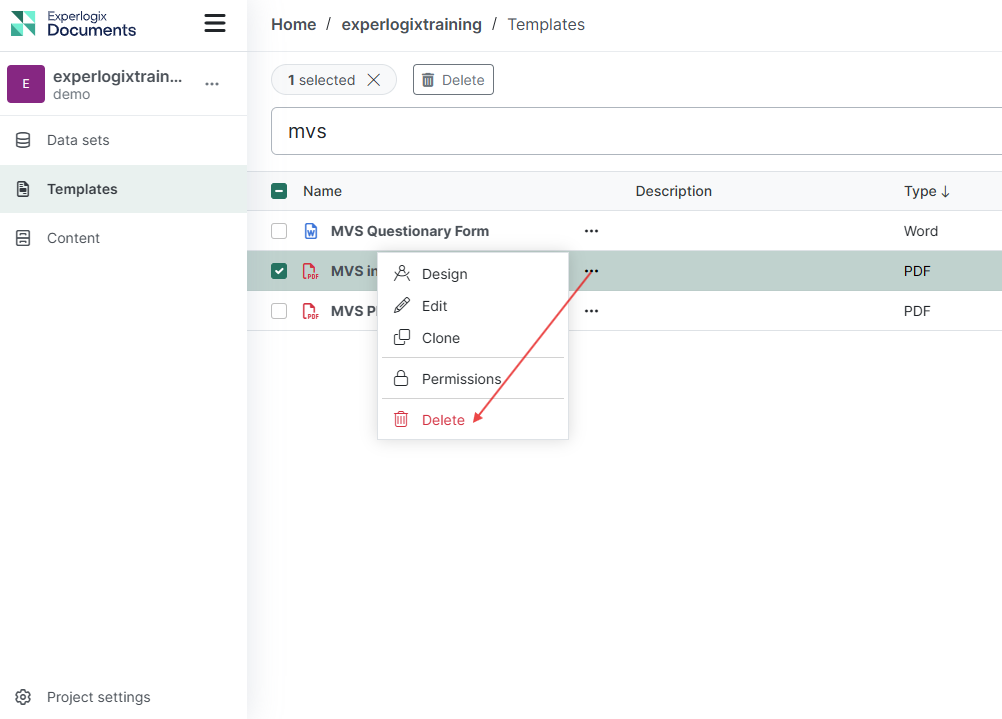
When the user clicks Delete, a confirmation message appears.
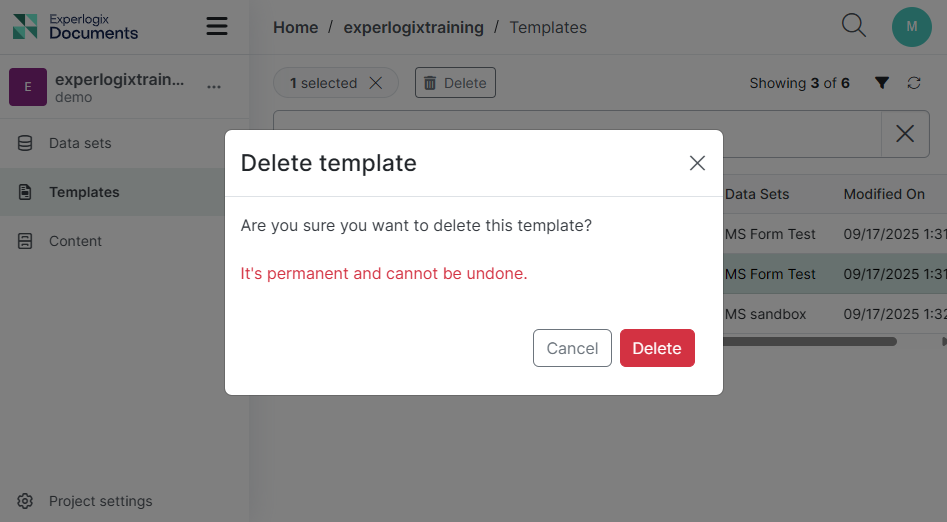
Confirm the deletion by clicking Delete, or cancel the action by clicking Cancel.
See Deleting Template Language to learn how to delete language version(s) of Templates.
Editing a Template
The Template Edit view allows users to update the template name and description, organize template Data Sets, manage template languages and dependencies, review template history, and configure permissions. The Design button is also available in this view.
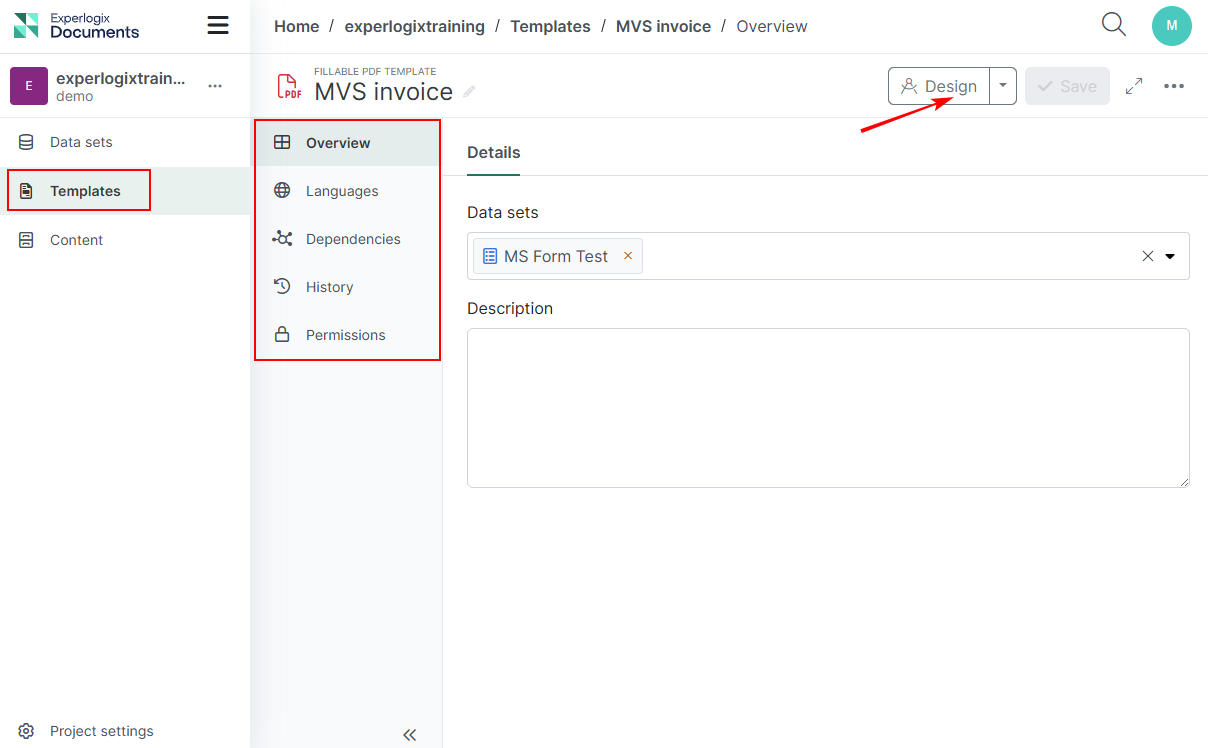
Accessing Template Edit view
Users can access the Edit view from the Templates View in two ways:
• By clicking on the name of the desired Template.
• By choosing Edit from the Actions menu (⋯) next to the template name.
Template Edit view
The view contains five sections that allow you to view and modify different properties:
| Section name | Actions |
|---|---|
| Overview |
Edit description, manage template's Data Sets |
| Languages | View the available language variants of your template, then select a language version to design or remove from your template. |
|
Dependencies |
Learn which items use your template (used by) and what it depends on. You can access dependencies from this section. |
|
History |
Identify when changes were made to a template, by template language variant, and determine who made each change. You can roll back to a previous template version and add or edit comments. |
|
Permissions |
Set up and manage explicit permissions for your template. |
Template Overview
Users make edits to templates via the Template overview section. They can make the following changes from this view:
-
Change the template's description.
-
Modify the Data Set(s) associated with the template.
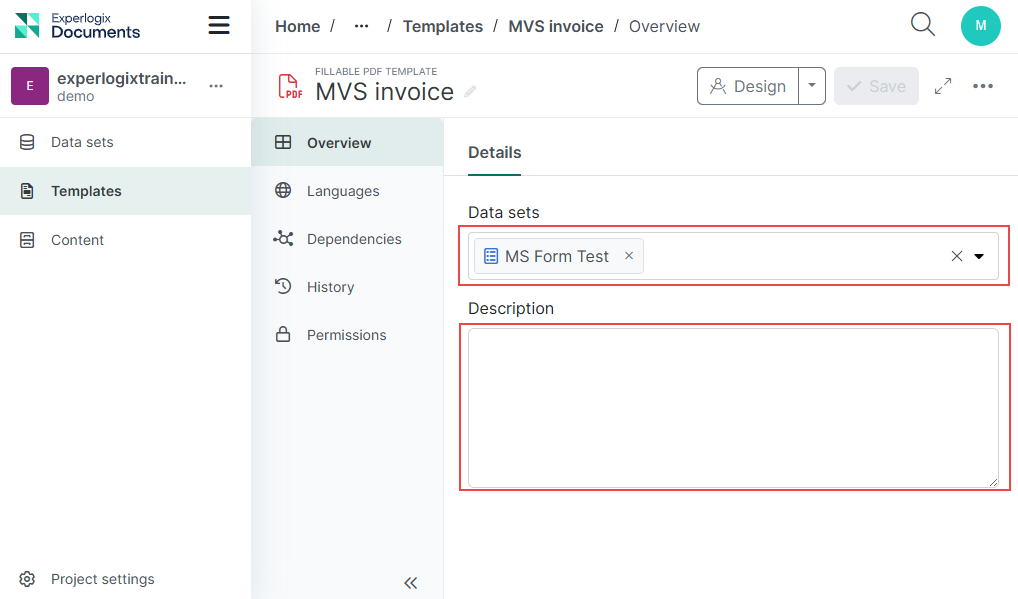
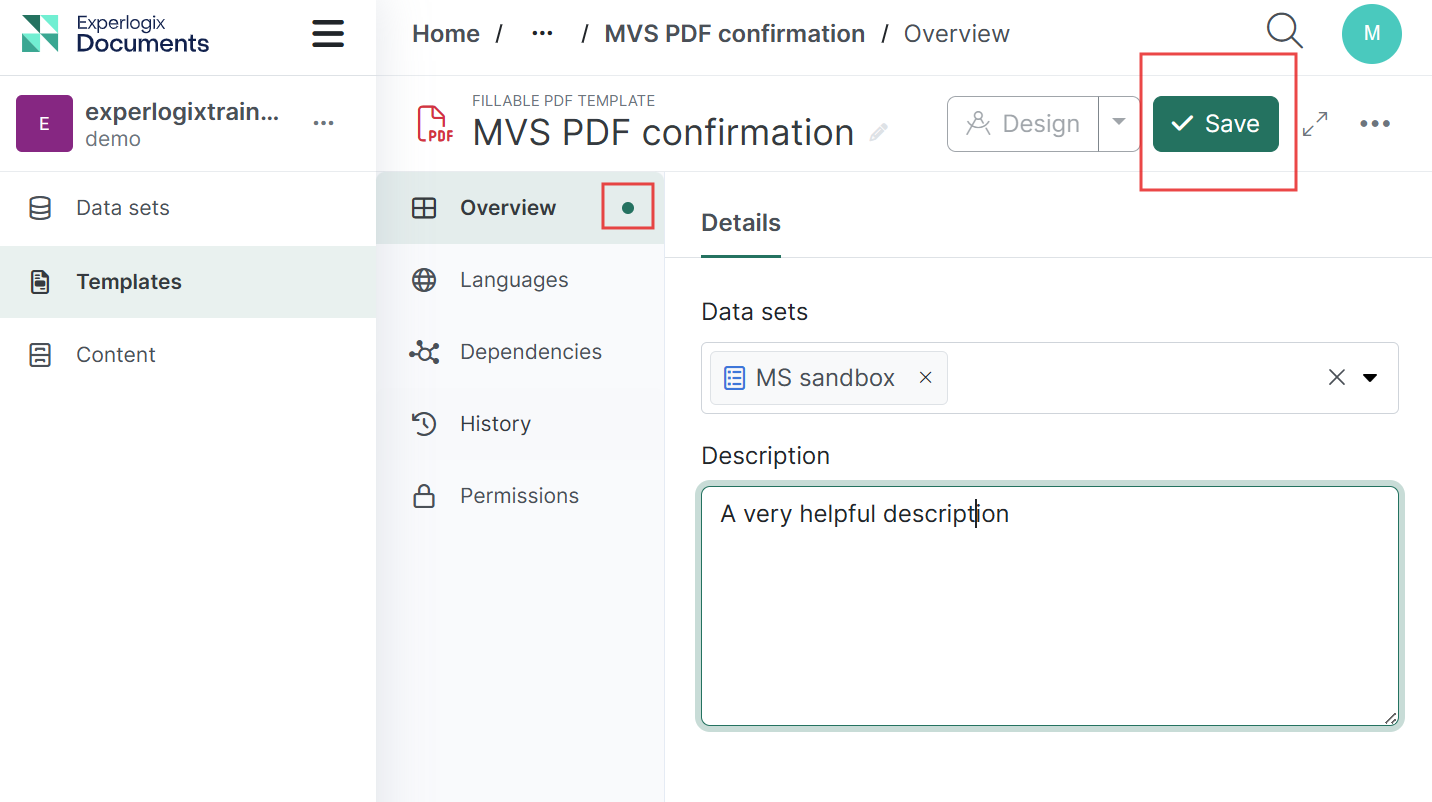
Select Save to apply your changes.
Template Languages
Experlogix Documents provides multilingual support, enabling users to create templates in multiple languages tailored to business needs and cultural considerations.
Language Configuration
The language must be added to your project within the project settings before templates in that language can be accessed.
To manage Project languages, go to Project Settings and follow the instructions for the Project Settings Languages Tab.
Accessing Template Languages
| 1. | In the Templates View, select Edit from the Actions menu (⋯) or select the Template name. |
| 2. | Navigate to the Languages section of the Template Edit view |
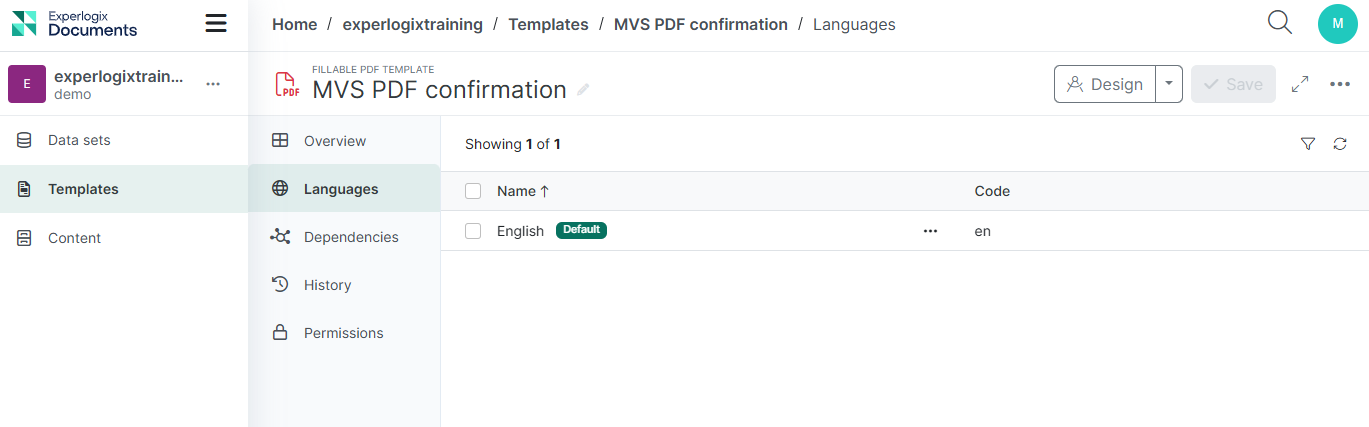
Managing Template Languages
The Languages section displays languages that have an associated template language variant.
In this section:
-
Delete an existing language version: Selecting a language will activate Delete button to remove the selected language version.
-
Create a new language version: Open the dropdown menu of the Design button and select one of the Available languages. This will direct you to the Design interface of the selected template (PDF or Word).
-
Design an active language version: Select Design from the Actions menu (⋯) next to the language name, or select it from the drop-down menu of the Design button.
Active languages: The language versions currently available for the template.
Available languages: The languages available in your project.
Deleting Template Language
Deleting the language is permanent and can not be undone.
| 1. | In the Templates View, select Edit from the Actions menu (⋯) or click on the Template name. |
| 2. | Navigate to the Languages section of the Template Edit view. |
| 3. | Select the languages you want to remove by checking their corresponding checkboxes, or click the ellipsis menu next to a single language and choose Delete. |
For PDF Templates, it is also possible to remove Template language directly from the Design view:
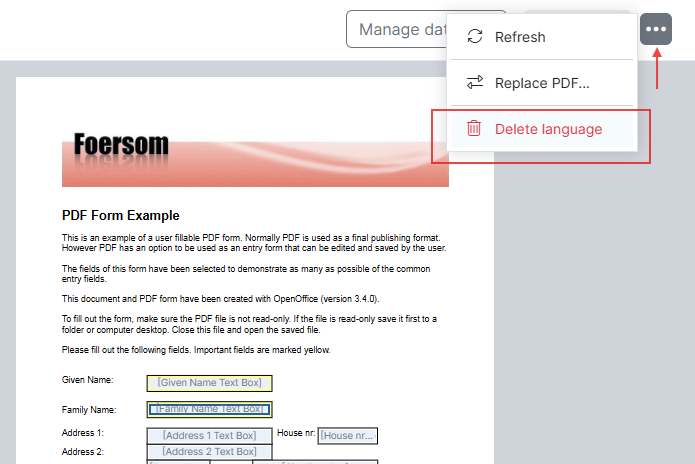
Templates History
The Templates history provides a full accounting of all events related to a given template. Use this page to identify when changes were made and which user made them.
Accessing the Template History section:
| 1. | In the Templates View, select Edit from the Actions menu (⋯) or select the Template name. |
| 2. | Navigate to the History section of the Template Edit view. |
There are two tabs in the History section: Versions and History:
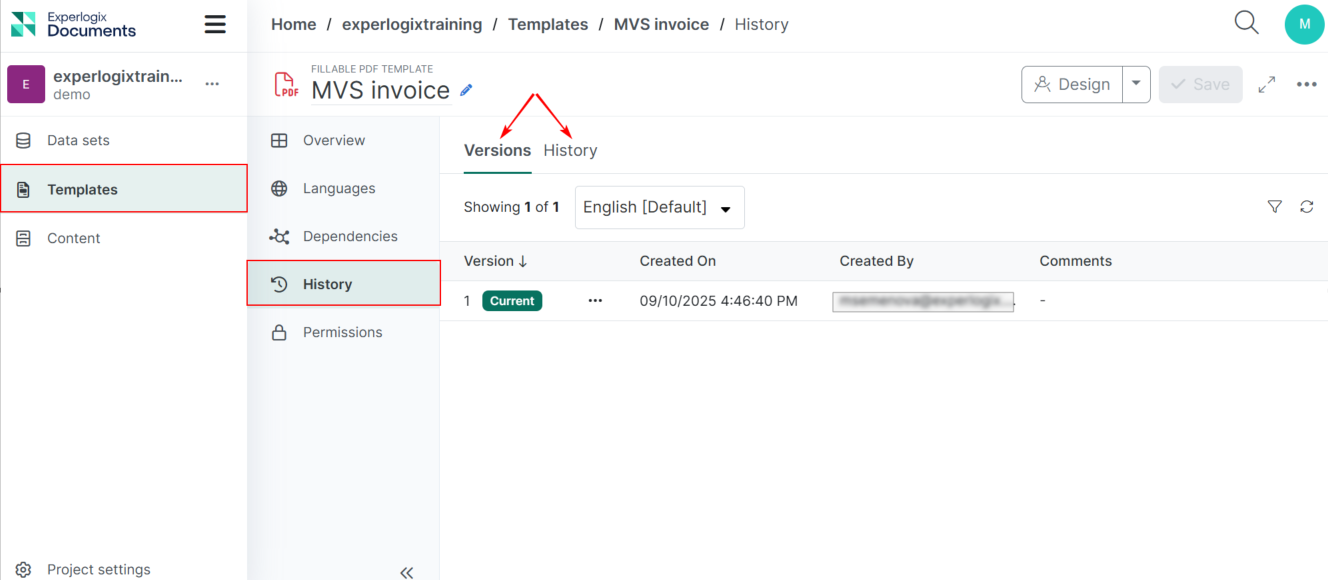
| Tab name | Description |
|---|---|
| Versions |
Lists all available template versions, individually for each language variant. A new version is generated when the template content is updated or when a rollback to a previous template variant is performed. |
| History |
Provides a list of all template changes, identifying who made each change and when it occurred. |
Template Dependencies
Dependencies represent links between different entities. The Template Dependencies section displays the items that use your template, as well as the items your template depends on.
For detailed information about Dependencies in Experlogix Documents, please refer to Dependencies
Accessing the Template Dependencies section
| 1. | In the Templates View, select Edit from the Actions menu (⋯) or select the Template name. |
| 2. | Navigate to the Dependencies section of the Template Edit view |
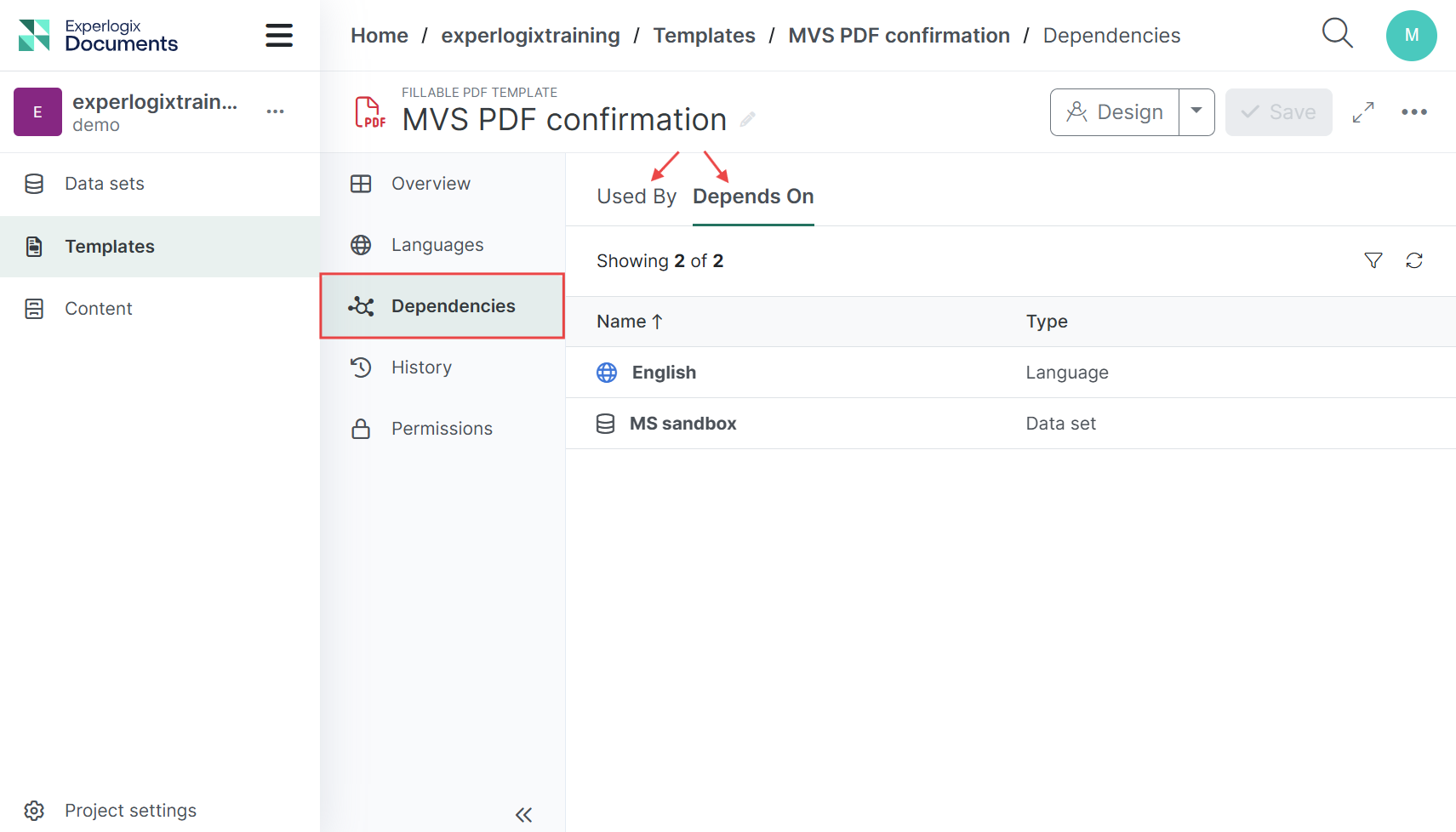
Import and Export Templates
Users can import and export templates with the option to include or exclude samples and dependencies. This feature simplifies collaboration and backups by enabling quick movement of items and their dependencies between projects.
Exporting Templates
This section provides a concise overview of the export process, detailing the steps for exporting items and managing their dependencies.
To export a template:
| 1. | In the Templates view, select the item(s) you wish to export. |
| 2. | Select Export to initiate the export process. |
A dialog displays options for dependencies and samples of the selected item.
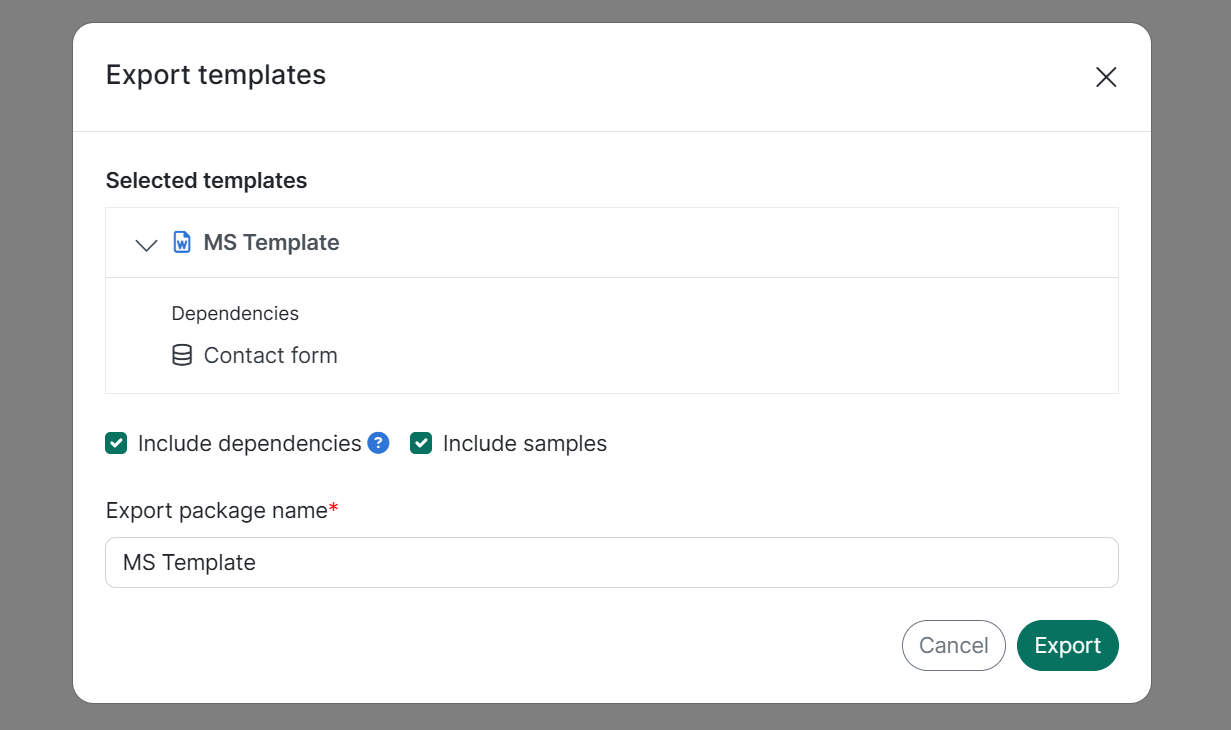
| 3. | Select Include samples to add sample data to the export, and/or select Include dependencies to include all dependencies of the selected item. |
-
Template language variants: When a template is selected for export or import, all associated language variants are automatically included.
-
Project languages: Languages required by template language variants are treated and displayed as template dependencies during the process.
| 4. | Change the Export package name if needed. |
| 5. | Select Export. |
The success message displays, and the export package is downloaded.
Importing Templates
Users can import templates, with the option to include or exclude their samples and dependencies, from Project Settings.
To import a template:
| 1. | Go to Project Settings. |
| 2. | Select the Import button. |
The Import wizard window appears.
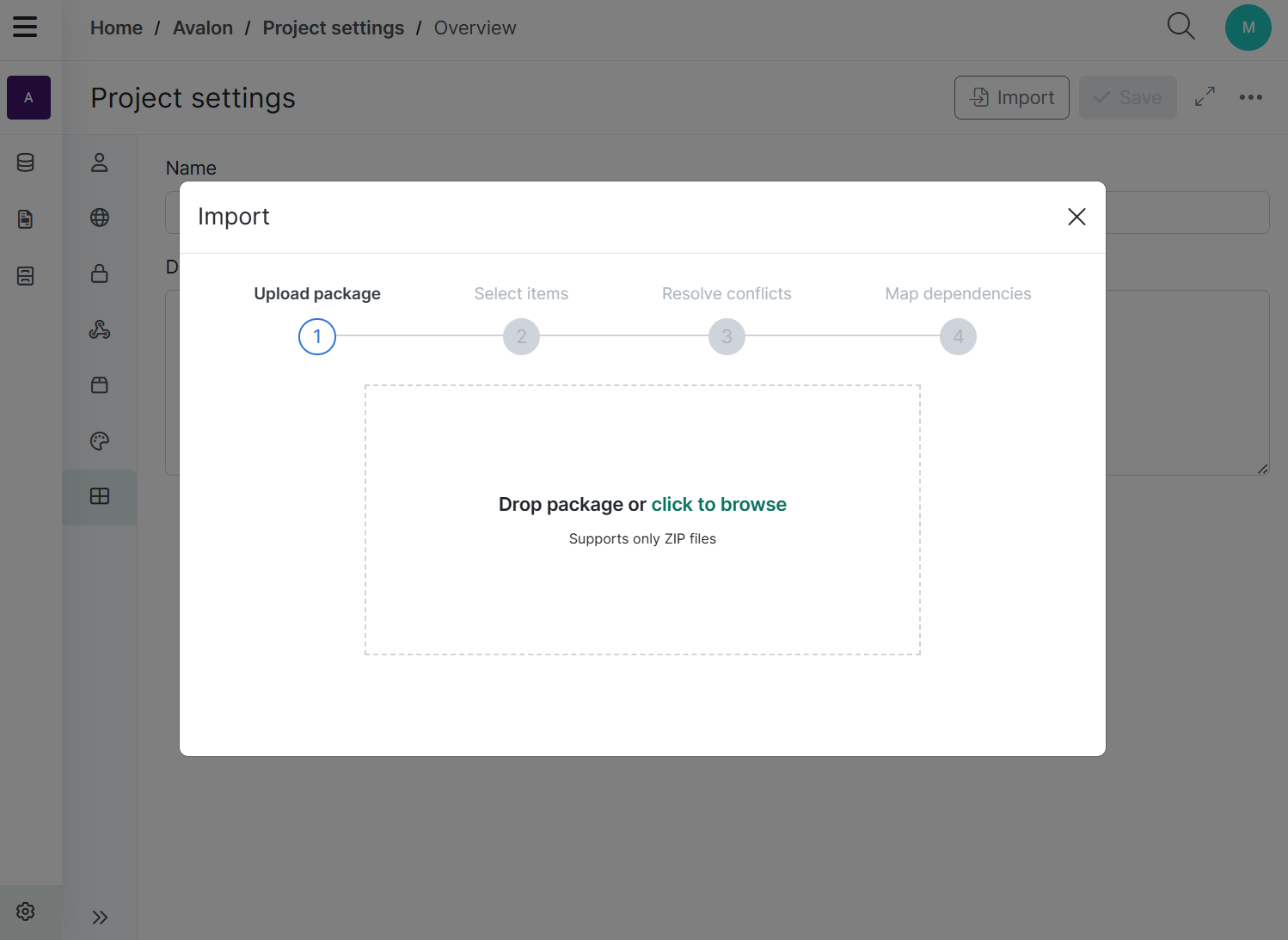
| 2.1. | Upload package. Upload the ZIP-package by dragging and dropping, or use the Browse option to select a package you want to import. |
If the package content is invalid or the file format is incorrect, the import fails, and a message explaining the reason is displayed.
To prevent this, ensure that you have uploaded a valid export package and that the import package is a ZIP archive.
Only ZIP files are supported.
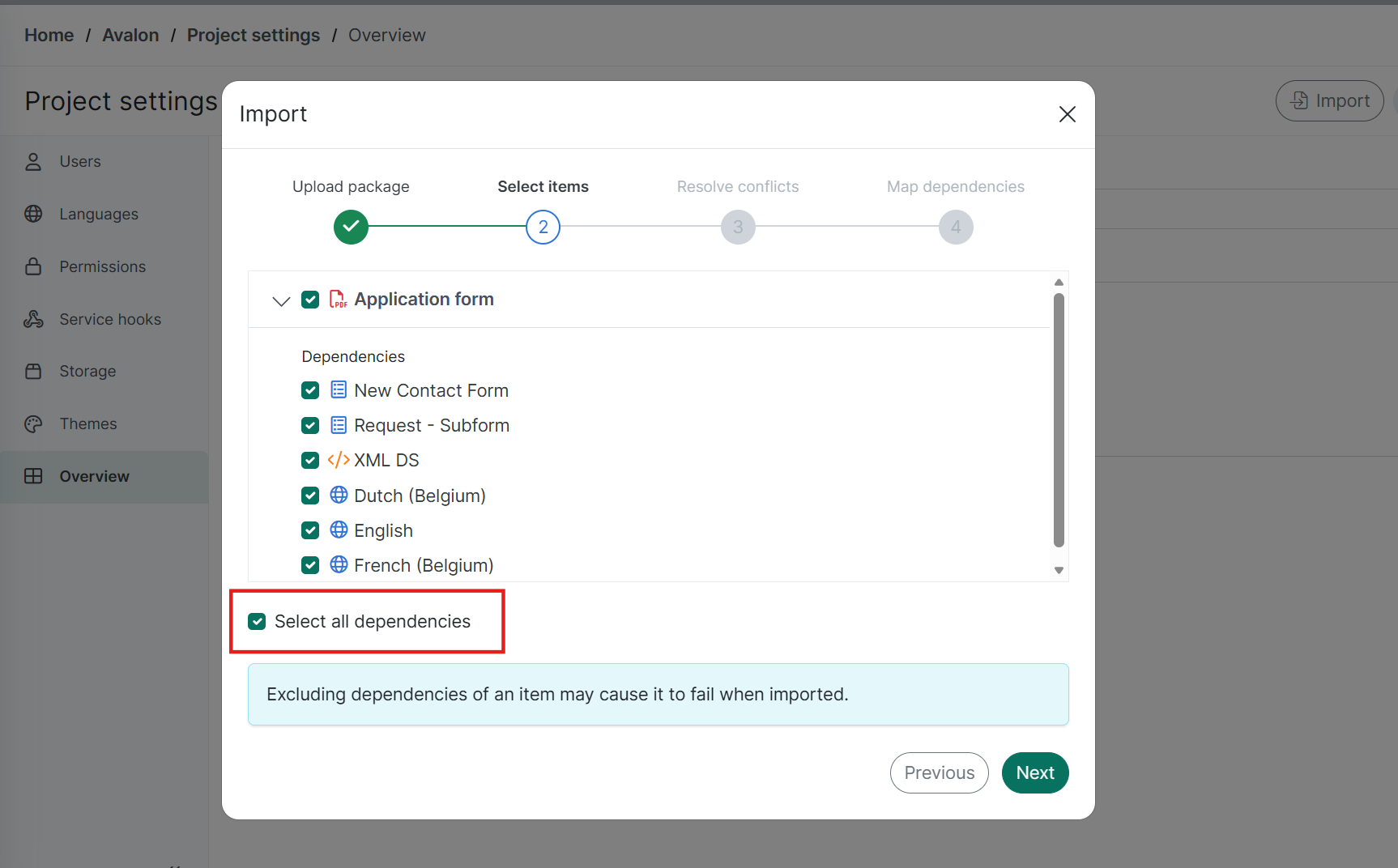
| 2.2. | Select items. Review the items to include in the import. Items are listed alphabetically and are preselected by default. You can choose whether to include or exclude items in the import, and select or deselect their dependencies. |
Excluding an item's dependencies may cause it to fail when imported.
Use the Select all dependencies checkbox to include or exclude all dependencies with a single click.
Importing Languages as Dependencies
-
If a language included as a dependency does not exist in the destination project, the system creates it automatically.
-
If the destination project already contains a language with a matching name or code, the import for that language is skipped, even if "Overwrite" or "Create new" options are selected.
| 2.3. | Resolve conflicts. If one or more items already exist in the import destination, choose whether to "Overwrite", "Create new" or "Skip". The selected option will be applied to all imported items. |
Note that "Create New" and "Overwrite" options do not apply to language conflict resolution, even if selected by the user.
|
Option |
Description |
|---|---|
|
Overwrite |
Replaces existing items in the destination project with imported items. This applies only to items with matching name and type. The replacement adds an "Update" entry to the item’s history. |
|
Create new |
Creates a new copy of the imported item while preserving the original record in the destination project. Adds a "Create" entry to the item’s history. |
|
Skip |
Excludes the item and its dependencies from import. |
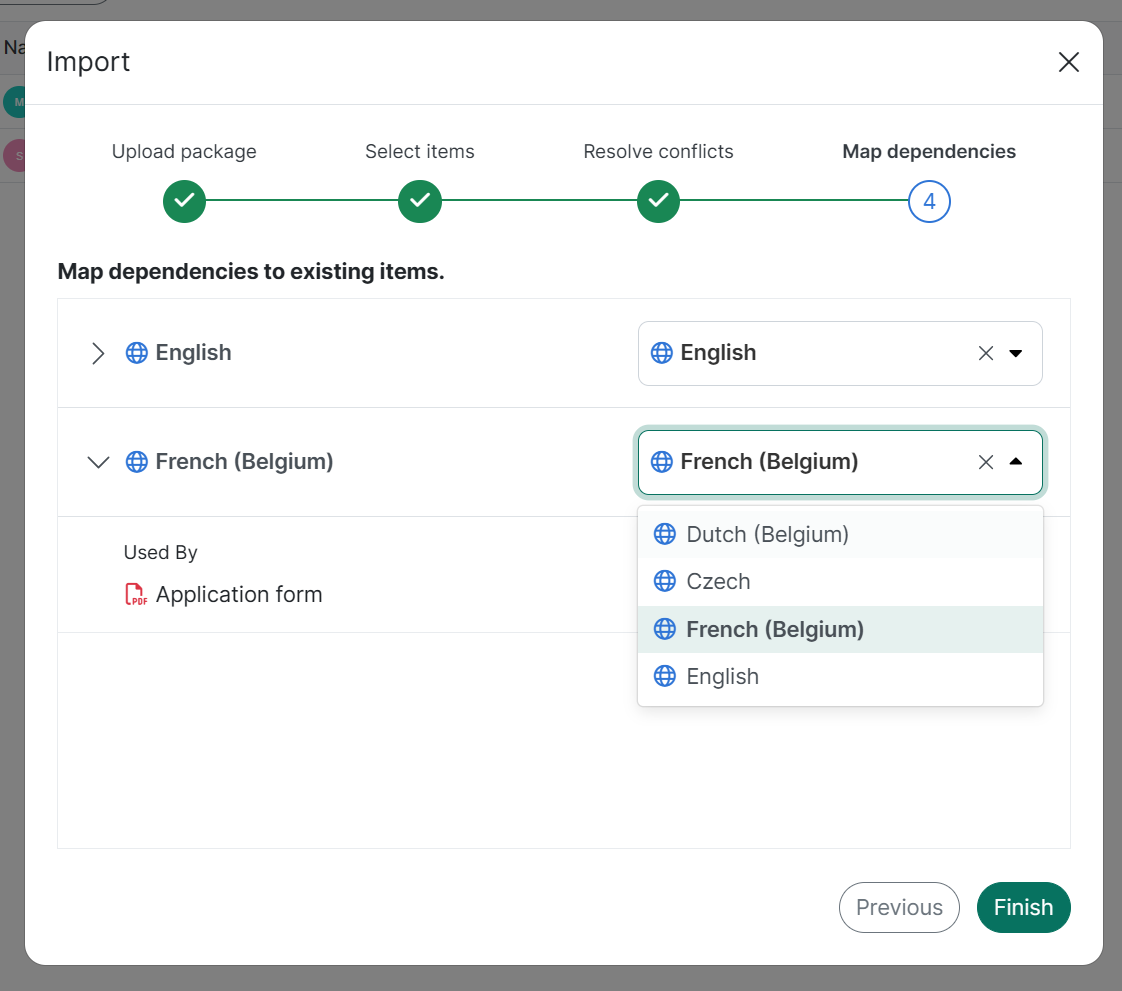
| 2.4. | Map dependencies. In this step, users can replace any excluded dependencies with existing dependencies in the import destination project. Mapping dependencies ensures that excluded items are correctly substituted and prevents broken or incomplete states after the import. |
Mapping every excluded dependency is mandatory. The import cannot continue until all mappings are completed
Each excluded dependency includes a dropdown menu that lists destination items, allowing the user to map it to an existing dependency in the destination project.By default, the dropdown preselects the destination dependency that matches the excluded one by name and type. If no exact match is found, the user can manually choose another dependency of the same type: remaining candidates are shown alphabetically.
By default, the dropdown preselects the destination dependency that matches the excluded one by name and type.
If no exact match is found, the user can manually choose another dependency of the same type: remaining candidates are shown alphabetically.
For Template Languages, the system suggests a mapping based on matching language codes and names. However, users can manually select a different existing language in the destination project to override this selection.
| 3. | Select Finish to confirm the import, then wait for the system to complete the import of the package. Do not refresh the browser window. |
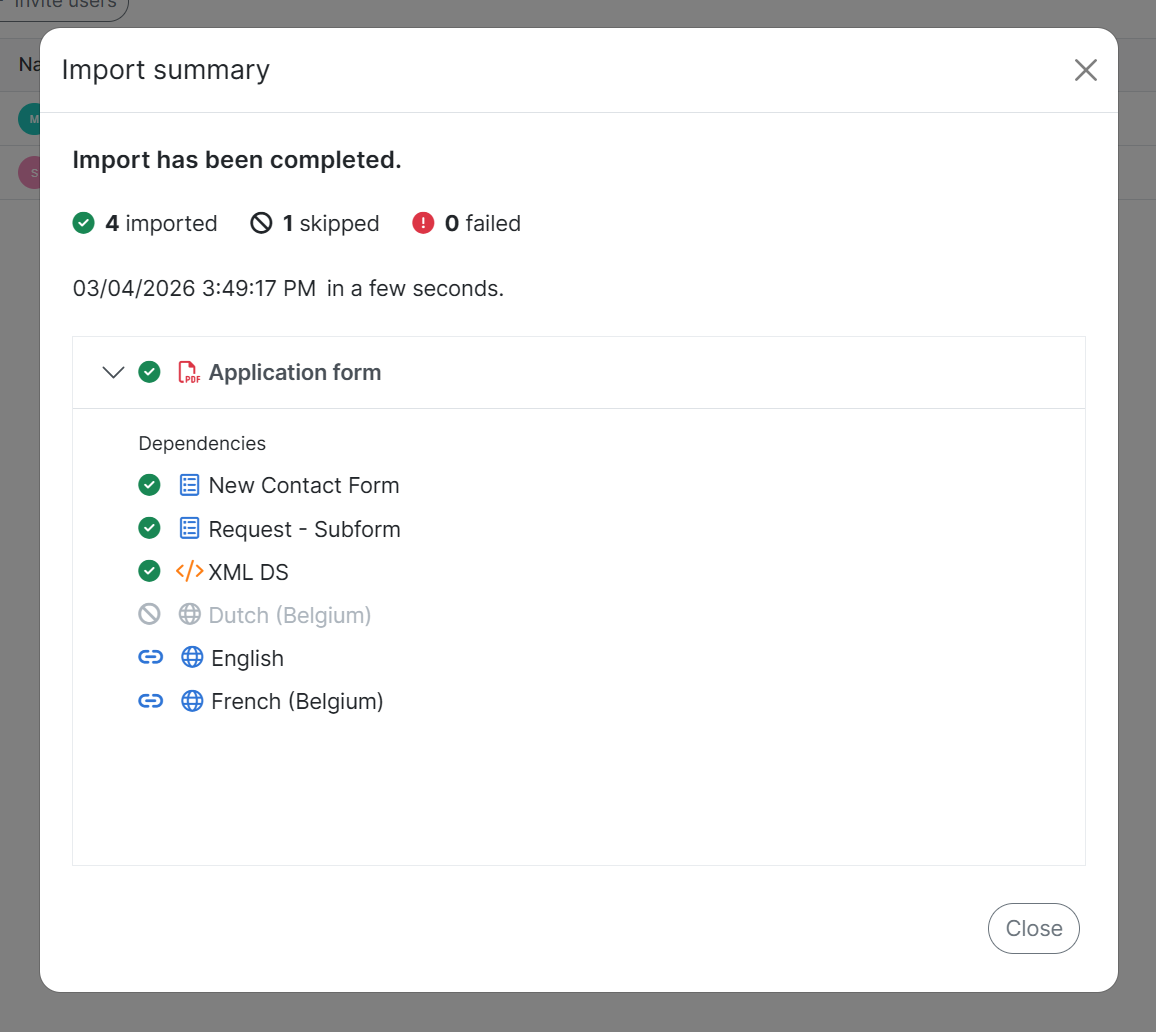
When the import is complete, the Import Summary displays:
-
The number of items imported, skipped, or failed
-
The timestamp indicating when the import was processed and its duration
-
A list of imported items and their dependencies (either imported or mapped)
-
If an import fails, the item that failed to import (whether the primary item or one of its dependencies) will display an error message.
-
If the item failed to import because an item with the same name but a different type already exists in the destination project, the following message is shown: "Import Failed: Item with the same name but a different type already exists."
See Project Settings: Import for detailed information about importing items in Experlogix Documents.
Template Permissions
Template permissions enable you to set specific permissions for a particular template, overriding the template permissions defined in the Project settings.
Template permissions can be assigned to user groups, which must first be created at the Project level. To understand how permissions work across all item types and how to manage them effectively, please see Permissions and Groups.
Managing template permissions is granted by default to the following system groups:
-
Project Owners
-
Administrators
Accessing the Template Permissions section
| 1. | In the Templates View, select Edit from the Actions menu (⋯) or click on the Template name. |
| 2. | Navigate to the Permissions section of the Template Edit view. |
Setting Up Template Permissions
Example:
I would like to set specific permissions for the 'MVS invoice' template so that only certain users can access it.
To do this, I create a user group in Project Settings, add the required users, then go to the 'MVS invoice' template → Permissions, and assign the group.
From there, I can define what actions they can perform, such as view, edit, or delete, specifically for this template.
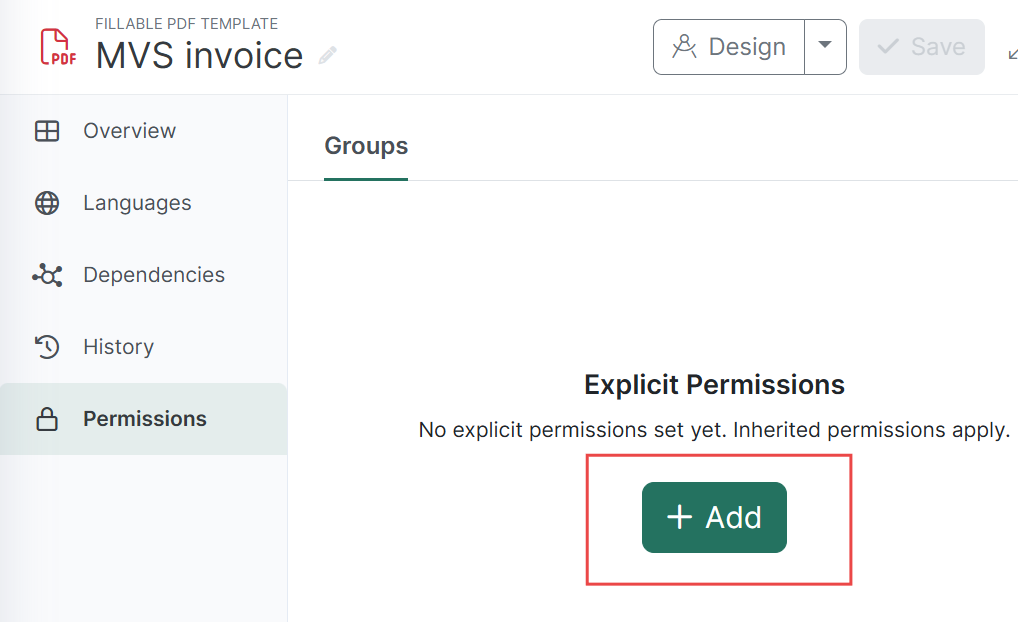
| 1. | Click +Add button. |
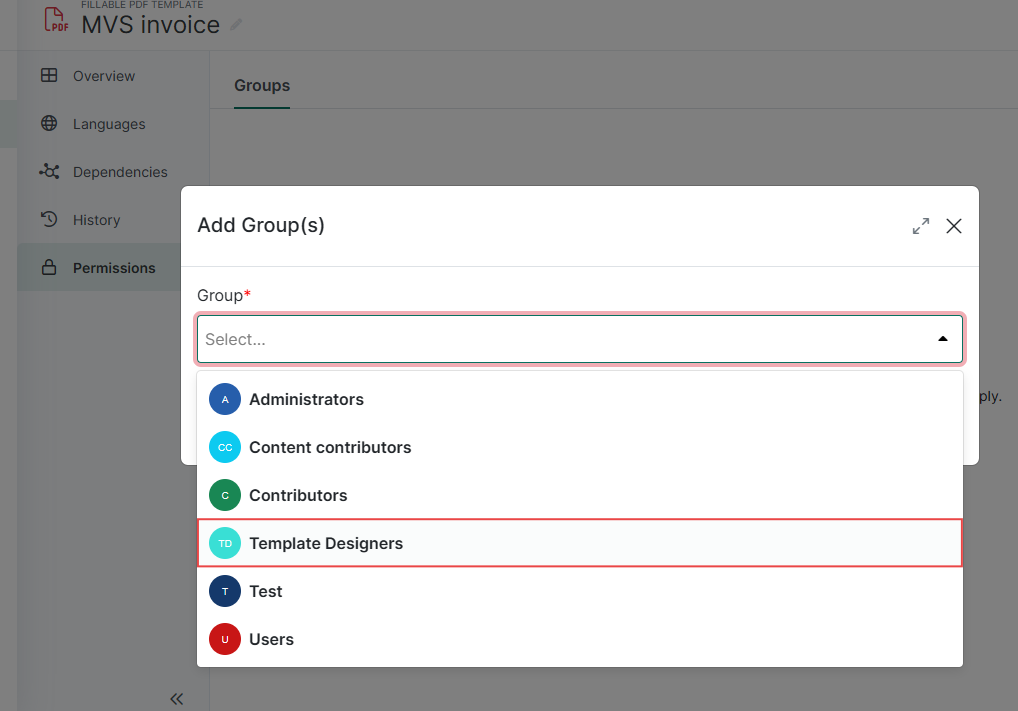
| 2. | Select a group of users for which you want to grant permissions for this Template. The group must already exist on the Project level.Permissions |
| 3. | Specify Template permissions (by default, these settings are inherited from Project Permissions Settings), and click Save. |
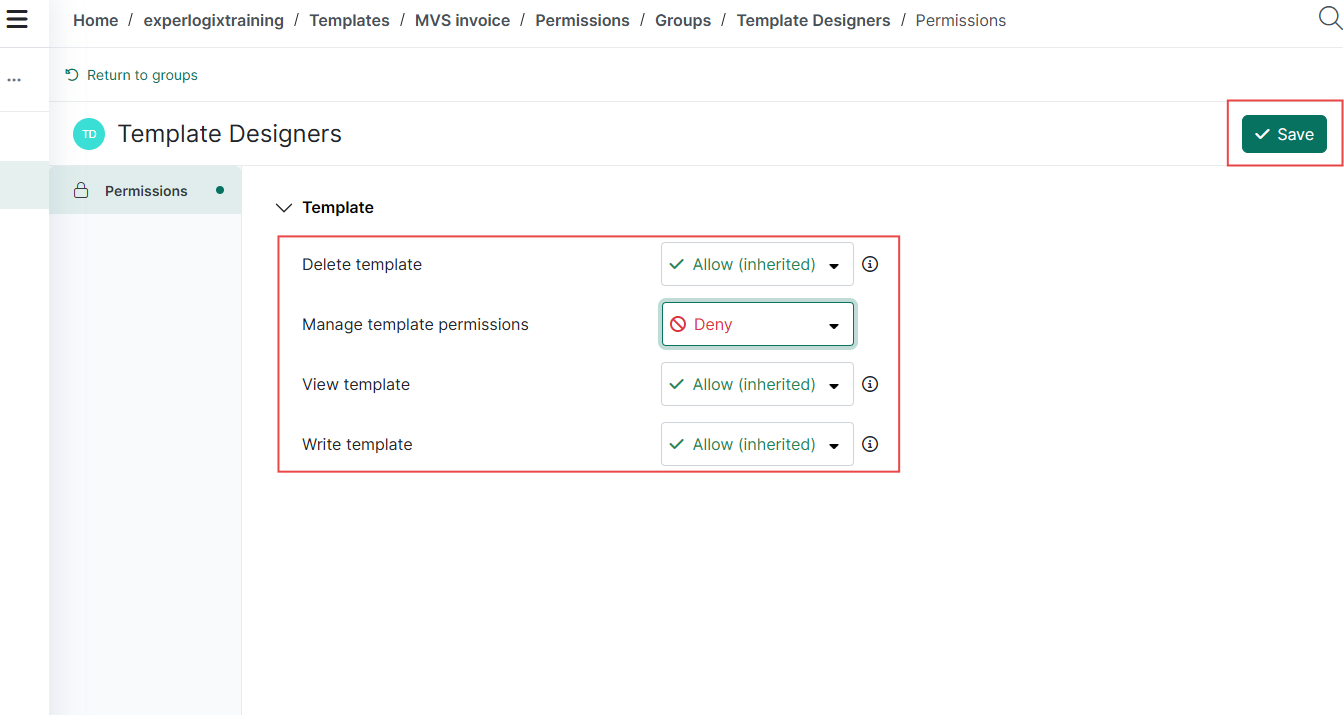
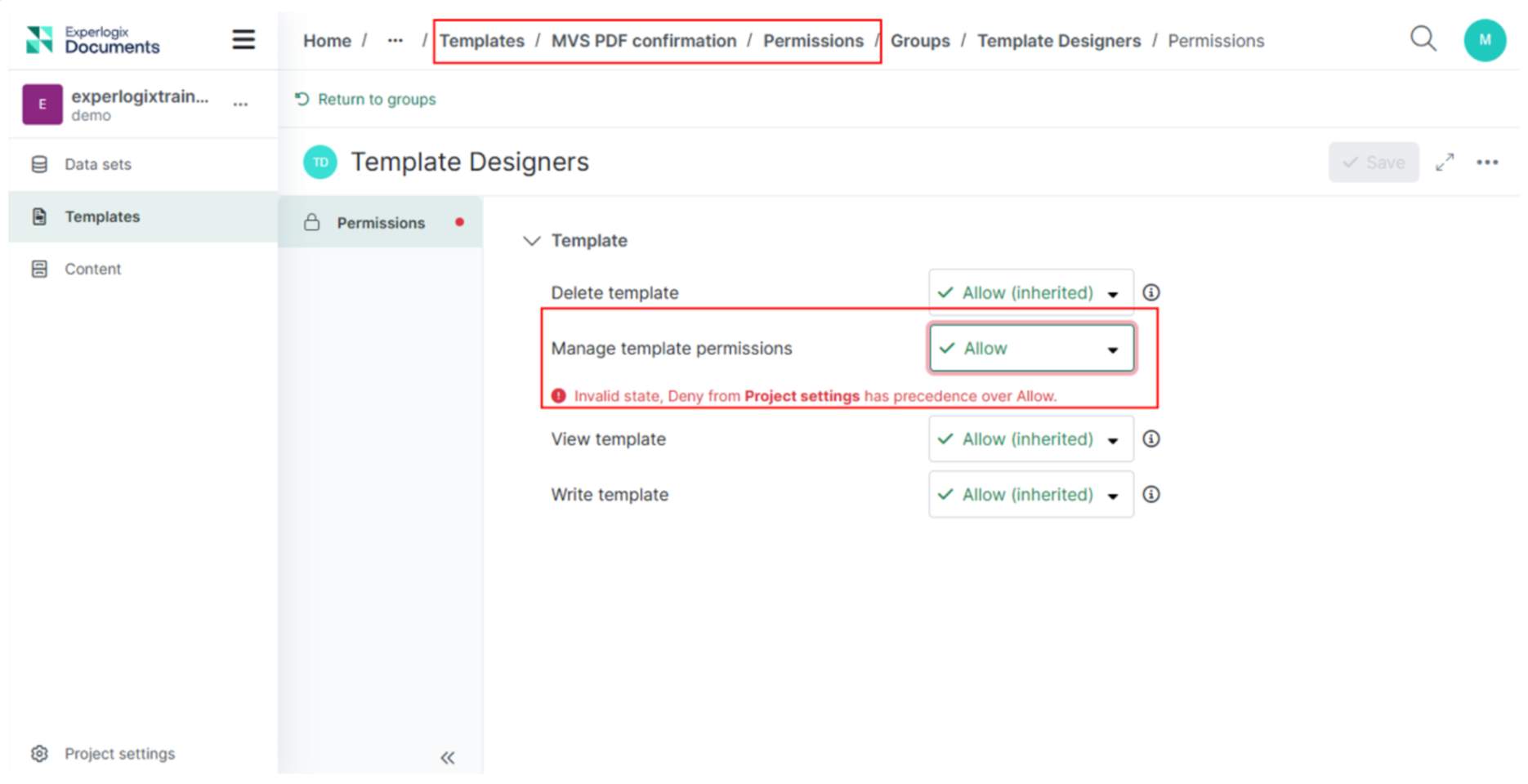
If a Template permission in Project Settings is set to Deny, it cannot be changed to Allow in the Template permissions within the Template Edit View.
Deny in the Project Settings always takes precedence over Allow at the template level.
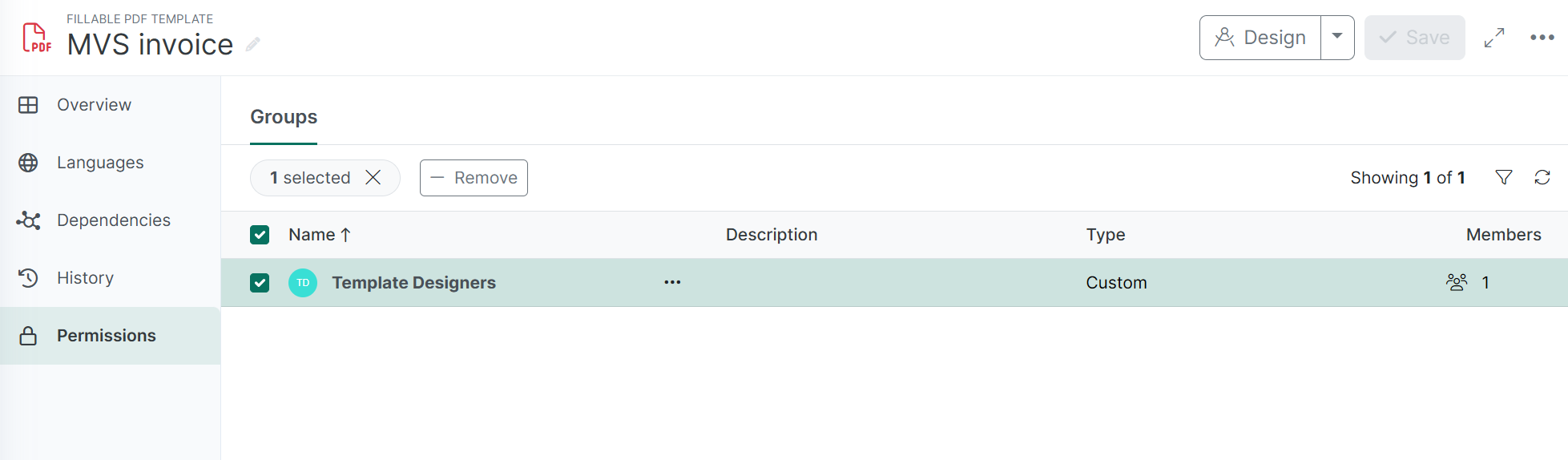
| 4. | After the success message displays, you can find the group visible under Permissions in the Template Edit view. |
Template permissions are not copied when the template is cloned.
Editing Template permissions
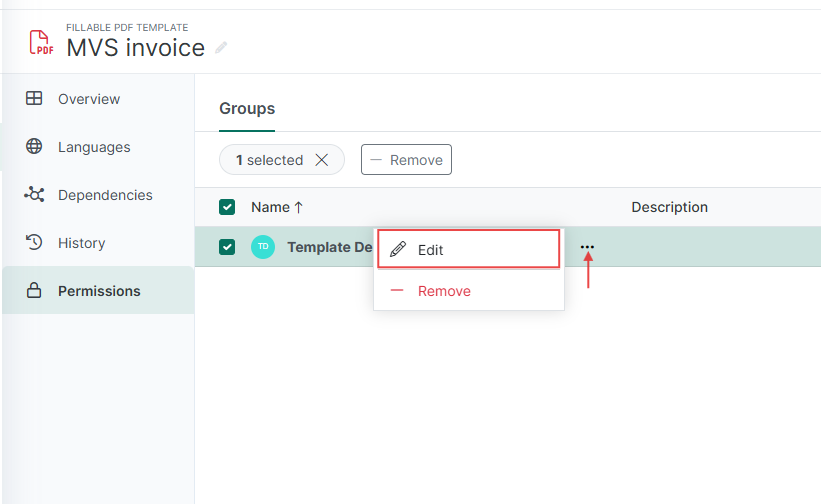
In the Template Edit view select Permissions:
| 1. | Select a group. |
| 2. | From Actions menu (⋯) select Edit. |
Removing Template permissions
In the Template Edit view select Permissions:
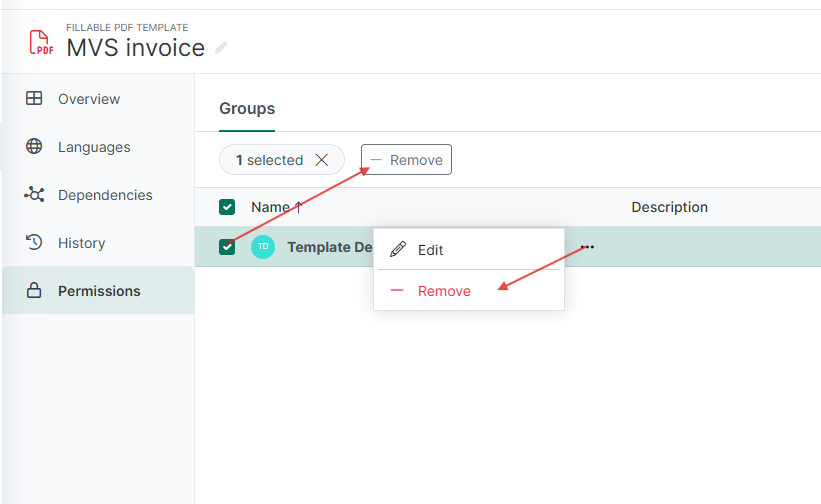
| 1. | Select a group. |
| 2. | From Actions menu (⋯) select Remove (or just click the "- Remove" button above). |