Dependencies
Dependencies, or object dependencies, are vital links between system items. This document offers a comprehensive overview of their management and deletion and explains how they are categorized and displayed in the user interface.
Accessing the Dependencies Tab
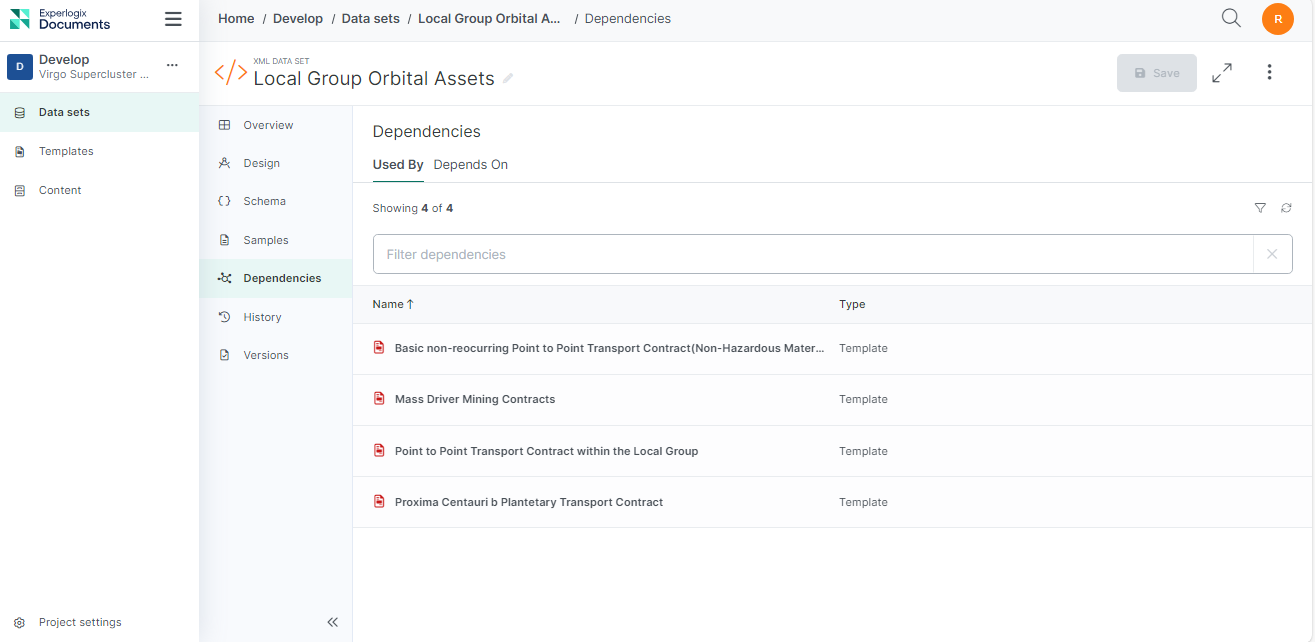
| 1. | Inside your Data Sets or Templates, select the item for which you want to view dependencies. |
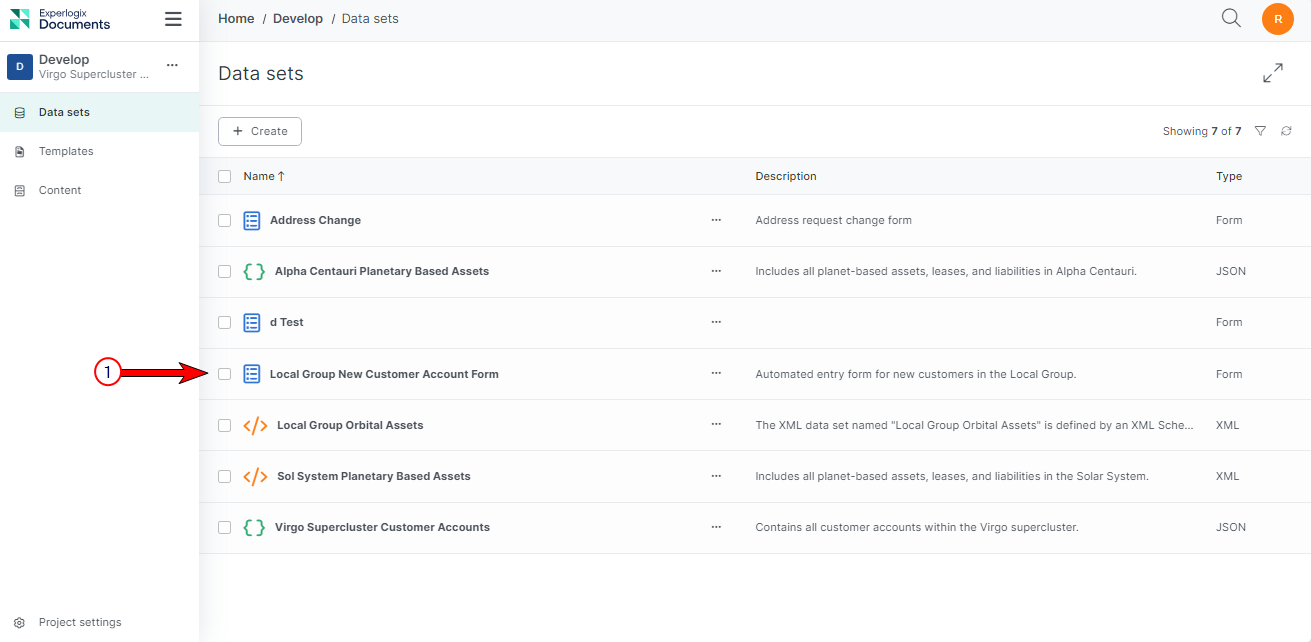
| 2. | Select the Dependencies Tab. |
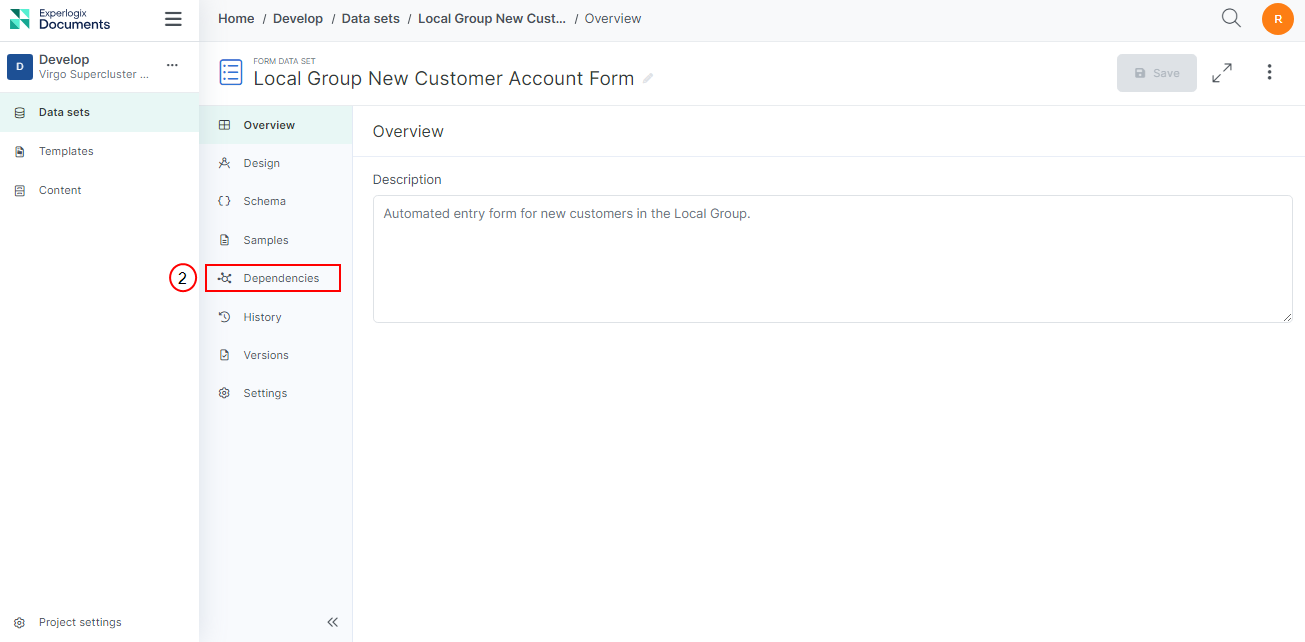
The item’s Dependencies View displays.
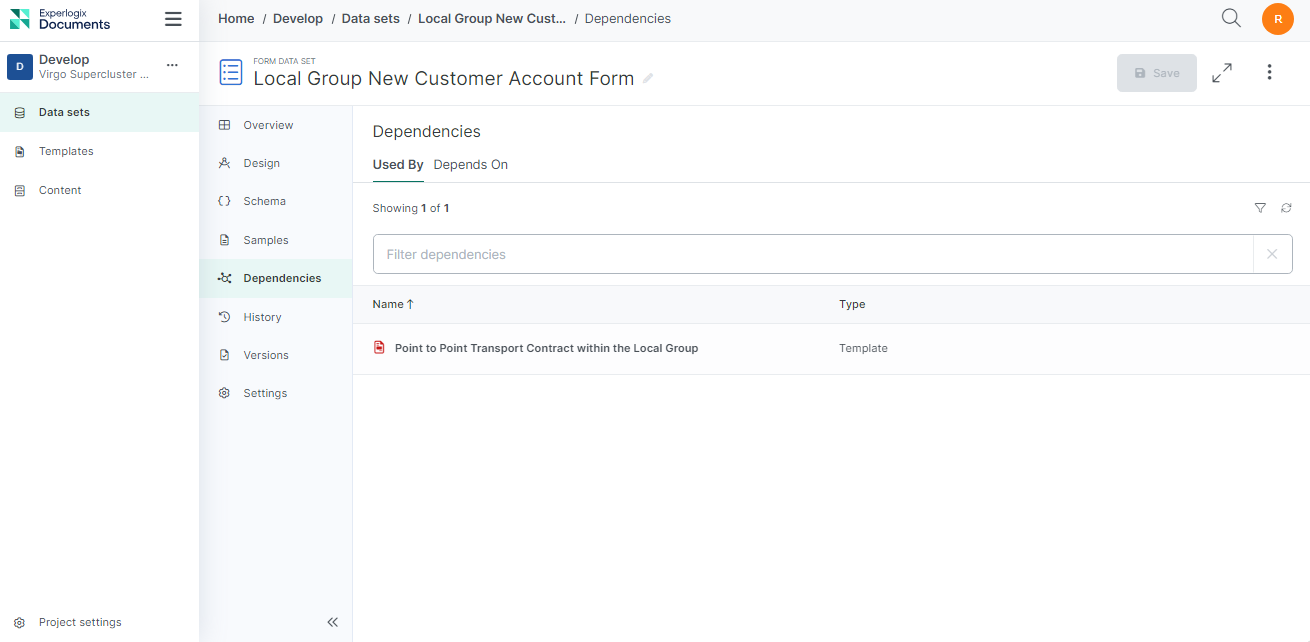
Dependencies Tab Layout
The Dependencies tab provides a clear and organized view of the relationships between various items within the system. It is divided into two primary tabs:
|
Tab Name |
Purpose |
|---|---|
|
Used By |
This tab lists all the dependent items that rely on the selected item, helping you understand the impact of changes to the selected item. |
|
Depends On |
This tab lists all the principal items that the selected item depends on, helping you view all the items that the selected item requires to operate correctly. |
Metadata for Each Dependency
Each dependency listed in either tab includes the following metadata:
-
Name: The name of the dependent or principal item.
-
Type: The type of item, whether it is a data set or template.
Deleting Items with Dependencies
This section explains how to delete items with dependencies, including steps, scenarios, and restricted access.
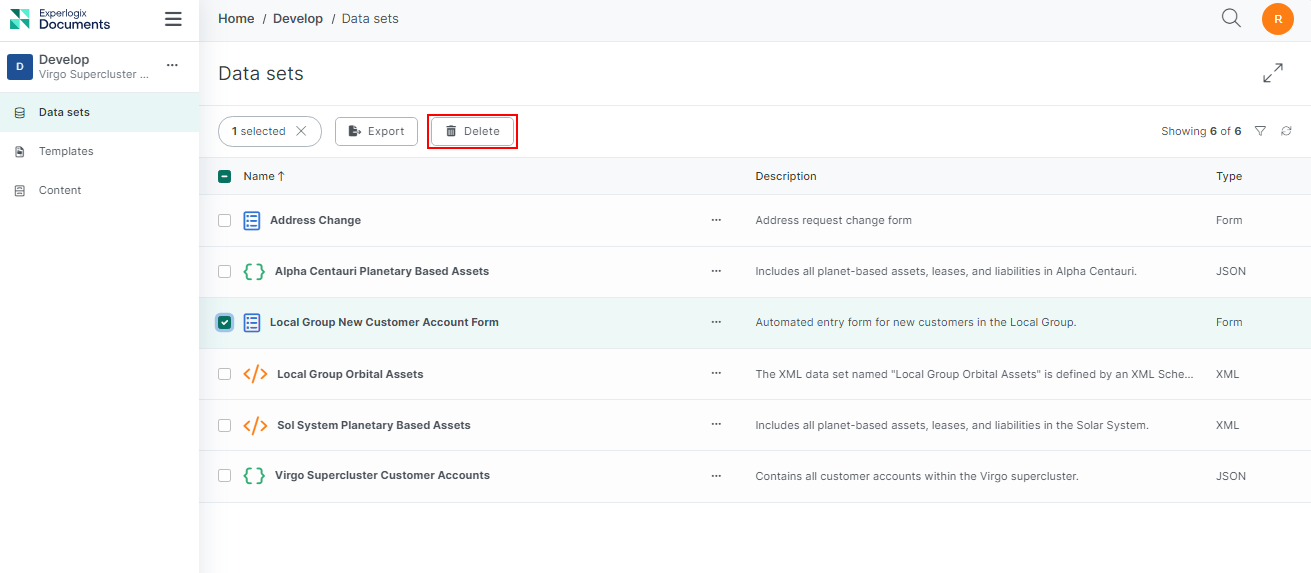
| 1. | Select the item you want to delete. |
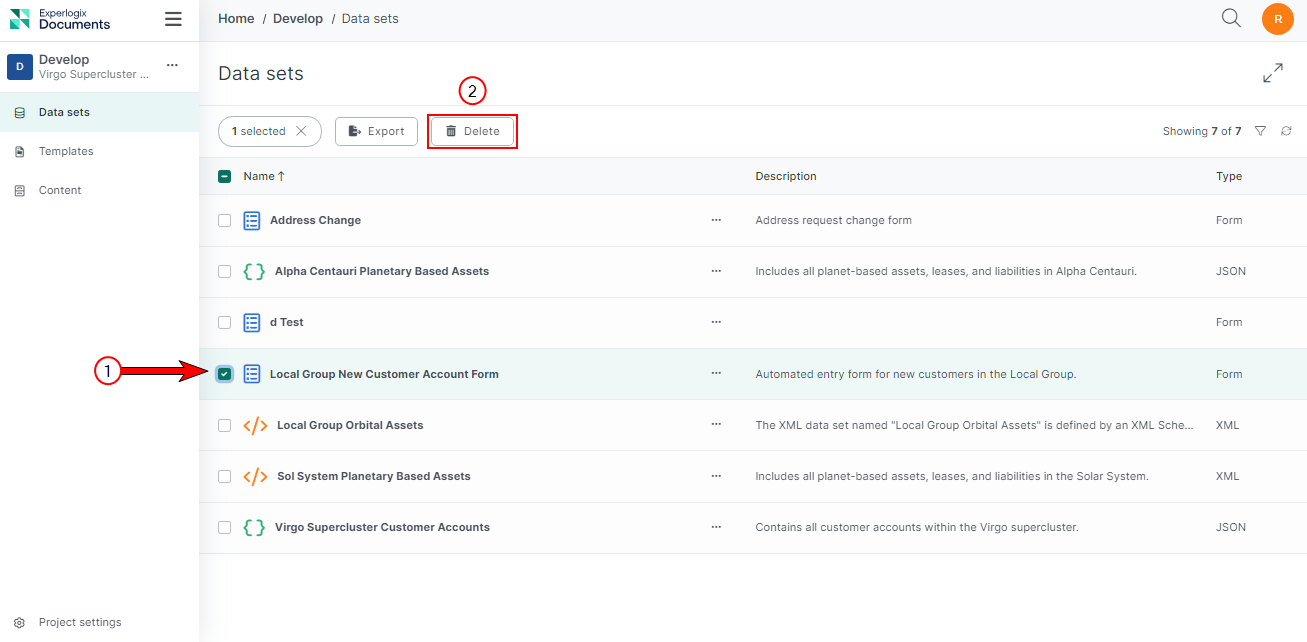
| 2. | Select Delete. |
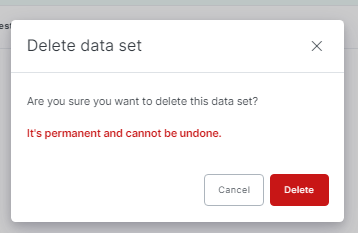
A warning dialog displays a message depending on the type of dependencies the item has.
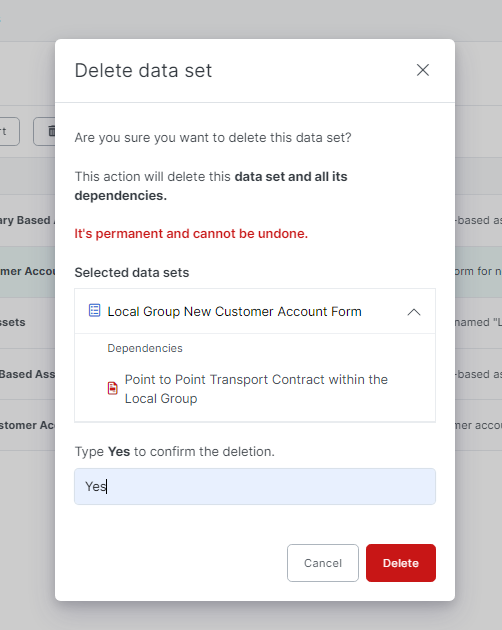
| 3. | Type Yes in the confirmation field to delete. |
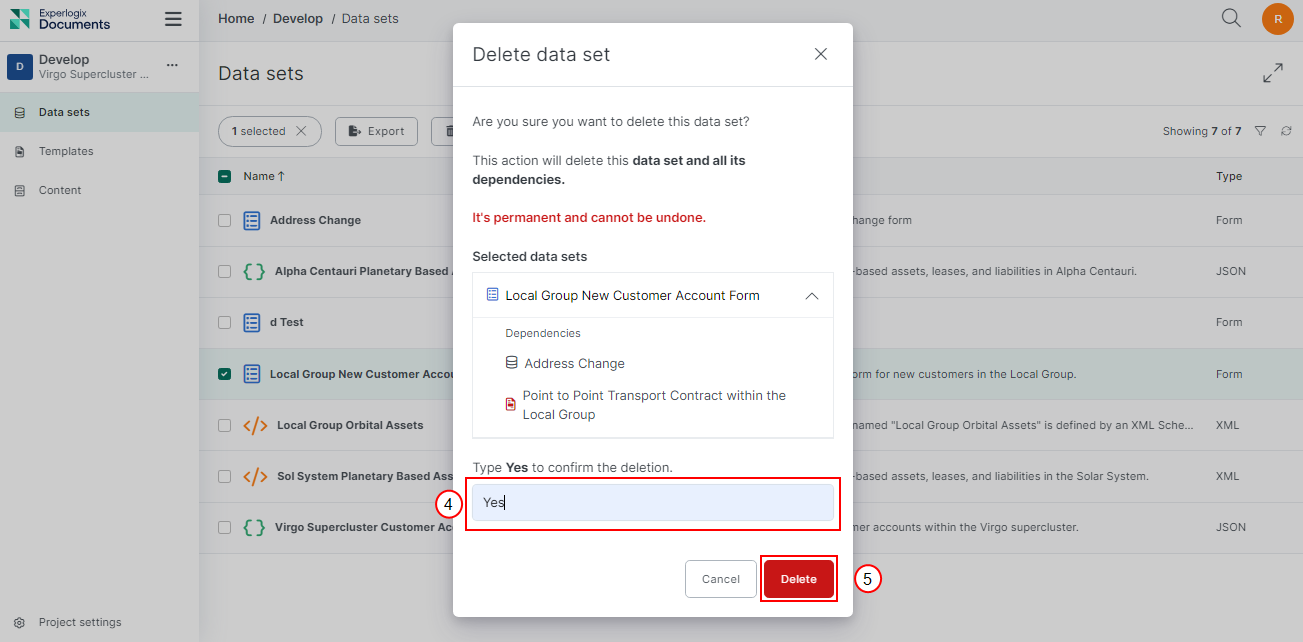
| 4. | Select Delete. |
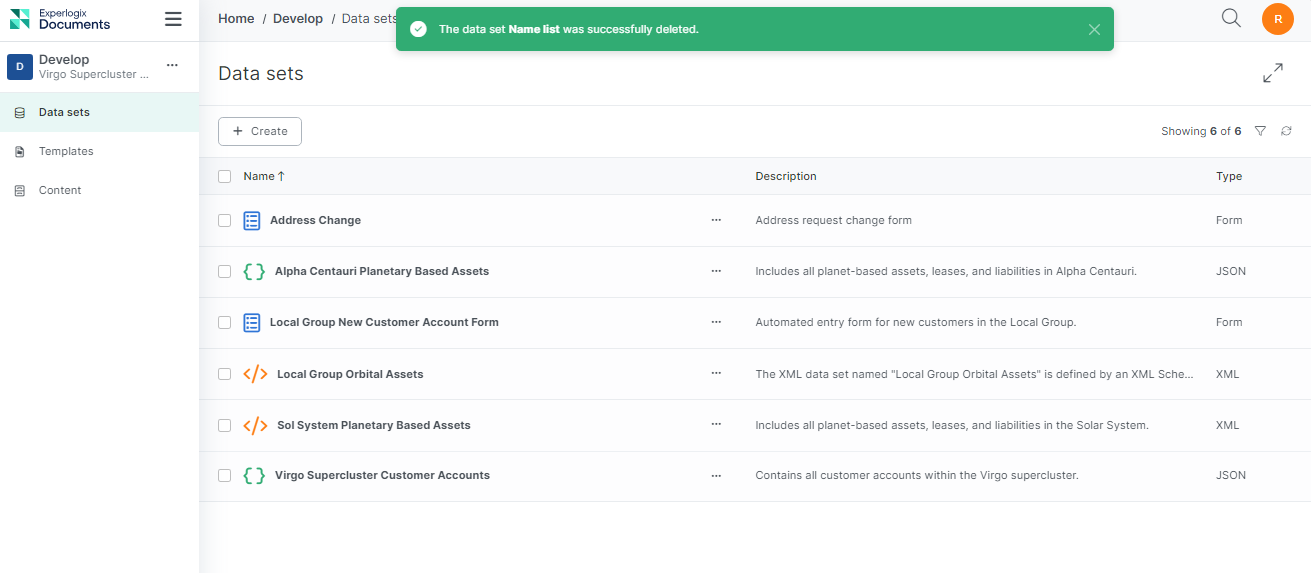
The success message displays.
Understanding the Dependencies Deletion Structure
When attempting to delete an item, the system performs several checks to ensure you have the necessary Permissions and to assess the impact of the deletion on other items. The process varies depending on the type of dependencies the item has.
Permission Check: Permission to delete the item is first checked by the system. If you do, the delete button will be visible.
Dependency Check: The system then checks if the item has any dependencies. The following are the various scenarios you may encounter when deleting items with dependencies
Scenario 1: No Principal Dependencies
If the item only has Depends On This tab lists all the principal items that the selected item depends on, helping you view all the items that the selected item requires to operate correctly. dependencies and no Used By This tab lists all the dependent items that rely on the selected item, helping you understand the impact of changes to the selected item. Dependencies (meaning it is not a principal item These are the items that other items depend on. They are crucial for the dependent items to function properly. for any other item), the system requests your confirmation and deletes the item.
Scenario 2: Principal Dependencies
If the item has Used By This tab lists all the dependent items that rely on the selected item, helping you understand the impact of changes to the selected item. dependencies (indicating it is a principal item and other items depend on it), the system checks for the following permissions.
View Permission for Dependent Items
The system checks if you have permission to view the dependent items.
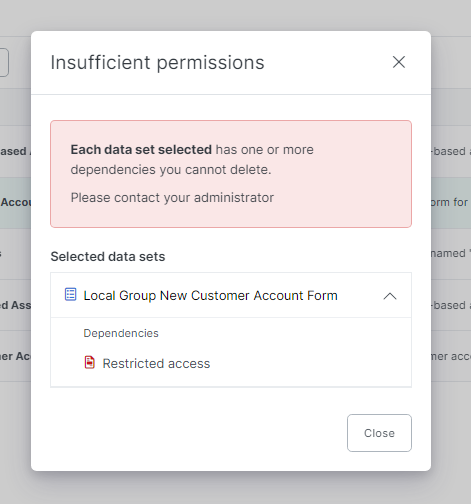
If you do not have permission to view the dependent items, a warning dialog displays indicating restricted access, and the deletion of the principal item is halted.
If you have the permission to view the dependent items, the system requests your confirmation and then checks for the following permissions.
Check out the Dependency Check TableDependency Check Table for more clarity.
Delete Permission for Dependent Items
The system checks if you have the permission to delete the dependent items.
-
Scenario 1: If you have permission to delete the dependent items, the system will requests confirmation and deletes the principal and dependent items.
This is the case where you have all permissions you need to delete the principal and dependent items.
-
Scenario 2: If you do not have permission to delete the dependent items, an error message displays "You do not have permission to delete one or more dependencies. Please contact your administrator". The deletion of the principal item is halted.
Check out the Dependency Check Table for more clarity.
Dependency Check Table
|
Dependency check |
Is the item a principal item |
Permission to view the dependent item |
Permission to delete the dependent item |
Description |
Outcome |
|---|---|---|---|---|---|
|
✅ |
❌ |
N/A |
N/A |
This is the case where the item only has Depends On dependencies and no Used By dependencies. The system requests your confirmation to delete it. |
Once confirmed, the system deletes the item. |
|
✅ |
✅ |
✅ |
✅ |
This is the case where you have all permissions you need to delete the principal and dependent items. The system requests your confirmation to delete the principal and dependent items. |
Once confirmed, the system deletes the principal and dependent items. |
|
✅ |
✅ |
✅ |
❌ |
This is the case where you have permission to view the dependent items but not to delete them. |
An error message displays "You do not have permission to delete one or more dependencies. Please contact your administrator". The deletion of the principal item is halted. |
|
✅ |
✅ |
❌ |
N/A |
This is the case where you cannot view the dependent items. |
A warning dialog displays indicating restricted access, and the deletion of the principal item is halted. |
|
❌ |
N/A |
N/A |
N/A |
The system requests your confirmation to delete the item. |
Once confirmed, the system deletes the item. |
Bulk Deleting Items with Dependencies
This section explains how to delete multiple items with dependencies, including steps, scenarios, and restricted access.
| 1. | Select the items you want to delete. |
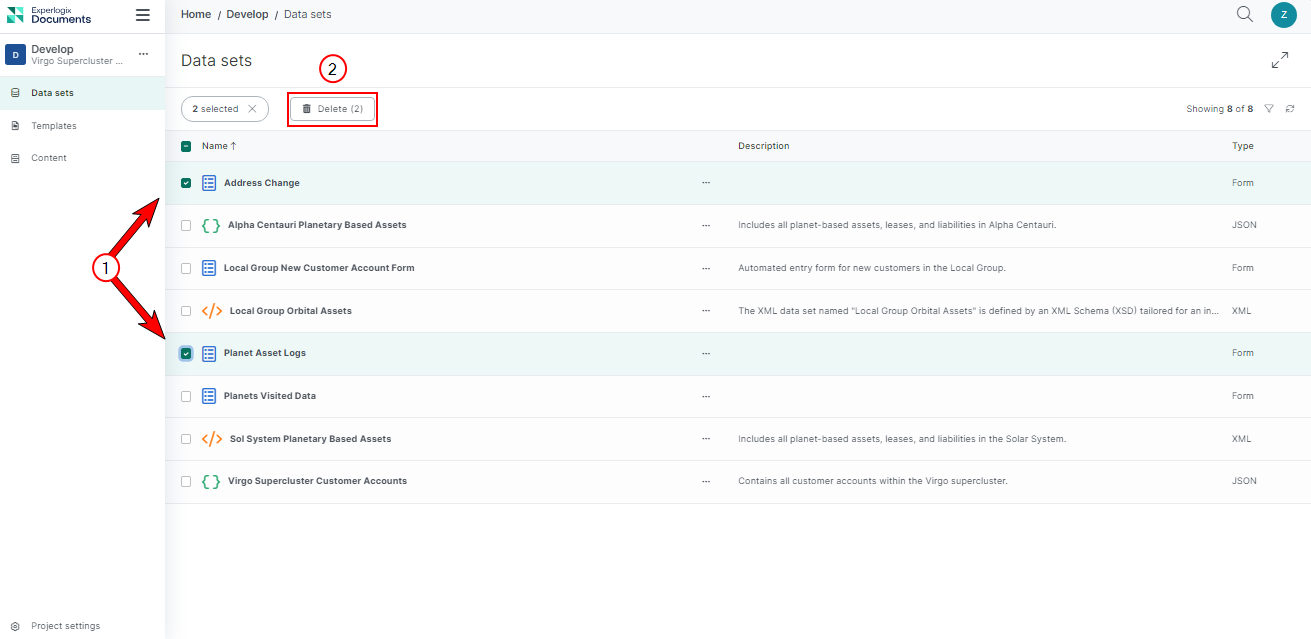
| 2. | Select Delete. |
A warning dialog displays a message depending on the type of dependencies the item has.
| 3. | Type Yes in the confirmation field to delete. |
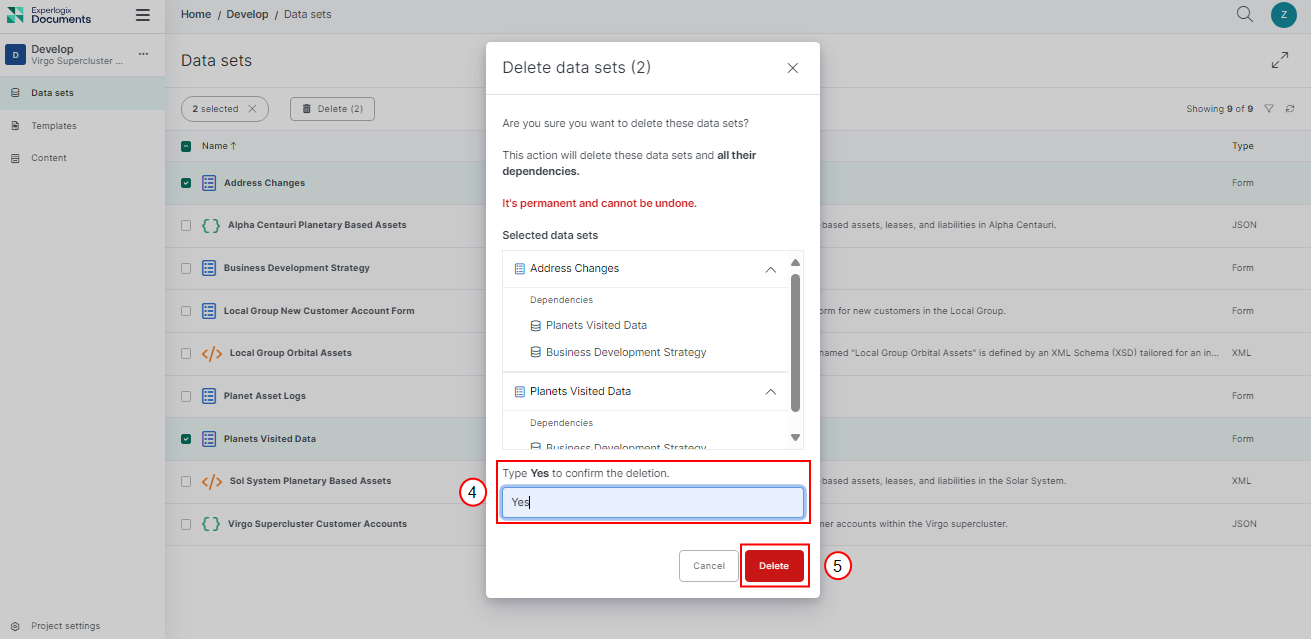
| 4. | Select Delete. |
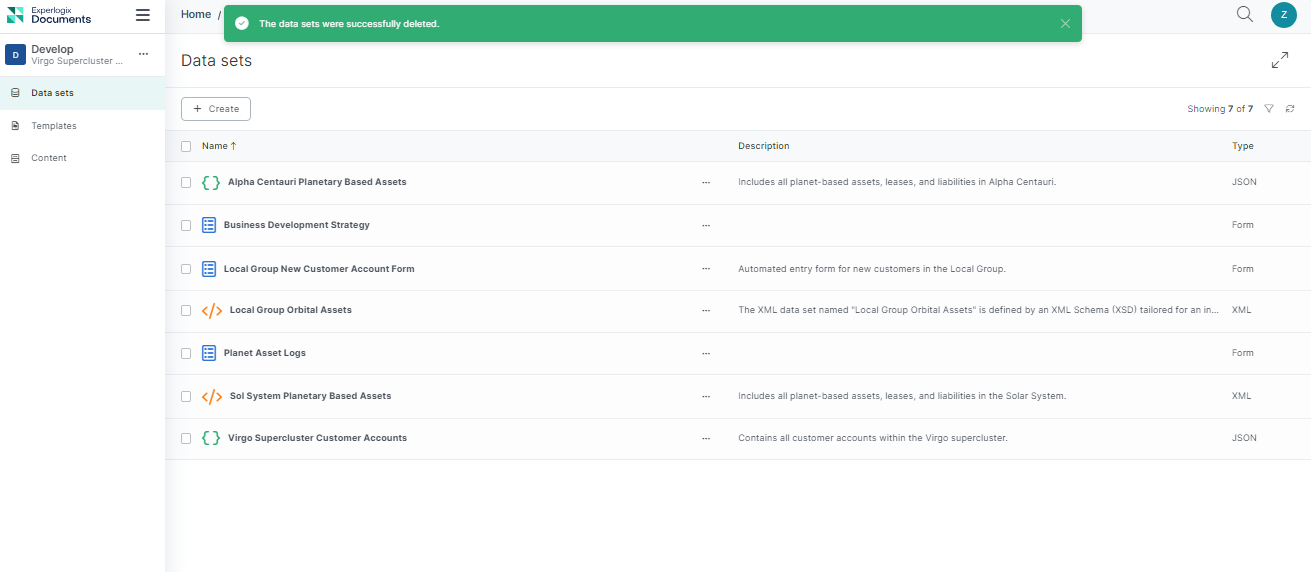
The success message displays.
Understanding the Bulk Deletion Structure
When bulk deleting items with dependencies, the process involves same permission checks as individual item deletion. However, it becomes more complex due to the involvement of multiple items and their dependencies. Let’s explore the three possible scenarios for bulk deletion and the underlying structure that governs these operations.
Scenario 1: Full Permissions
You have the necessary permissions to view and delete all the selected items and their dependent items These are the items that rely on principal items. Any changes to the principal items will affect these dependent items.. When you initiate the bulk deletion, the system checks your permissions for each item and its dependencies. With full permissions, you confirm the deletion of all selected items and their dependencies by typing Yes in the confirmation dialog.
The system then deletes all selected principal items These are the items that other items depend on. They are crucial for the dependent items to function properly. and their dependencies.
Scenario 2: Insufficient View Permissions
You have permission to delete all selected principal items These are the items that other items depend on. They are crucial for the dependent items to function properly., but one or more principal items have dependencies for which you lack the necessary permissions to view. A warning dialog indicates that you cannot delete all items due to insufficient permissions for some dependencies. You will see restricted access for the dependent items These are the items that rely on principal items. Any changes to the principal items will affect these dependent items. you cannot view.
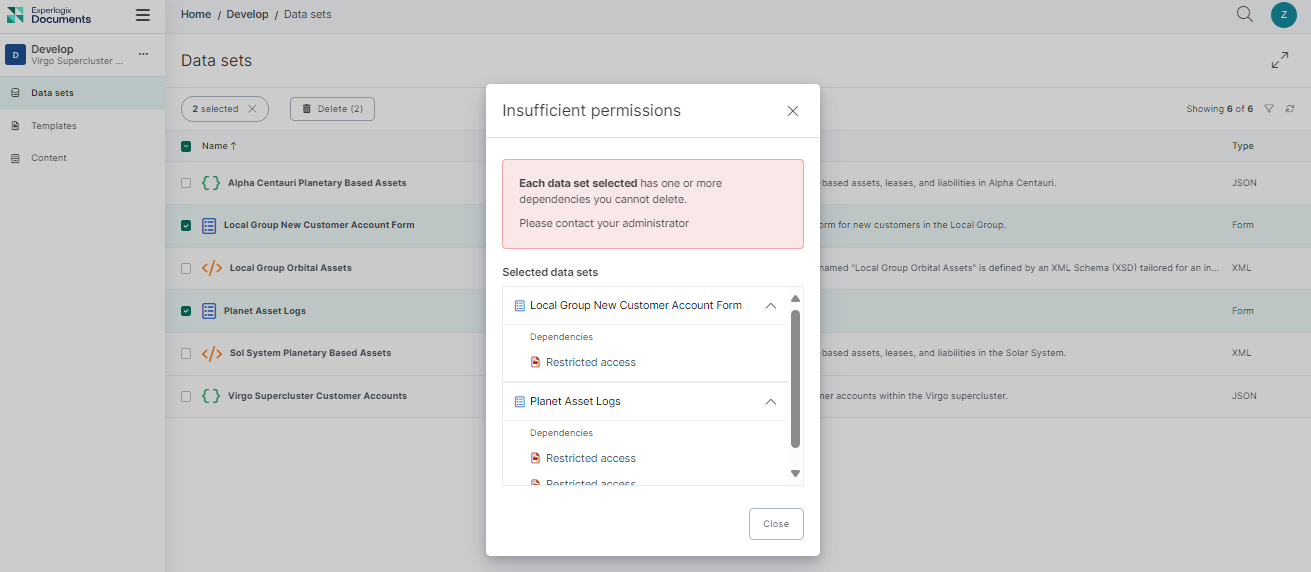
The deletion process is halted until permissions are granted.
Scenario 3: Insufficient Delete Permissions
You have permission to delete all selected principal items These are the items that other items depend on. They are crucial for the dependent items to function properly. and view all dependent items These are the items that rely on principal items. Any changes to the principal items will affect these dependent items., but you lack delete permissions for some dependent items. You confirm the deletion, and the system proceeds to delete the items.
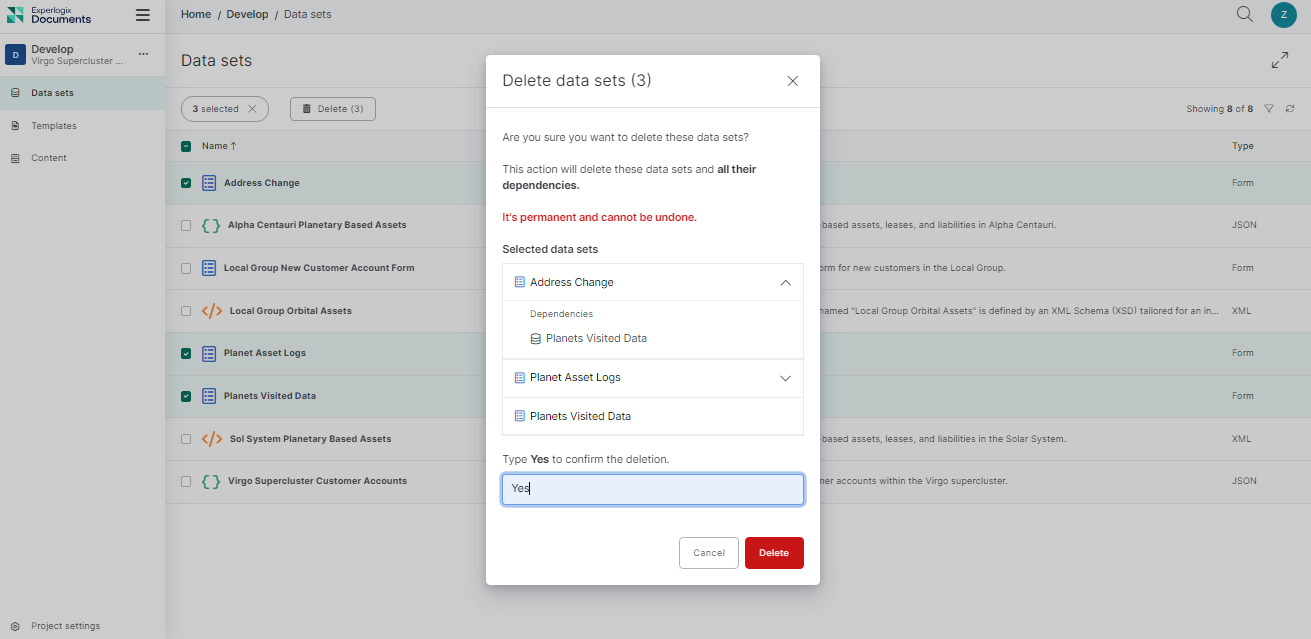
However, it halts the deletion of any item whose dependencies you do not have permission to delete. Hence, partial deletion occurs. Only the items and dependencies for which you have full permissions are deleted.