Templates
Templates serve as blueprints for your documents. You can create templates in the Project Console and design them using the Template Builder add-in for Microsoft Word. Each template is a '.docx' Word document enhanced with Experlogix functionality. The process of creating and using a template generally involves the following steps:
| 1. | Creating a template for detailed information. |
| 2. | (Optional) Attach one or more data sets to it. |
| 3. | Design the template with the Template Builder Word add-in. For more details, please refer to the Template Builder user manual. |
| 4. | Create a flow based on the template. Creating a Flow |
| 5. | End users can now run the flow to generate documents. |
Template Types
There are three types of templates in Smart Flows. Please find the details in the table below:
|
Types |
Description |
|---|---|
|
Standard templates |
Standard templates generate a single document from the populated template. The advantage of using this type of template is that all the content you include—except any conditional content—appears in the final document. |
|
Compositions |
Compositions act as containers for standard templates and other compositions. They allow you to merge multiple templates into a single document. The key benefit is reusability—you can include standard templates in multiple compositions and even nest compositions within others. |
|
Template Designer |
Template Designer is primarily used by Portal customers to create advanced templates that require custom coding. |
Tags
Tags allow you to quickly filter for tagged entities and content to use in designing your outputs. For more details, please refer to Tags.
Filter
You can filter the template list to adhere only to specific criteria.
| 1. | Select the Filter button. |
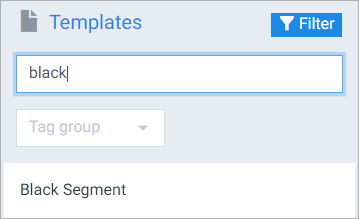
| 2. | In the Name field, enter a template name. |
All the templates matching the 'Name' are displayed.
| 3. | Further, you can select the tags in the Tag group dropdown menu. For more details, please refer to Tags. |
Basic Settings
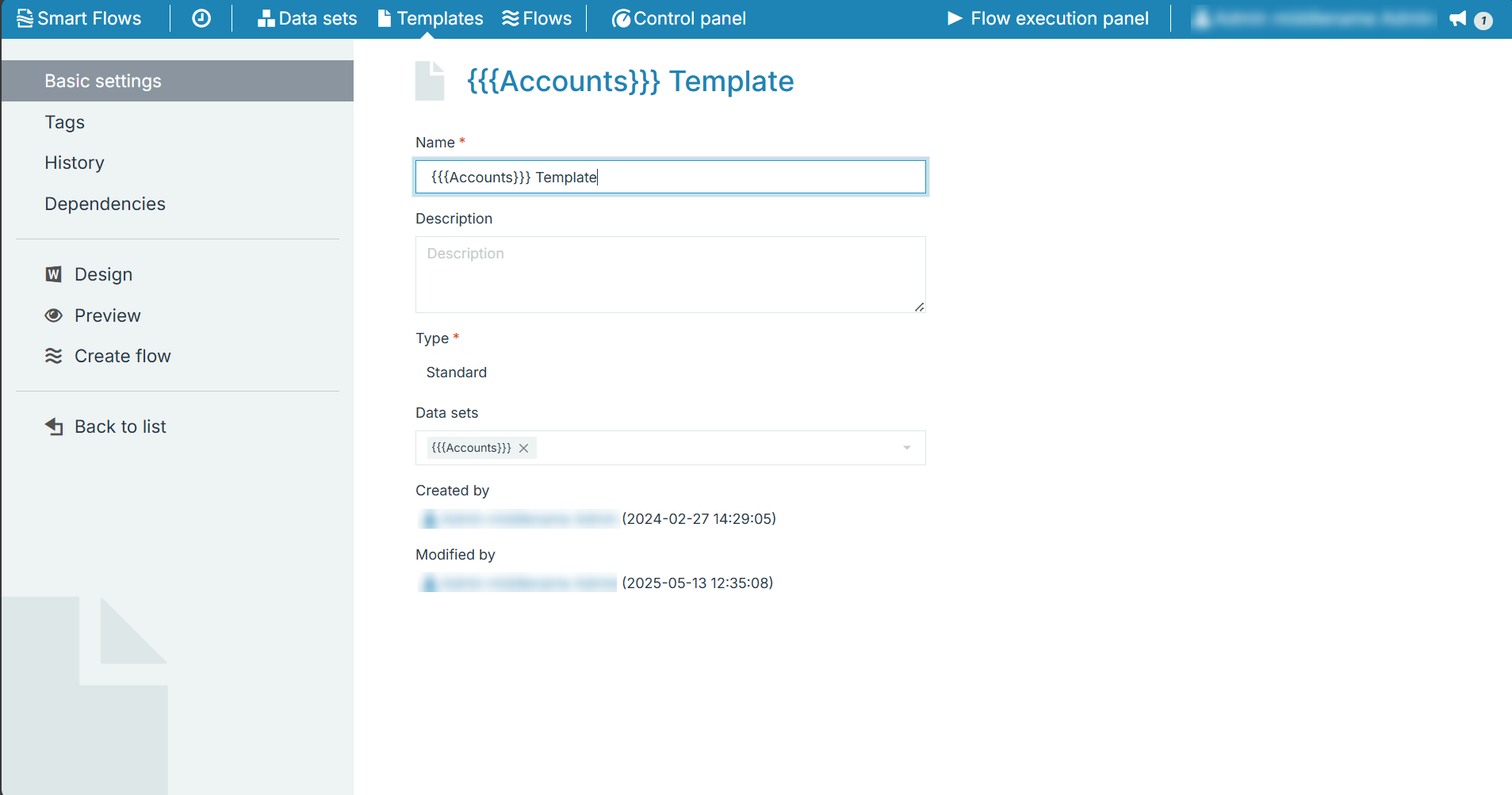
The template’s detail view provides access to its Basic Settings, where you can modify the template’s Name, Description, and associated Data sets.
|
Field |
Description |
|---|---|
|
Name |
Displays the name of the template. |
|
Description |
Displays the description of the template. |
|
Type |
Displays the type of template. |
|
Data sets |
Displays the selected data set used for designing the template. |
|
Created by |
Displays the name of the user who created the template. |
|
Modified by |
Displays the name of the user who modified the template. |
Composing Templates
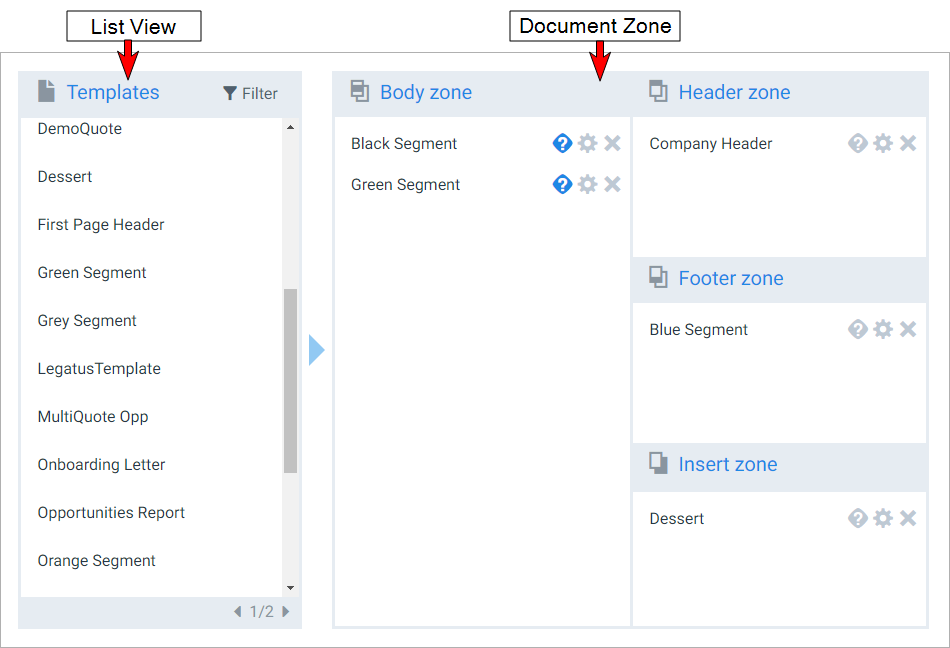
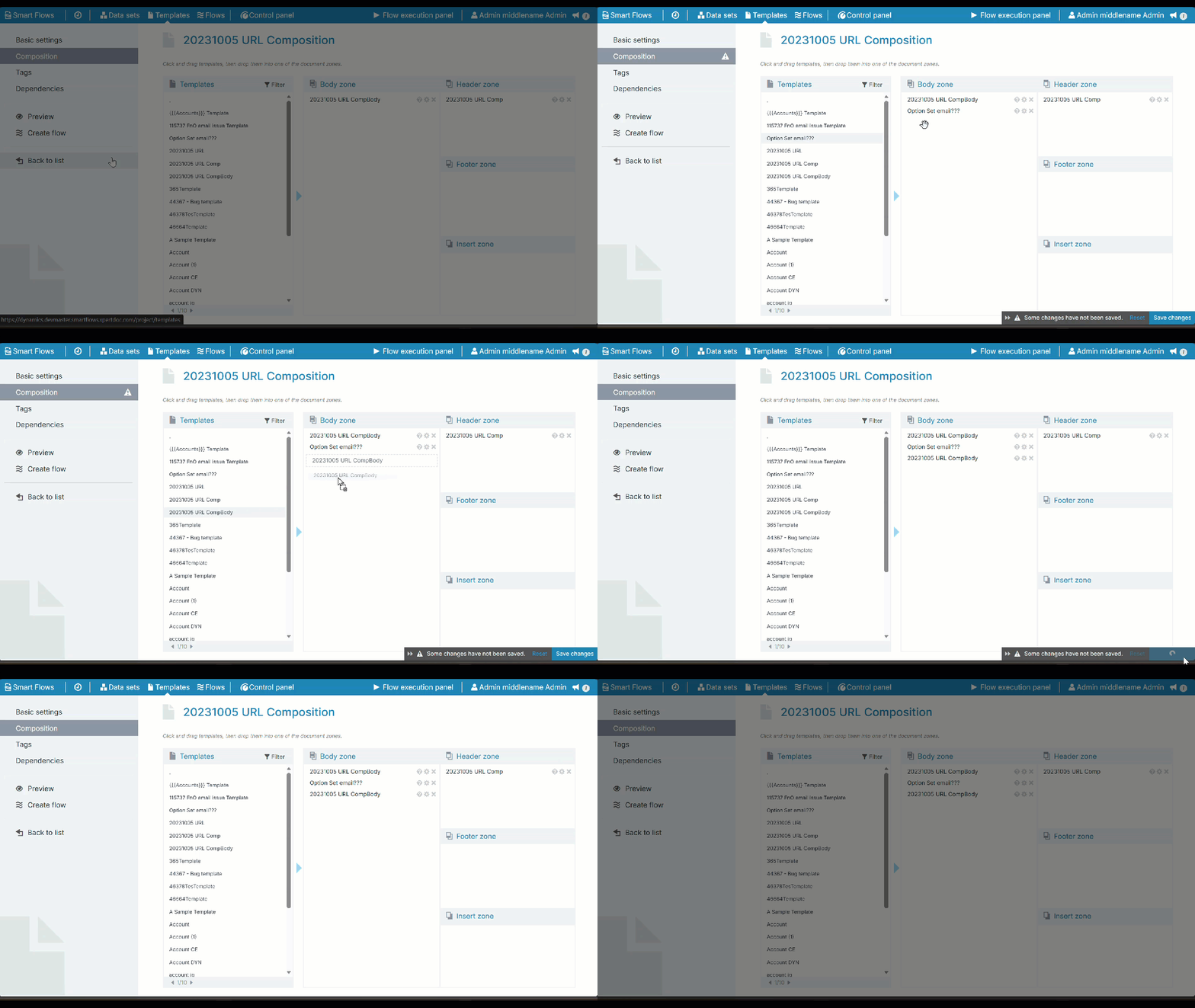
Use the Composition Builder to create a composition. It includes two main components:
-
A list of templates
-
Four boxes representing the document zones. A sample screenshot is shared below:
Adding a Template to a Zone
Drag and drop the templates from the List view into the preferred zone. You can add the same template to multiple zones or repeat it within a single zone. See Document Zones for more information.
Settings
Settings let you configure a template as needed. You can define the appearance of each zone using the 'Occurrence' and 'Break Behavior' options, which vary by zone.
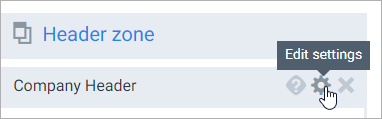
-
Break Behavior - Break behavior defines how you can insert your template into the composition.
|
Type |
Description |
|---|---|
|
None |
Add it after the previous template without making a new section. |
|
Continuous |
Add it after the previous template and make a new section. |
|
New page |
Add it to a new page. |
|
Odd page |
Add it on the first odd page after the previous template. |
|
Even page |
Add it on the first even page after the previous template. |
|
New Column |
Add it on the column break in Word. |
-
Occurrence - Occurrence defines places to insert the header/footer.
|
Type |
Description |
|---|---|
|
Every page |
Insert on every page. |
|
First page |
Insert only on the first page. |
|
Even page |
Insert only on even pages. |
Conditional Templates
| 1. | Select the Condition button to include a template only if it meets a specific condition. |
The Edit condition dialog displays.
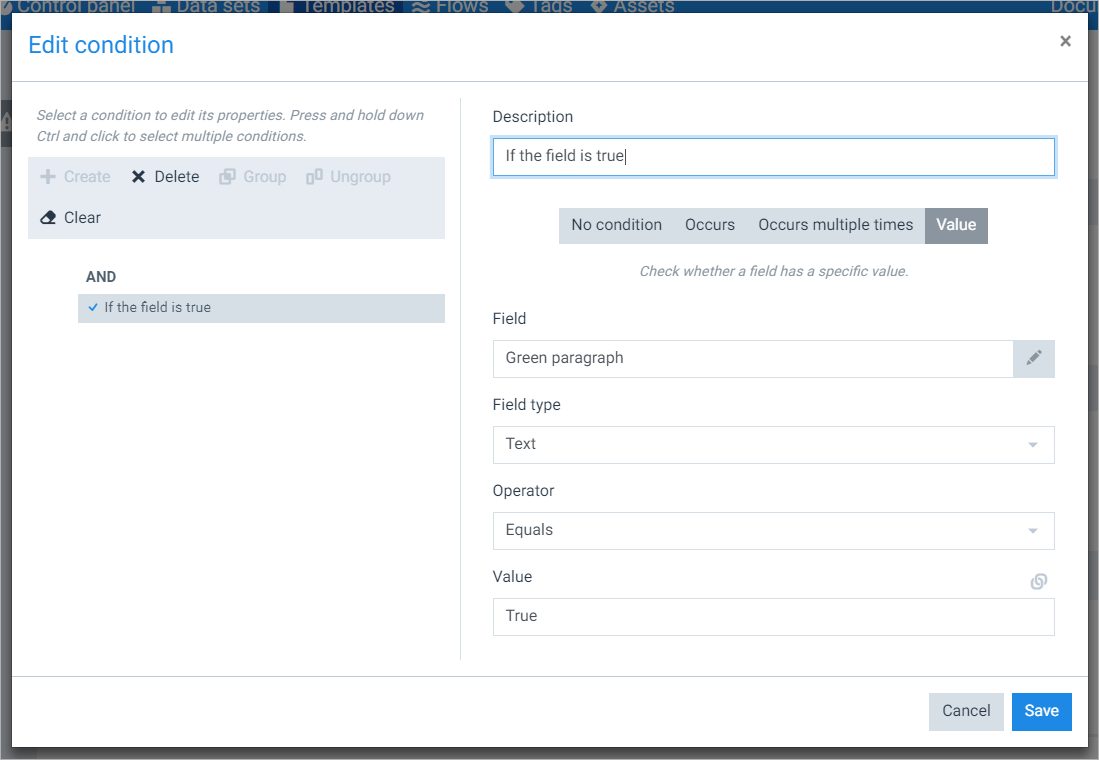
| 2. | Select the +Create button. |
| 3. | Add Descriptions and select Field, Field type, Operator, and Value. |
| 4. | Select the Save button. |
If there is no condition, the Edit condition button is grey.
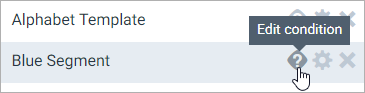
If at least one condition is set on a template, the Edit condition button is blue.
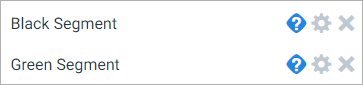
For more details, please refer to The Condition Builder.
History
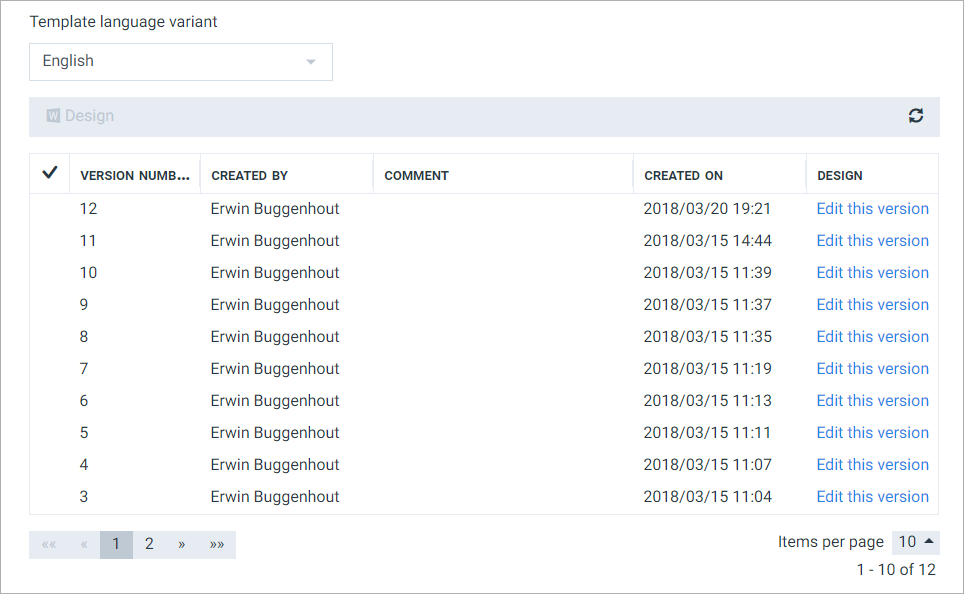
Publishing a template from the Word add-in creates a new version. The 'History' tab lists version details such as number, author, comments, size, date, and design.
Dependencies
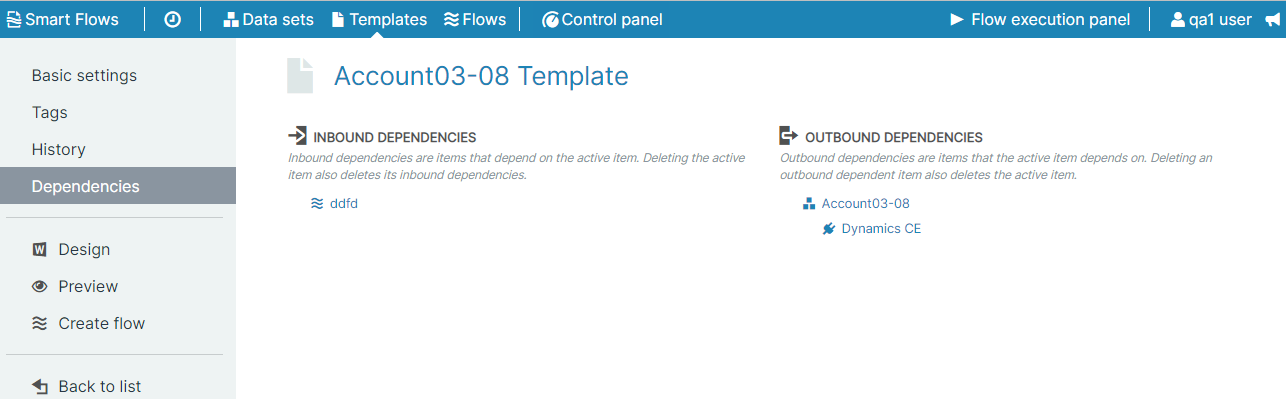
Dependencies are of two types:
Inbound Dependencies: Items that depend on the active item. If you delete the active item, it automatically deletes its inbound dependencies.
Outbound Dependencies: Items that the active item depend on. If you delete an outbound dependent item, it deletes the active item.
Document Zones
While designing a template, you must organize the template into four document zones in Smart Flows. The table below provides details for each zone.
Every template should only contain the zone where it's used for. For example, a Body template should not contain a header or a footer.
|
Document Zone |
Description |
|---|---|
|
Header |
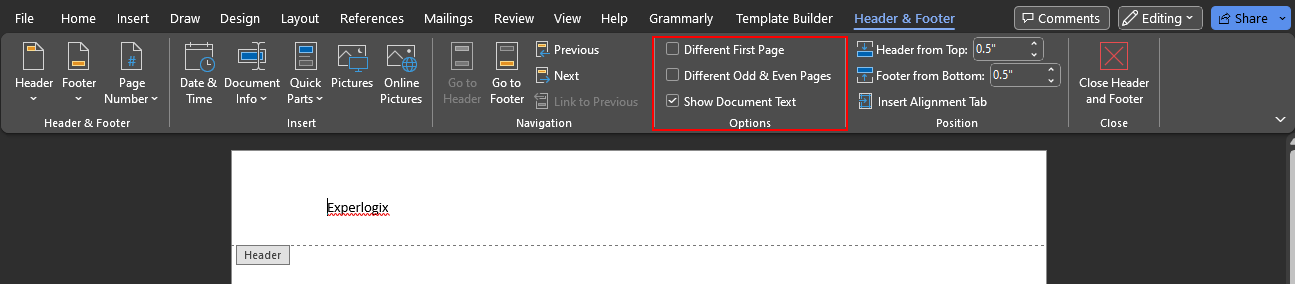
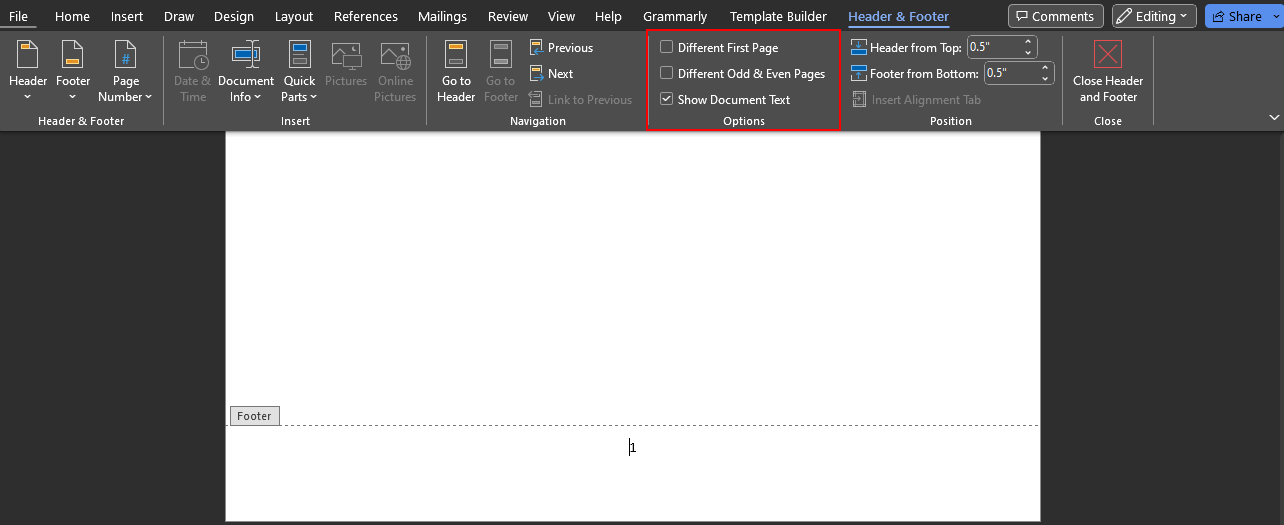
The header zone is the space at the top of each page. The content in the header zone repeats on every page of the generated document, which makes it ideal for the company name and logo. In Microsoft Word, make sure only the first page displays a header. Do not enable the options for ‘Different First Page’ or ‘Different Odd & Even Pages.
|
|
Body |
The body zone features the main content of the template. If the content added to the body template exceeds the available space in the body zone, additional pages are created in the resulting document. |
|
Insert |
The insert zone is at the back of the generated document. This zone is useful for adding complete documents to your template, such as the terms and conditions of a sale. |
|
Footer |
The footer zone is the space at the bottom of each page. The content is repeated on every page of the generated document, making it ideal for adding contact details or page numbers. In Microsoft Word, make sure only the first page displays a header. Do not enable the options for ‘Different First Page’ or ‘Different Odd & Even Pages.
|
Design
You can manage templates using The List View. Follow the below steps for designing your templates.
Designing Templates
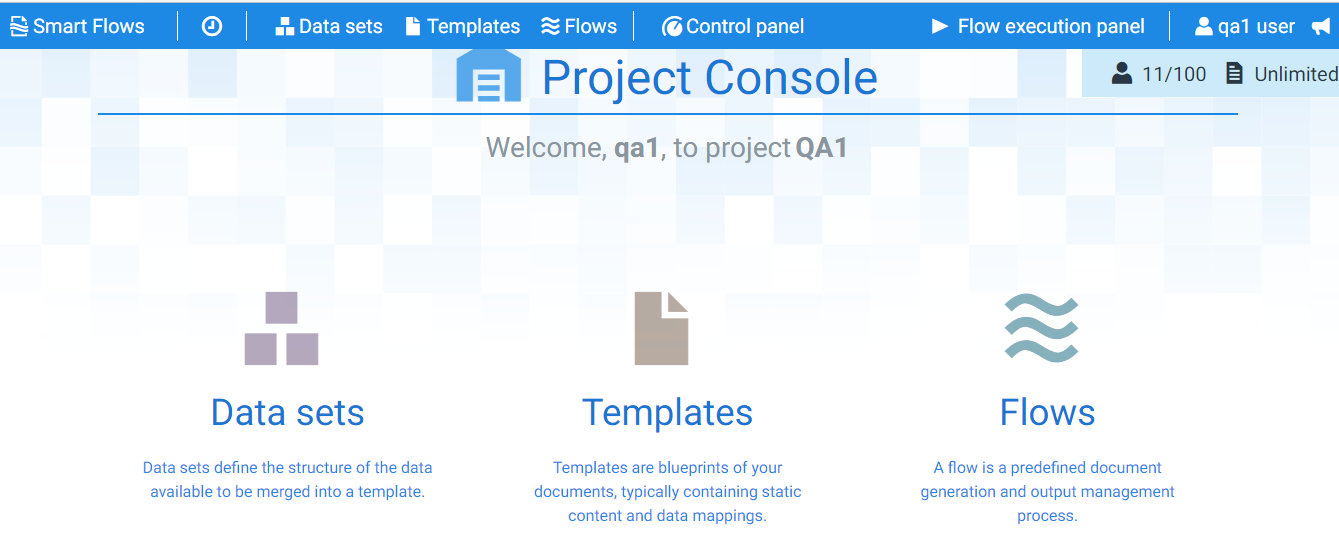
| 1. | In the Project Console, select the Template button. |
The Template window displays.
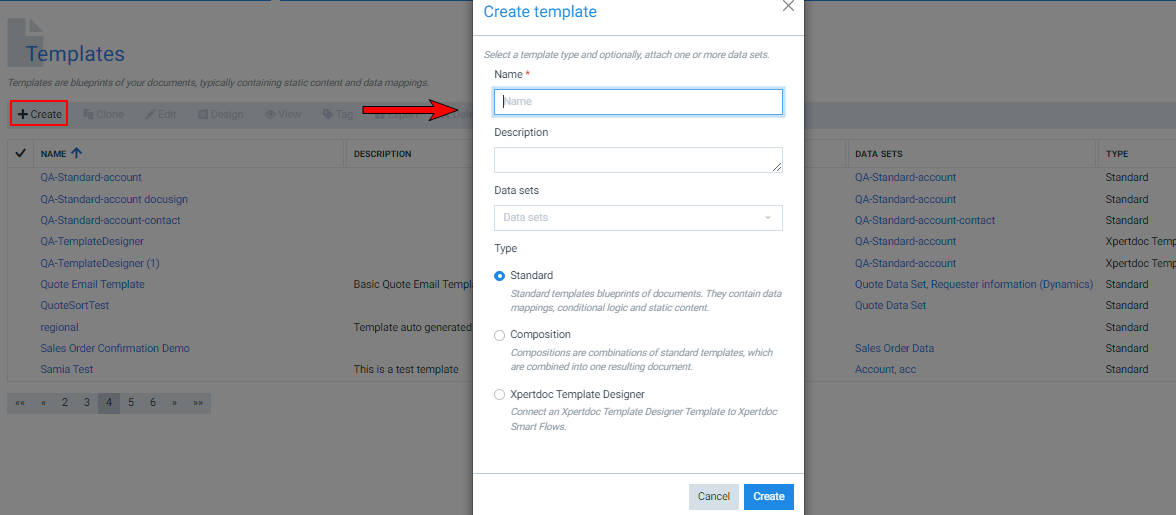
| 2. | Select the Create button. |
The Create template window displays.
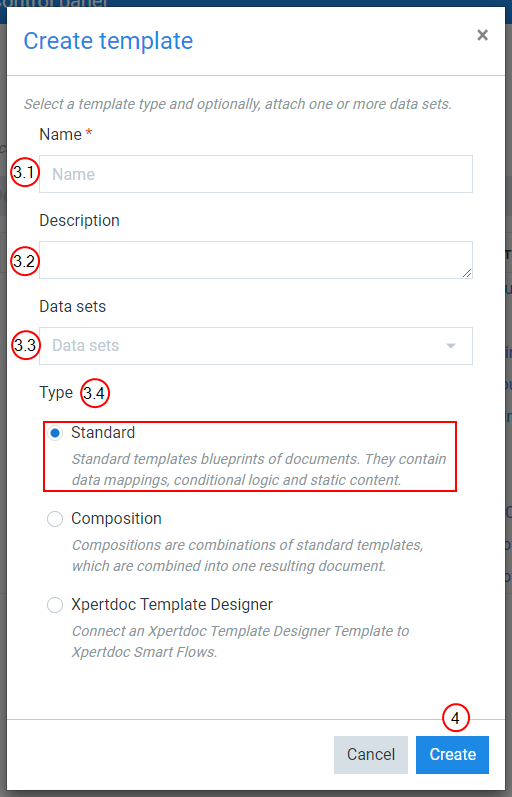
| 3. | Create the template. |
| 3.1. | In the Name field, input the name of the template. |
| 3.2. | (Optional) In the Description field, input a description for the template. |
| 3.3. | (Optional) In the Data sets dropdown menu, select the Data sets you want to use for your template. |
Decision Point
There are three types of templates - Standard, Compositions, and ExperlogixProject Console. See Template Types to determine the correct template type for your application.
| 3.4. | Select your desired Type of template. |
| 4. | Select the Create button. |
The Create template window no longer displays.
The List view refreshes to display your new template.
The system redirects you to the Template Builder, which allows you to design the layout of your template in Microsoft Word.
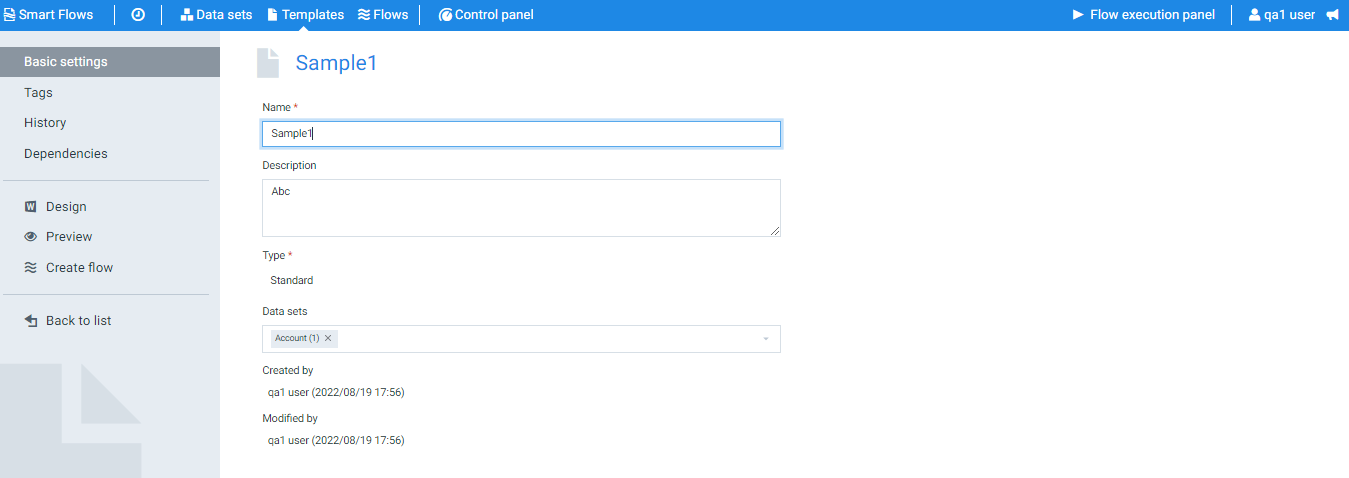
| 5. | In the left navigation panel, select the Design button. |
The Design template window displays.
| 6. | In the Select language variant dropdown menu, select the language variant of the templates you want to open. |
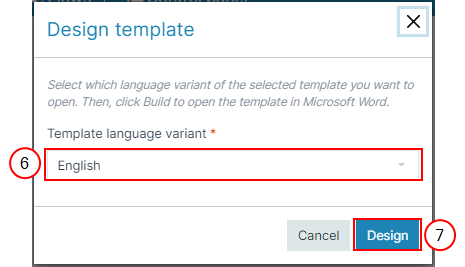
| 7. | Select the Design button. |
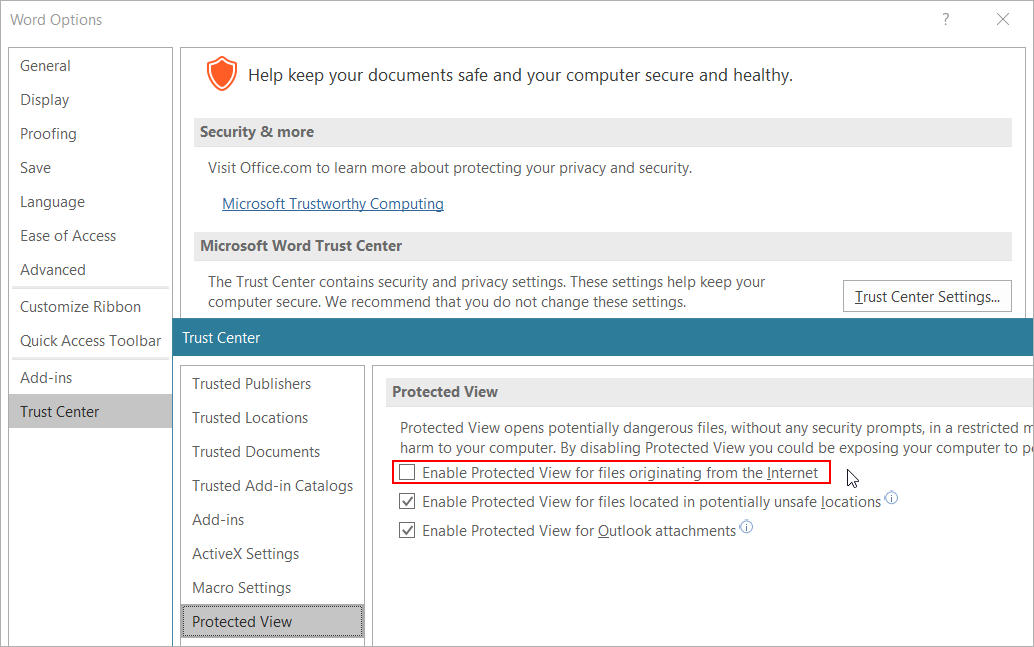
It downloads a .docx file containing all the information the Word add-in needs to open it as a Smart Flows template.
| 8. | Open the downloaded file to design your template. |
The Connection dialog displays the connection URL, connection name, and list of authentication methods.
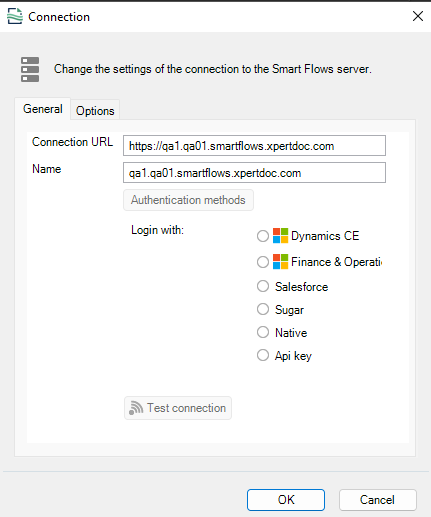
| 9. | Select the Authentication method you want to log in with. |
| 10. | Select the Test connection button. |
When the testing process completes, a success message displays stating, "The test succeeded!"
| 11. | Select the OK button. |
You can start designing your template and mapping your data set. For more details, refer to Mapping Fields.
Preview
| 1. | In the Template detail view, select the Preview button. |
The preview document dialog displays.
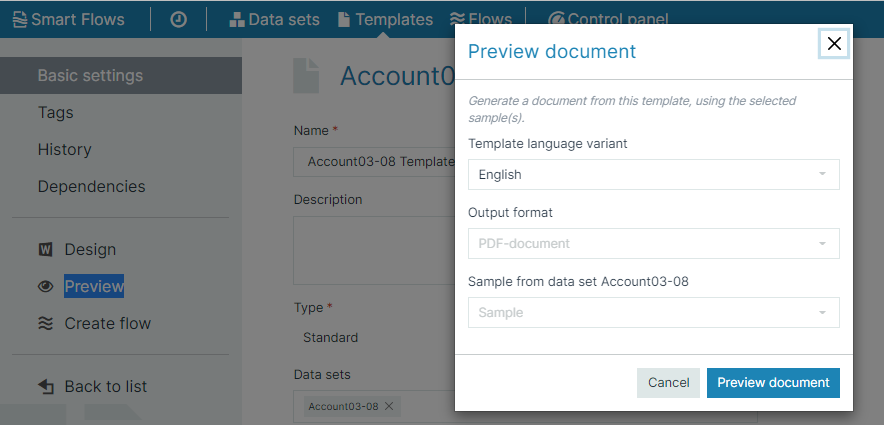
| 2. | In the Template language variant dropdown menu, select the language. |
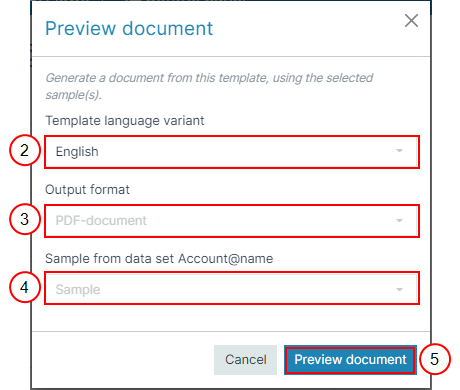
| 3. | In the Output format dropdown menu, select the format you want to preview your document. |
| 4. | In the Sample from data set dropdown menu, select the sample you want to preview. |
| 5. | Select the Preview document button. |
It generates a PDF file using the data from the samples you selected.
Template preview PDF/UA compliance test
Integration of a PDF/UA compliance in the Preview section of the Project Console, users can quickly verify whether their templates meet accessibility requirements. This feature provides a detailed compliance report, highlights issues that need correction, and offers guidance on optimizing accessibility. If the compliance test passes successfully, the template is automatically downloaded into your system. If the compliance test fails, a detailed report is provided.
| 1. | Select Preview. |
| 2. | In the Preview Document, select Accessible PDF-document for Output Format. |

| 3. | Check the option below for PDF/UA compliance. |
| 4. | Select Preview Document. |
If the compliance test passes successfully, the template is automatically downloaded into your system.
If the compliance test fails, a detailed report is displayed.

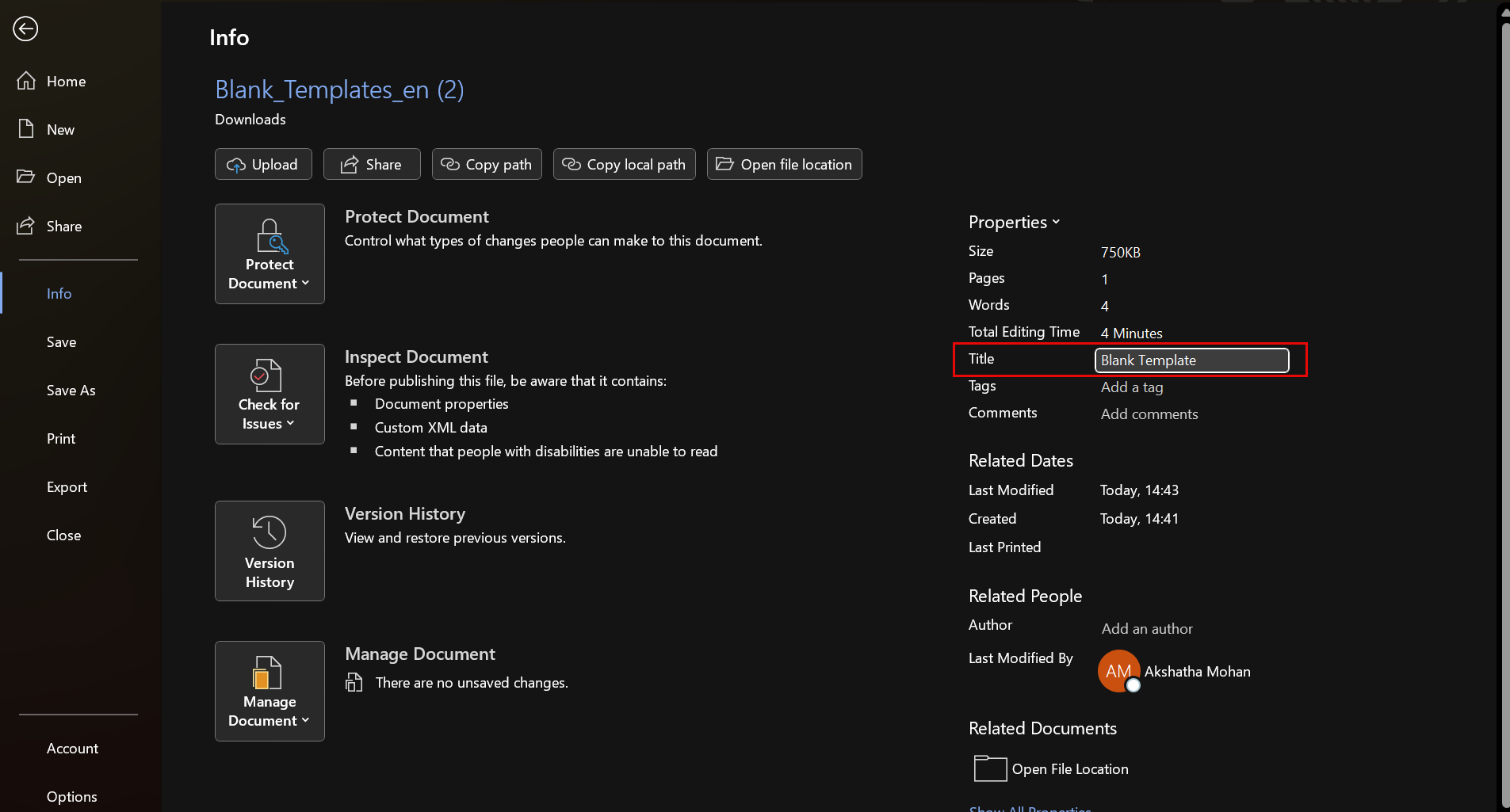
Template Title Requirement
By default, the 'Template Title' is empty This will cause the compliance test to fail. Be sure to provide a Template Title before running the test.