Project Settings Languages Tab
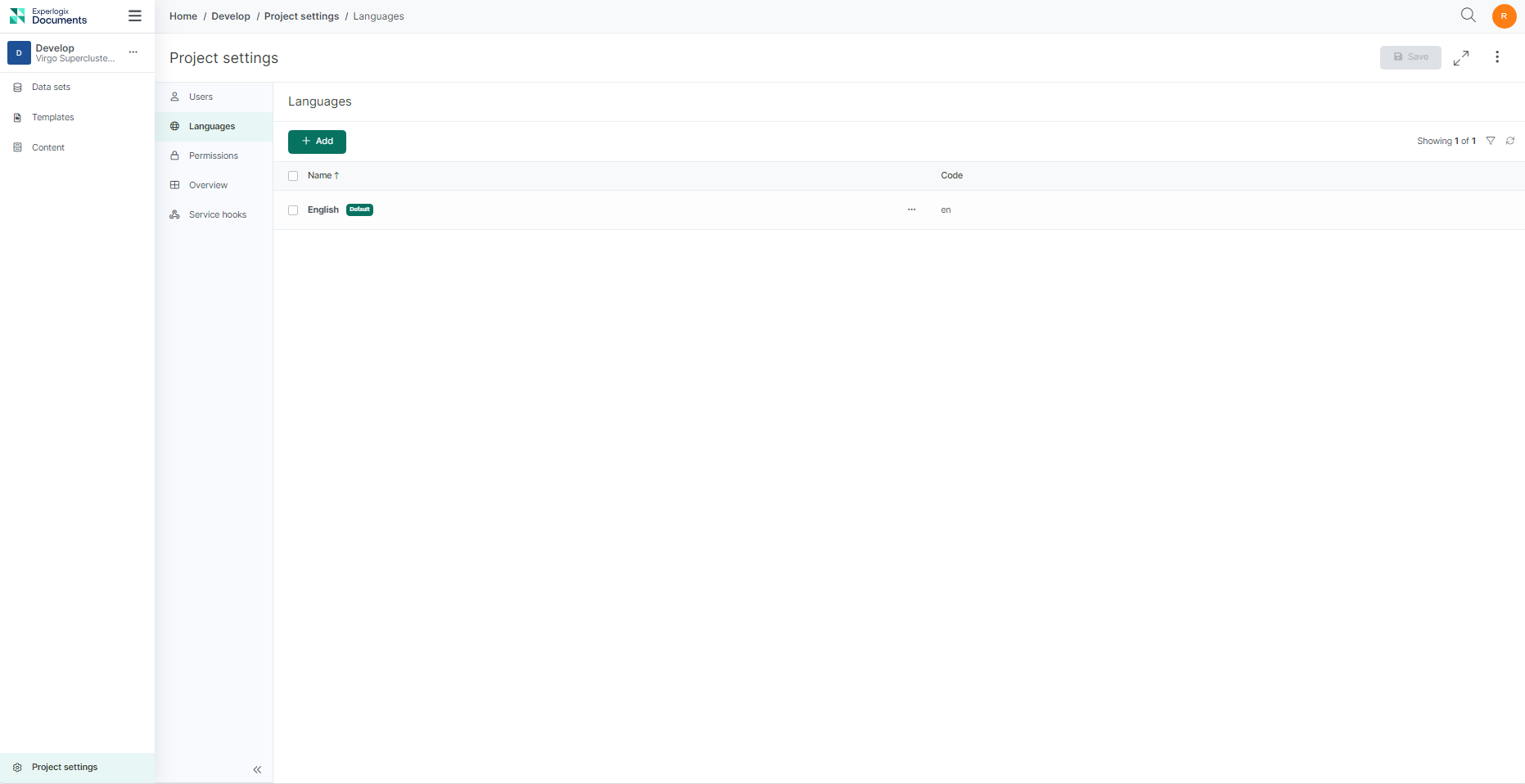
Experlogix Documents enable you to create and manage items in multiple languages. By managing languages effectively, you can create and maintain language-specific variants of your templates, ensuring that all users interact with your content in their preferred language. This document will guide you through navigating the Languages user interface at the project level and performing various operations.
|
Setting |
Field |
Description |
|---|---|---|
|
Languages |
Name | Displays the language names (e.g., English). |
| Code | Language code associated with the language (e.g., "en" for English). | |
| Default | Indicates the default language for the project. |
Accessing the Languages Tab
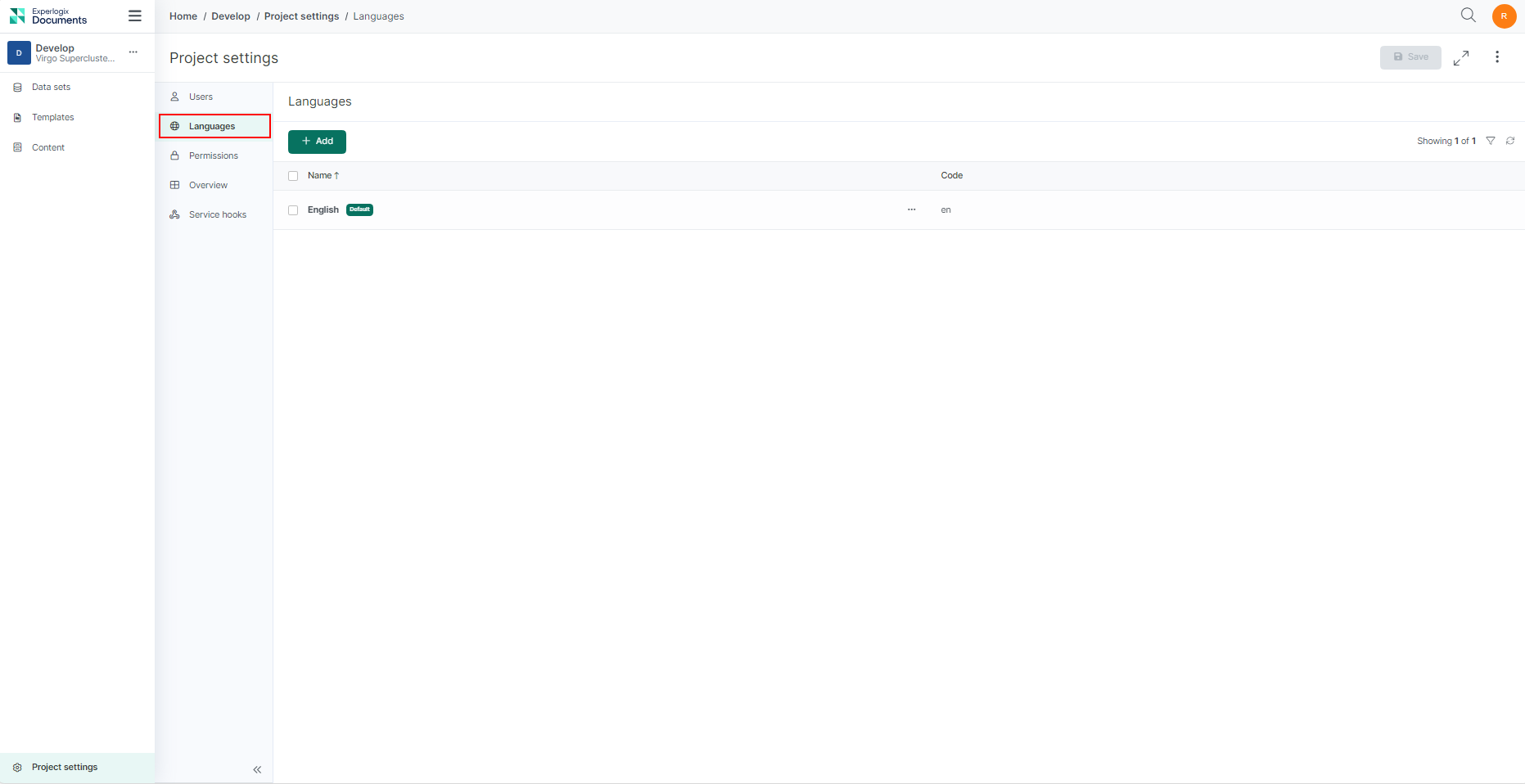
To access the Languages tab, go to your Project Settings, and select the Languages tab.
Procedures
This section focuses on three fundamental operations: adding a new language, deleting an existing language, and setting a language as the default. By understanding how to perform these operations, you can effectively tailor your project to meet your users' language preferences.
Adding a New Language
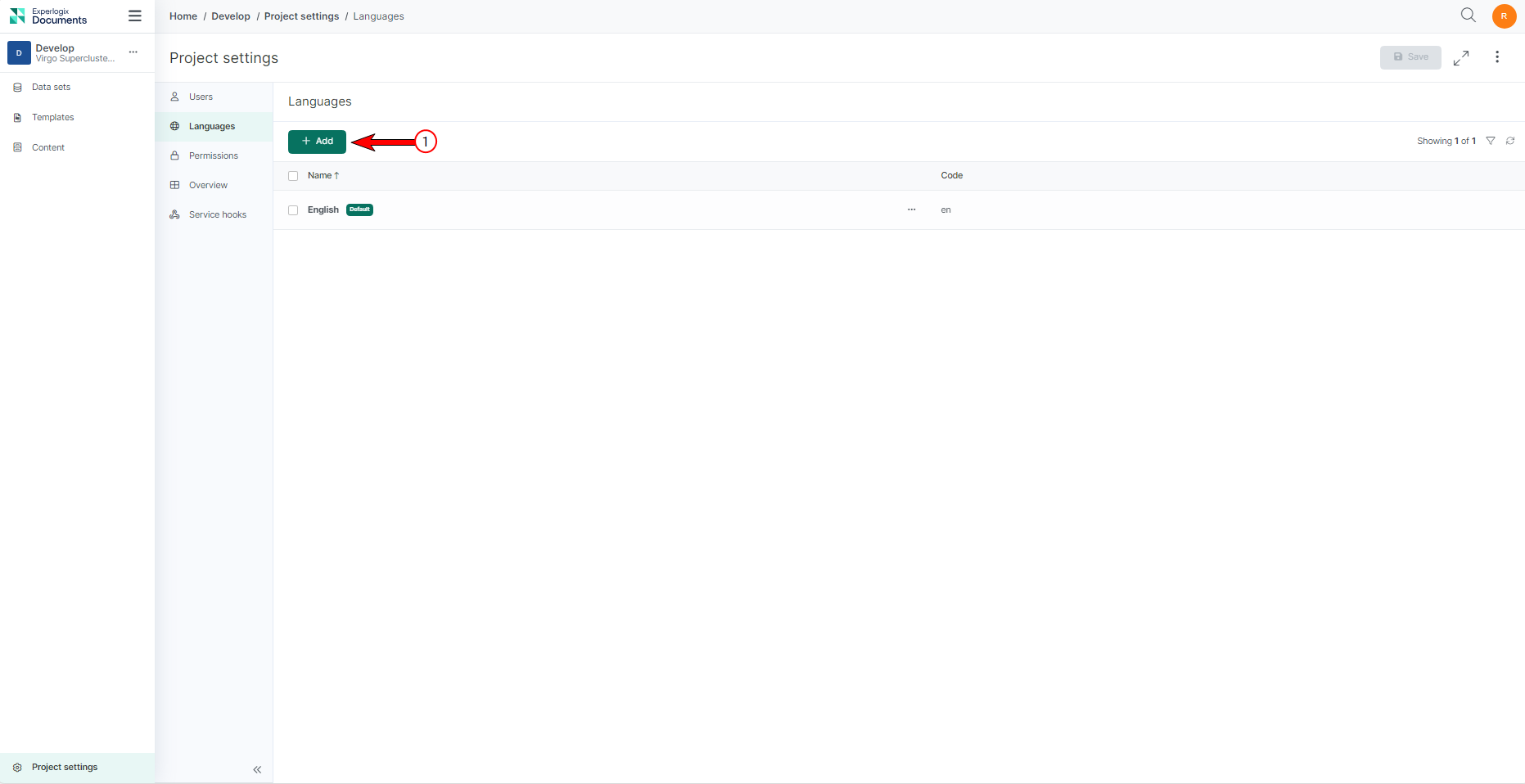
| 1. | Inside the Languages tab, select the Add button. |
| 2. | Inside the Add languages dialog, select a language from the Languages dropdown menu. |
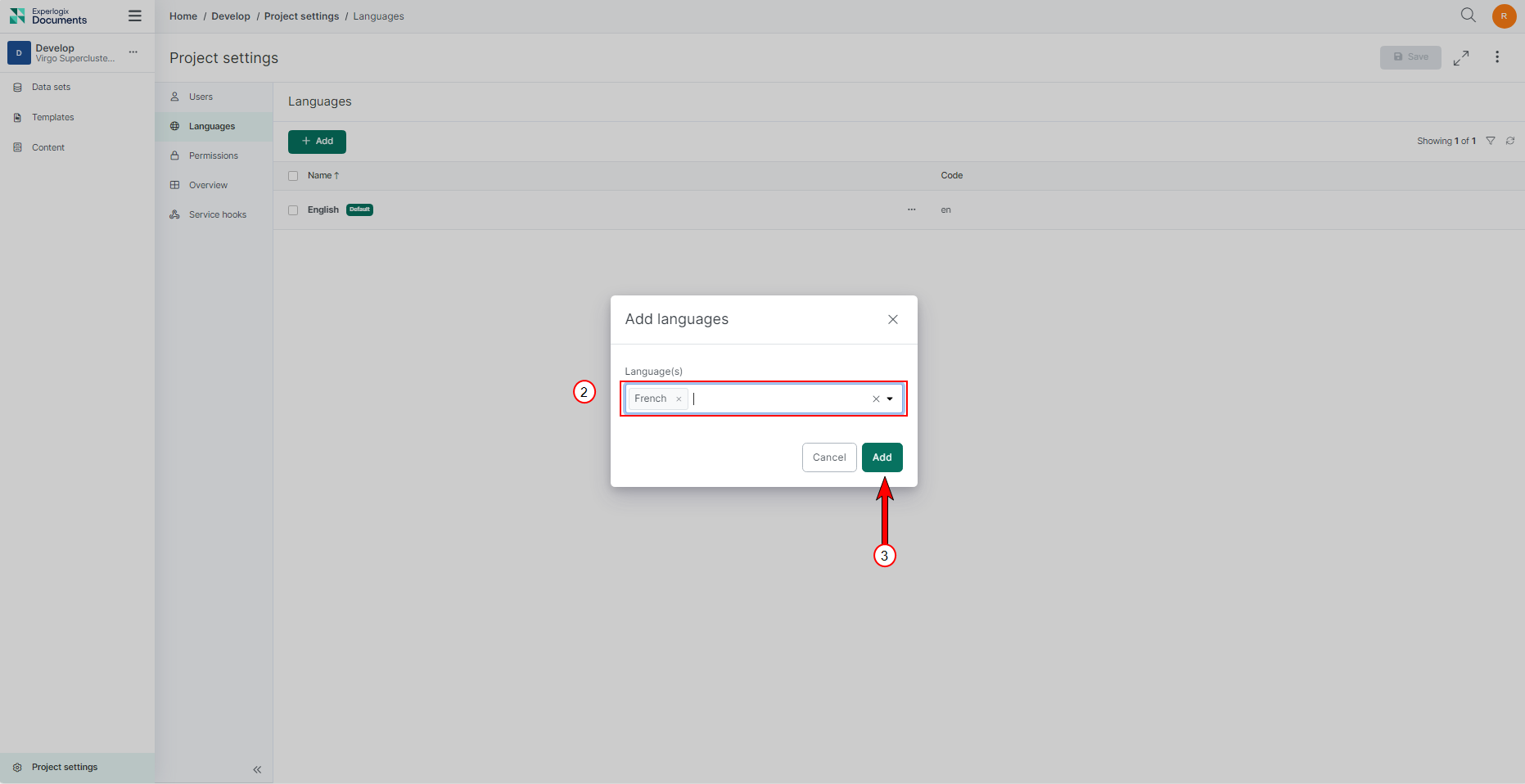
| 3. | Select Add. |
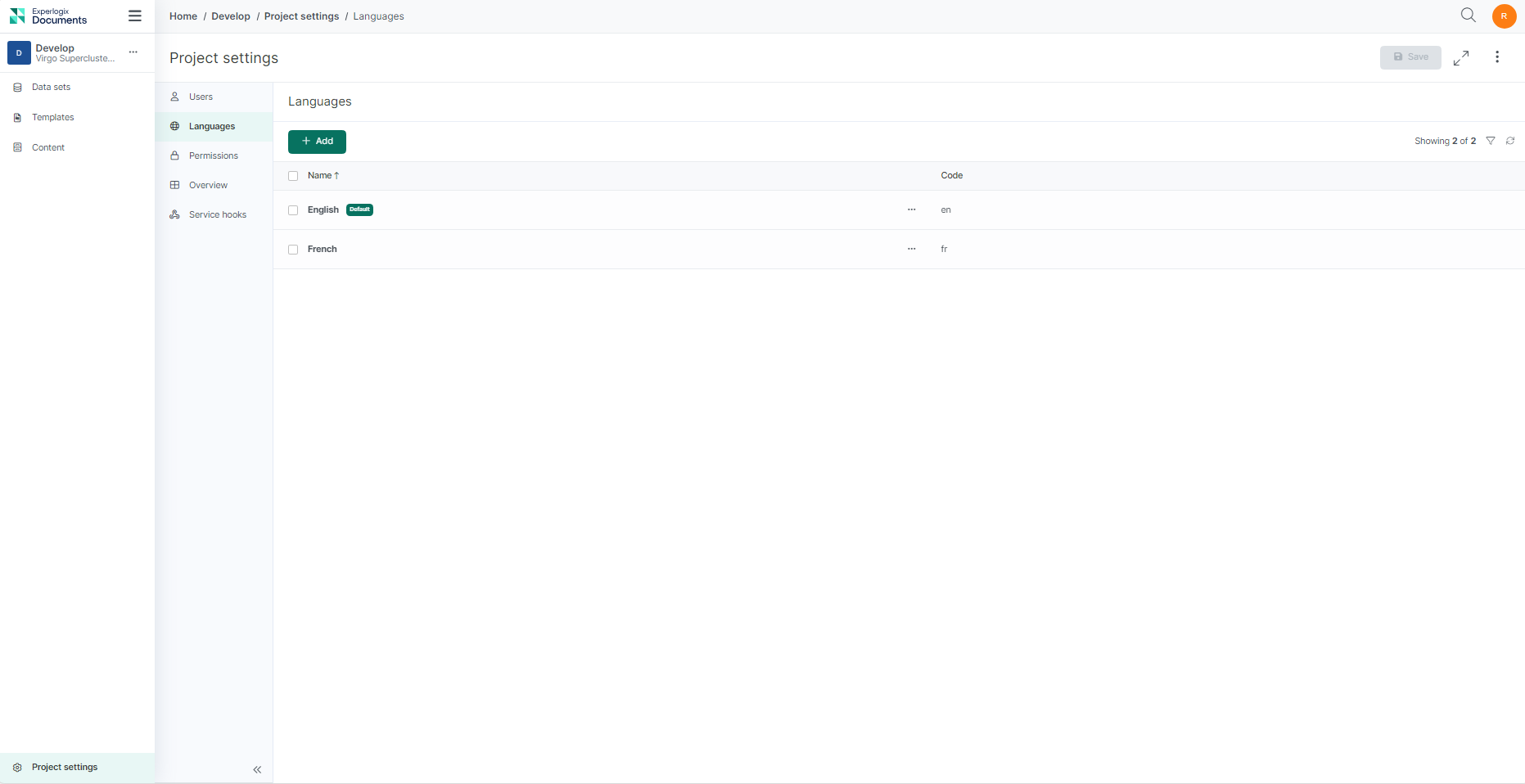
The new language is added and you can see it in the Languages tab list view.
Setting a Language as Default
In any multilingual application, setting a language as the default is a crucial step to ensure a common user experience. The default language is the pre-selected language that will be used when generating project items, such as Templates. Experlogix Documents uses English as the default language. However, this can be customized to meet the specific needs of your project.
| 1. | In the Languages list view, select the language to which you want to set the default. |
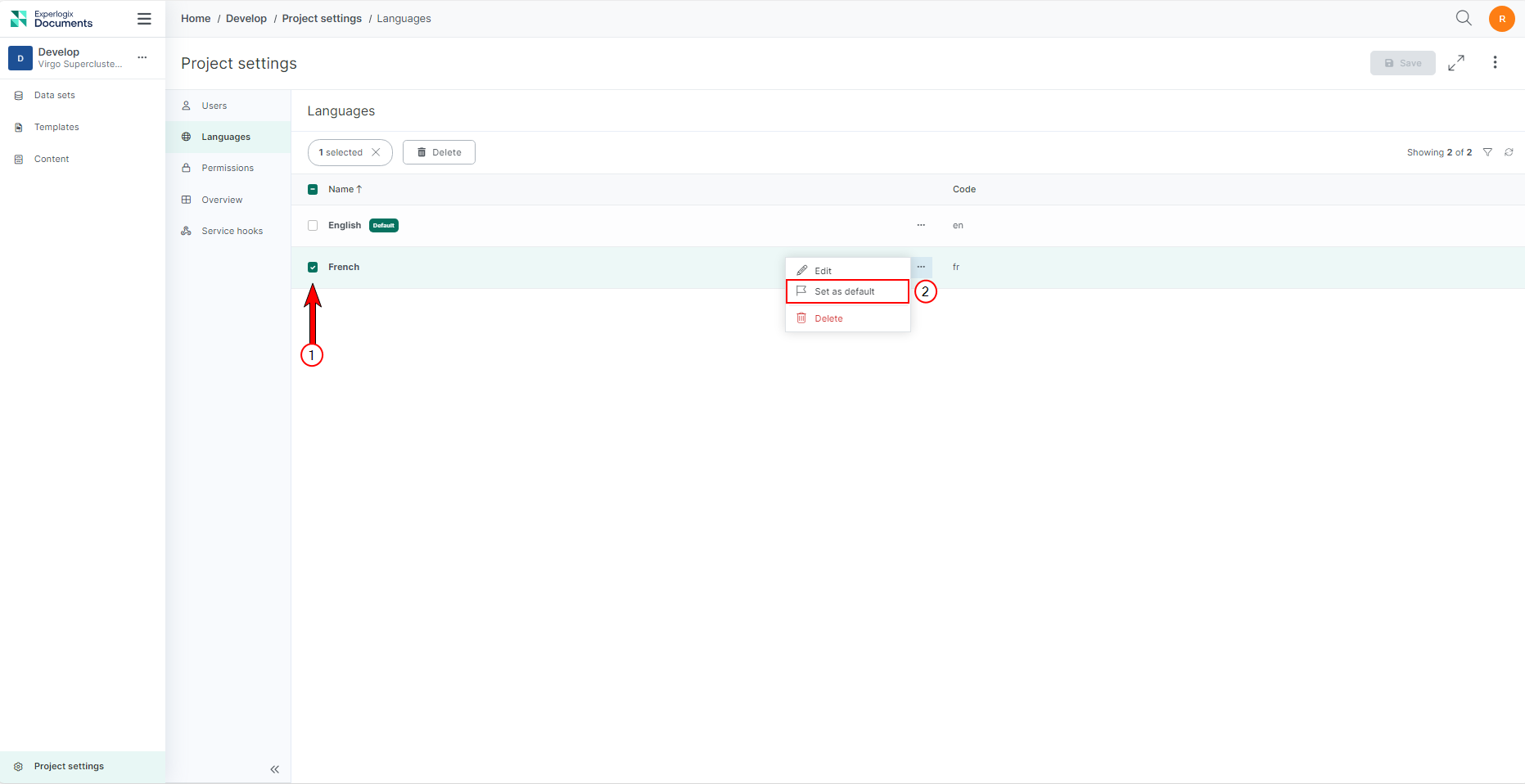
| 2. | From the ellipsis menu, select the Set as default button. |
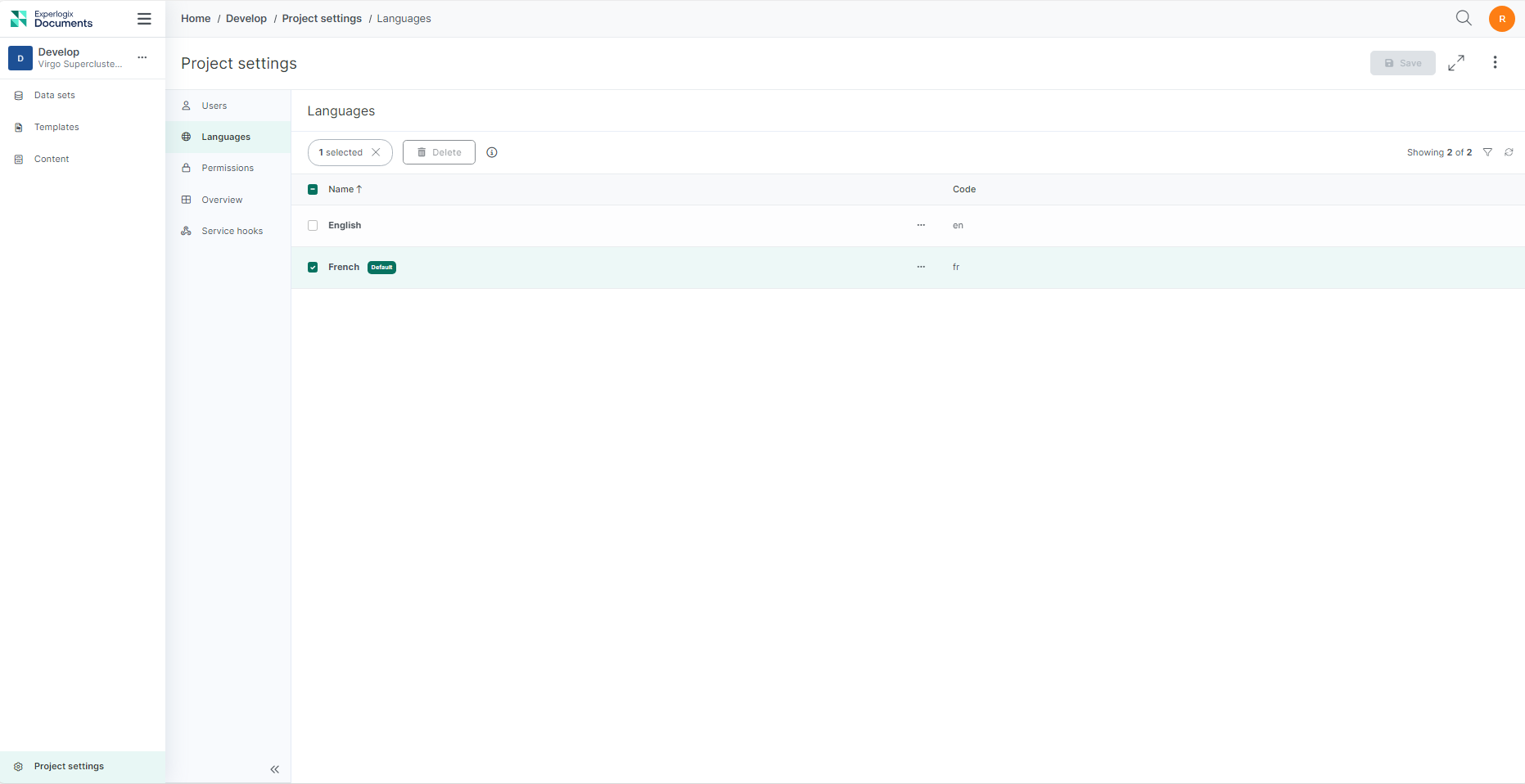
The language is set as a default.
Deleting a Language
| 1. | In the Languages list view, select the language which you want to delete. |
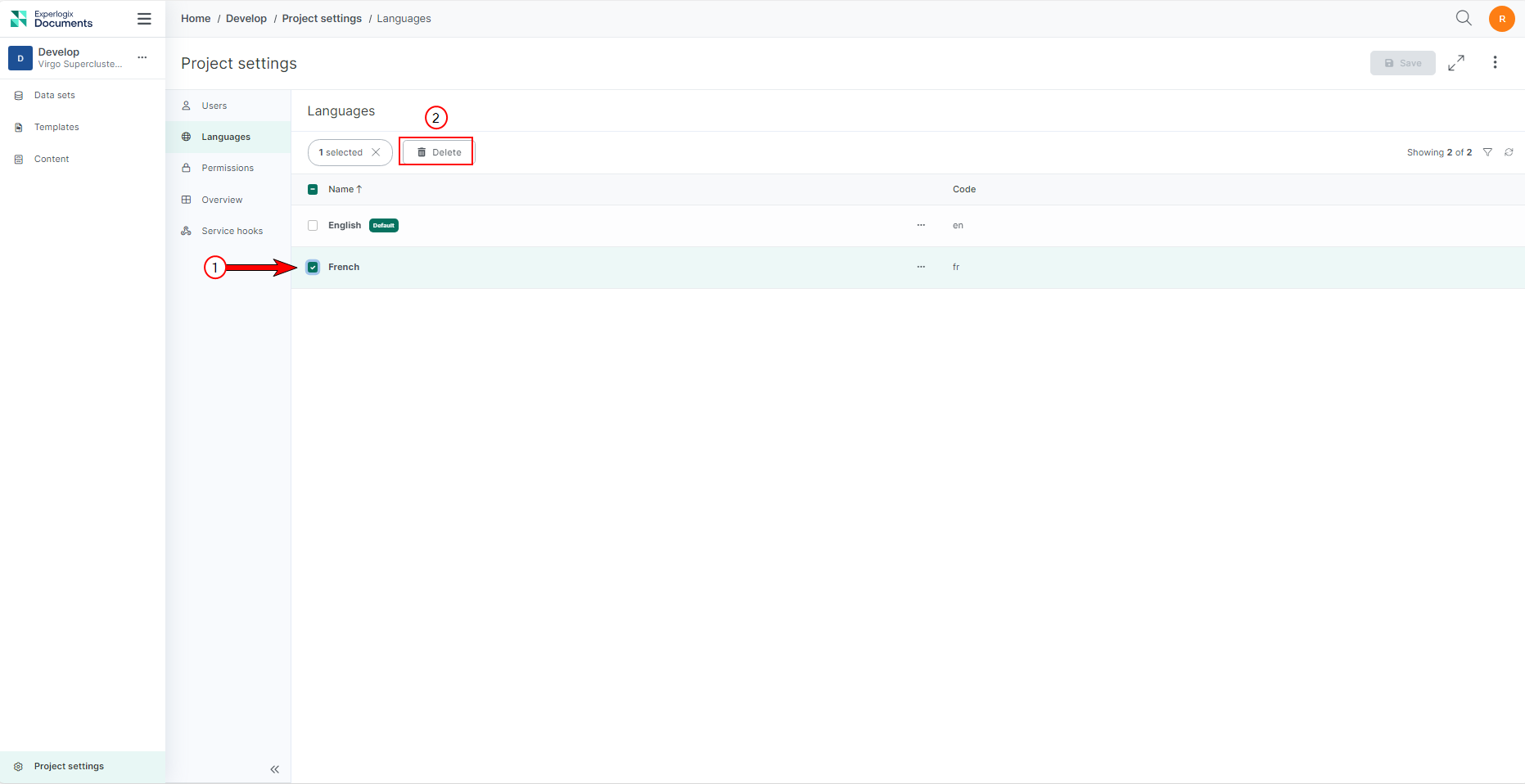
| 2. | Select Delete. |
A confirmation dialog displays.
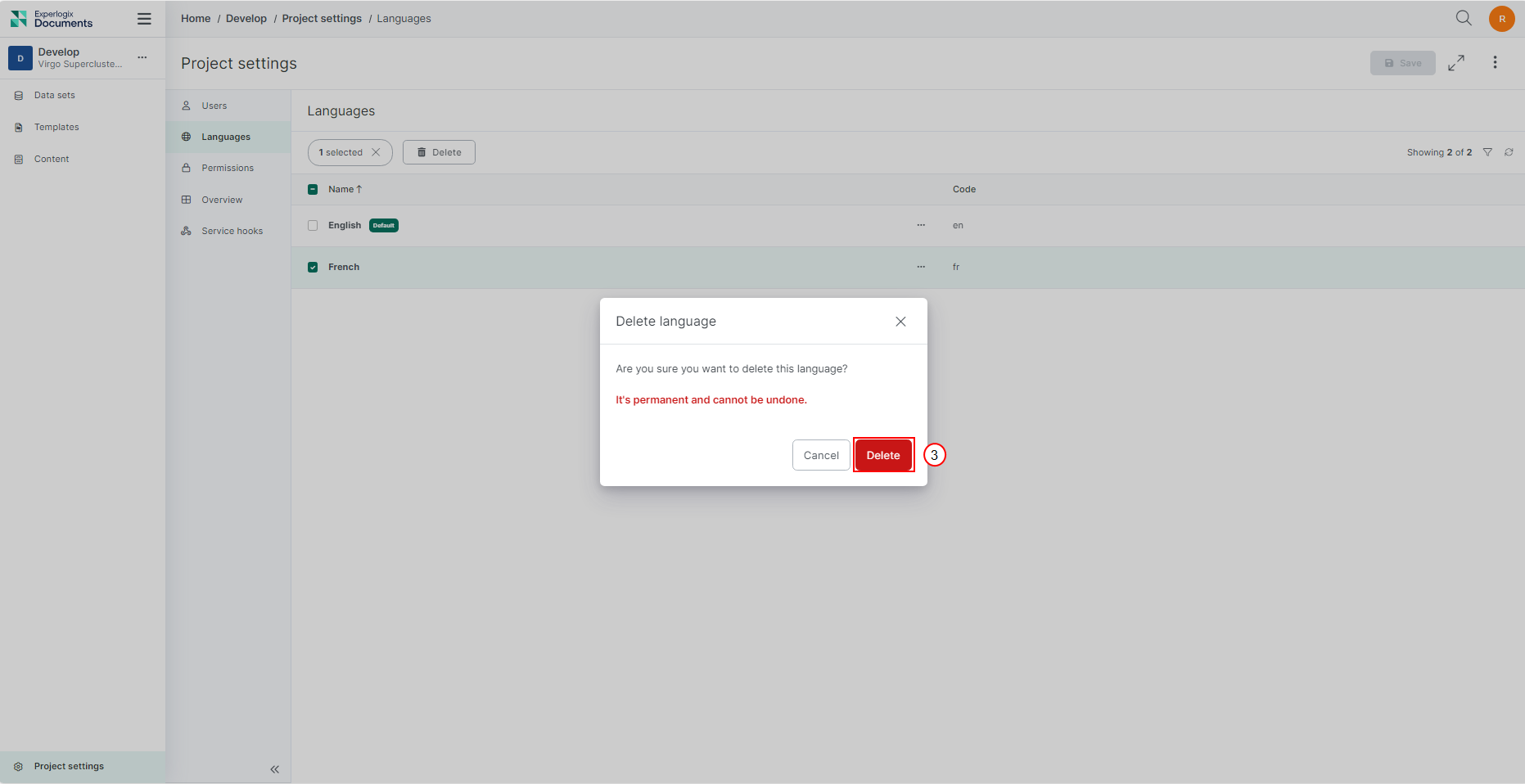
| 3. | Select Delete. |
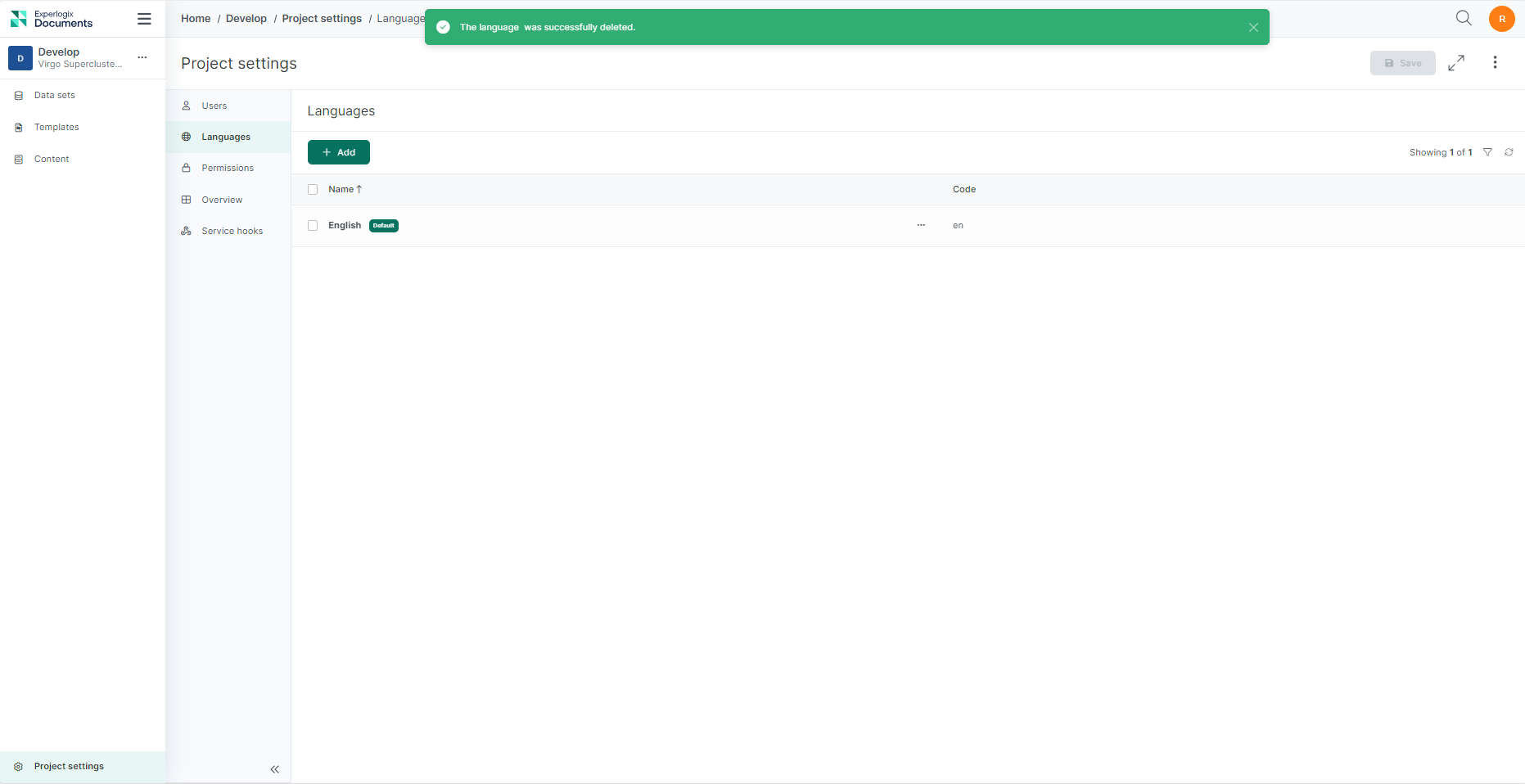
The success message displays.
Languages Overview Tab
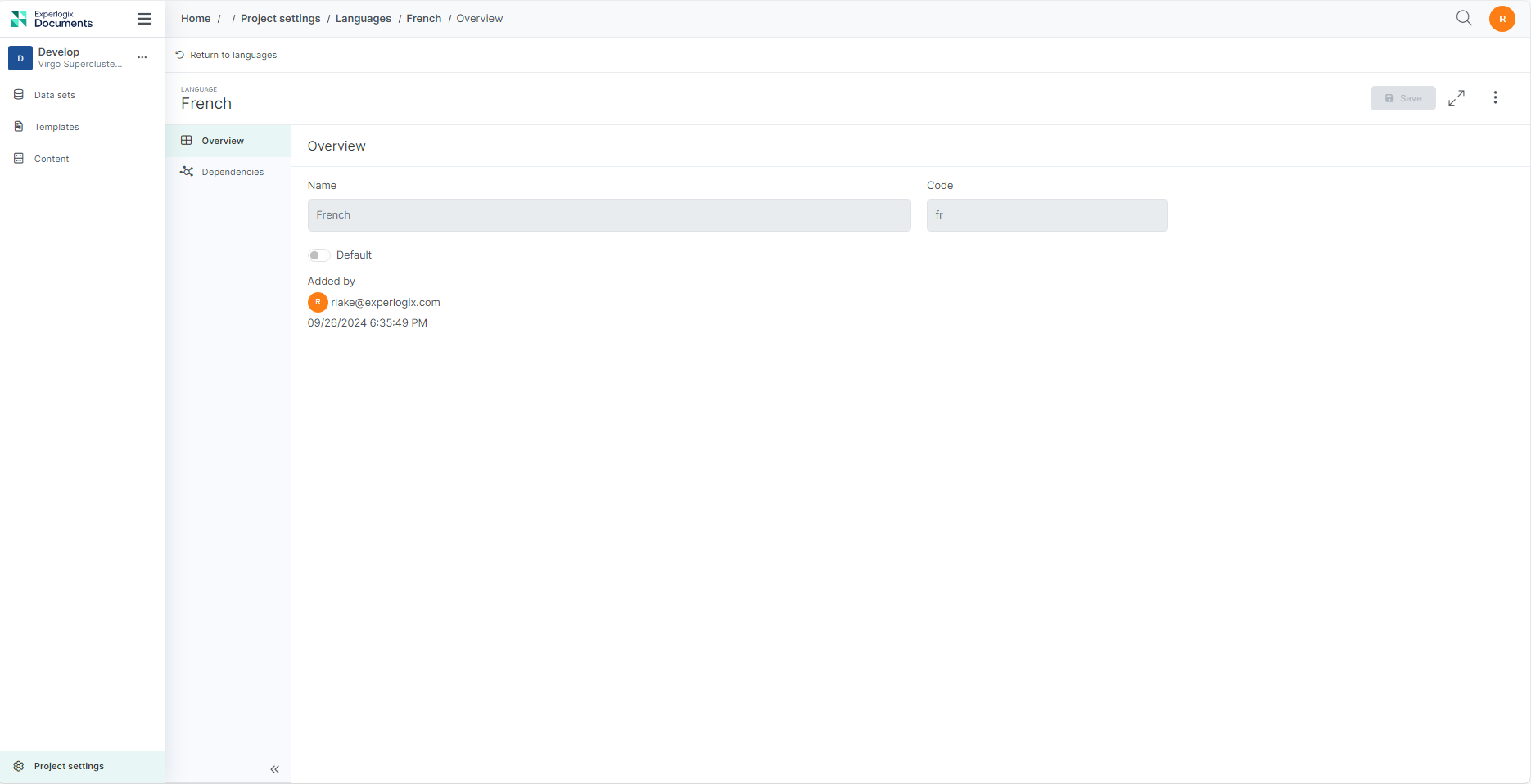
The Languages Overview Tab allows users with sufficient permissions to set a language as default and see the history of language additions, including who added the language and when it was added. This
Accessing the Languages Overview Tab
1. In the Languages list view, select a language item for which you want to view the overview tab.
Language Dependencies Tab
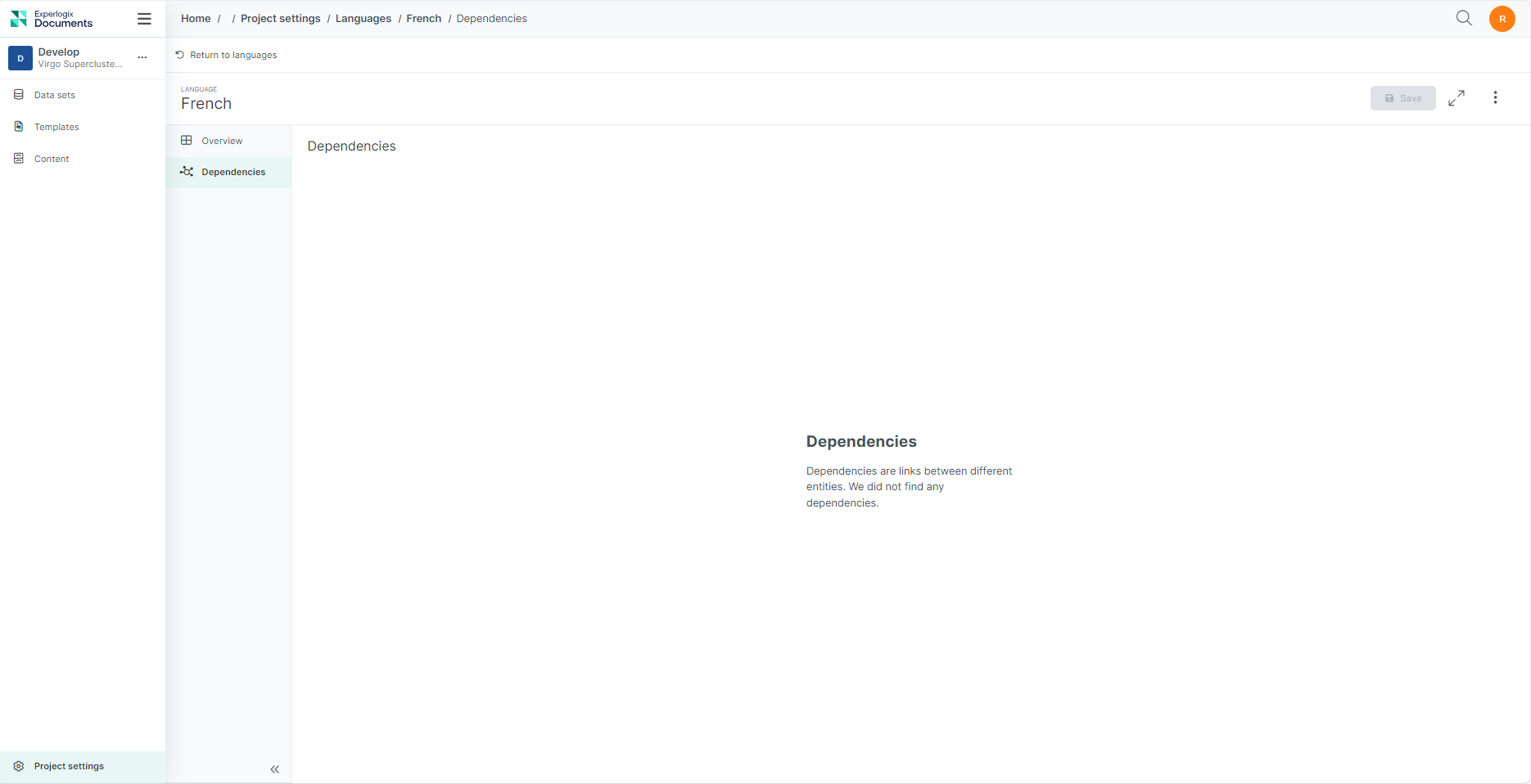
The Languages Dependencies tab enables users with sufficient permissions to view the dependencies of a language. To see these dependencies:
| 1. | In the Languages list view, select the language item you wish to examine. |
| 2. | Navigate to the Dependencies tab to view its dependencies. |