Working with tags
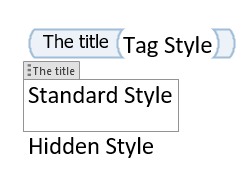
In the context of the Experlogix Template Designer Word Add-in, a tag is a placeholder that you put in your template, either to map a field or add logic to your template. The tag can either come from a data source (Mappings pane) or be manually inserted (Custom Tags button). Tags are actually Microsoft Word rich text content controls that are recognized by the Add-In.
Types of tag
It is possible to add different tag types in the template. Below is a table of the different tag types and what they are used for.
|
Tag type |
Description |
|---|---|
|
Expression |
|
|
Statement |
|
|
Image |
|
|
Sub Document |
|
|
Sub Template |
|
|
Chart |
|
|
Statement Block |
|
Expression
General Properties
|
Item |
Description |
|---|---|
| Label | The name of the tag. It is shown in the document area. |
| Value |
If inserted from the Mappings pane, the value of the expression shows what field the expression is tied to. If inserted from the Custom Tags menu item, the value of the expression is actual code. |
| Formatter | Defines what format will be applied to the expression. Typically used to format dates and numbers. See Expression Formatters section below for additional details. Please note that this will override the template's default formatting culture set under the Settings section. |
| Hyperlink |
If a value is provided, it makes the expression result an hyperlink in the resulting document. |
Expression Formatters
|
Item |
Description |
|---|---|
|
String |
When enabled, Trim start and Trim end options will remove leading and/or trailing spaces around the characters. |
|
DateTime |
The date will be formatted in the culture that is selected. If no culture is selected, the culture of the machine running the template is used. The standard date formats are listed here: https://docs.microsoft.com/en-us/dotnet/standard/base-types/standard-date-and-time-format-strings If custom is selected, it is possible to specify our own mask. Full documentation can be found here: https://docs.microsoft.com/en-us/dotnet/standard/base-types/custom-date-and-time-format-strings |
|
Number |
The number will be formatted in the culture that is selected. If no culture is selected, the culture of the machine running the template is used. The standard date formats are listed here: https://docs.microsoft.com/en-us/dotnet/standard/base-types/standard-numeric-format-strings If custom is selected, it is possible to specify our own mask. Full documentation can be found here: https://docs.microsoft.com/en-us/dotnet/standard/base-types/custom-numeric-format-strings |
|
Custom |
The data will be formatted in the culture that is selected. If no culture is selected, the culture of the machine running the template is used. A custom mask needs to be specified. |
Advanced Properties
|
Item |
Description |
|---|---|
|
Mode |
The options are Text or Content Control. Only use the Content Control option if you want the text of your resulting document to be within Content Controls. Content Controls can be used to lock down text in the document or tag specific elements for post-generation purpose. |
|
Is Catching Exception |
When enabled, if an error occurs within this specific expression during the generation of the document, the error will be ignored and the rest of the document will continue processing. |
|
Metadata |
Allows to associate information to the tag. This isn't considered when generating the document. It is rarely used. |
|
Content Control properties |
Visible if the selected mode is Content Control. The properties set here will be applied to the Content Control in the resulting document.
|
Statement
General Properties
|
Item |
Description |
|---|---|
|
Label |
The name of the tag. It is shown in the document area. |
|
Value |
If inserted from the Mappings pane, the value of the statement shows what field the statement is tied to. If inserted from the Custom Tags menu item, the value of the statement is actual code. |
Advanced Properties
|
Item |
Description |
|---|---|
| Invisible | When enabled, if the paragraph in which the statement is added is empty in the resulting document, the paragraph is removed. Enabling this option needs to be done cautiously. It also has an impact on performance. |
| Metadata | Allows to associate information to the tag. This isn't considered when generating the document. It is rarely used. |
Image
General Properties
|
Item |
Description |
|---|---|
|
Label |
The name of the tag. It is shown in the document area. |
|
Value |
If inserted from the Mappings pane, the value of the image shows what field the statement is tied to. If inserted from the Custom Tags menu item, the value of the image is actual code that needs to return:
|
|
Aspect ratio |
The image ration is based on the layout of the image tag (container) and the source image itself. |
|
Hyperlink |
Allows to assign a URL when the image result is clicked |
Advanced Properties
|
Item |
Description |
|---|---|
|
Mode |
The options are Text or Content Control. Only use the Content Control option if you want the image in your resulting document to be within Content Controls. Content Controls can be used to lock down sections in the document or tag specific elements for post-generation purpose. |
|
Is Catching Exception / Fallback image |
When enabled, if an error occurs within this specific image during the generation of the document, the error will be ignored. You can browse for a fallback image. |
|
URL |
The URL field allows the document to look for an image accessible via a URL. If nothing is found, the embedded image will be used. |
|
Metadata |
Allows to associate information to the tag. This isn't considered when generating the document. It is rarely used. |
|
Content Control properties |
See Content Control properties section of the Expression tag above. |
Sub Document
General Properties
|
Item |
Description |
|---|---|
|
Label |
The name of the tag. It is shown in the document area. |
|
Value |
If inserted from the Mappings pane, the value of the sub document shows what field the sub document is tied to. If inserted from the Custom Tags menu item, the value of the image is actual code that needs to return:
|
Advanced Properties
|
Item |
Description |
|---|---|
|
Mode |
The options are Merge, Legacy, Embed Docx, Embed Rtf, Embed Html or Content Control.
Only use the Content Control option if you want the image in your resulting document to be within Content Controls. Content Controls can be used to lock down sections in the document or tag specific elements for post-generation purpose. |
|
Is Catching Exception |
When enabled, if an error occurs within this specific sub document during the generation of the document, the error will be ignored. |
|
Metadata |
Allows to associate information to the tag. This isn't considered when generating the document. It is rarely used. |
|
Content Control properties |
See Content Control properties section of the Expression tag above. |
Sub Template
General Properties
|
Item |
Description |
|---|---|
| Label | The name of the tag. It is shown in the document area. |
| Value |
If inserted from the Mappings pane, the value of the sub template shows what field the sub template is tied to. If inserted from the Custom Tags menu item, the value of the image is actual code that needs to return:
|
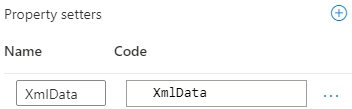
| Property Setters |
A line needs to exist per property the sub template is expecting. The most common use of the Property Setters is to pass the current template's XmlData property (everything it received) to the sub template.
|
Advanced Properties
|
Item |
Description |
|---|---|
| Insertion Mode |
The options are Merge, Legacy, Embed Docx, or Content Control.
Only use the Content Control option if you want the image in your resulting document to be within Content Controls. Content Controls can be used to lock down sections in the document or tag specific elements for post-generation purpose. |
| Execution mode |
Defines in what context the sub template will be executed:
* Use Join cautiously. The reference to the sub template will be kept until the App Domain recycles in Portal, meaning that if the sub template changes, the previous version will still be used. |
| Is Catching Exception |
When enabled, if an error occurs within this specific sub template during the generation of the document, the error will be ignored. |
| Metadata | Allows to associate information to the tag. This isn't considered when generating the document. It is rarely used. |
| Content Control properties |
See Content Control properties section of the Expression tag above. |
Chart
General Properties
|
Item |
Description |
|---|---|
| Label | The name of the tag. It is shown in the document area. |
| Value |
The value needs to be some code returning a Chart object with properly filled ChartCategory and ChartSeries lists. |
Advanced Properties
|
Item |
Description |
|---|---|
| Mode |
The mode will tell how the chart behaves if data is missing based on the way the chart was designed. For example, you can design a chart with two series in Word but the data has three series. The options are:
|
| Is Catching Exception |
When enabled, if an error occurs within this specific chart during the generation of the document, the error will be ignored. |
| Editable |
When enabled, the chart in the resulting document will be editable |
| Metadata |
Allows to associate information to the tag. This isn't considered when generating the document. It is rarely used. |
Statement Block
The statement block will be added around what you have selected in the document area. Statement blocks can be added around text, tables but could also include special characters like page breaks.
General Properties
|
Item |
Description |
|---|---|
| Label | The name of the tag. It is shown in the document area. |
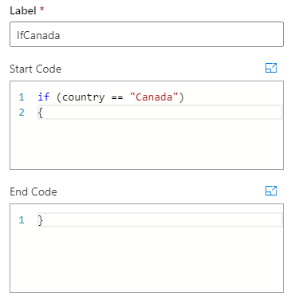
If inserted from the Wizards menu, options will differ between a Condition and a Loop.
If inserted from the Custom Tags menu item, code needs to be in the Start Code and End Code field.
Advanced Properties
|
Item |
Description |
|---|---|
| Metadata | Allows to associate information to the tag. This isn't considered when generating the document. It is rarely used. |
Condition Block
When inserting a Condition, you select the left operand, an operator and the right operand. If the condition is true, the content of the statement block will be displayed.
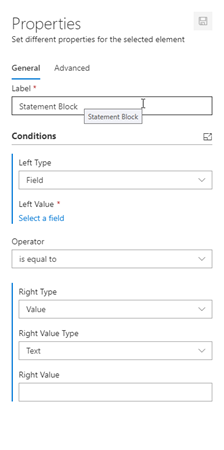
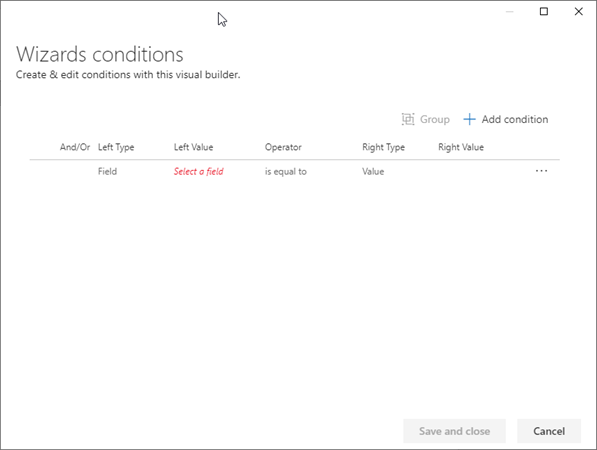
The statement block can hold multiple conditions. Click on the  icon to display the multiple conditions editor. You can add, remove and group conditions from that window. Clicking on the three dots will allow you to edit a specific line.
Loop Block
When inserting a loop, the content of the statement block will be repeated based on how you configure it. You can select:
- The field to loop through – This is your repeatable element. For example, this could be your invoice line items.
- Filters – Allows to only iterate through a subset of elements
- Sort criteria – Defines how the data is sorted
- Stop condition – Gives the possibility to stop looping when a condition is met
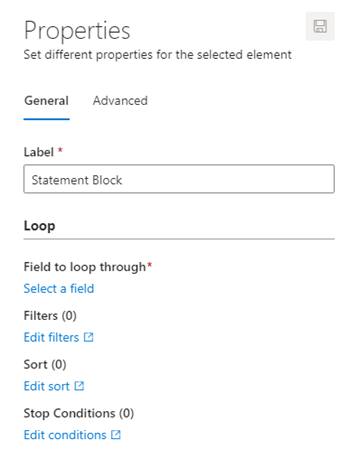
Chart Block
When inserting a chart using the Chart wizard, it is possible to specify what can be used to define the chart properties. You can select:
- The Title of the chart
- The chart Categories
- The chart Series
- The Axis
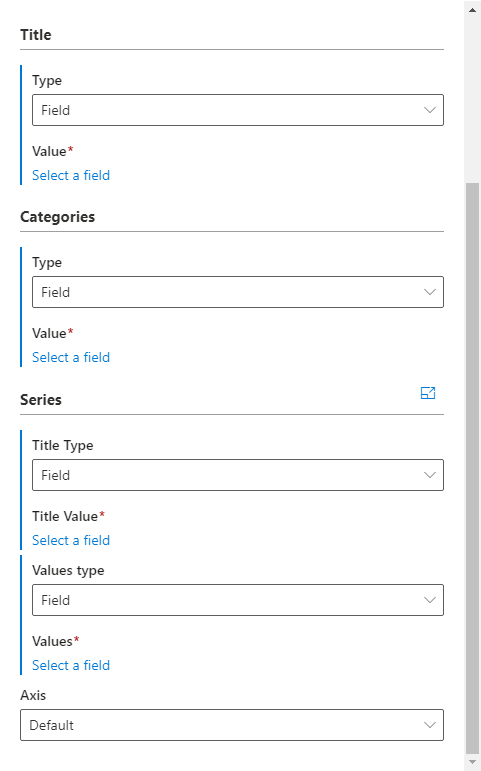
If the chart has multiple series, click on the button to display the multiple series editor.
Working with content controls
Tags are actual Microsoft Word rich text content controls that are recognized by the Add-In. Below are a couple of tips that will help you design your template.
Show/Hide paragraph marks
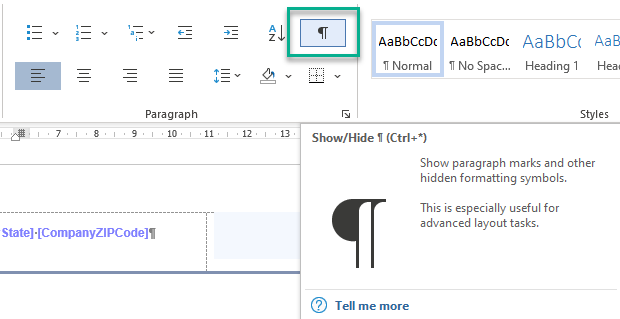
- It is suggested to design a template showing hidden characters. The Show/Hide button can be found under the Microsoft Word Home menu. This will help you see spaces or paragraph marks you may want to create logic around.
Keyboard shortcuts to Copy/Cut/Paste tags
- Use keyboard shortcuts to Cut, Copy, Paste or Select text.
- Cut: Ctrl + X
- Copy: Ctrl + C
- Paste: Ctrl + V
- Select character: Shift + right arrow / Shift + left arrow
- Select word: Shift + Ctrl + right arrow / Shift + Ctrl + left arrow
- To select an Experlogix tag, it is suggested to click on its header, and then use the Cut or Copy shortcuts.
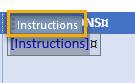
- To place the cursor just before/after an existing tag, click on the tag's header and use the left or right arrow on your keyboard.
Delete a tag
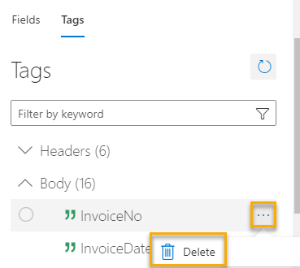
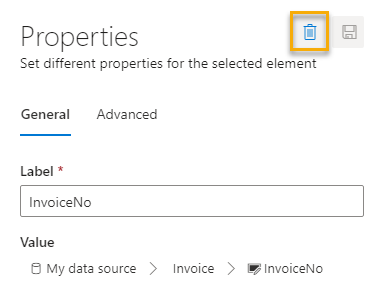
- To Delete a tag, click on the tag's header and click on the Delete key of your keyboard. Tags can also be deleted from the Mapping > Tags view or from the tag's properties.
From the Tags view accessible using the Mappings button:
From the Properties:
Adding a Condition or Loop on a row
If is possible to add a statement block around a table row by selecting the whole row, including the special character outside of the table on the right. After the line is selected, you can add the statement block.
It is not possible to add a statement block around more than a single row.

Nested statement blocks
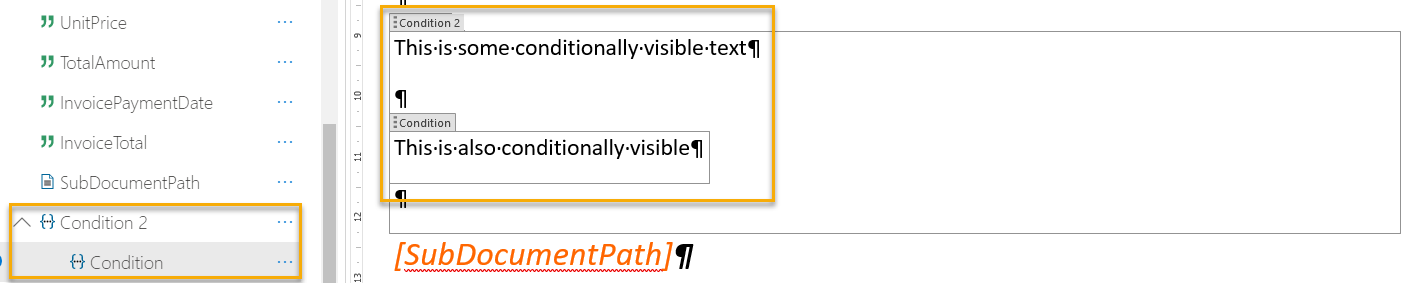
Sometimes, you'll want to use conditions within conditions, conditions within loops etc. which results in nested boxes like the below. Nested statements blocks will also appear differently in the Tags tree view