Sugar CRM
Connectivity errors from SugarCRM to Smart Flows
Problem: Sugar users began to report connection errors to the Smart Flows server. When the user clicks the Smart Flows button in Sugar, an error message, "The Smart Flows server cannot be reached, please contact your Smart Flows administrator" is displayed.
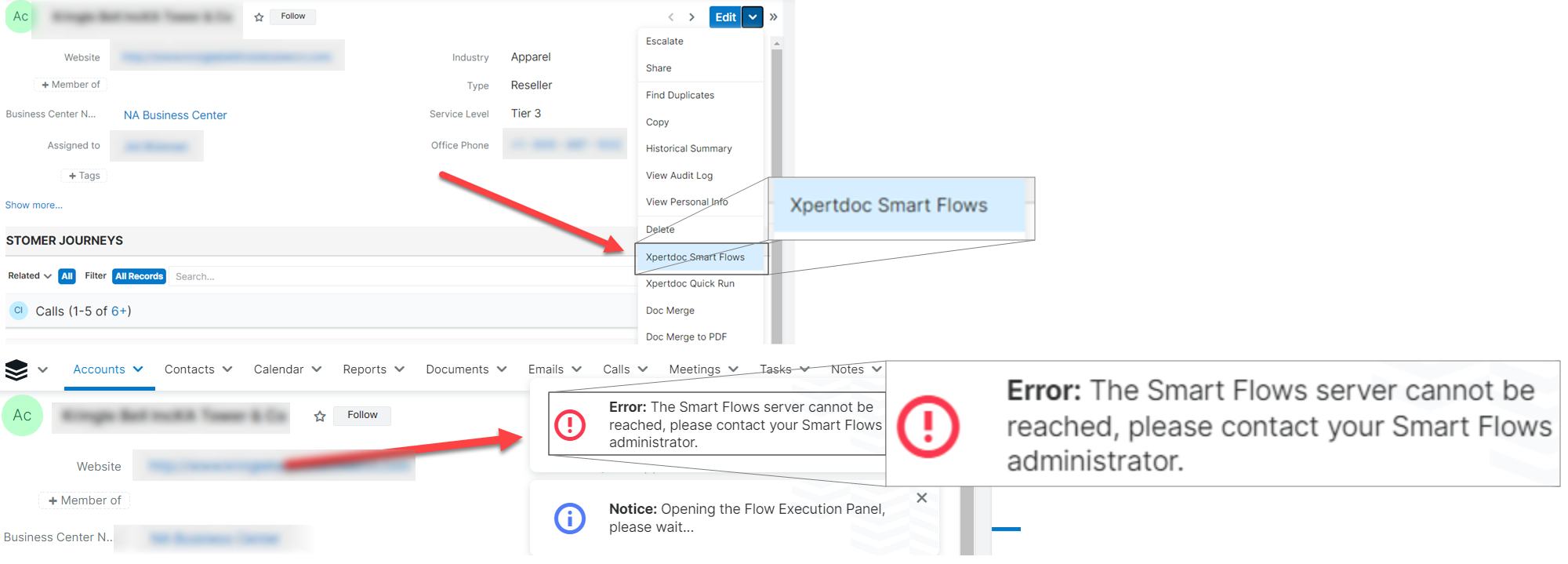
Solution: Sugar CRM require administrators to explicitly define external sources in the Content Security Policy. If the Smart Flows URL is not included, the browser blocks the requests sent to the server. Follow the steps below:
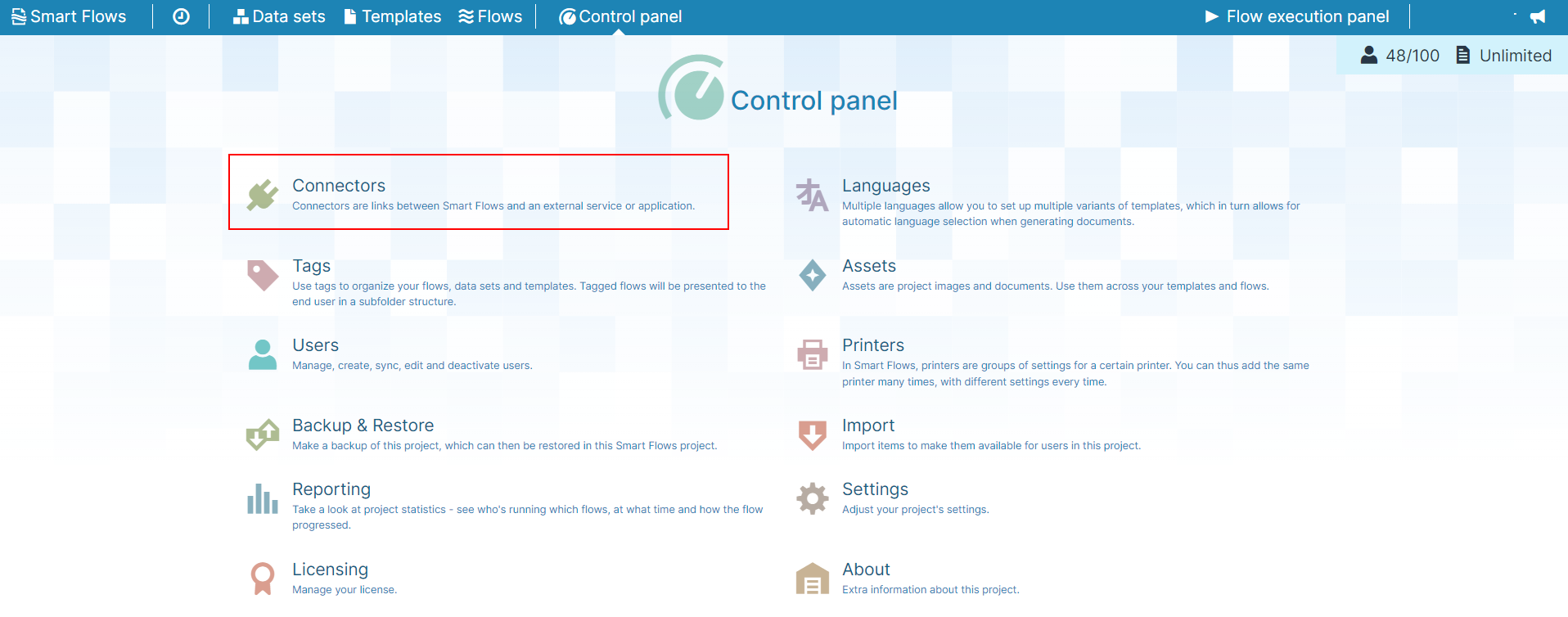
| 1. | On the Project Console, select the Control Panel option. |
| 2. | Click the Connectors button. |
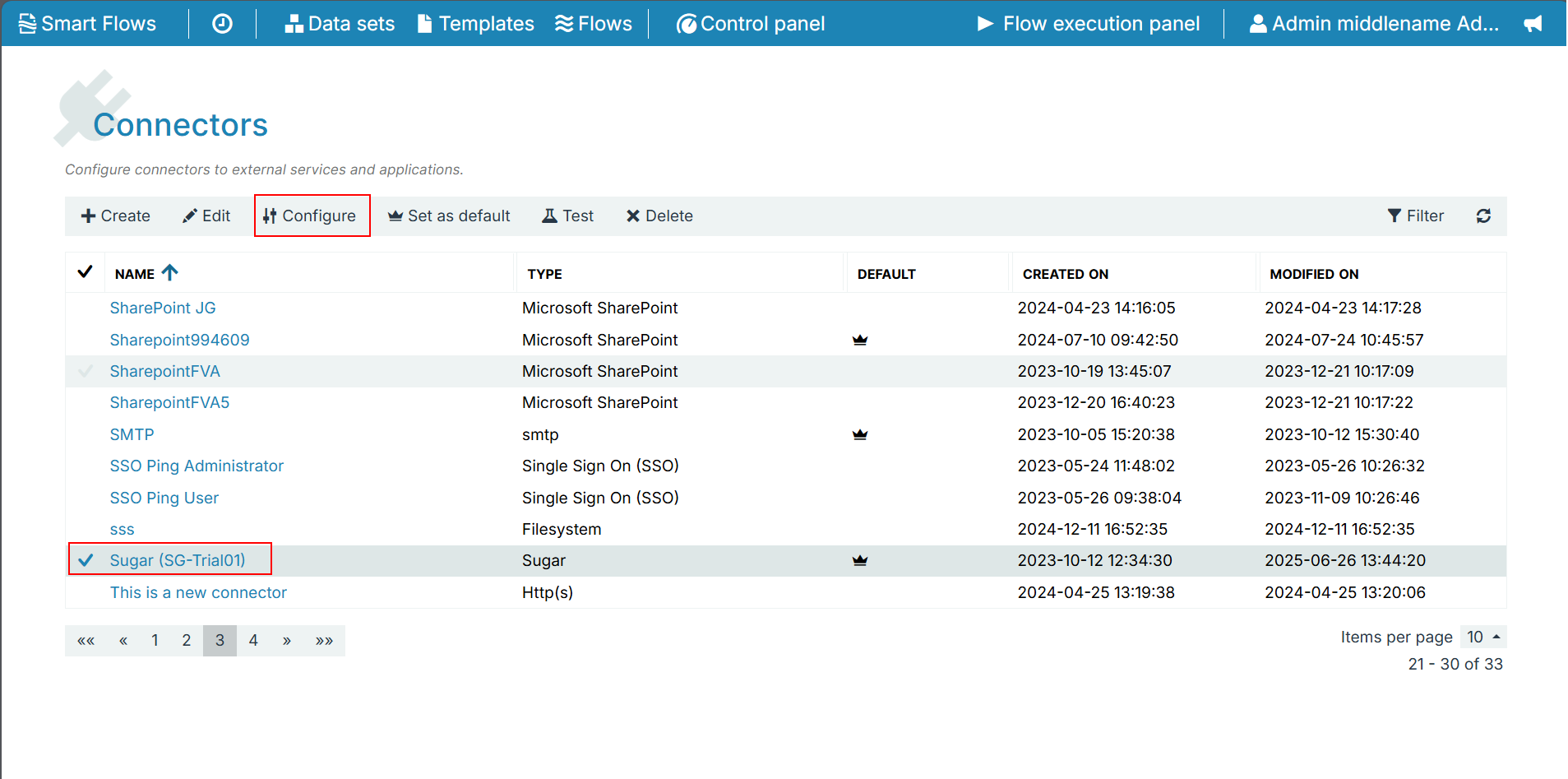
| 3. | Select the Sugar connector row. |
| 4. | Click the Configure button. |
The Edit connector window displays.
| 5. | In the Password field, type in your password. |

| 6. | Click the Next button. |
The Edit connector customize packages window displays.
| 7. | Scroll to the bottom of the window and click the Next button. |
The Edit connector Install your Smart Flow Sugar package window displays.
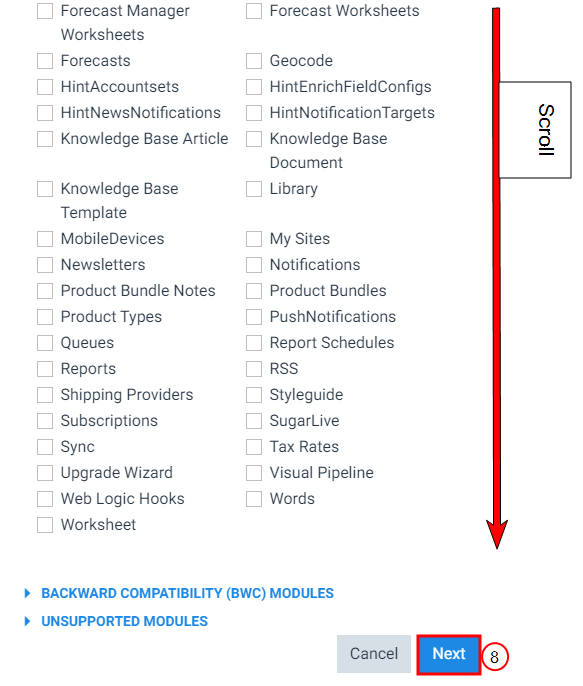
| 8. | Click the Next button. |
The Edit connector Create/configure Sugar connection record automatically window is displayed.
| 9. | You can either deselect the option "I want to install/update the Sugar App" or leave it selected. |
| 10. | Click the Next button. |
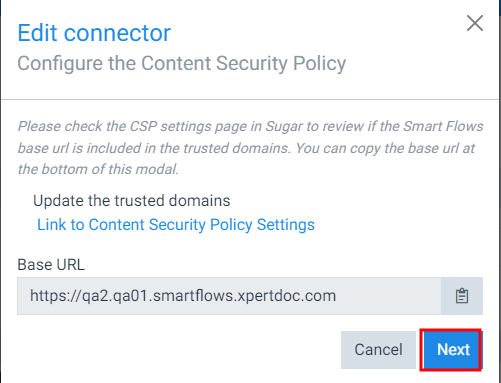
The Edit connector Configure the Content Security Policy window is displayed.
| 11. | Click the copy button for Smart Flows Base URL. |
The system copies the URL for your Smart Flows instance to your clipboard
| 12. | Click Link to Content Security Policy Settings. |
The login page for SugarCRM displays in a new tab.
| 13. | Log in to your Sugar instance. |
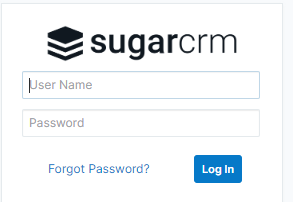
| 14. | In your organization's Sugar instance, navigate to the Content Policy and Settings tab. |
The Basic tab displays.
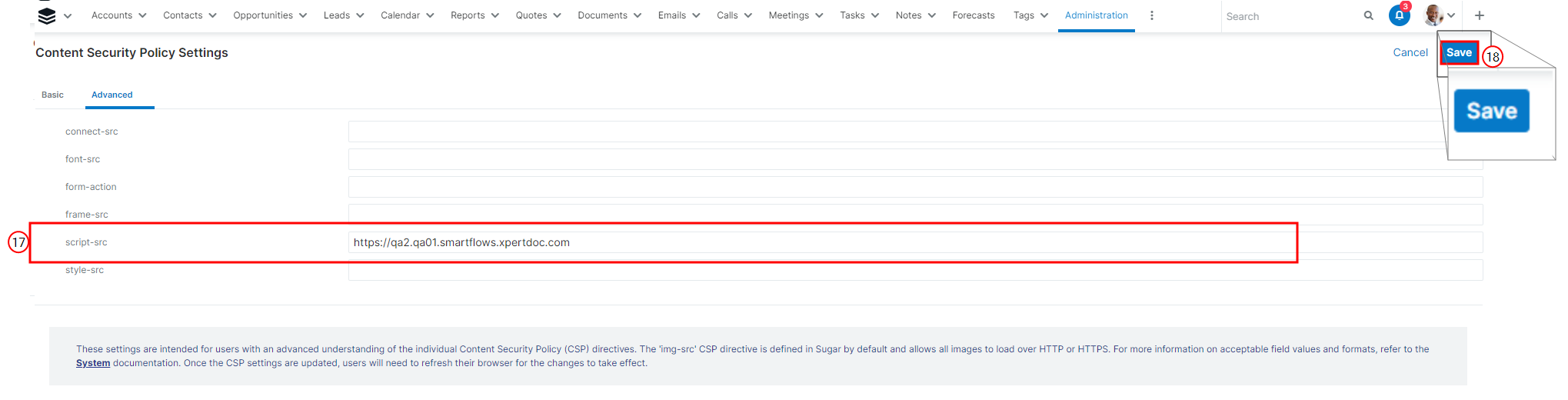
| 15. | Click the Advanced tab. |

When copying the Smart Flows instance URL, ensure you copy from the HTTPS through the first /
| 16. | In the script-src, field, copy and paste the URL for your Smart Flows instance. |
| 17. | Click the blue Save button in the top right. |
A save confirmation displays. The system returns to the Administration page in Sugar.
| 18. | In Smart Flows, click the Next button. |
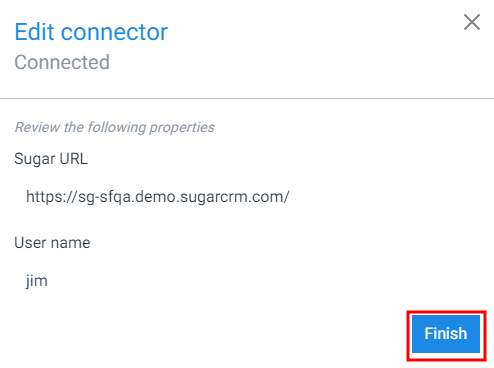
The Edit connector Connected window displays.
| 19. | Click the Finish button. |
The Edit connector Connected window no longer displays. The update of your Sugar connector is complete.
The flow is not prompting any questions
Problem: User is not being prompted for any input when running a flow.
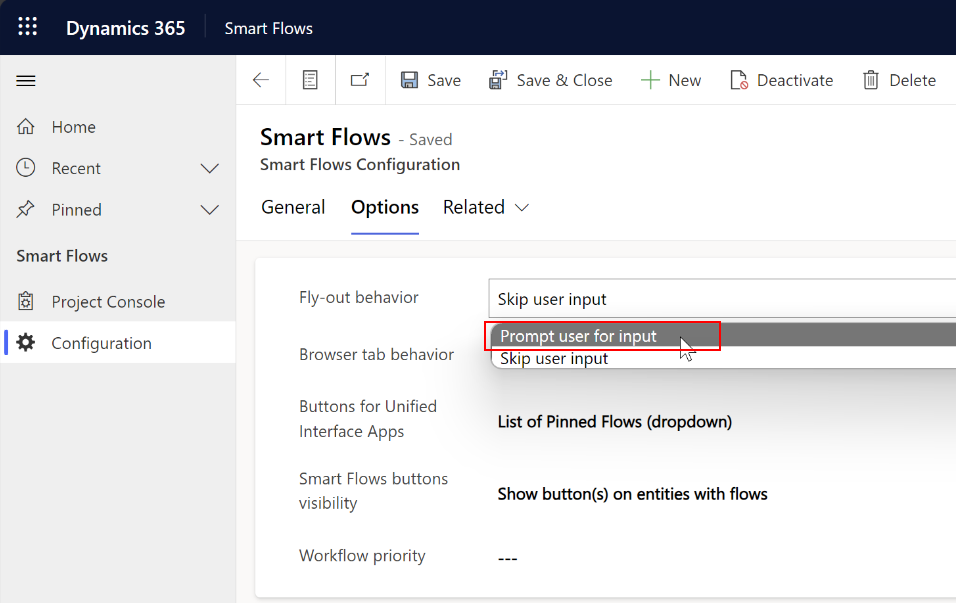
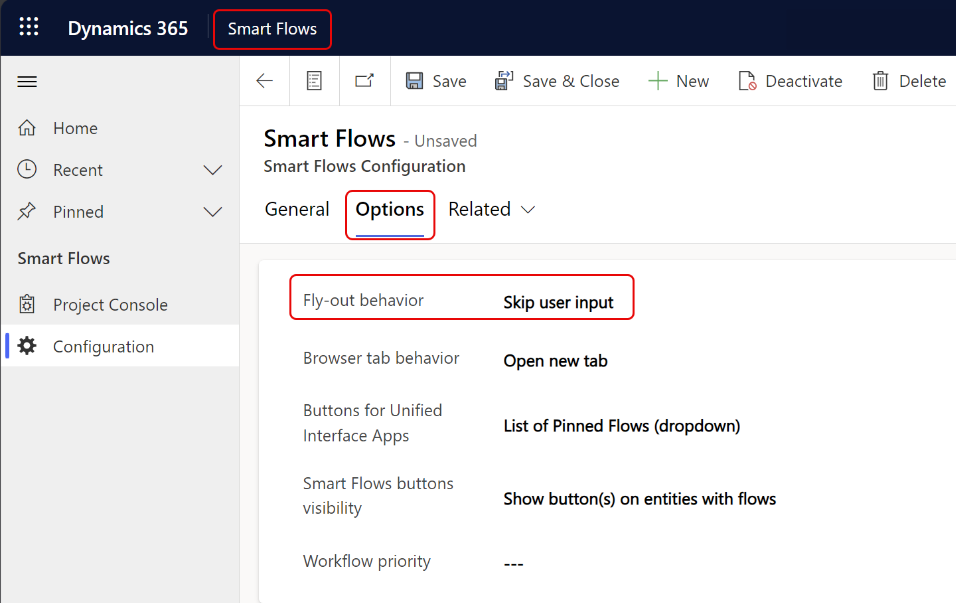
Solution: In SugarCRM, update the fly-out behavior to prompt user for input to ensure all input steps are attempted.
| 1. | Navigate to User > Admin. |
| 2. | Find Smart Flows and select Smart Flow Configuration. |
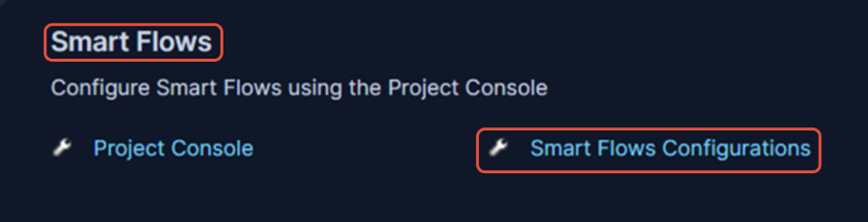
| 3. | Select active Smart Flows configuration. |
| 4. | Change Flyout behaviour to Prompt user for input. |
| 5. | Select Save. |