Version control
Smart Flows includes a version control system, ensuring multiple users can collaborate on the same templates without losing any changes.
Concept
Each template can include multiple language variants, and each variant can have multiple versions. A version is essentially a snapshot of the template that may differ from other versions. Maintaining multiple versions of the same template variant offers several advantages:
-
Nothing is lost: Every time you publish a template, a new version is automatically created.
-
Easy rollback: You can revert to any previous version at any time.
-
Comparison: You can open multiple versions side by side and compare them before deciding which one to publish.
This versioning approach also simplifies the template design process:
-
Open a template – This creates a local copy.
-
Make your changes – Edit as needed.
-
Publish the template – This generates a new version.
Publish
Once you have finished designing the template, publish it to push the changes to the server and create a new version. This version becomes available for other template designers to use.
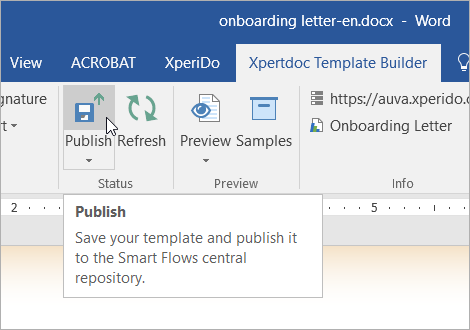
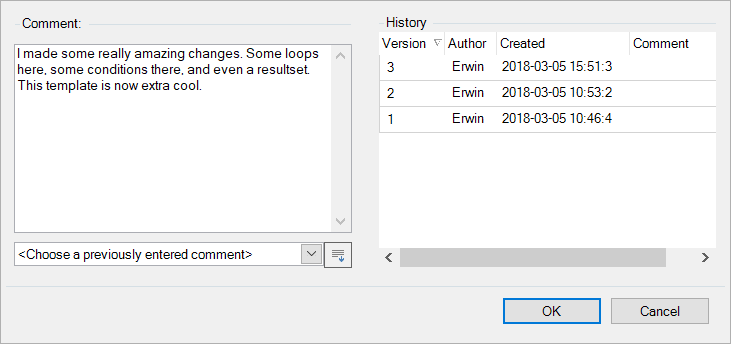
When publishing, you will see the pop-up dialog below. It's recommended to add a comment in the left pane before selecting OK and completing the publish action. This comment makes it easier for all designers to understand the changes made in your published version.
Saving
Saving a template (Ctrl+S in Word) is not equivalent to publishing. When you save, you are storing a local copy on your computer. This allows you to close your system and resume work later on the same local version.
However, until the template is published, it does not exist on the server and is not accessible to others. Publishing pushes the template to the server and creates a new version that is available for collaboration.
Unable to publish
An additional Connect option appears in the ribbon if Smart Flows is unable to use the existing connection. This may occur if the user’s password has changed or if there is an issue with the internet connection.
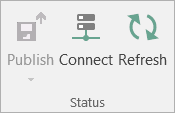
If Smart Flows cannot establish a valid connection, the Publish option gets disabled. To proceed, you must reconnect before publishing the current version. Select the Connect option to open a dialog box prompting you to choose one of the available connections.
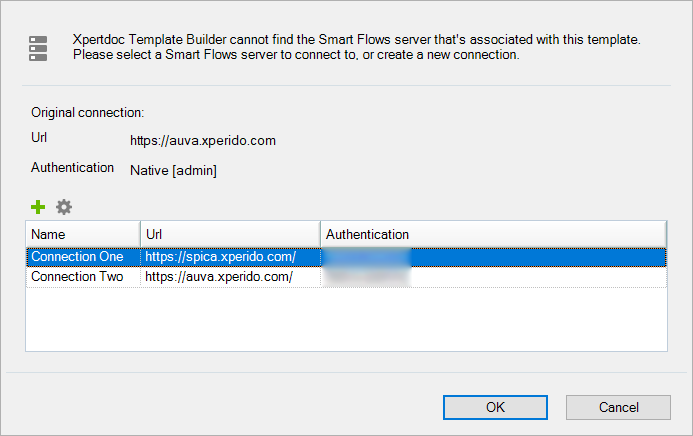
Reconnecting to the project associated with the template leads to re-enabling the Publish option.
History
All versions of a template variant are stored on the Smart Flows server. To view the history of a template variant, select the arrow beneath Publish and select Show History.
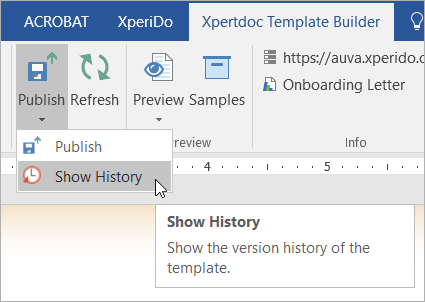
This opens up the following window:
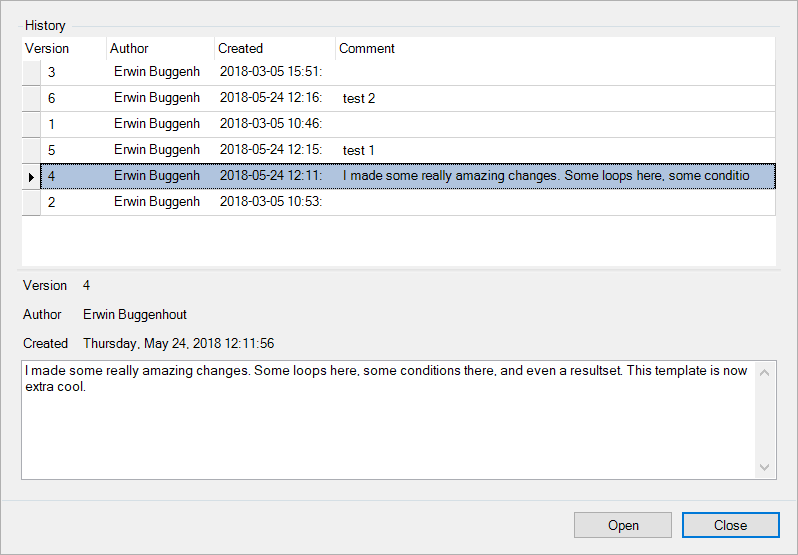
Within the history view, you can select a version and select 'Open' to create a local copy of that version. If you later publish the template, the latest version matches the older version you selected.