Create Reporting View
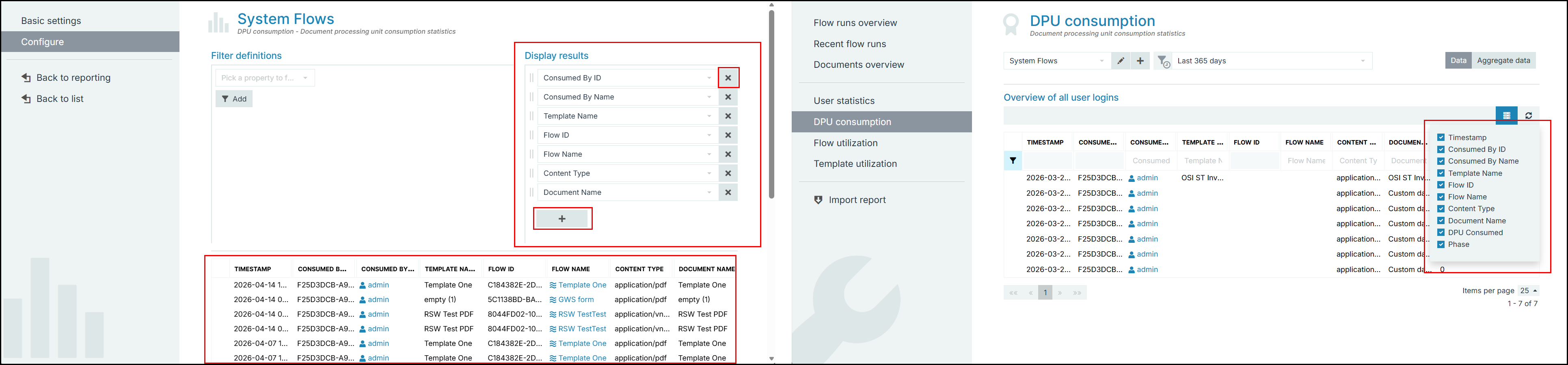
The Reporting View page displays a list of system and custom reporting views within the project. Selecting a report allows you to review its configuration, including the defined filters and enabled columns. The Basic Settings section provides a high‑level summary of the selected reporting view. Additionally, you can create, edit, and delete reporting views, filter them by type, and customize the table by selecting or deselecting columns.

To create a view:
There are two methods to create a reporting view.
| 1. | In the Project Console, navigate to Control Panel > Reporting View > Create. |
| 2. | In the Create reporting view, select the Type and provide a name. |
OR
| 1. | In the Project Console, navigate to Control Panel > Reporting > select a reporting category page > select +Create. |
| 2. | In the Create reporting view, select a Categories from the Type dropdown and provide a name. |
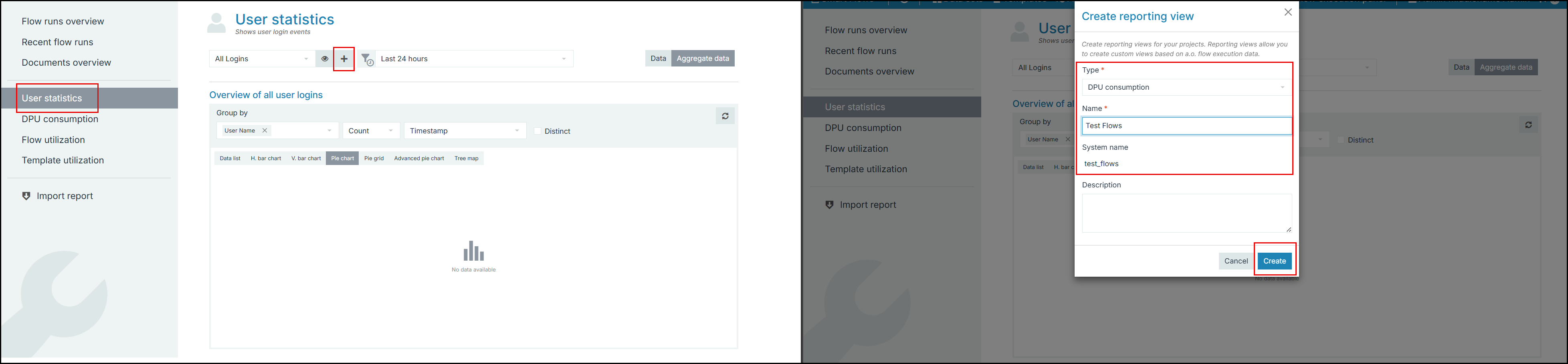
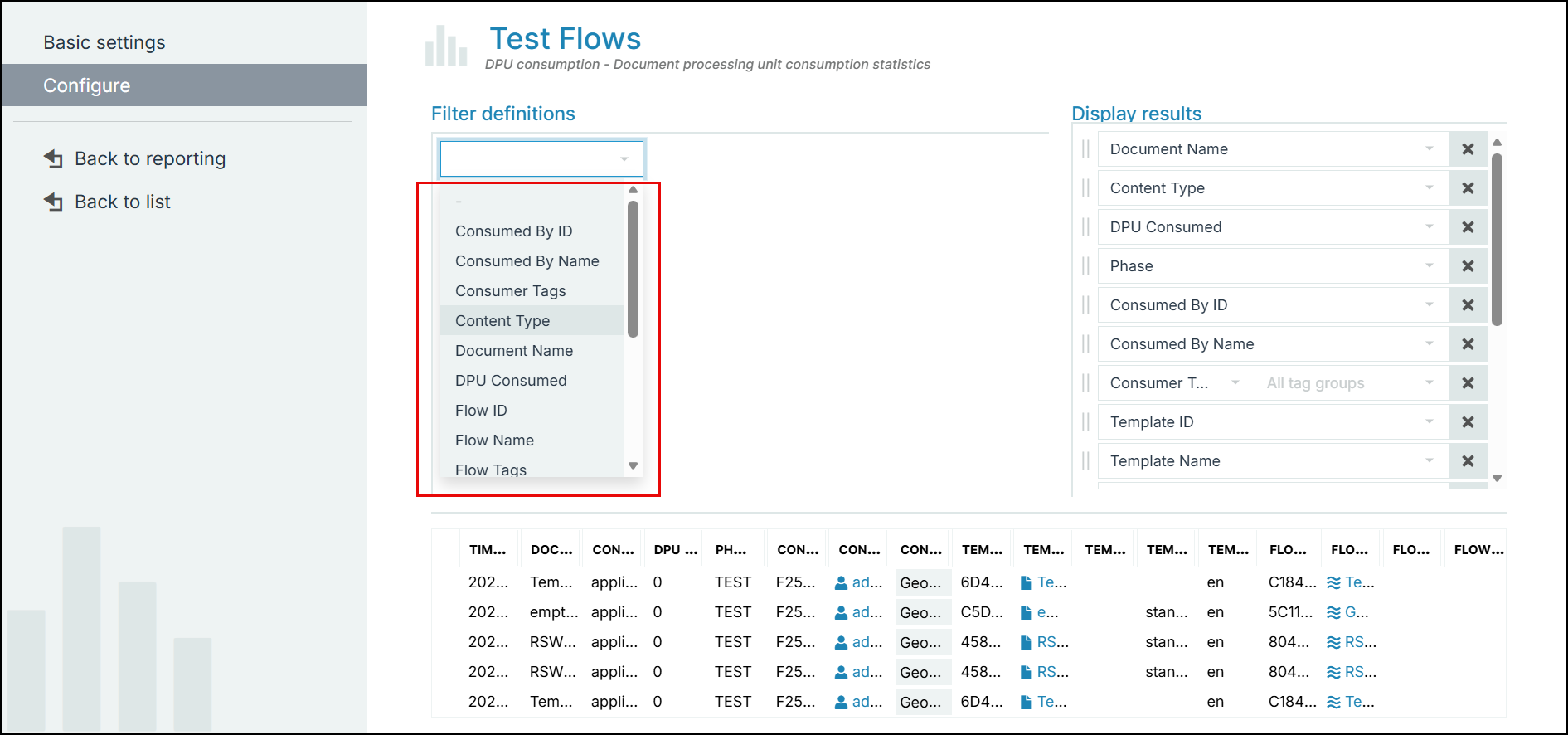
The newly created view page is displayed.
| 3. | Under the Filter Definitions, you can select the supported field from the drop-down. This allows you to create reports based on the selected fields. |
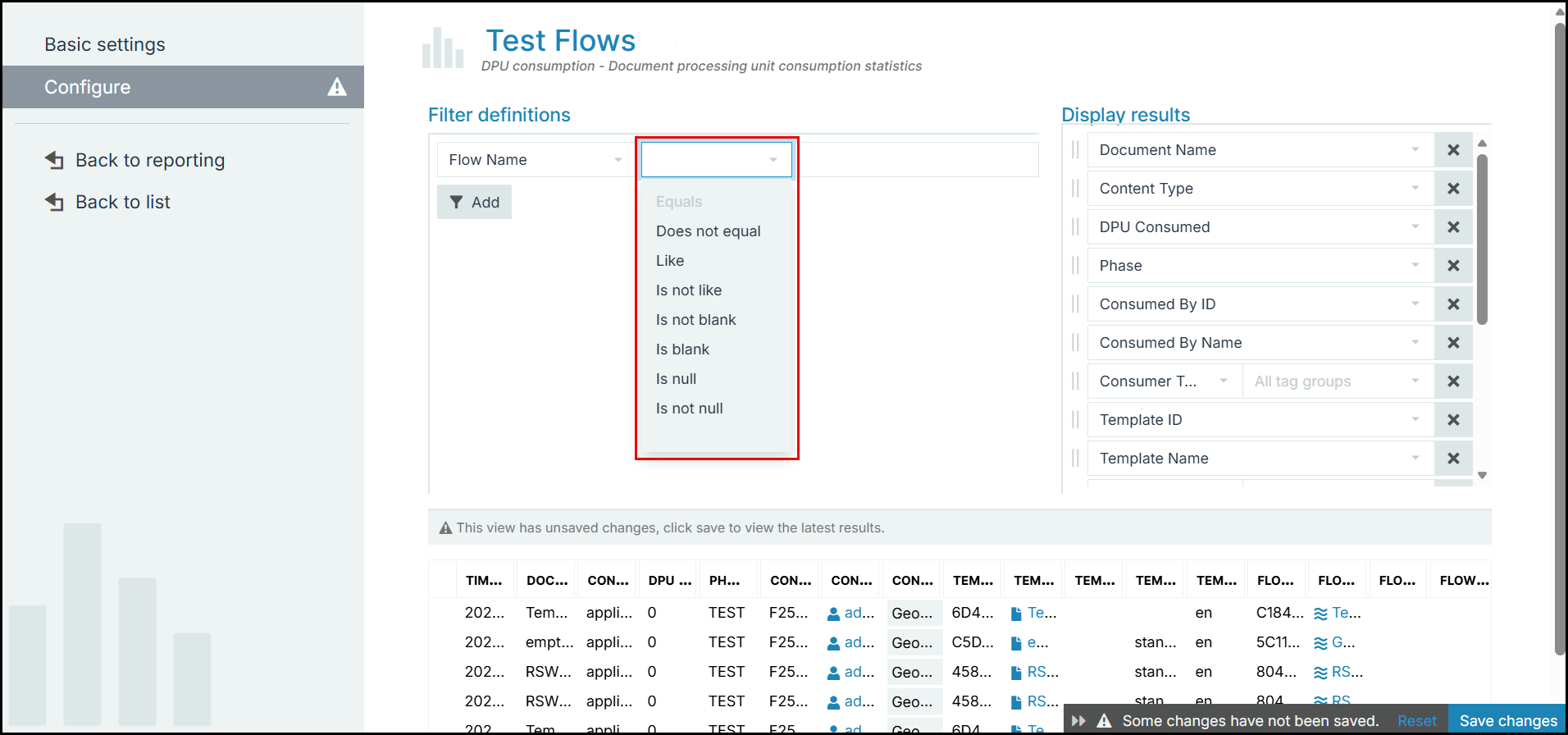
As soon as you select the field, the following conditional operators drop-down is displayed. This helps you build filter conditions.
| 4. | Under Display results, you can add and remove columns from the reporting view. The list of fields is displayed in the result set and in the column selection dropdown of the respective category page. |