Creating a Microsoft SharePoint Connector
The Create connector wizard guides you through the configuration when creating a Microsoft SharePoint connector. You can create multiple Microsoft SharePoint-type connectors, each connecting to a different account. However, you can only have one default Microsoft SharePoint connector.
 Example Use Cases for creating a Microsoft SharePoint connector
You can utilize the setup examples below to identify the best configuration for your Microsoft SharePoint connector.
Setup A - One site collection (common setup)
|
Connector |
Recommended Scope |
|---|---|
| Create one connector | Permissions at connector level: Site.Manage |
| User authentications: Web.Write |
Example 1: A small company wants to share resources with everyone within the company. There are very little restrictions. Everyone can touch all files. For this setup only one connector is needed.
Example 2: A larger organization has both a Microsoft SharePoint site for sales and for marketing. Only sales is using Experlogix Smart Flows. So Sales only need access to their own site. They can create a Microsoft SharePoint connector to that one specific site.
Setup B - Small static amount of site collections
Create a connection to a static, small amount of site collections. To reduce the permission scope, it is best to create one connector for each instead of 1 global connector. This enables Smart Flows to ask less permissions for both the connector setup as well as for user authentications.
|
Connector |
Recommended Scope |
|---|---|
| Create one connector per site | Permissions at connector level: Site.Manage |
| User authentications: Web.Write |
Example: A larger organization has a Microsoft SharePoint site for sales and for marketing. Both want to store documents in their own site. In this case, we would create 2 Microsoft SharePoint connectors, one referring to the sales site and the other referring to the marketing site.
Setup C - Large variable amount of site collections
We want to create a connection to a variable or large amount of site collections. Using site path mappings within the Store in Microsoft SharePoint step, Smart Flows can automatically resolve the site during flow execution.
In order to use this, Smart Flows needs most of the permissions available in Microsoft SharePoint for the connector user. In the case of user authentications, all users would require read-write access to all sites.
|
Connector |
Recommended Scope |
|---|---|
| Use one connector | Permissions at connector level: AllSites.Manage |
| User authentications: AllSites.Write |
Example: A large organization automatically creates Microsoft SharePoint sites per customer. This company has hundreds of customers. It's unmaintainable to create a connector for each one.
Setup D - Working with different tenants
According to the setup, create connectors for each tenant, and create connectors for each tenant according to their own setup.
Create a Smart Flows App Registration for SharePoint Access in Microsoft Entra
There are two options available to create an App Registration for SharePoint
• Use the pre-configured Smart Flows App Registration available in the connector - If using the pre-configured Smart Flows App Registration, most of the configuration is handled automatically. You must complete the authentication steps to authorize the connector.
• Create a custom App Registration in MS Entra ID - If you choose to create a custom App Registration, you must manually configure following the steps below.
General Registration
For the initial registration of the application, please follow guidance from Registering a new application and further continue to API Permissions.
|
Options |
Select |
|---|---|
| Supported account types |
You can choose either 'Accounts in any organizational directory (Any Microsoft Entra ID tenant - Multitenant)' option or 'Accounts in this organizational directory only (EXPERLOGIX only - Single tenant)' option. |
| Redirect URI |
https://login.example.smartflows.xpertdoc.com/oauth2/redirect You can find this in your SharePoint connector configuration in Smart Flows. Adding the URI is required. The App Registration must have a URI configured before it is registered. |
API Permissions
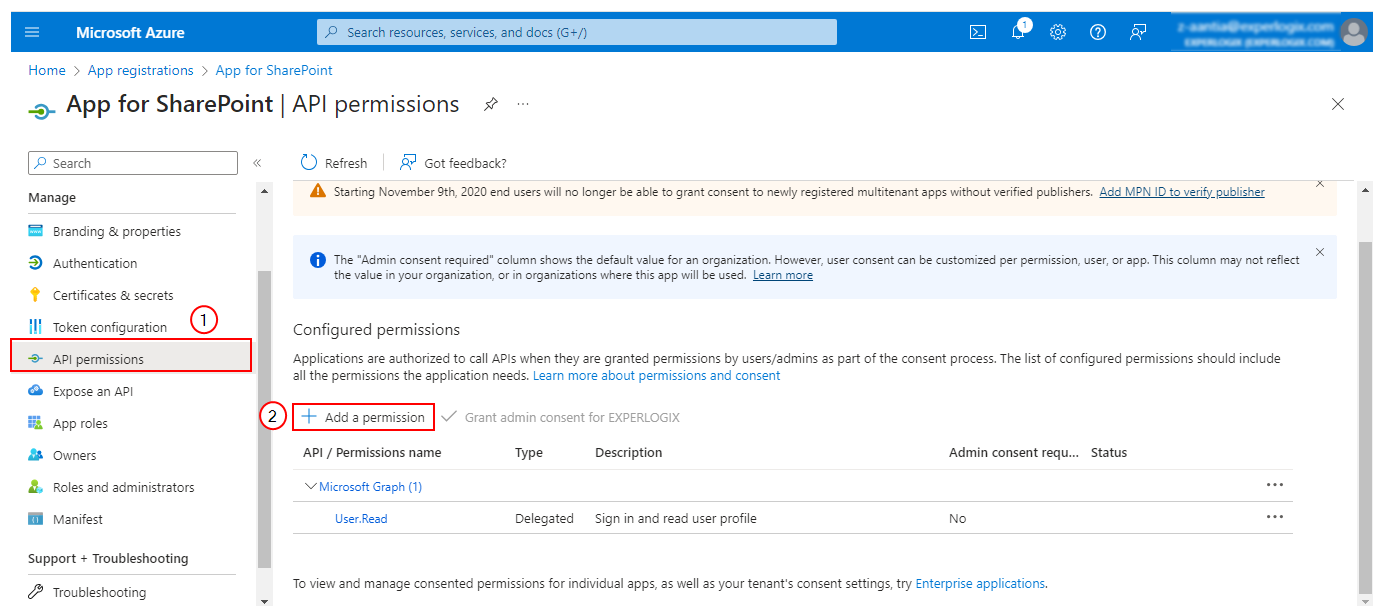
| 1. | On the App Registration navigation menu, select API permissions > Add a permission. |
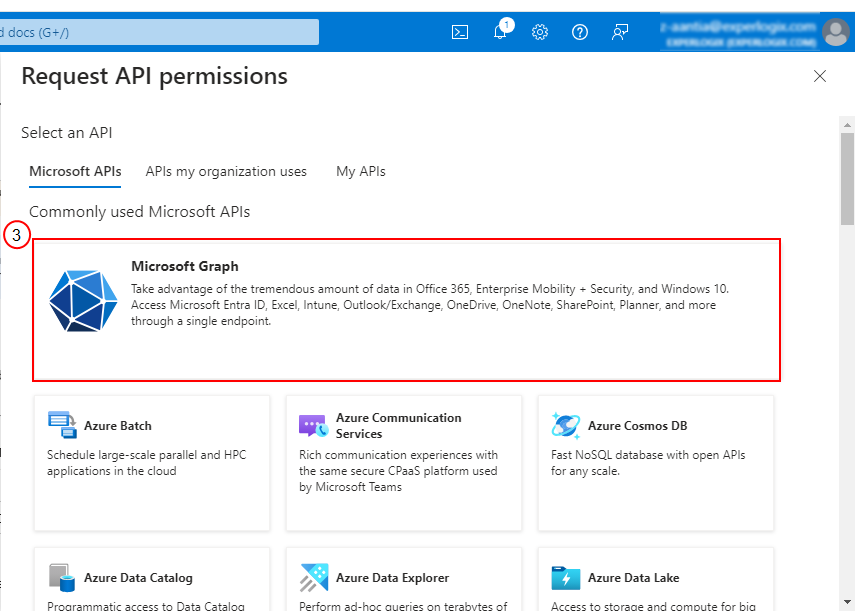
| 2. | From the list of commonly used APIs, choose Microsoft Graph. |
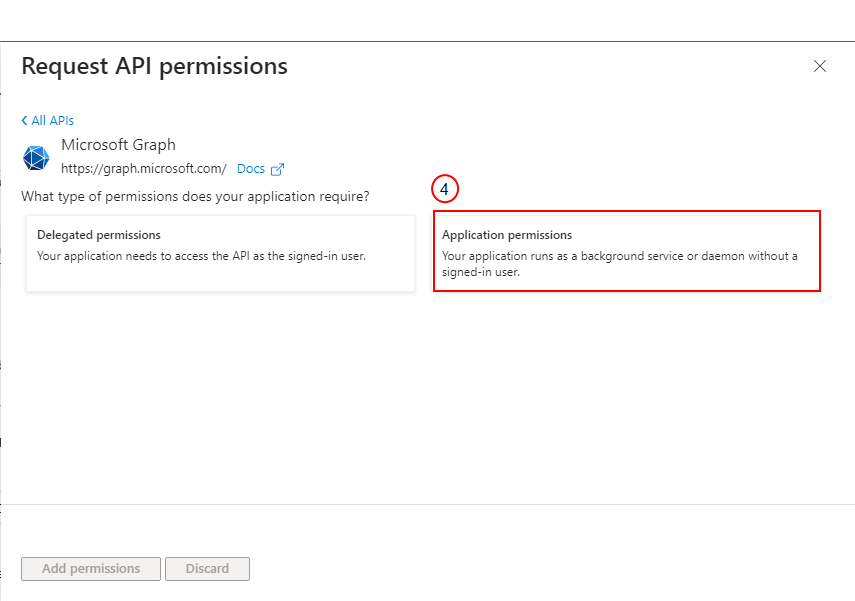
| 3. | Under What type of permissions does your application require?, select Application permissions. |
| 4. | In the search bar, search for sites and select Sites.Selected. |
| 5. | Select Add permissions. |
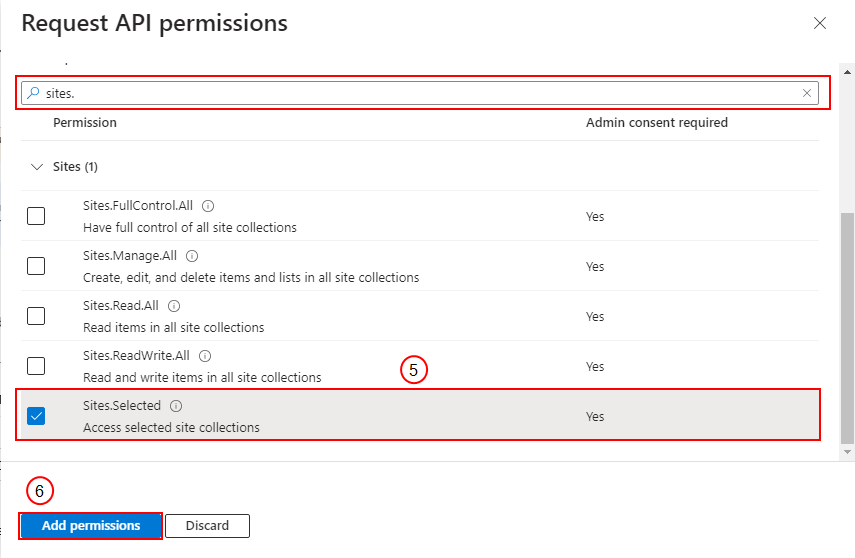
The API is added and you are returned to the main page.
6. If the connector fails post authorization, add the permission SharePoint > Delegated > AllSites.FullControl temporarily, while you complete the connector configuration.
Grant Admin Consent
Upon adding the API permissions to the App registration, select Grant Admin Consent.
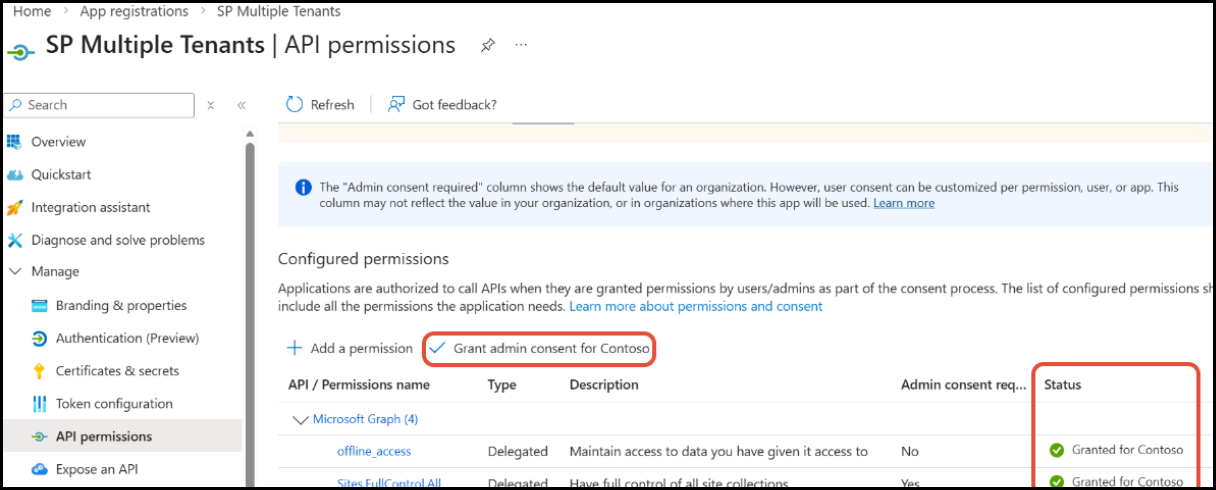
The following are granted with the Admin Consent:
|
API Name |
API Type |
Permission Name |
Reason for Permission |
|---|---|---|---|
| Microsoft Graph |
Application |
Sites.Selected | Manages the permissions interface for Microsoft SharePoint sites selected. |
| Microsoft SharePoint |
Application |
Sites.Selected | Provides access to the selected Microsoft SharePoint sites. |
| Microsoft SharePoint | Delegated | AllSites.Read | Connector Configuration |
| Microsoft SharePoint | Delegated | AllSites.Write | Connector Configuration |
Add Client Secret
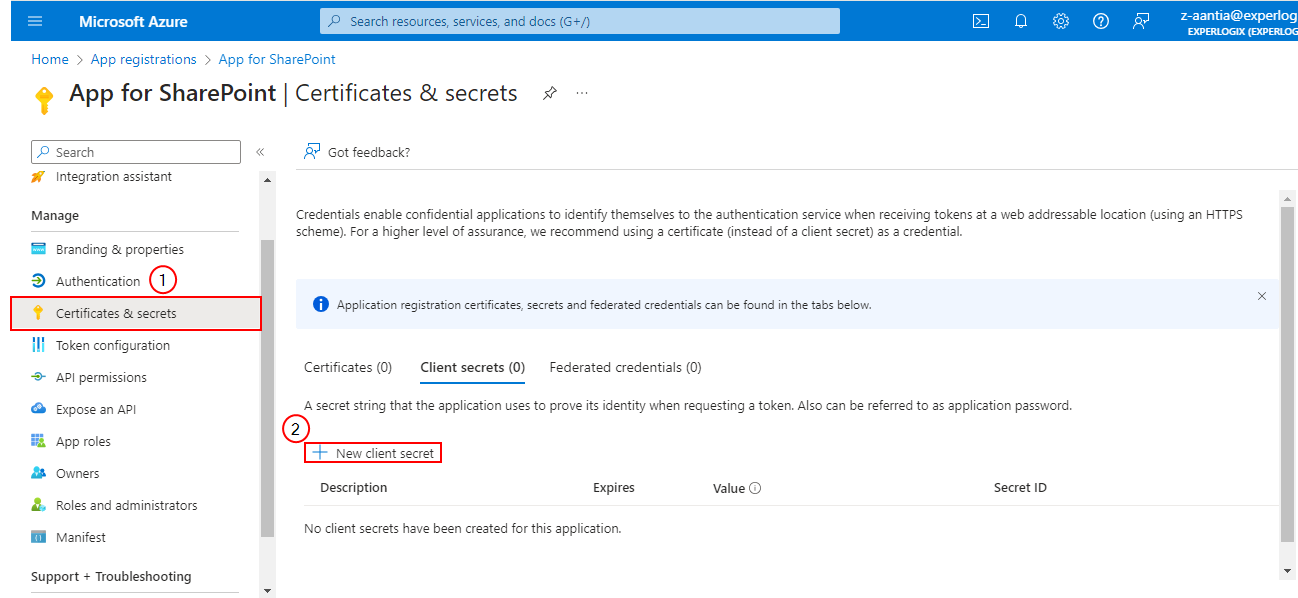
| 1. | On the App Registration navigation menu, select Certificates and secrets > New client secret. |
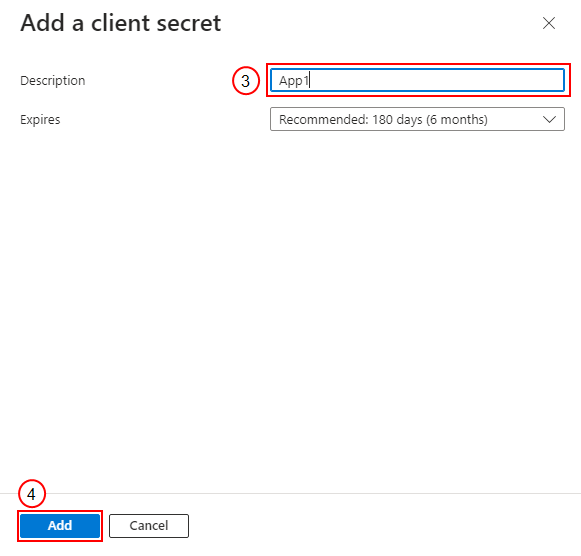
| 2. | In the Add a client secret section, add a Description and Expiry duration (recommended: 180 days), and select Add. |
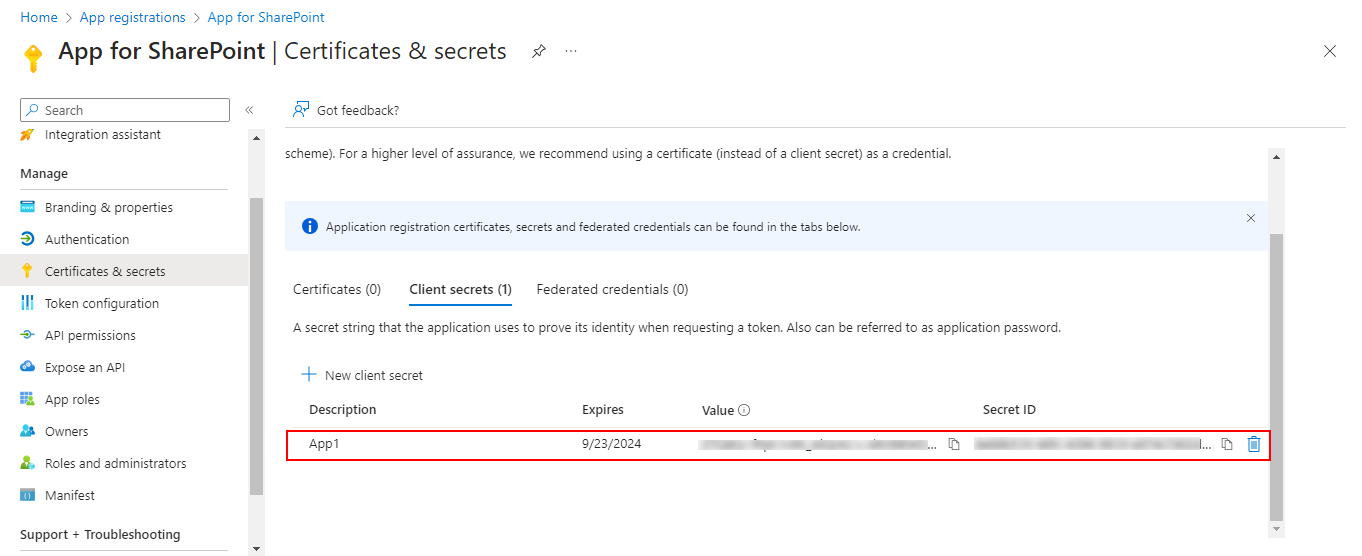
The secret value is populated. Ensure you copy the Secret Value and not the Secret ID.
If first time creating a Microsoft SharePoint connector, then please continue to Creating the Connector.
If reconfiguring the Microsoft SharePoint connector OAuth2.0, then please skip to OAuth Authorization.
Creating the Connector
| 1. | In the Project Console, navigate to the Control panel > Connectors. |
| 2. | Select +Create. |
| 3. | Enter the values for Name, Description fields and select a value in the Type dropdown. |
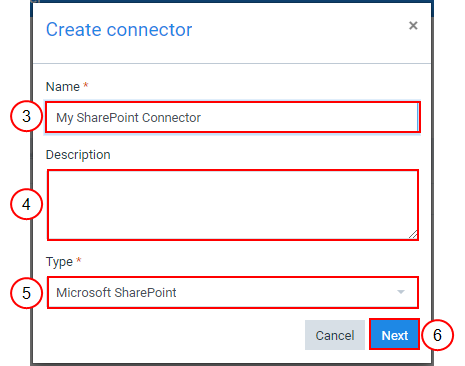
The Create Connector Microsoft SharePoint URL window displays.
| 4. | Input the Microsoft SharePoint Site URL, SharePoint site and select Authorization Type. |
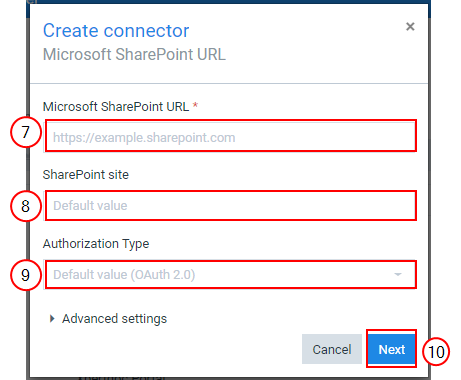
The Authorization Type uses Microsoft SharePoint Entra (OAuth) as the default value.
Decision Point
You can authorize the connector in two ways depending on your use-case.
-
OAuth 2.0 Authorization uses an Entra ID account. In Cloud instances, a SharePoint connector can only be authorized using OAuth.
-
Username/Password account credentials are entered manually. On premise instances can use either Authorization type.
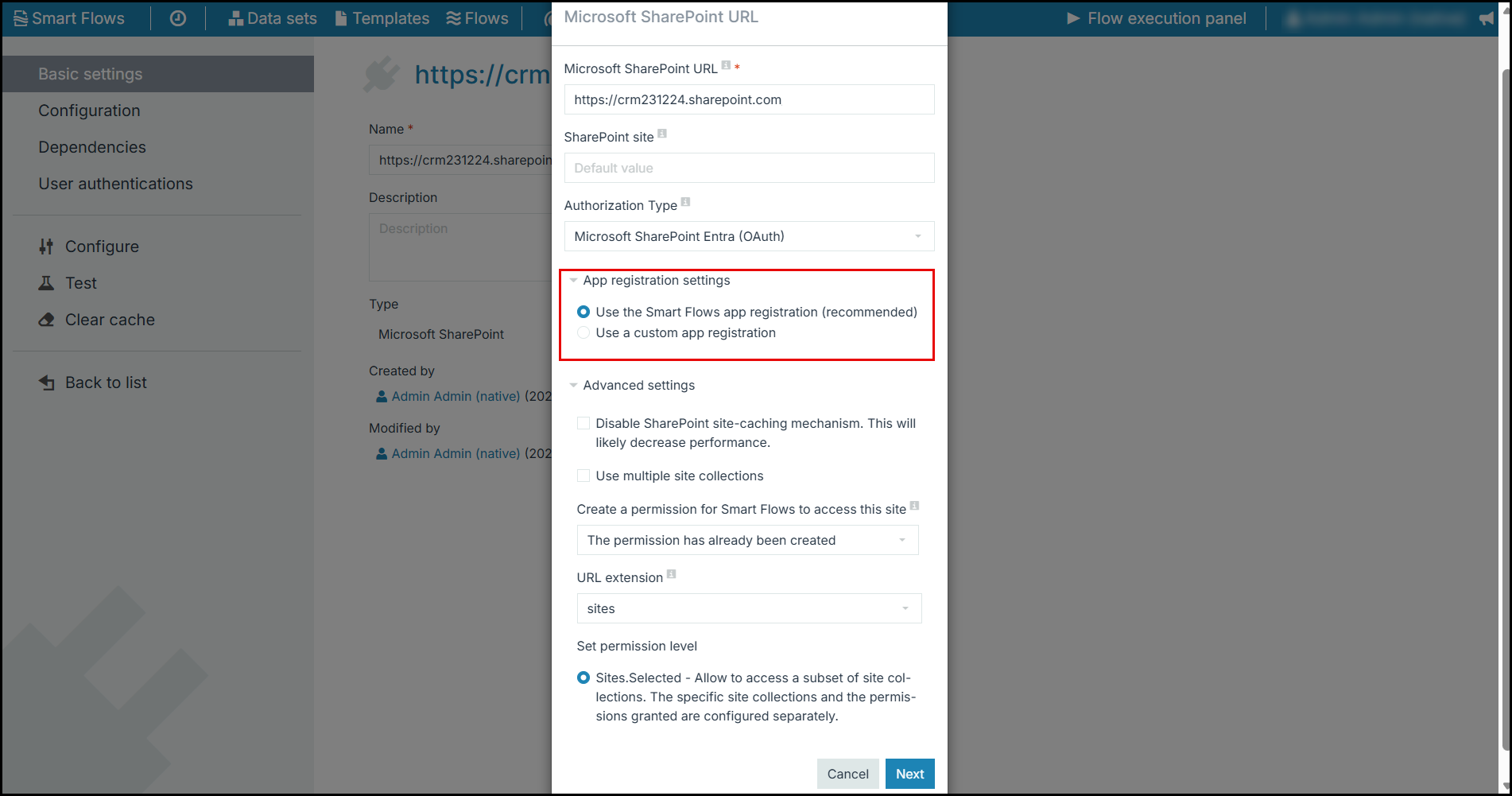
| 5. | In the App registration settings, select one of the below options: |
-
Use the Smart Flows app registration (recommended)
-
Use a custom app registration
| 6. | In the Advanced settings, perform the following steps: |
-
To prevent Smart Flows retrieving the site information at every request, you can select Disable SharePoint site-caching mechanism. This will likely decrease the performance.
-
To handle all sites of the collection at the time of registration, select Use multiple site collections.
-
In the URL extension dropdown menu, select Default value (sites).
-
For Set permission levels, select Sites.Selected, Site.Manage or Site.Write, and select Next.
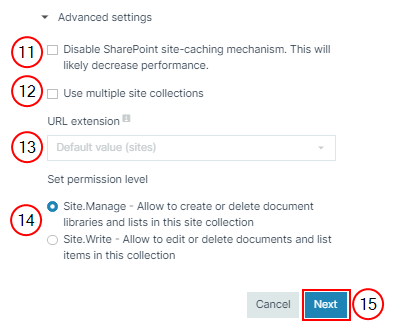
Register Smart Flows in Microsoft SharePoint window displays.
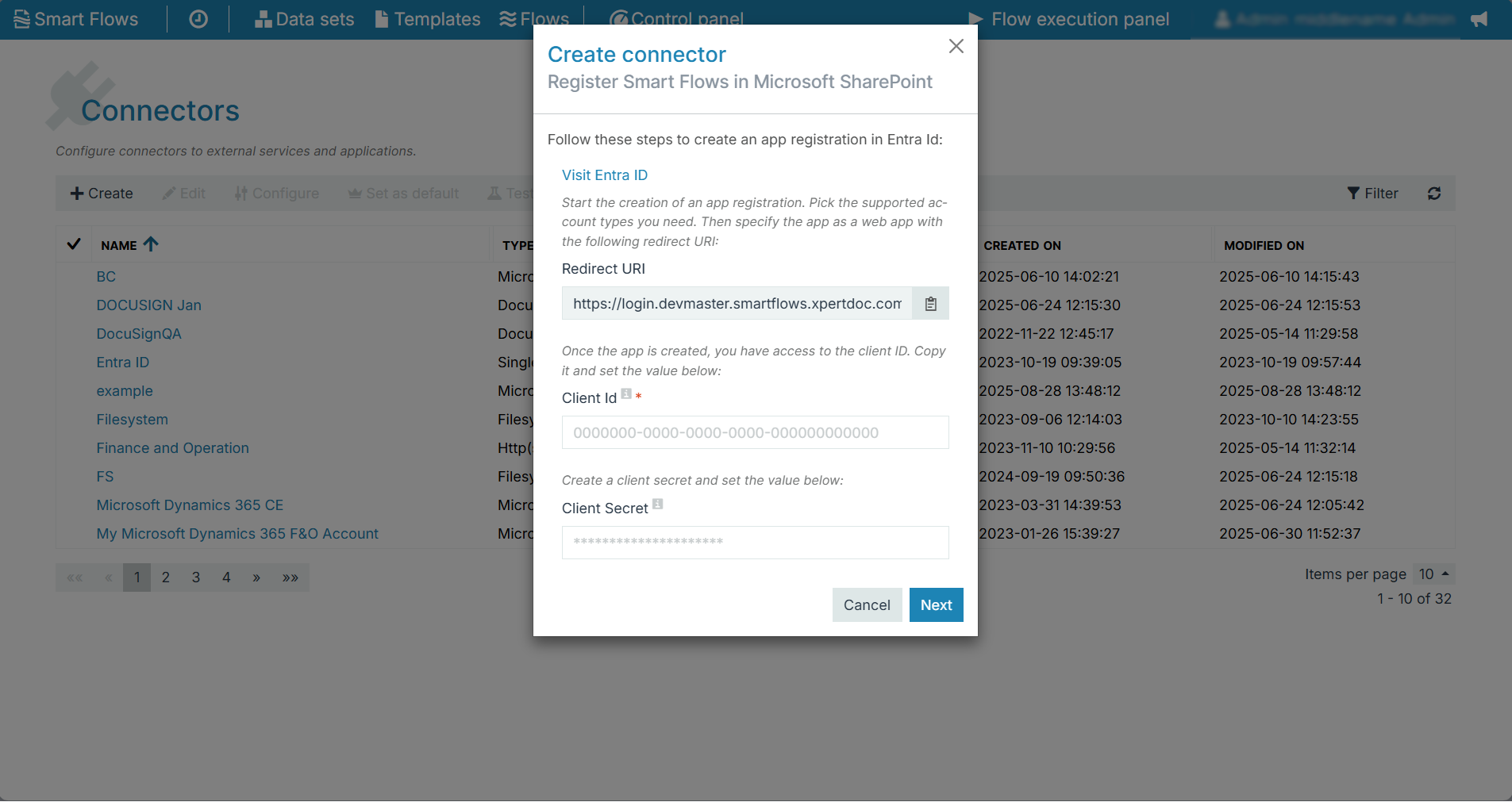
OAuth Authorization
If you select OAuth as Authorization Type, you either create an App Registration in your Microsoft Entra Portal or select the Smart Flows pre-configured App Registration in your Connector configuration. See Create a Smart Flows App Registration for SharePoint Access in Microsoft Entra
| 1. | Add the client Id and client secret value from the custom App Registration and select Next. |
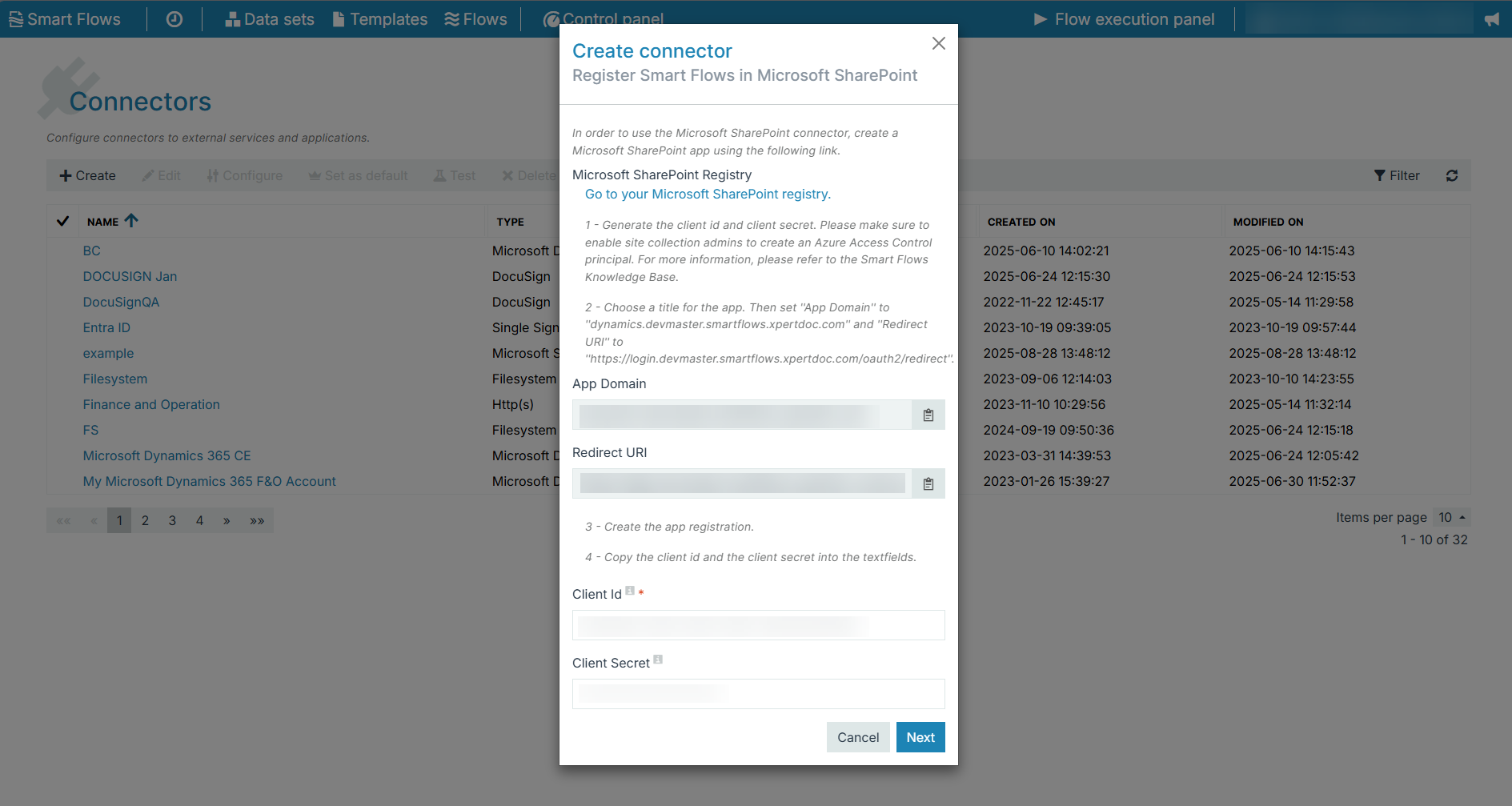
The Create connector Authorize Experlogix Smart Flows window displays.
| 2. | Select Authorize Smart Flows. |
You are redirected to a Microsoft OAuth 2.0 Consent Screen.
| 3. | Check the box beside ‘Consent on behalf of your organization’ and select Accept. |
You are redirected back to Smart Flows.
| 4. | Select Authorize again, and select Next. |
| 5. | From the dropdown menu, choose a library (or leave as Default), then select Next > Finish. |
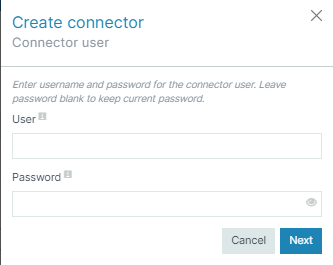
Username/Password
If you select Username/Password as Authorization Type, input the username and password of an account that has the required permissions to grant Smart Flows access to Microsoft SharePoint.
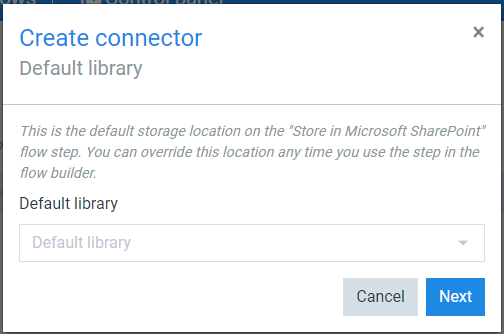
The Create connector Default library window displays.
| 1. | Select Next. |
| 2. | In the Default library dropdown, select Default library. |
Smart Flows displays a summary of the configuration.
| 3. | Select Finish. |
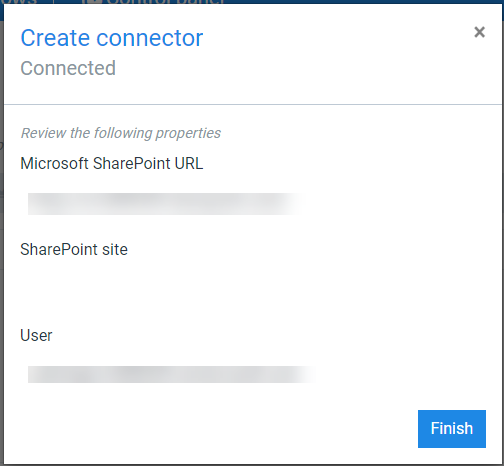
The Microsoft SharePoint connector is created. Check out Microsoft SharePoint Connector to see all the features available.