Create a Condition on a Filtered 1:N Relationship
In a 1:N relation (one-to-many), a Primary entity A secret key is a value that is stored securely in your web server and only shared with your web server and the DocuSign platform. links to one or more instances of another entity. However, by adding a filter to the 1:N relationship, users can benefit from using all of the data within the data set Software as a service is a software licensing and delivery model in which software is licensed on a subscription basis and is centrally hosted. yet also reduce the total processing time. Once a filter is added, a condition can be set to define when the filter applies.
Conditions display underneath the PRIMARY ENTITY in the Data Set Builder. However, the Filtered 1:N relations row only displays if a filtered relation already exists for the selected primary entity. Designers can toggle conditions ON/OFF to control whether they display when creating templates and additional conditions.
Filtered relations can be cloned to save time.
Add a Filter
| 1. | Create a Data Set. |
| 2. | Select the Data sets button. |
The Data sets page displays.
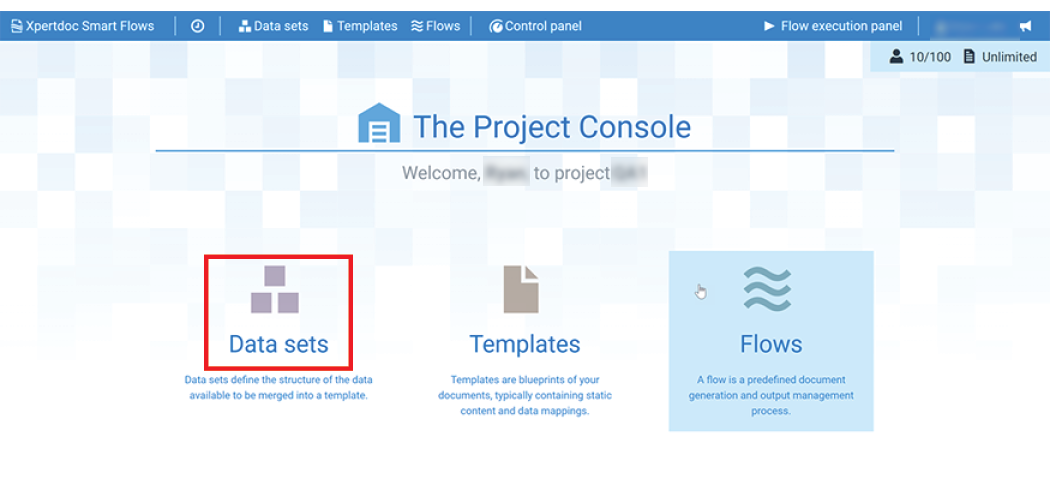
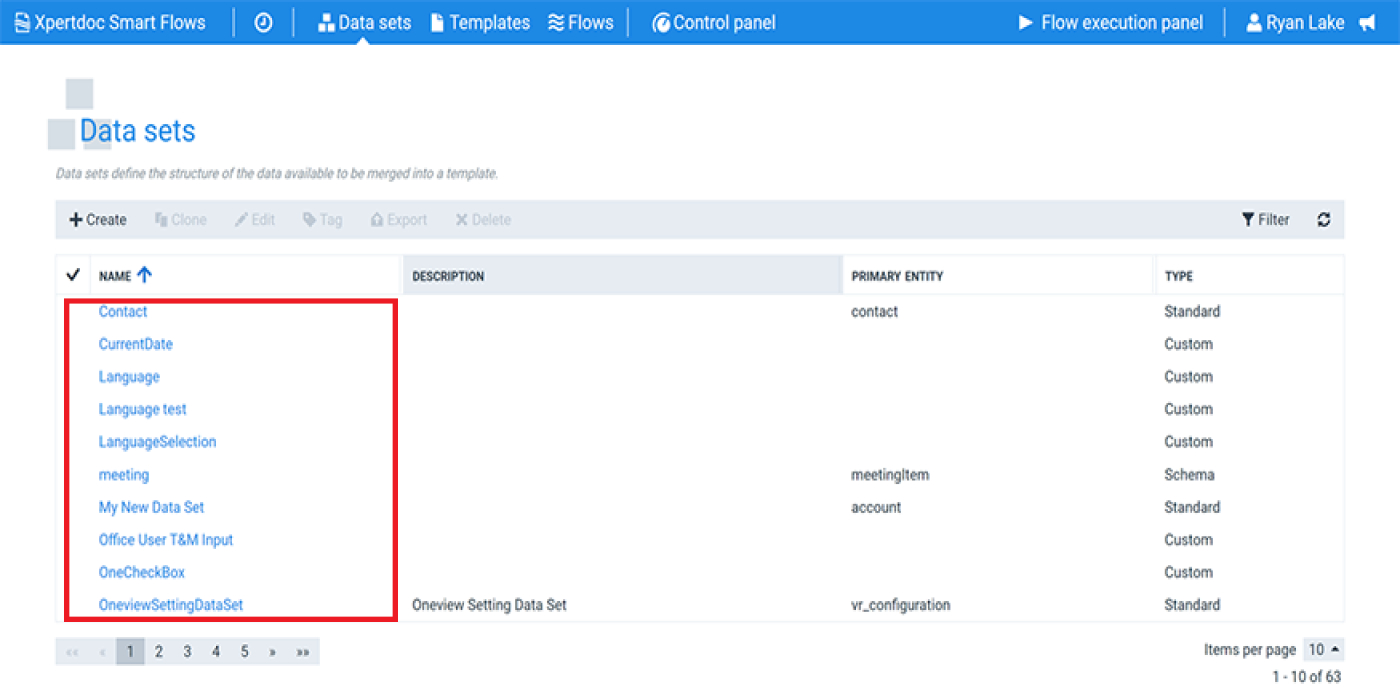
| 3. | Select a Data Set to filter from the available options. |
The Data Set Builder displays.
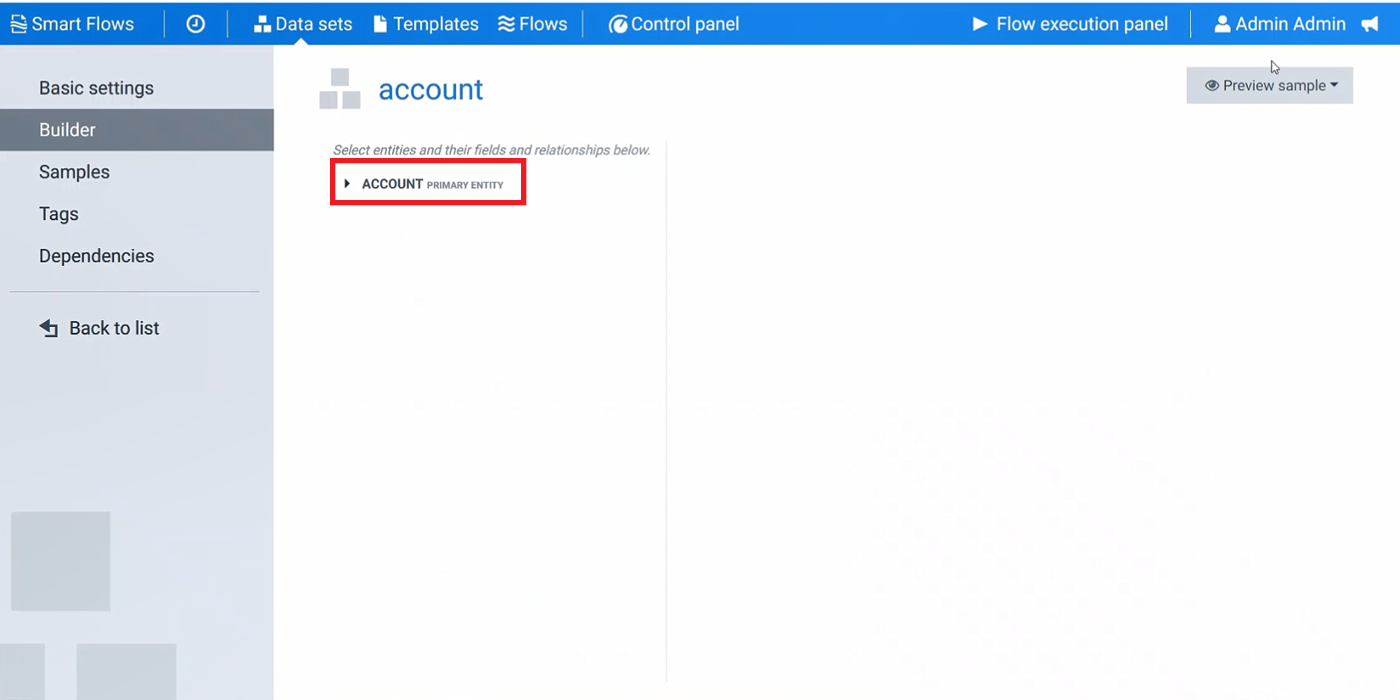
| 4. | Select the PRIMARY ENTITY button. |
The dropdown menu displays.
Configure the Filter
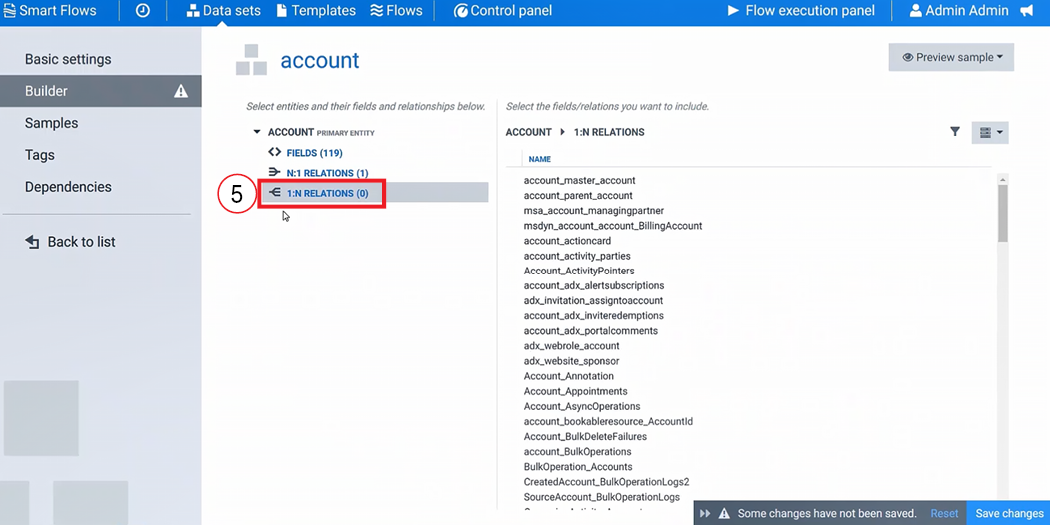
| 5. | Select the 1:N RELATIONS button. |
On the right, the 1:N RELATIONS displays.
| 6. | Hover the mouse over the 1:N relation row. |
A plus mark(+) displays.
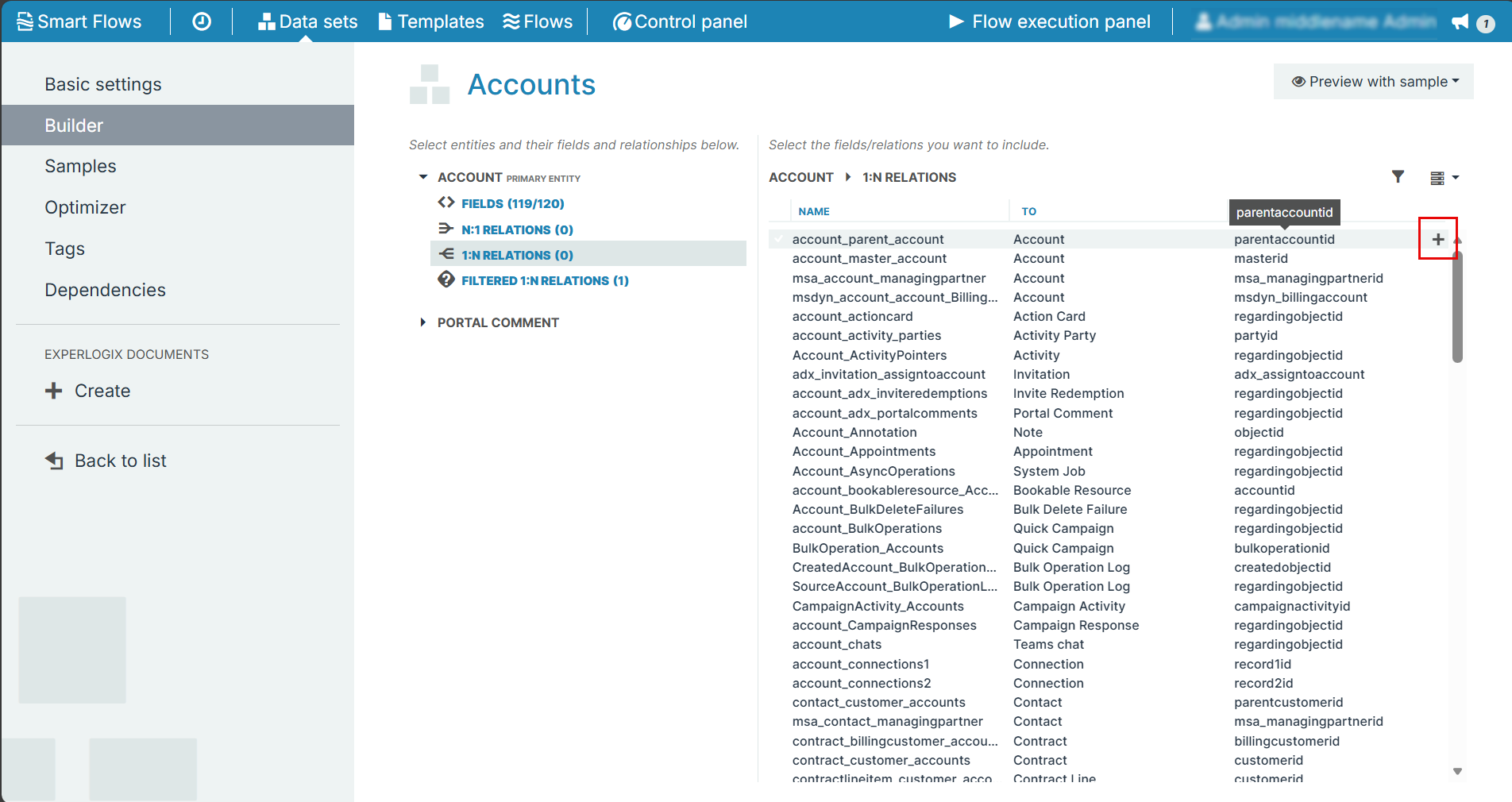
| 7. | Select the plus mark(+). |
The Add filtered 1:N relationship window displays.
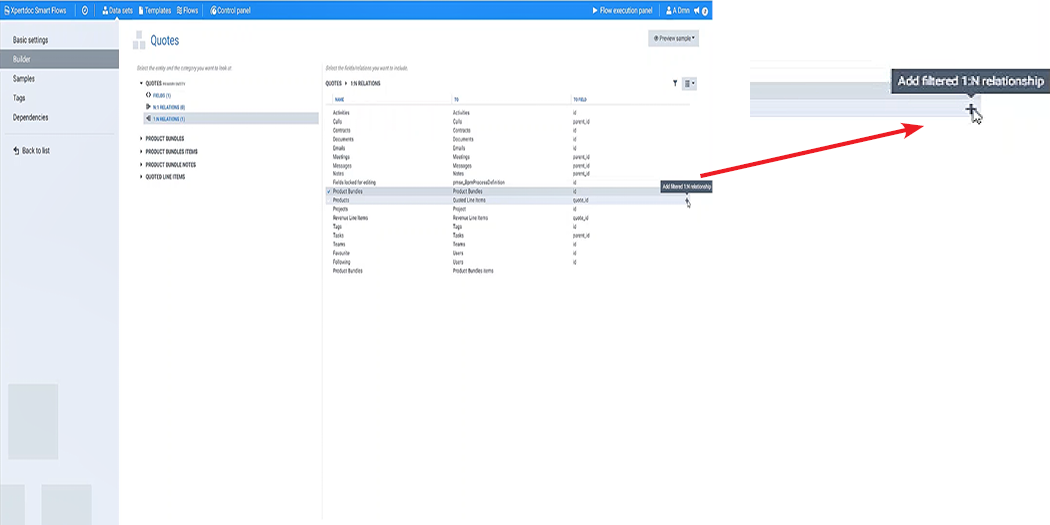
| 8. | In the Name field, type in the name for your new 1:N relation. |
| 9. | In the System Name field, copy and paste the Name field entry. |
| 10. | Select the Confirm button. |
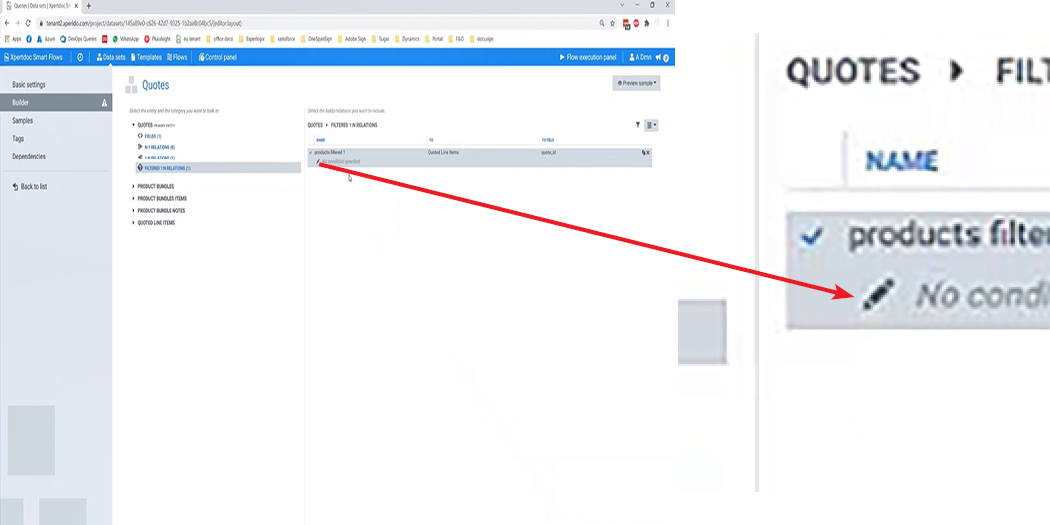
The 1:N relation window no longer displays. A new row displays under the primary entity titled filtered 1:N relations.
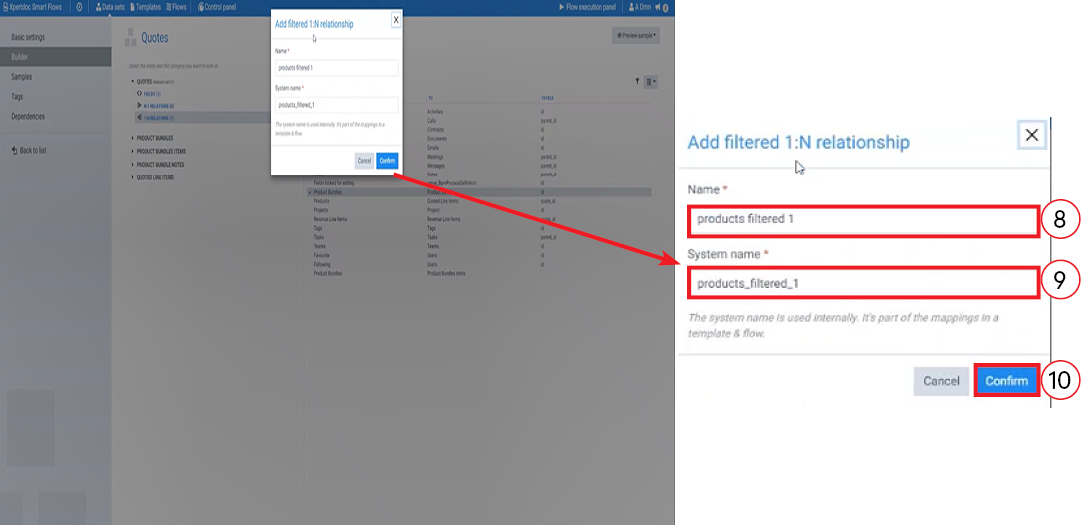
| 11. | Next to the 1:N relation, select the pencil icon to edit the condition. |
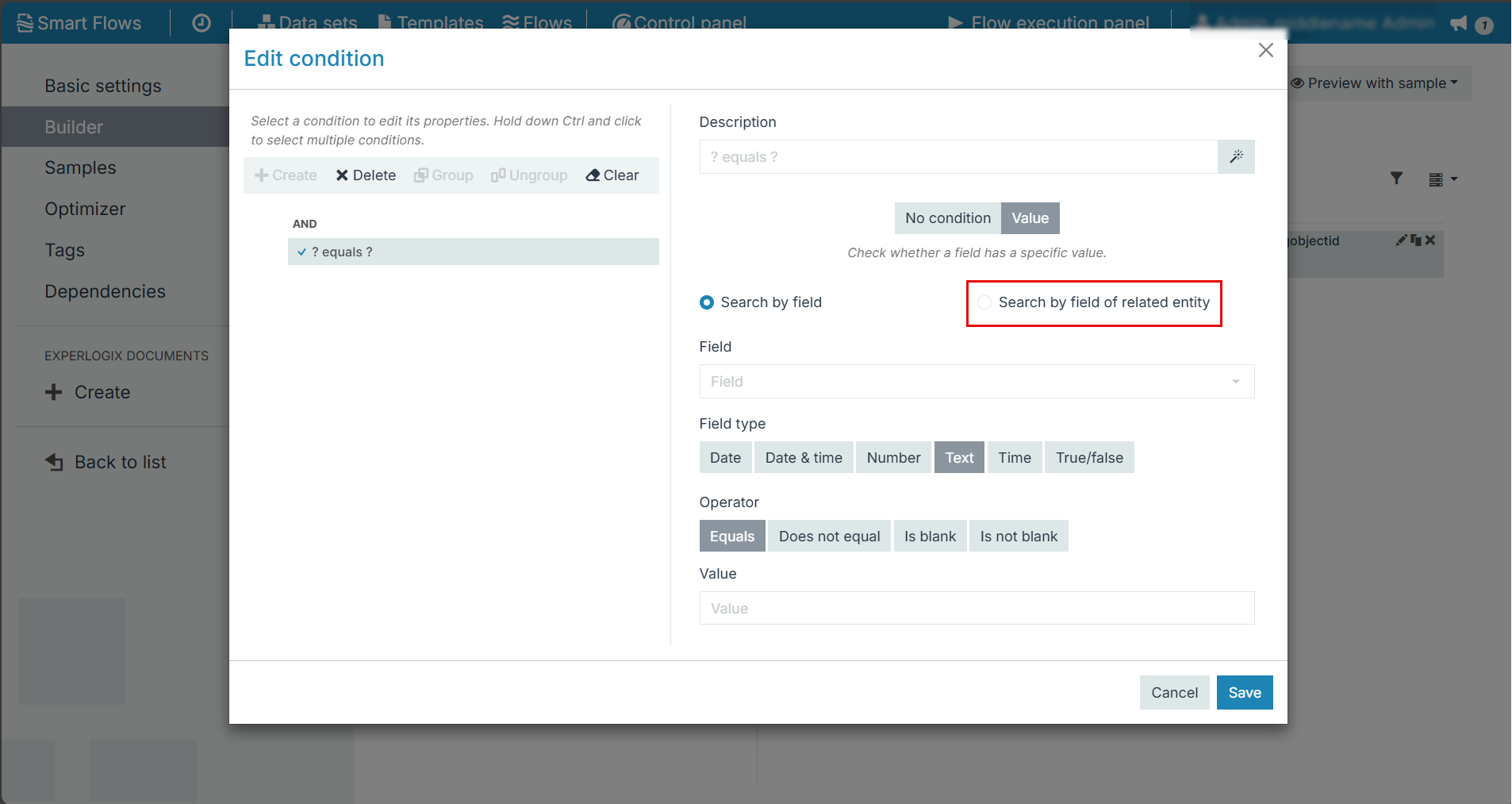
The Condition window displays.
| 12. | Select the Create button to create a new condition. |
Create a Condition
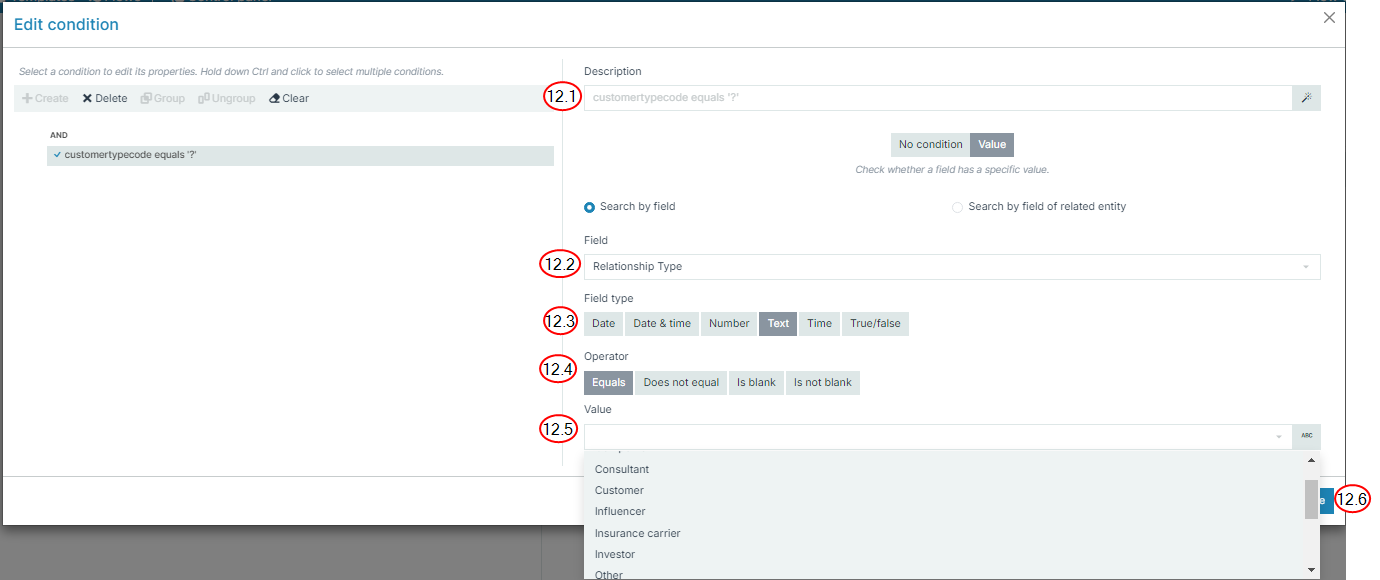
| 13. | Input the condition criteria. |
| 13.1. | In the Description field, type a description for the condition, such as 'when to use the condition'. |
| 13.2. | In the Field, select the field to filter. |
| 13.3. | In the Field type field, select the type of field. |
| 13.4. | In the Operator field, select the operation to perform data filtering. |
| 13.5. | In the Value field, select the value to filter. |
| 13.6. | Select the Save button. |
The Edit condition window no longer displays.
| 14. | Save the changes. |
The filtered relation is now available for use within templates and flows in the same manner as other relations.