Store in Microsoft SharePoint 
The Store in Microsoft SharePoint flow block allows Designers to store a document in Microsoft SharePoint.
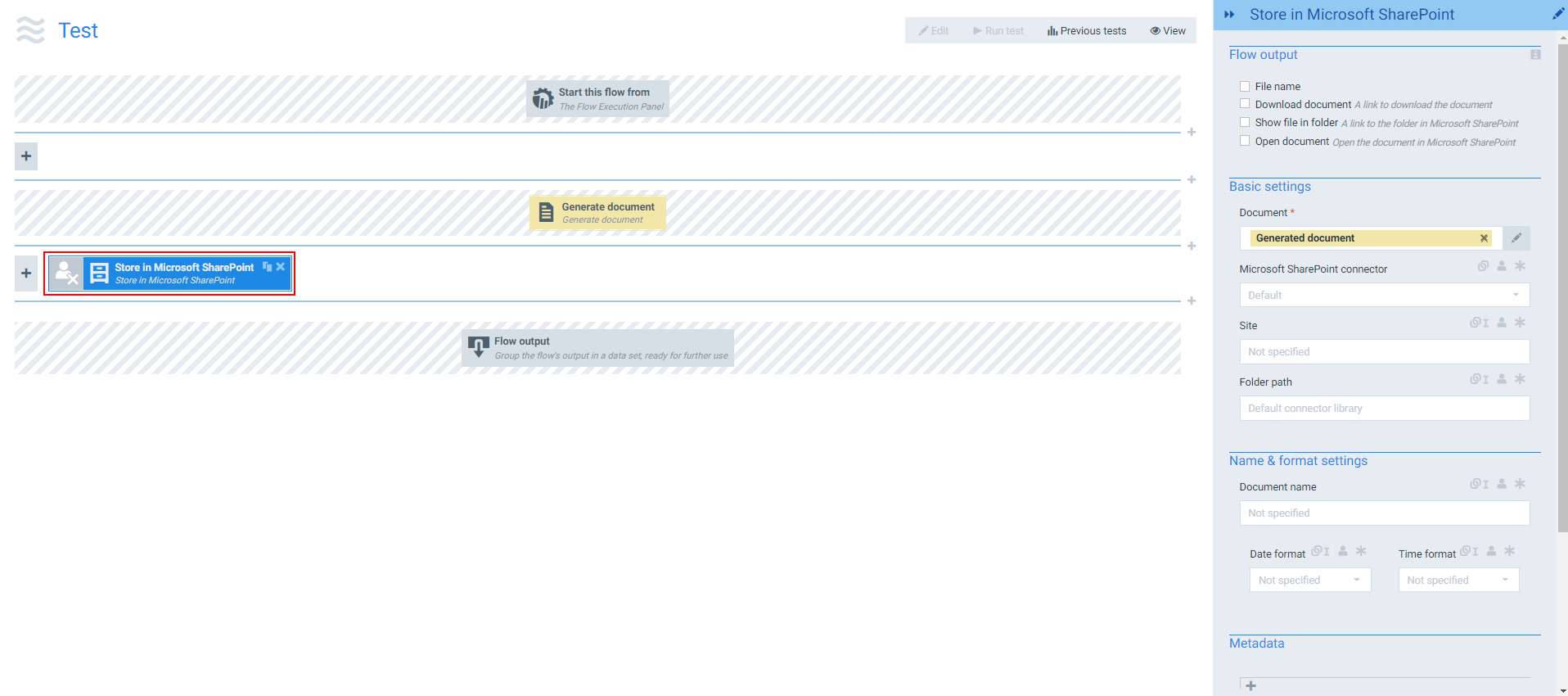
Parameters
The dropdown menus below provide all of the flow block's configuration options with detailed information and recommendations to help you configure your flow block.
 Flow block customization buttons
You can further customize your flow block's parameters in several ways
-
 Users can use linked fields to map data from your data set(s)
 -
 Users can use edit fields to customize the flow block
 -
 Using delayed output settings to wait for signatures or file names of completed documents
Flow Output
The Flow Output section shows all the output parameters that are available for the block. When checked, the value of the output parameter are presented to the user who is executing the flow. Each setting that composes this output information is described in detail below:
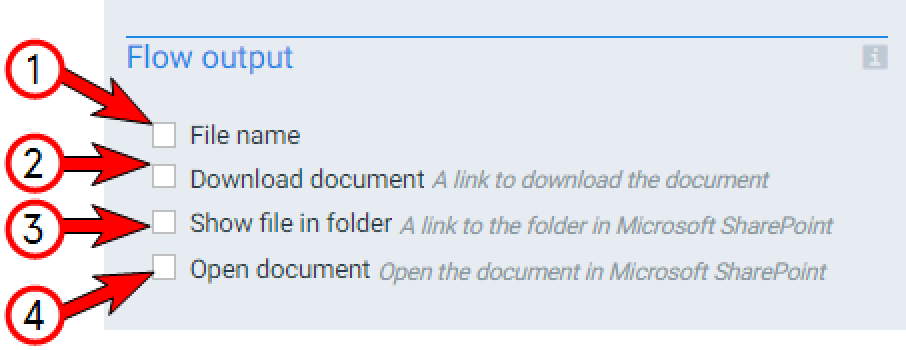
Store in Microsoft SharePoint Flow output functions
|
Index No. |
Field name |
Function |
|---|---|---|
|
1 |
File name |
When checked, outputs the name of the file in SharePoint. |
|
2 |
Download document |
When checked, creates a link to download the document from SharePoint. |
|
3 |
Show file in folder |
When checked, creates a link to the file location on SharePoint. |
|
4 |
Open document |
When checked, creates a link that opens the document in SharePoint. |
Basic settings
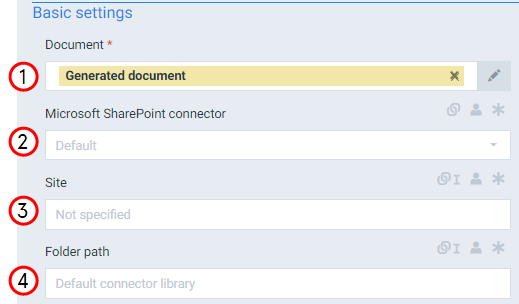
Store in Microsoft SharePoint Basic settings functions
|
Index No. |
Field name |
Description |
|---|---|---|
|
1 |
Document |
The document to store in Microsoft SharePoint. The system uses the generated document by default |
|
2 |
Microsoft SharePoint connector |
Defines the connector the system should use. If none is selected, the system uses the default connector. |
|
3 |
Site |
Name of the site where the system should store the document. This setting only functions if you have checked the Use multiple site collection setting for the Microsoft SharePoint connector. Entering a URL to a site during connector setup is possible. If so, leave the site field empty. If a site has been set on a connector, it is no longer possible to use the default root site. It's not possible to enter a subsite here. Select here for an overview resolving your site
The default root site will be used if no site has been specified, neither during connector setup or in the flow step (https://tenantxyz.sharepoint.com/ ). If specified in the connector and not in the flow step, the system uses the specifications from the connector from the connector. If specified in the flow step, the system overrides the connector setting and uses the site defined in the Site field. Entering a URL to a site during connector setup is also possible. If a URL was entered during the site set up, leave this field empty. If a site has been set on the connector, using the default root site is no longer possible. It’s not possible to enter a subsite |
|
4 |
Folder path |
The path to the folder on SharePoint. Users can select In Shared Documents or In Document Location as set in Dynamics. We recommend using the Toggle linked/normal field button to link this field to the Data Set field SharePoint Documentation Locations. Refer to Linking blocks together for more information. If left empty, the default library will be used (Shared Documents), unless specified otherwise during connector setup. If a library is selected for a specific site, it won't be used if the site parameter is overwritten and Shared Documents will be used anyway. It can contain a Sharepoint document location if enabled on the D365 CE environment. It is available on a subset of D365 CE entities in Dynamics data sets. |
Name & format settings
The Name and format settings in the Store in Microsoft SharePoint flow block refers to the name to save the document as. By default the Store in Microsoft SharePoint the system uses the Generate document flow block's Document name field. However, you can use a different name when saving to storage.
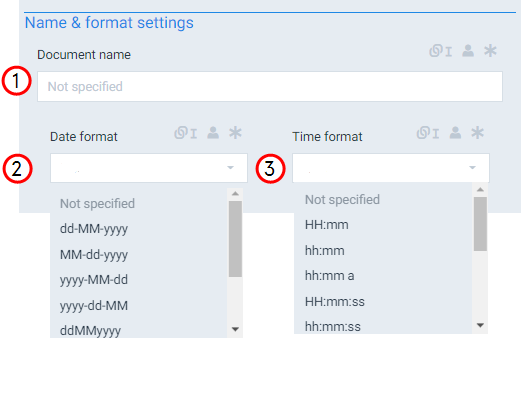
|
Index No. |
Field name |
Description |
|---|---|---|
|
1 |
The name of the stored document. |
|
|
2 |
Date format |
Sets the date format. When you make a selection here, the system adds a timestamp to the name of the document. The timestamp is separated into date and time, but when you link a field here, both the date and time fields can accept all date and time symbols, refer to Date & time patterns for more information. |
|
3 |
Time format |
Sets the time format for the field. |
Metadata
The Metadata parameters allow users to store additional information about the document in SharePoint. The system displays the field that match yourSharePoint library columns where the document will be stored. For more information on modifying columns, refer Create a column in a list or library for more information
Example:
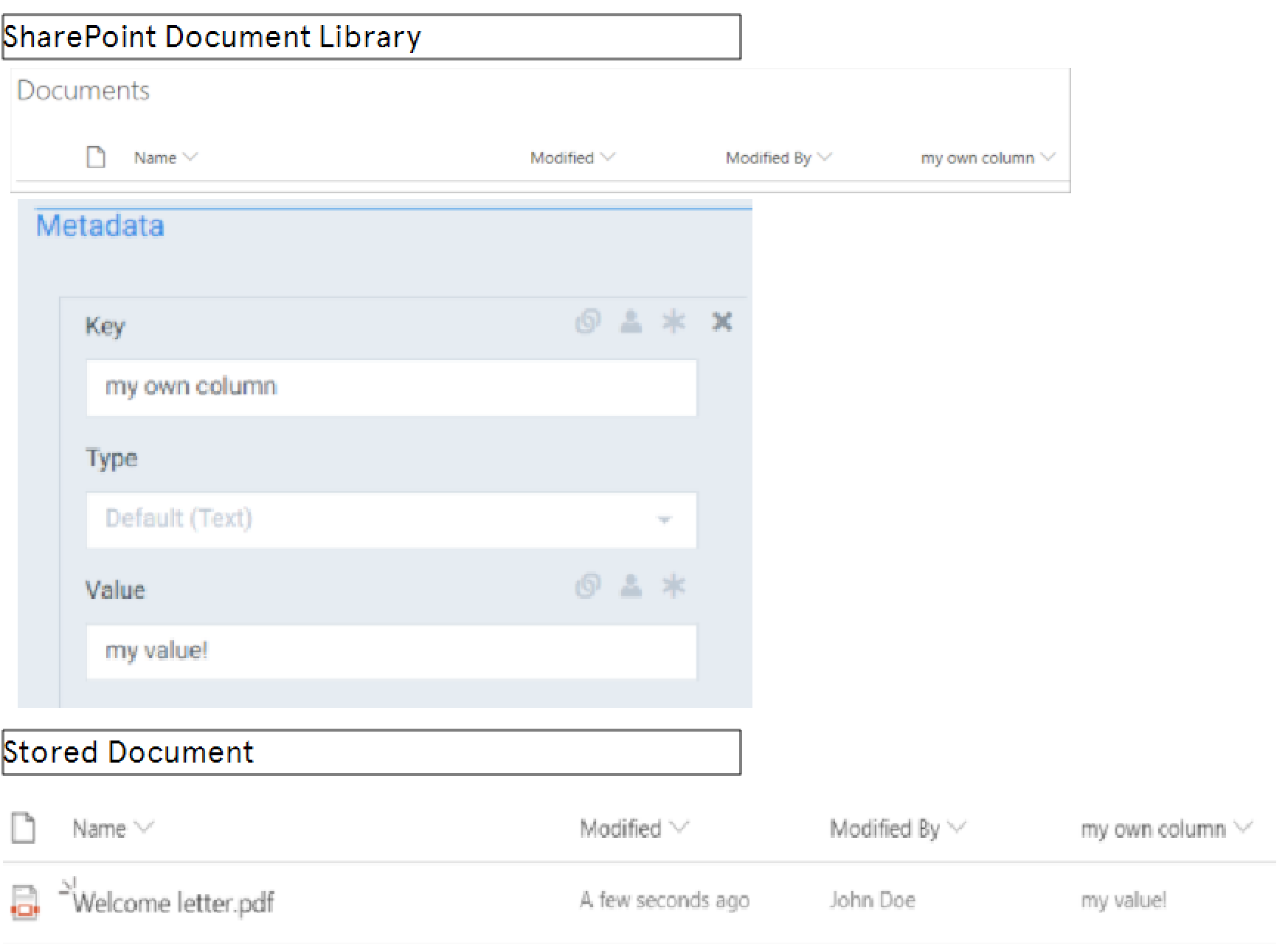
Adding a column with an inserted value.
In this example the column, my own column is added to the SharePoint Document library. You can then modify settings for that column in the Key field of the Metadata section. The document is stored in library using the Document Name field and the Value field fills the data for the created column my own column.
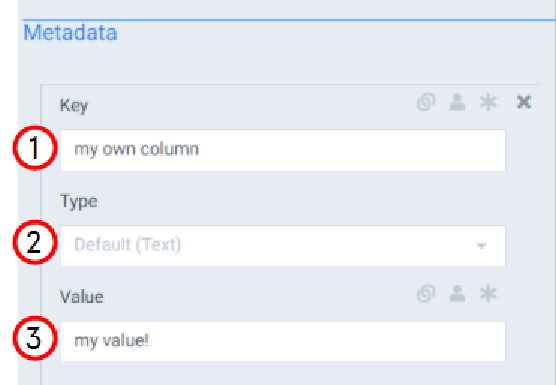
Store in Microsoft SharePoint Metadata Setting Functions
|
Index No. |
Field name |
Description |
|---|---|---|
|
1 |
Key |
Designates the matching list column in SharePoint to fill with metadata. |
|
2 |
Type |
Sets the SharePoint list column type, refer to List and library column types and optionsfor more information on SharePoint column types. |
|
3 |
Value |
Sets the row value for the stored document for the column displayed in the Key field. |