Content Manager Metadata Tab
Metadata plays a crucial role in enhancing the organization, accessibility, content retrieval and usability of content within Content Manager. It stores valuable information about content items, such as the creation date, author, and type, which is essential for Contributors and Content Contributors. You can create, view, and manage metadata at any time during the content lifecycle, improving searchability, adding context, and maintaining content quality.
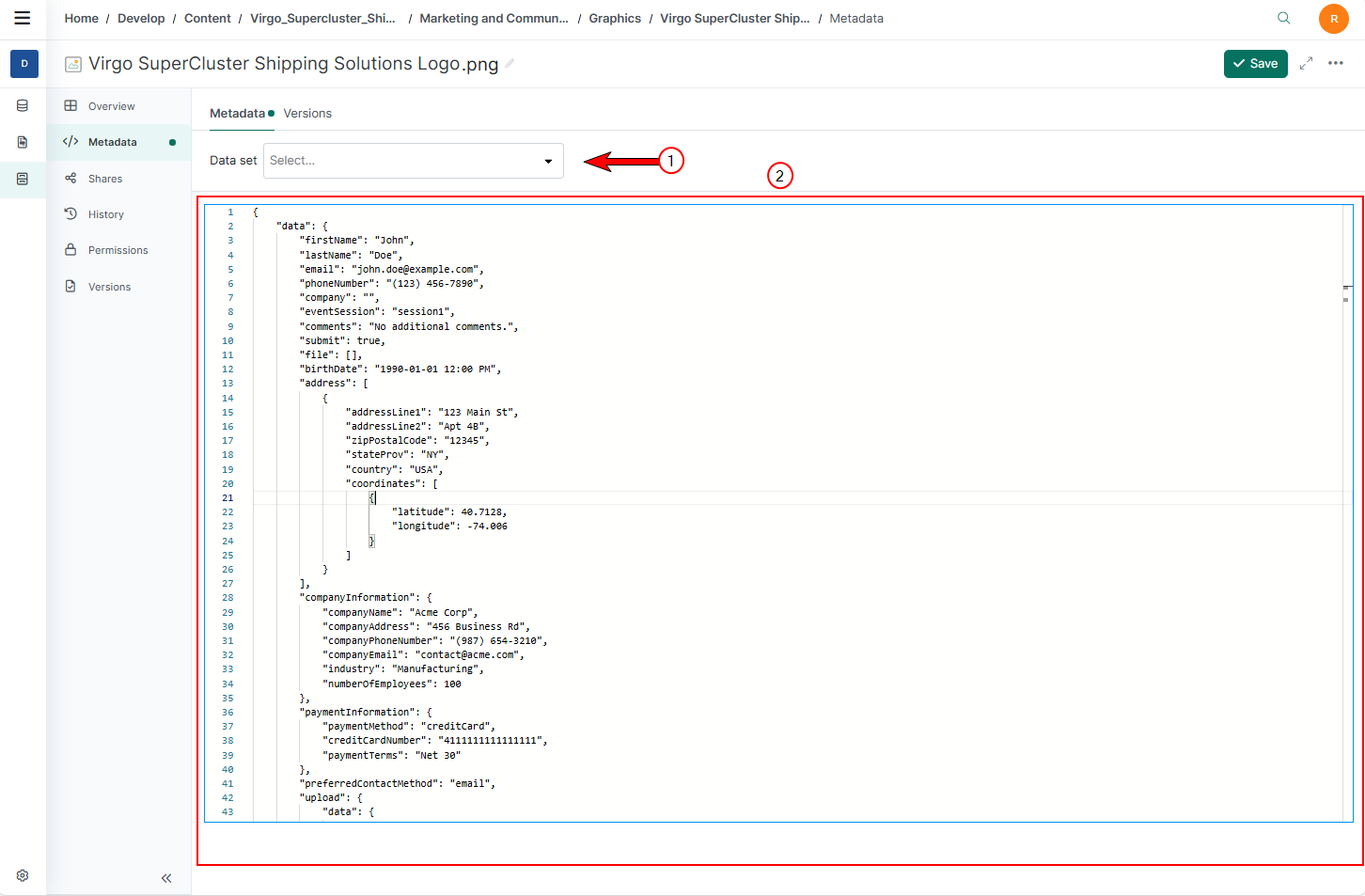
Metadata Tab Fields:
| Index No. | Field Name | Purpose |
|---|---|---|
| 1 | Link Form Data Set | A dropdown menu that allows you to select and link a form dataset to the content item as a metadata form. Once a form is selected, the user interface updates to display the form fields for metadata entry. |
| 2 | Code Editor | A text box (code editor) where you can manually enter metadata in JSON, XML, or plain text format. This editor does not enforce validation, allowing any data to be entered. |
Procedures
Accessing Metadata Inside Content Manager
| 1. | Select a file/folder in the Content Manager List view. |
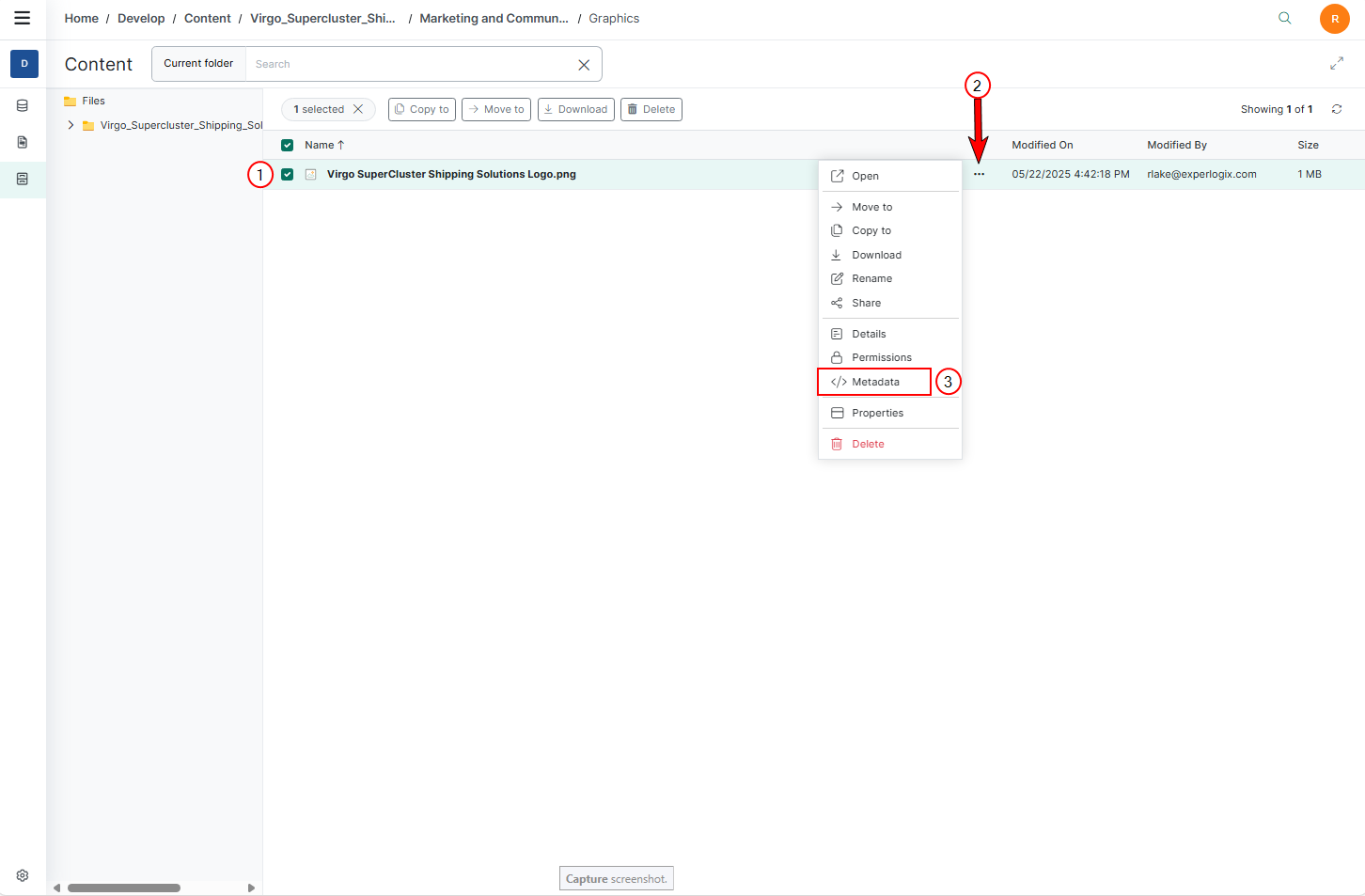
| 2. | Select the ellipsis button. |
| 3. | Select Metadata. |
The Metadata tab of the item's details page displays.
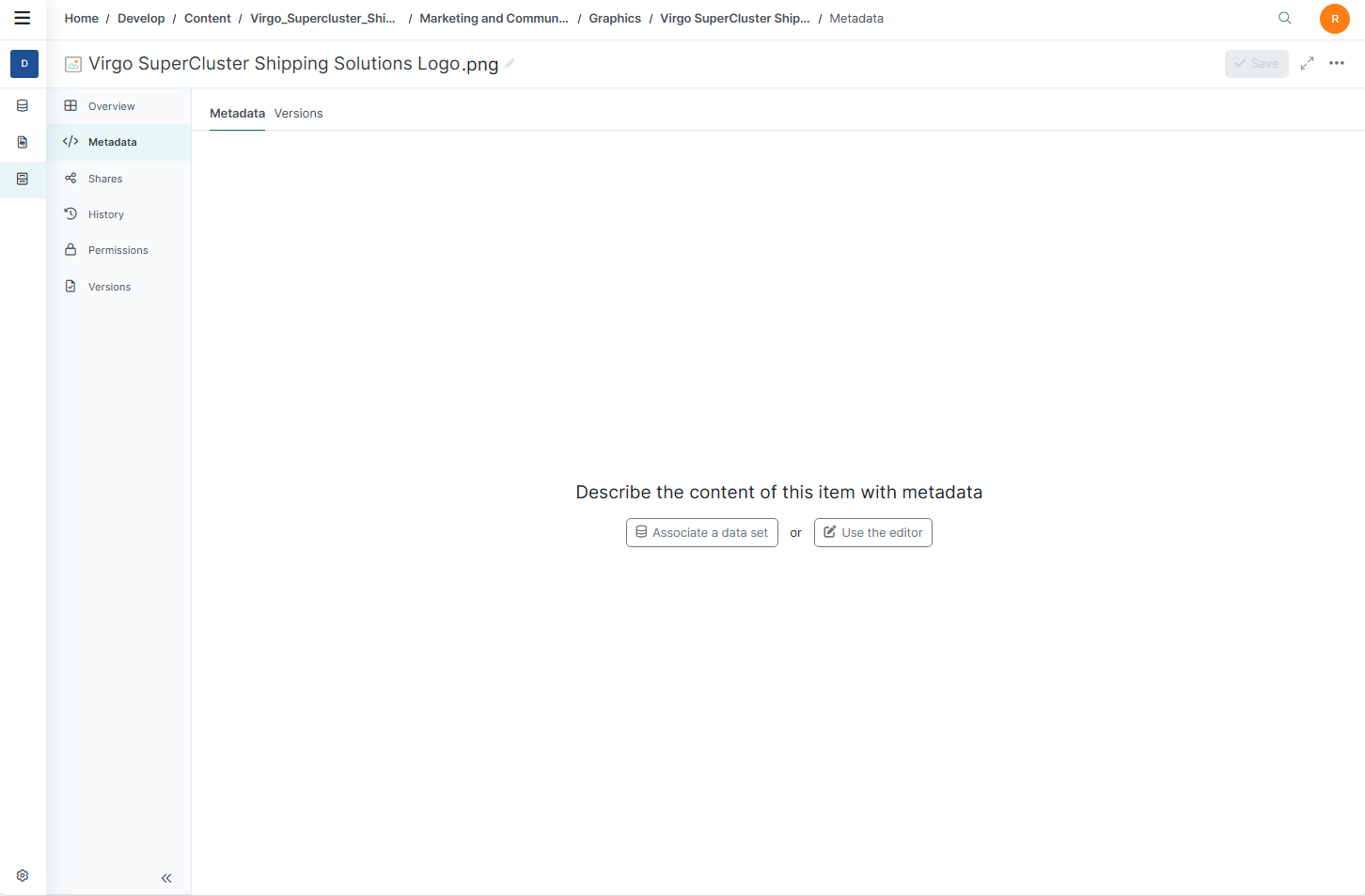
Creating Metadata
Creating metadata can be done through data set forms or direct code editing. Understanding these methods helps you choose the most suitable approach based on your needs and the required level of structure and validation.
Creating Metadata Through Data Set Forms
| 1. | Select Use Associate a Data Set. |
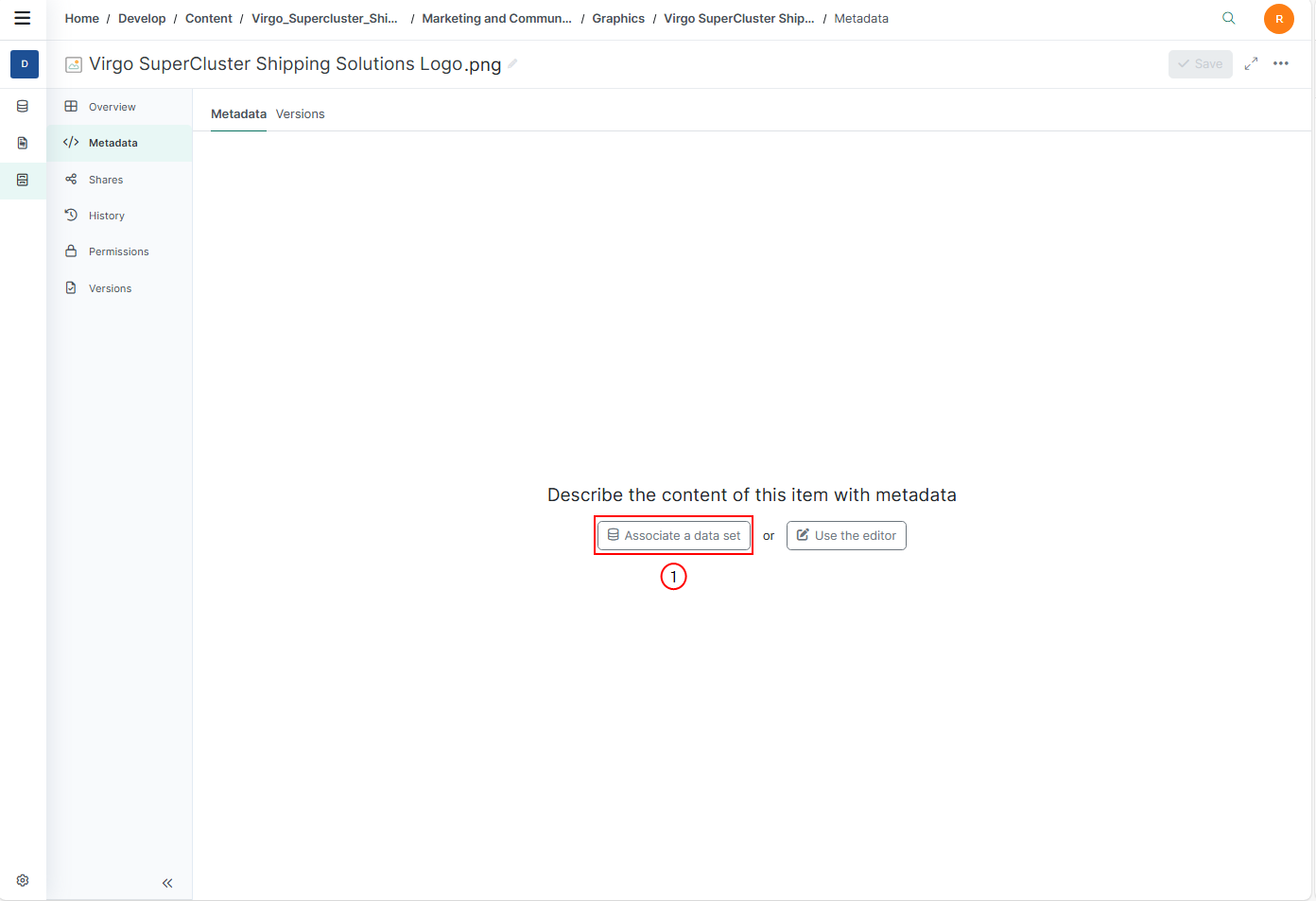
| 2. | In the Metadata tab, select a form data set from the Link Form Data set dropdown menu. |
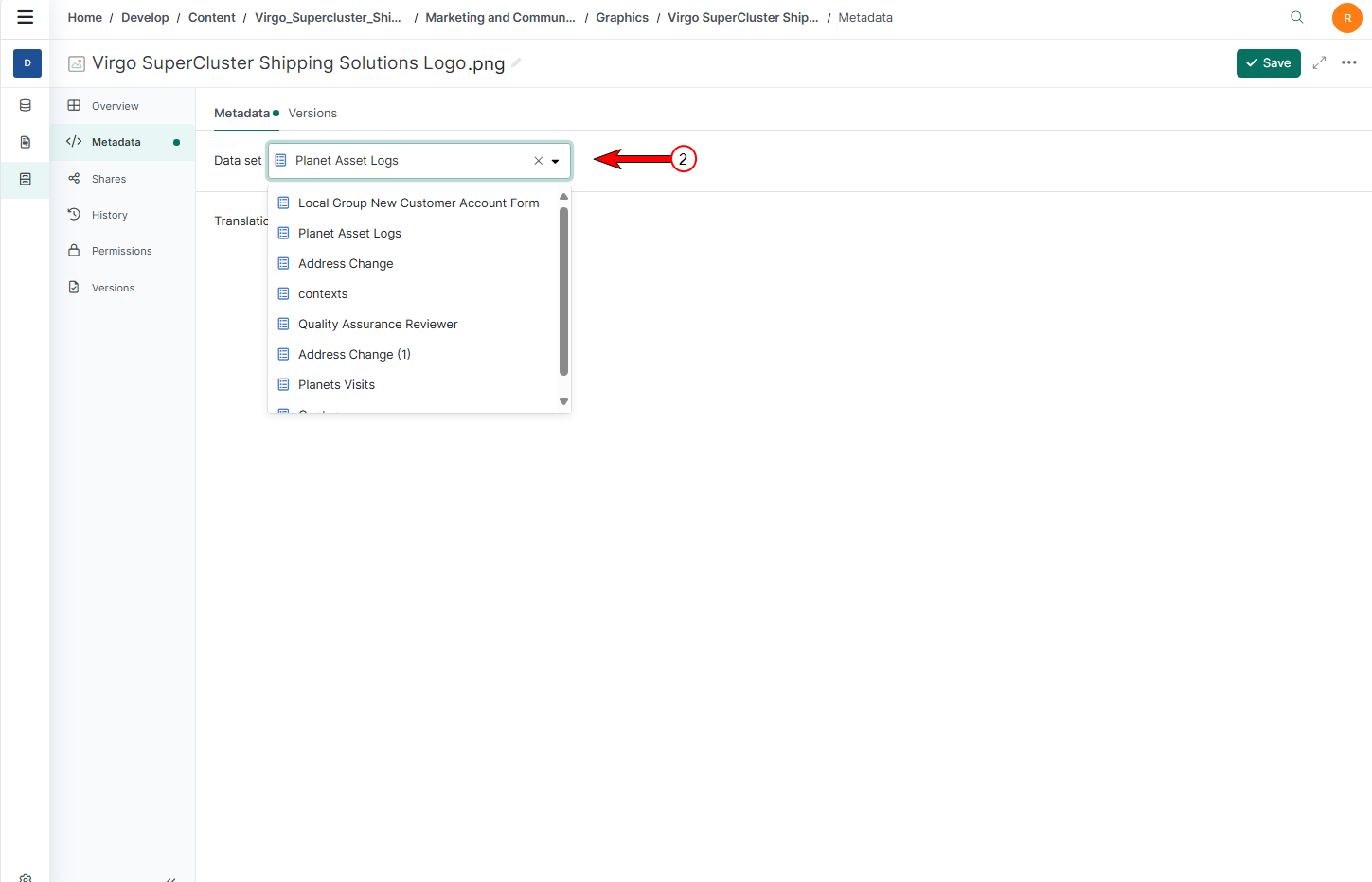
The Data Set Form displays.
| 3. | Fill out the form fields fields with the relevant metadata. |
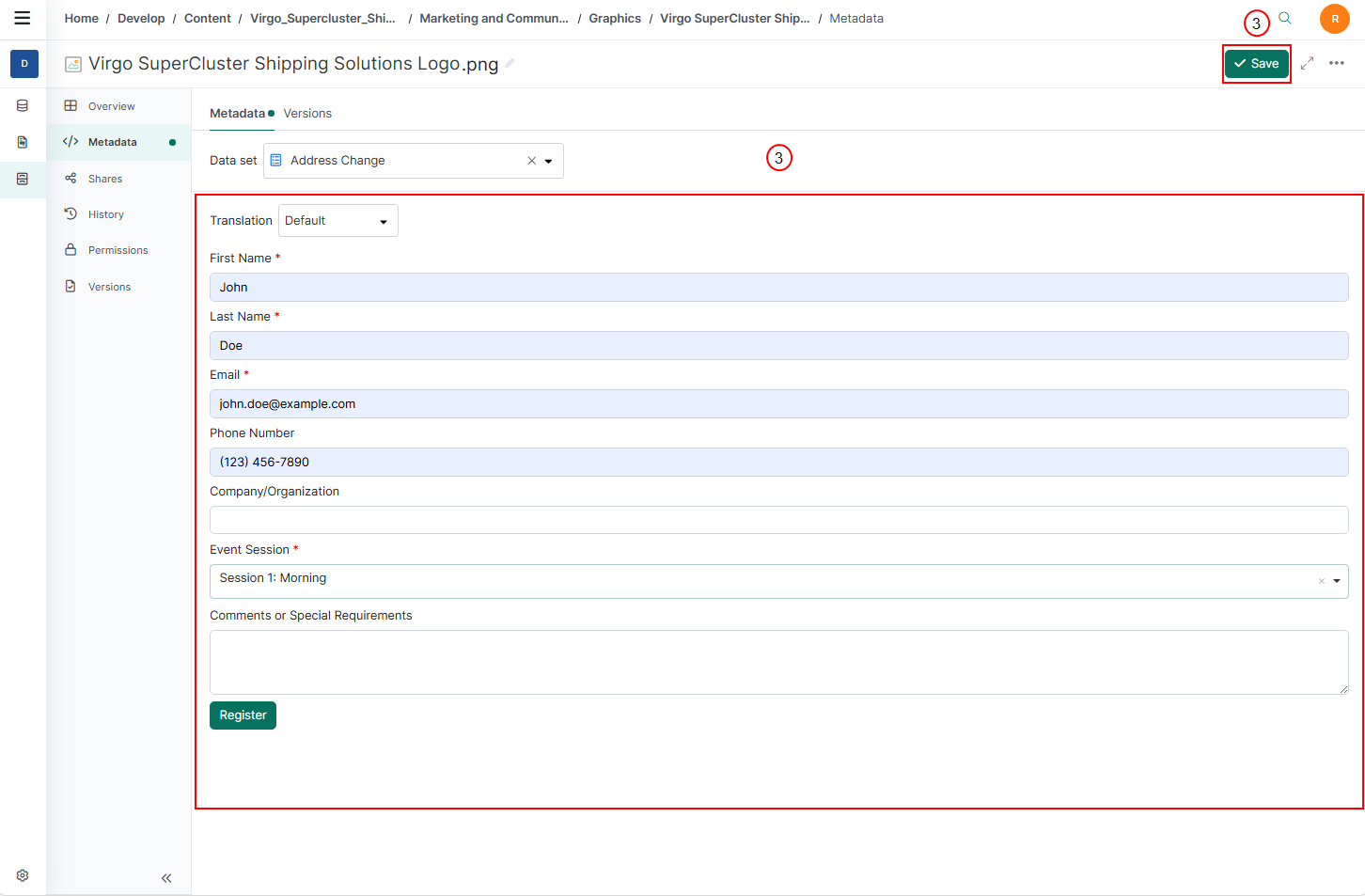
| 4. | Select Save to link the metadata form to the content item. |
The metadata file is saved.
Creating Metadata Through Code Editor
| 1. | Select Use the Editor to open the code editor. |
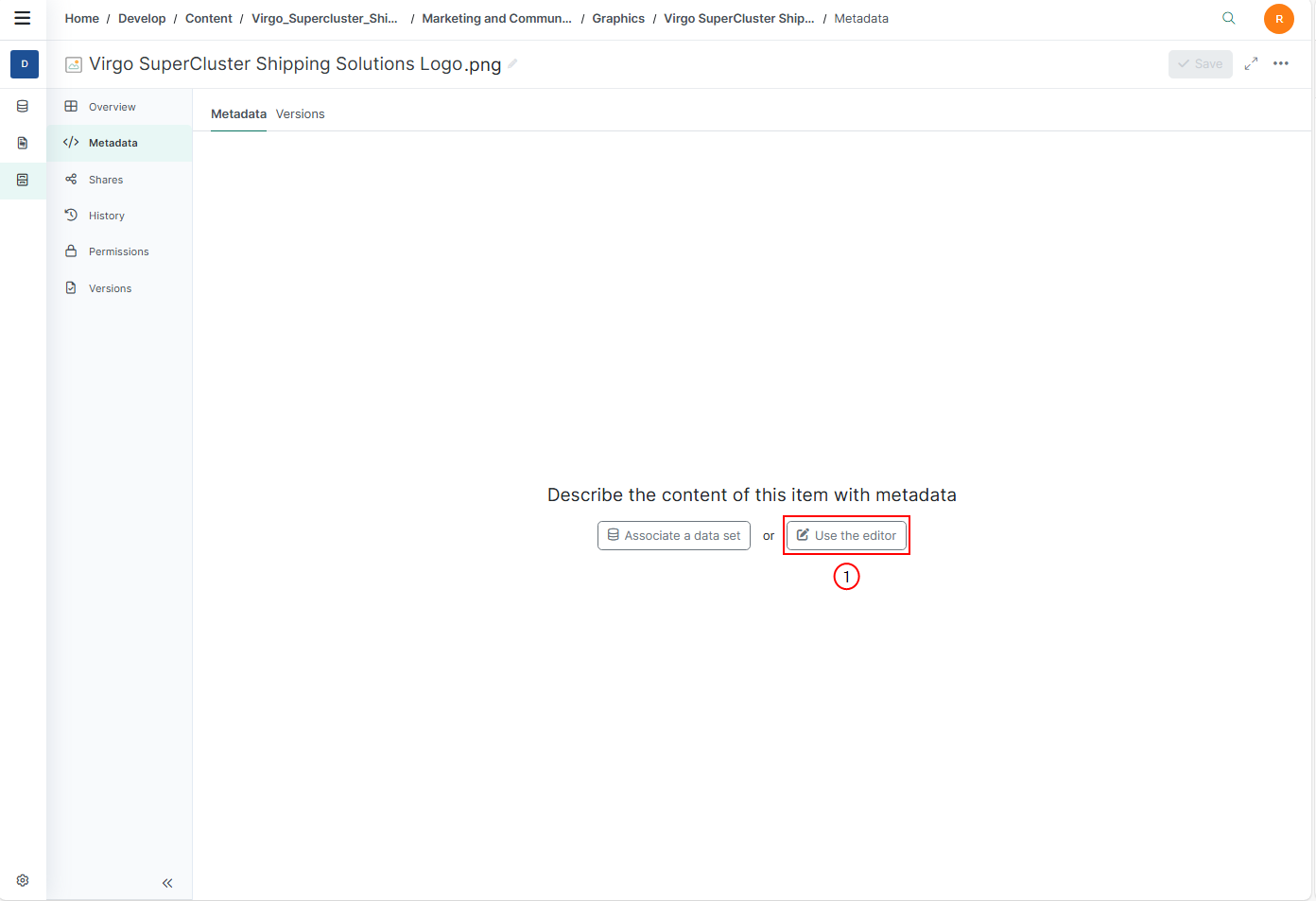
| 2. | Enter metadata in the code editor. This editor supports various formats such as JSON, XML, or plain text. |
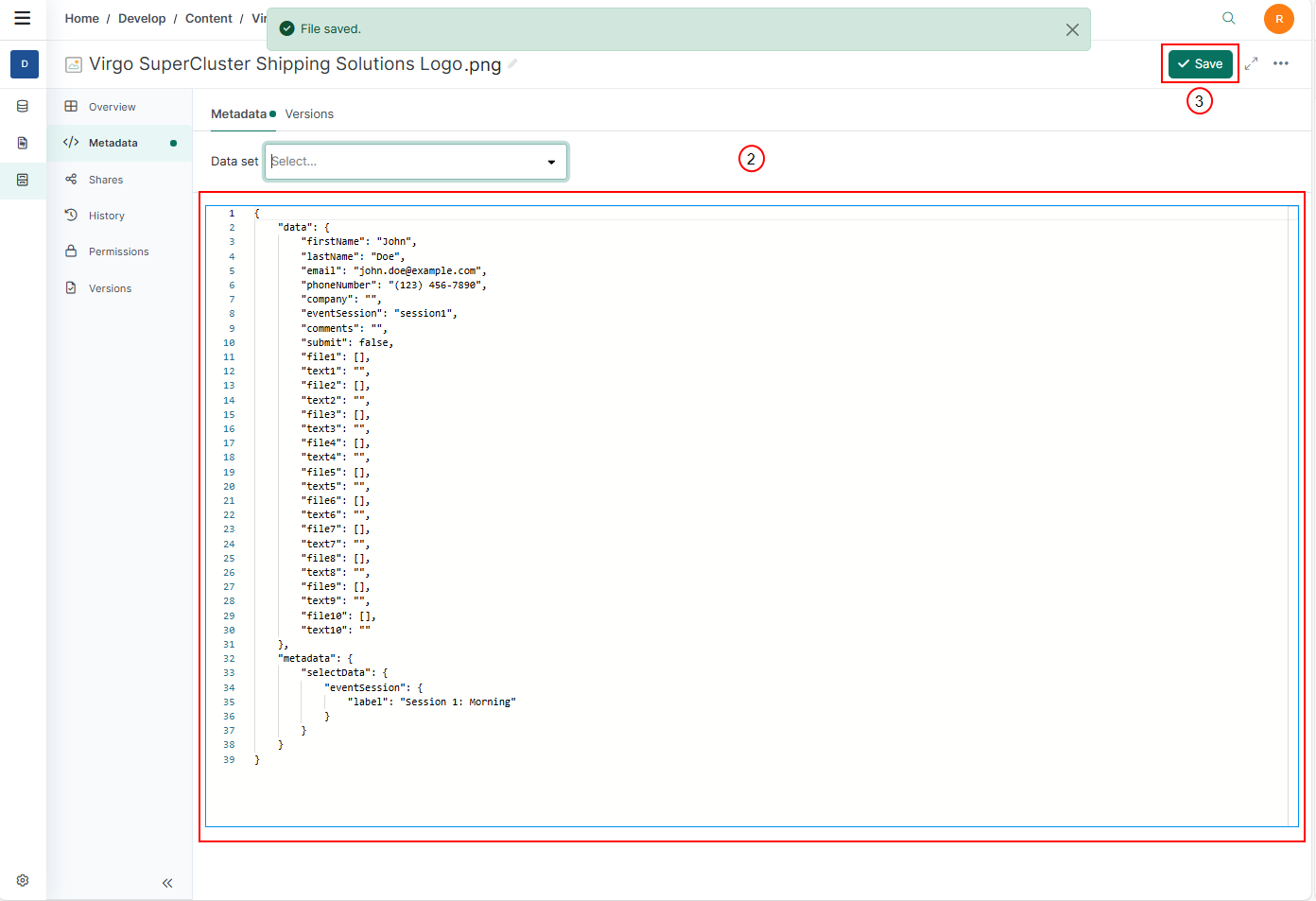
| 3. | Select Save to create the metadata for the content item. |
Linking and Unlinking Metadata
In Content Manager, users can manage metadata by linking or unlinking form data sets to content items. This process is facilitated through the Metadata tab, where a dropdown menu allows users to select and associate another form dataset with the active item, serving as the metadata form.
| Action | Definition |
|---|---|
| Linking Metadata | Associating a form dataset with a content item via the dropdown menu in the Metadata tab updates the UI to display the form fields, allowing users to fill in metadata in a structured manner. Validation is required to save the metadata, ensuring data integrity. |
| Unlinking Metadata | The process removes the association between a form dataset and a content item. When a form is unlinked, the metadata values persist as a standalone JSON file. This file is no longer associated with any form but remains linked to the content item. The Metadata tab will display the persisted metadata in the code editor without any form context. |
Unlinking a Data Set
| 1. | In the Metadata tab, deselect a form data set from the Link Form Data set dropdown menu. |
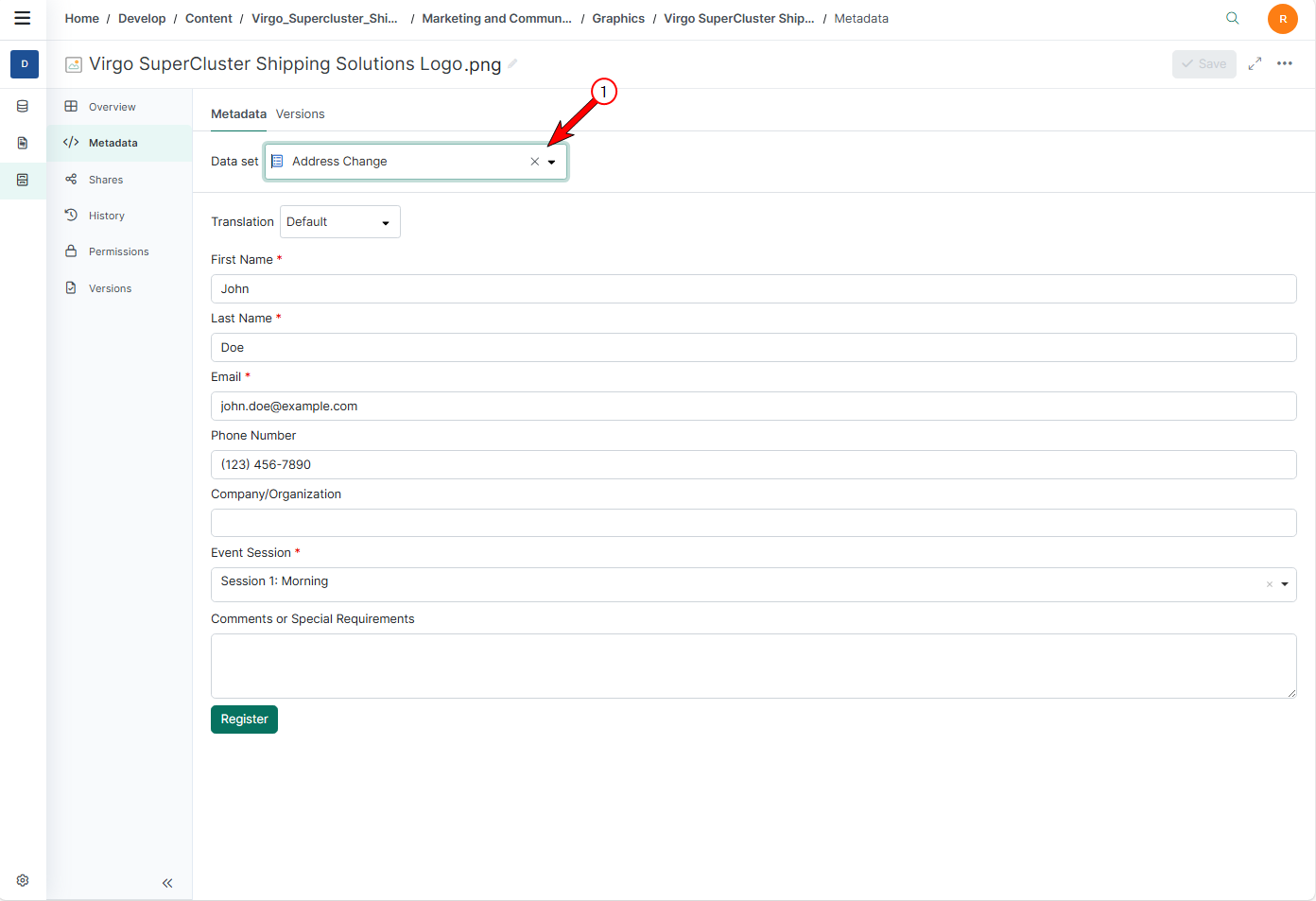
This action will remove the association between the form data set and the content item.
| 2. | Select Save. |
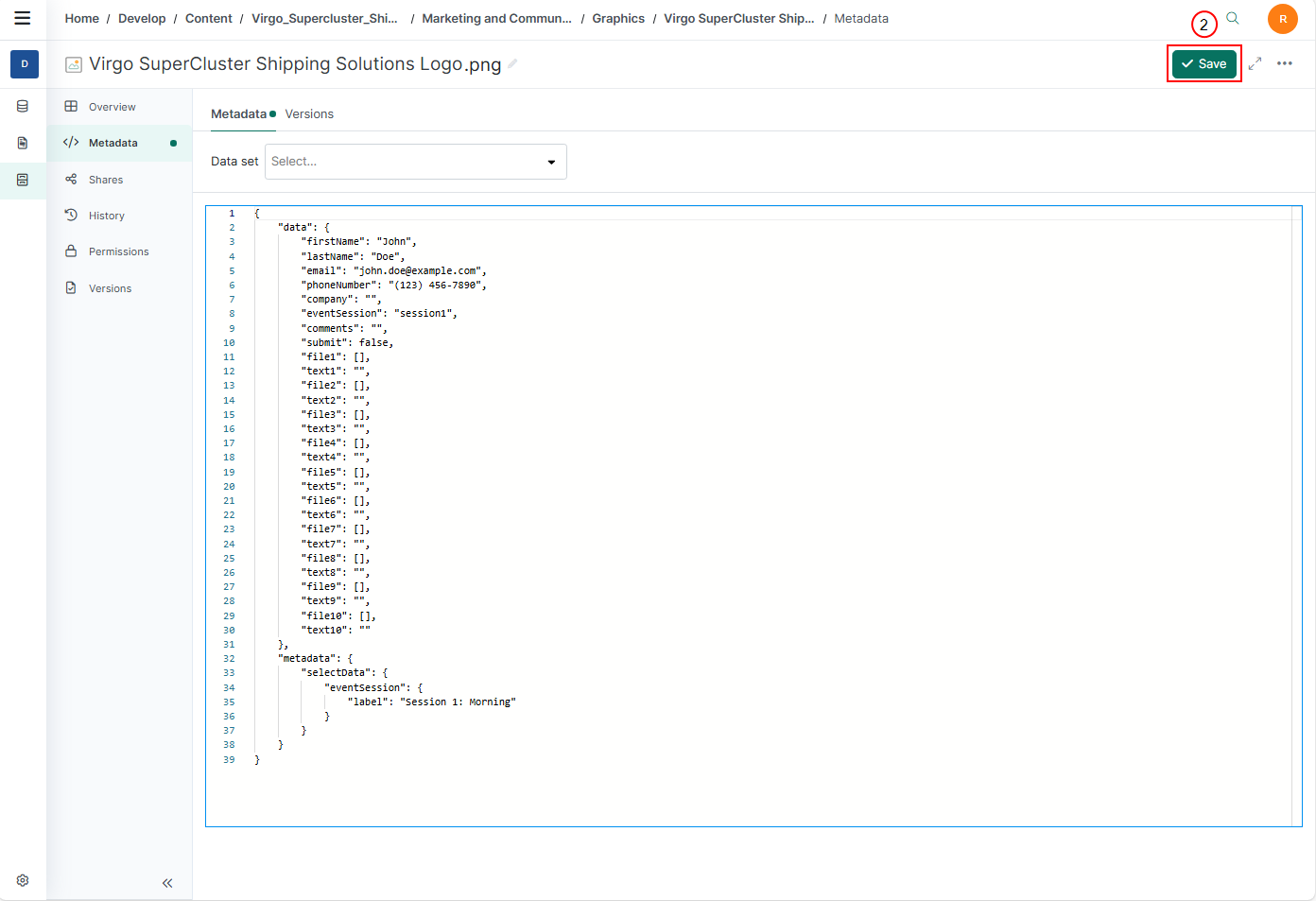
When a metadata form is unlinked, the Metadata tab displays the persisted metadata in the code editor without any form context. The metadata values remain linked to the content item as a standalone JSON file. This ensures that the metadata is preserved even though it is no longer associated with the form.
Unlinking and Linking a New Form Data Set
When replacing a metadata form with another form, the system compares the existing metadata against the new form fields. If the fields match, the data is displayed; if not, the system warns the user that some metadata may not be displayed. The user can confirm or cancel the action. Once confirmed, the data is not lost; it is just not displayed in the form. The JSON payload or code editor will contain all metadata, so visibly the metadata is not displayed in the Form user interface, but it is available in the code editor.
Consider a content item as an image linked to a metadata form containing text fields. When the user unlinks the form, the metadata is stored in the code editor as JSON, preserving the data. If the user then links a new form with different fields (e.g., a text box instead of an image field), the system compares the existing metadata against the new form fields. If the fields match, the data is displayed; if not, the system warns the user that some metadata may not be displayed. The user can confirm or cancel the action. Once confirmed, visibly the image is not displayed in the form but is available in the code editor.